

 When using Integrated Windows Authentication (IWA) to authenticate SharpHound Enterprise with your BloodHound Enterprise tenant, you must configure your Active Directory Federation Services (ADFS) server to support this authentication method.
Purpose
This guide explains the BloodHound-specific ADFS configuration steps. For general ADFS setup and administration, refer to Microsoft’s ADFS documentation.Prerequisites
- An ADFS server deployed and operational in your network
- Administrative access to your ADFS server
- The Client ID generated after creating a SharpHound Enterprise collector client
- The optional Custom Client Identifier entered when creating the client (if you use a custom identifier)
Process
The ADFS configuration process involves creating a server application for SharpHound Enterprise, configuring authentication, and ensuring that the identifier BloodHound Enterprise uses for client lookup is included in the issued token. By default, BloodHound uses the token’ssub claim and the generated Client ID. If you configure a Custom Client Identifier, the token must contain that value instead. If your deployment uses a custom claim key, BloodHound Enterprise uses that claim instead of sub.
1
Create a Server Application (Web API)
In ADFS Management, create a server application using the Web API template.
- Open ADFS Management on your ADFS server.
- Right-click Application Groups.
- Select Add Application Group… to launch the Add Application Group Wizard.
- Enter a name for the application group (e.g., “sharphound-bloodhound”).
-
Under Template > Client Server applications, select Server application accessing a Web API.

- Click Next.
2
Server Application
-
On the Server Application page enter the Client ID provided after creating the SharpHound Enterprise collector client.
A Redirect URI is not necessary for SharpHound’s authentication flow, but is required for application creation. You can enter any valid URI (e.g.,
http://localhost) and it will not impact SharpHound’s ability to authenticate.
- Click Next.
3
Configure Application Credentials
- On the Configure Application Credentials page, click the Integrated Windows Authentication checkbox.
-
Click Select… and enter the service account user that SharpHound Enterprise will use to authenticate with ADFS.

- Click OK.
- Click Next.
4
Configure Web API
-
On the Configure Web API page, enter a descriptive name for the Web API (e.g.,
bloodhound-api). -
In the Identifier field, enter your BloodHound Enterprise tenant URL (e.g.,
https://your-tenant/bloodhoundenterprise.io). - Click Add.
-
Click OK to add the Web API.

- Click Next.
5
Apply Access Control Policy
On the Apply Access Control Policy page, select the appropriate access control policy for your environment and click Next.
6
Configure Application Permissions
-
On the Configure Application Permissions page, review the permitted scopes assigned to the application.
At minimum, you must select openid to ensure that the necessary claims are included in the token for BloodHound authentication. No additional permissions are required for SharpHound Enterprise.

- Click Next.
7
Summary
Review the application group configuration and click Next to create the application group and associated server application.
8
Configure Issuance Transform Rule
The issuance transform rule is critical for token validation in BloodHound Enterprise. The rule must include the client lookup identifier in the issued token.
-
On the Application Groups page, open the application group you created for SharpHound Enterprise (e.g.,
sharphound-bloodhound). -
Open the Web API you created for BloodHound Enterprise (e.g.,
bloodhound). - Click the Issuance Transform Rules tab and click Add Rule….
-
On the Choose Rule Type page, select the Send Claims Using a Custom Rule template from the dropdown menu and click Next.

-
On the Configure Claim Rule page, enter a name for the rule (e.g.,
Issue Sub). -
For the default configuration, add the following custom rule to ensure the Client ID is included as the
subclaim in the token:The exact claim transformation rules required may vary based on your ADFS version and configuration. For the default configuration, the token issued by ADFS must include the Client ID as the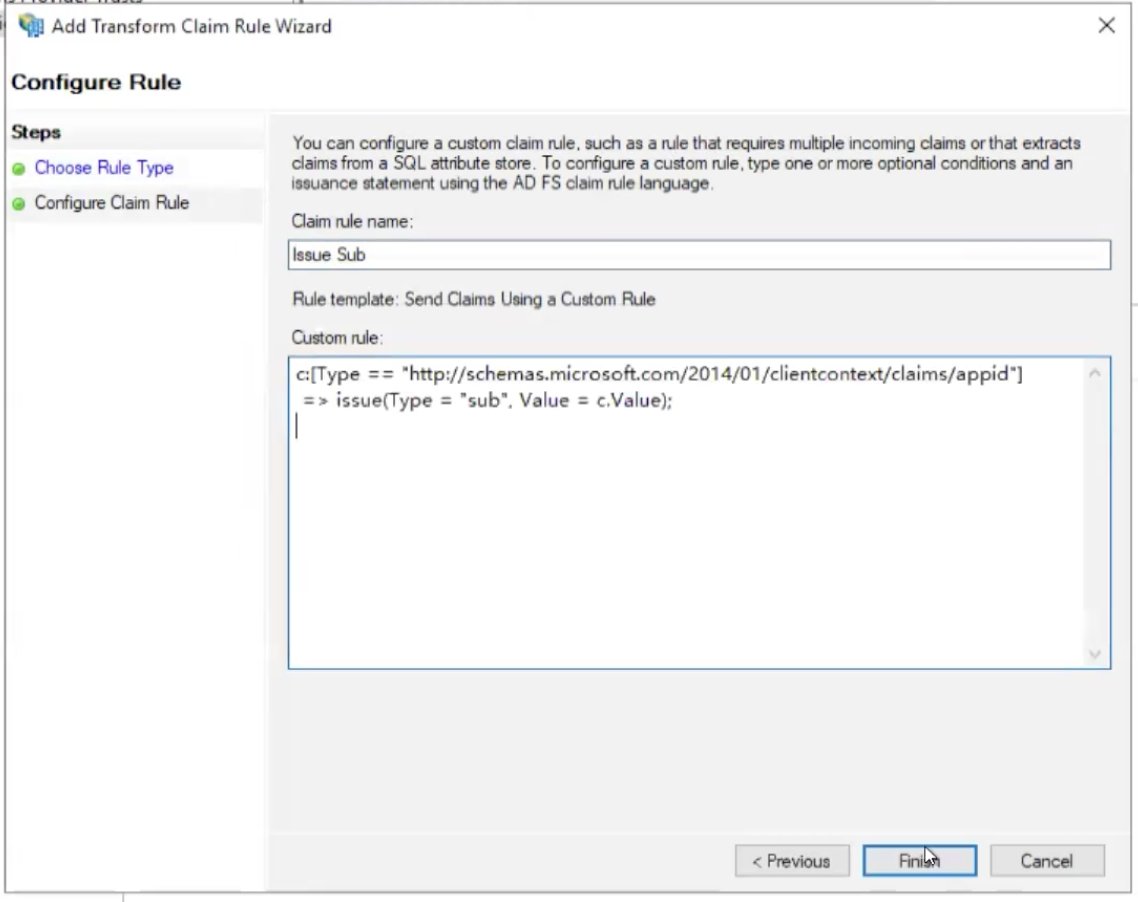
subclaim. If you use a Custom Client Identifier, issue that value in the claim BloodHound Enterprise uses for client lookup. The value must be a non-empty string and must match the client configuration exactly.For instructions on creating and modifying ADFS claim rules, refer to Microsoft’s Active Directory Federation Services documentation. The claim rule depends on your ADFS version and the claim that contains the identifier in your environment. - Click Finish.
- Click Apply.
Next Steps
After ADFS is configured:- Configure the SharpHound Enterprise collector application with the required IWA properties in the
settings.jsonfile. - Run an on-demand scan to test the configuration.
Troubleshooting
If SharpHound does not authenticate successfully with ADFS, use the following accordion to troubleshoot common issues:Check the ADFS event log
Check the ADFS event log
Review the ADFS event log for authentication failures or token issuance errors. The event log often contains detailed information about why authentication or token issuance failed, including specific error codes and messages.
Verify network connectivity
Verify network connectivity
Ensure that the SharpHound service account can reach the ADFS server. From the server running SharpHound, verify connectivity to the ADFS server over HTTPS on port 443. You can test this using tools like
Test-NetConnection (PowerShell) or curl to confirm the well-known endpoint is accessible.Confirm Windows authentication rights
Confirm Windows authentication rights
Verify that the service account running SharpHound has Windows authentication rights on the ADFS-protected Web API. Check the ADFS application configuration and ensure Windows authentication is enabled for the Web API.
Check SharpHound logs
Check SharpHound logs
Review the SharpHound logs for detailed error messages during authentication attempts. Logs are typically located in
%APPDATA%\BloodHoundEnterprise. Look for errors related to token acquisition, ADFS connectivity, or authentication failures.Verify the client identifier claim
Verify the client identifier claim
Confirm that the token contains the expected client identifier. By default, the
sub claim must contain the generated Client ID or configured Custom Client Identifier. If your deployment uses a custom claim key, confirm that the configured claim exists, contains a non-empty string, and matches the client configuration exactly.