


Purpose
This article explains how to configure a data collector client to run on a schedule. Administrators should use it when deploying a new client or adding an additional schedule to an existing client.Azure and Active Directory objects typically change slowly, so daily collection is usually sufficient. To capture activity across different times of day, schedule Local Groups and Sessions more frequently (for example, every 7 hours).
Prerequisites
The following prerequisites are required to create a data collection schedule:- An existing SharpHound Enterprise or AzureHound Enterprise collector client
- Logged in as a user assigned a role authorized to modify clients
Process
The process to create a data collection schedule consists of the following steps:1
Open the Manage Clients page
In the left menu, click Administration > Manage Clients.
2
Edit a collector client
On the client that you want to schedule, click the hamburger menu in the Actions column and select Edit Client.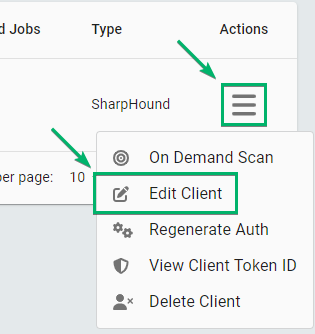
3
Create a data collection schedule
-
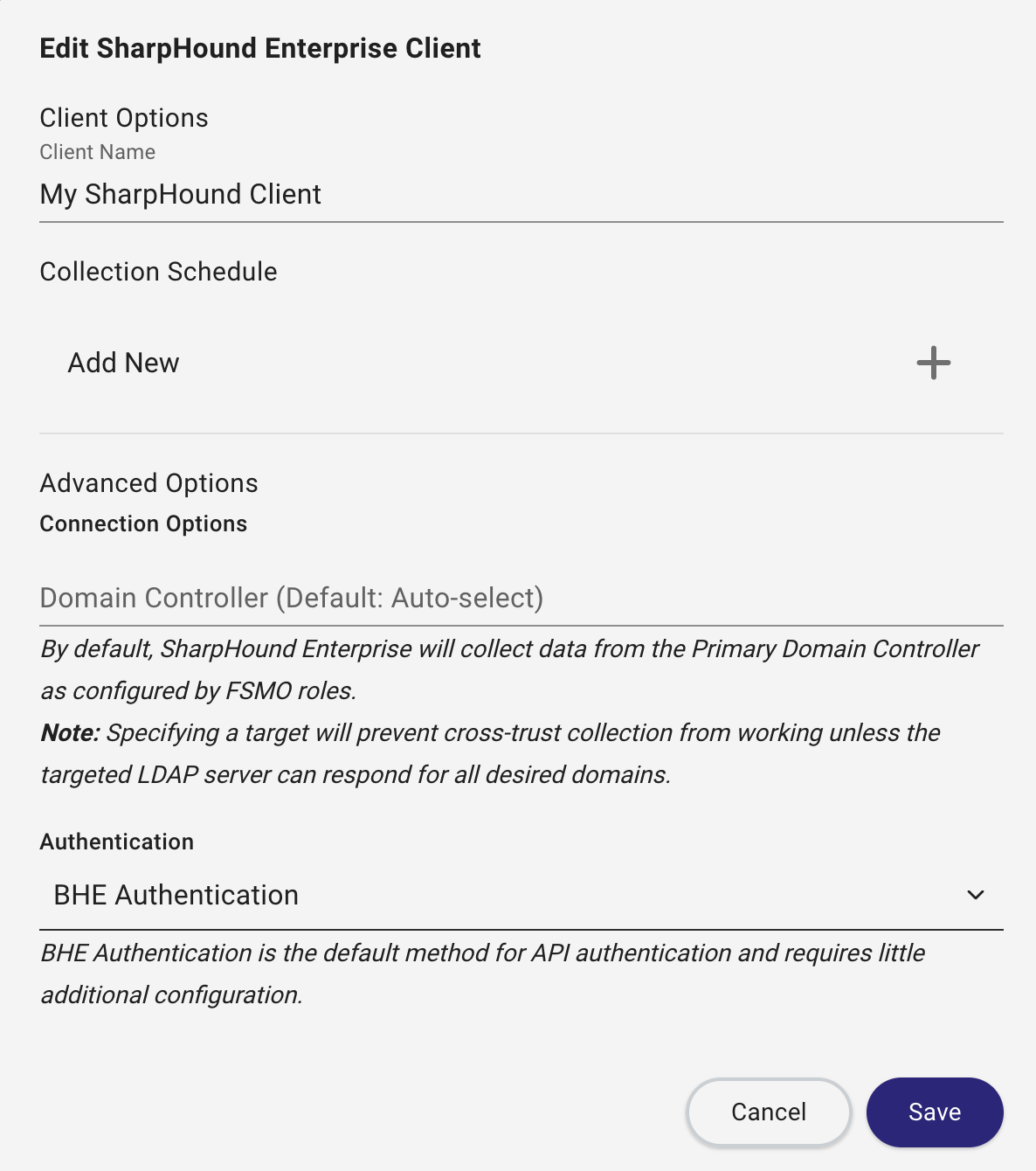
Click under Collection Schedule to add a new schedule.
-
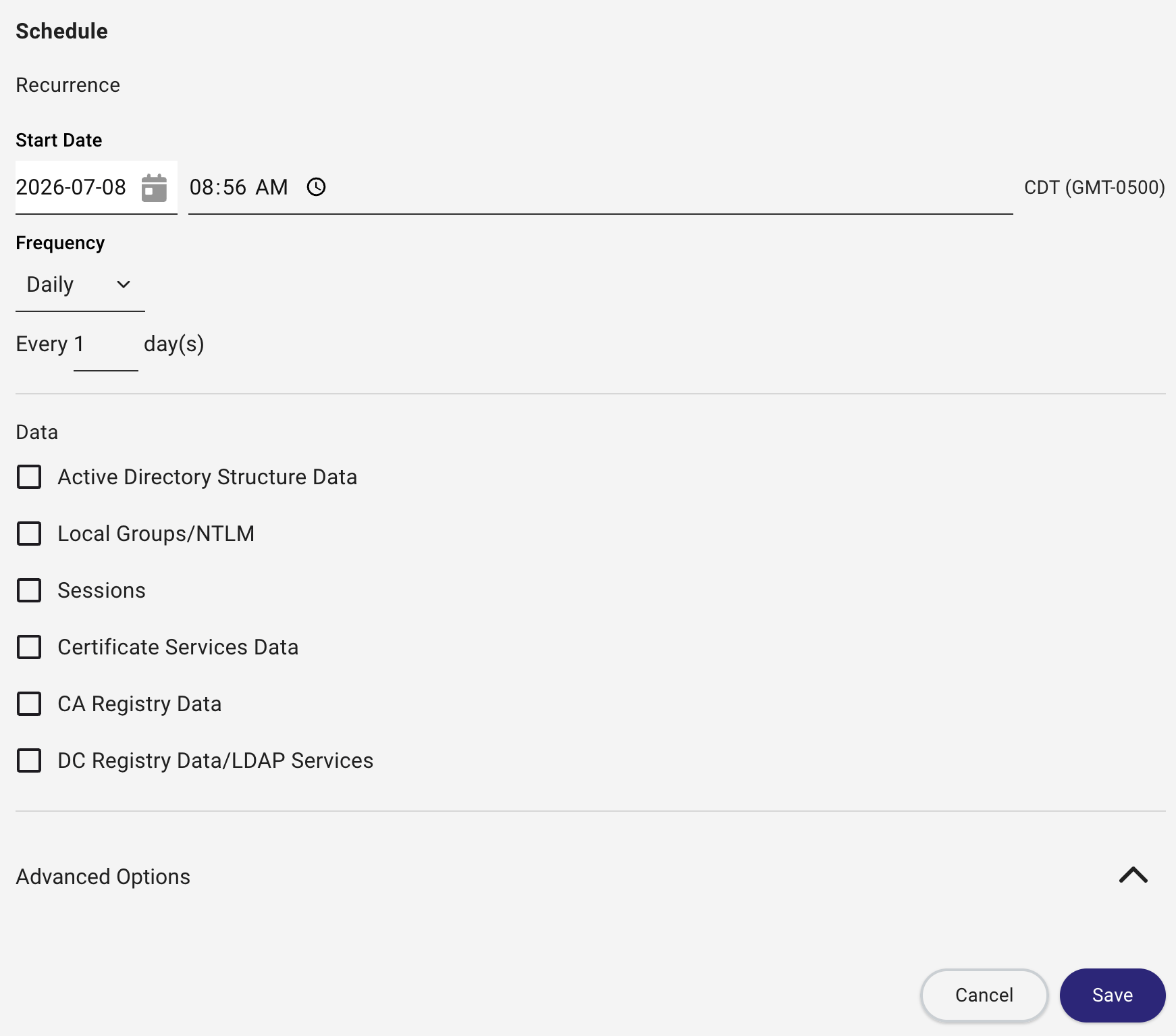
Configure the following details in the Schedule window:
- Start Date: The time at which the first collection should run
- Frequency: The frequency at which the collection should run
- Data: The type of data that the schedule collects, see:
-
Advanced Options:
If you need SharpHound Enterprise to collect outside the SharpHound service account domain, expand Advanced Options and configure Scope Collection to Multiple Domains.To collect from every domain that trusts the SharpHound service account domain, enable Collect from all domains trusting the SharpHound service account domain, including transitively.
- Click Save in the Schedule window.
- Click Save in the Edit SharpHound Client window.
Outcome
The client is now configured for continuous data collection with one schedule. You can add multiple schedules to a single client for more granular control. A summary of a client’s schedule displays in the Collection Schedule column on the Clients page.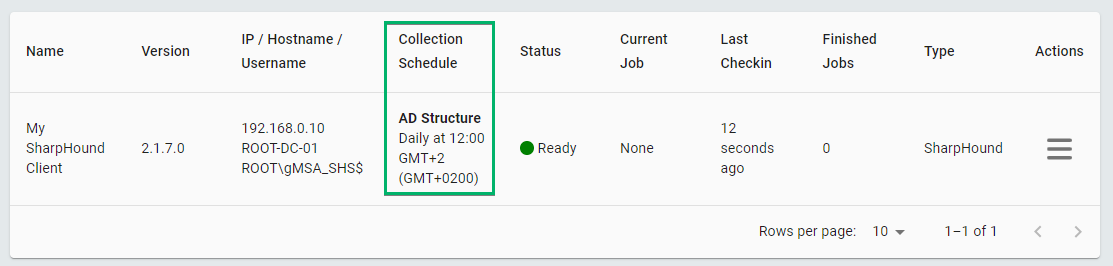
After the next schedule, see the job’s status on the Finished Jobs Log page.