Toggle the visibility of labels on nodes and edges to reduce clutter and focus on the structure of the graph. Hide labels before sharing graph images that may contain sensitive information.
Choose from the following layout options to organize the graph visually:
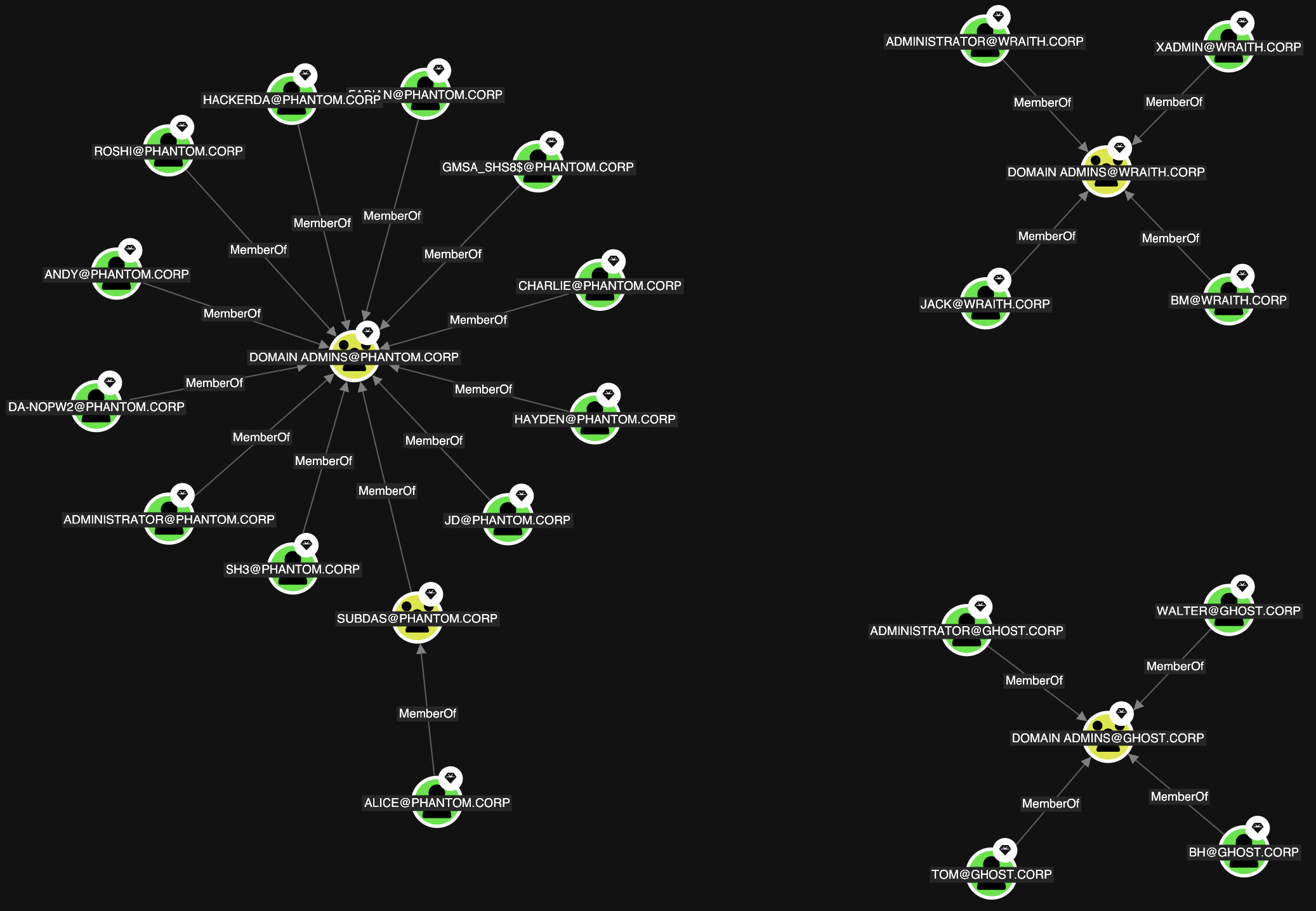
Organic
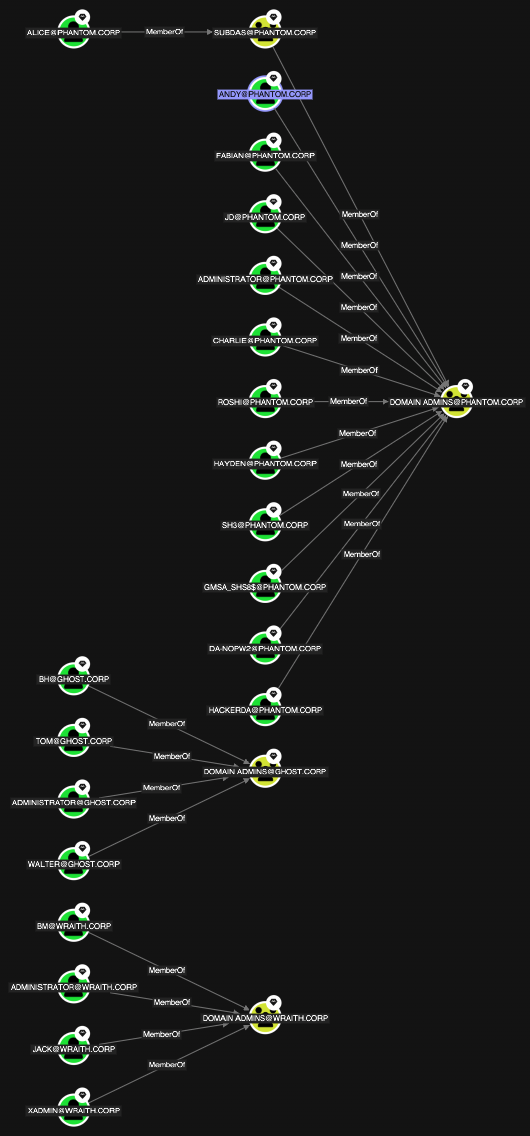
Stacked
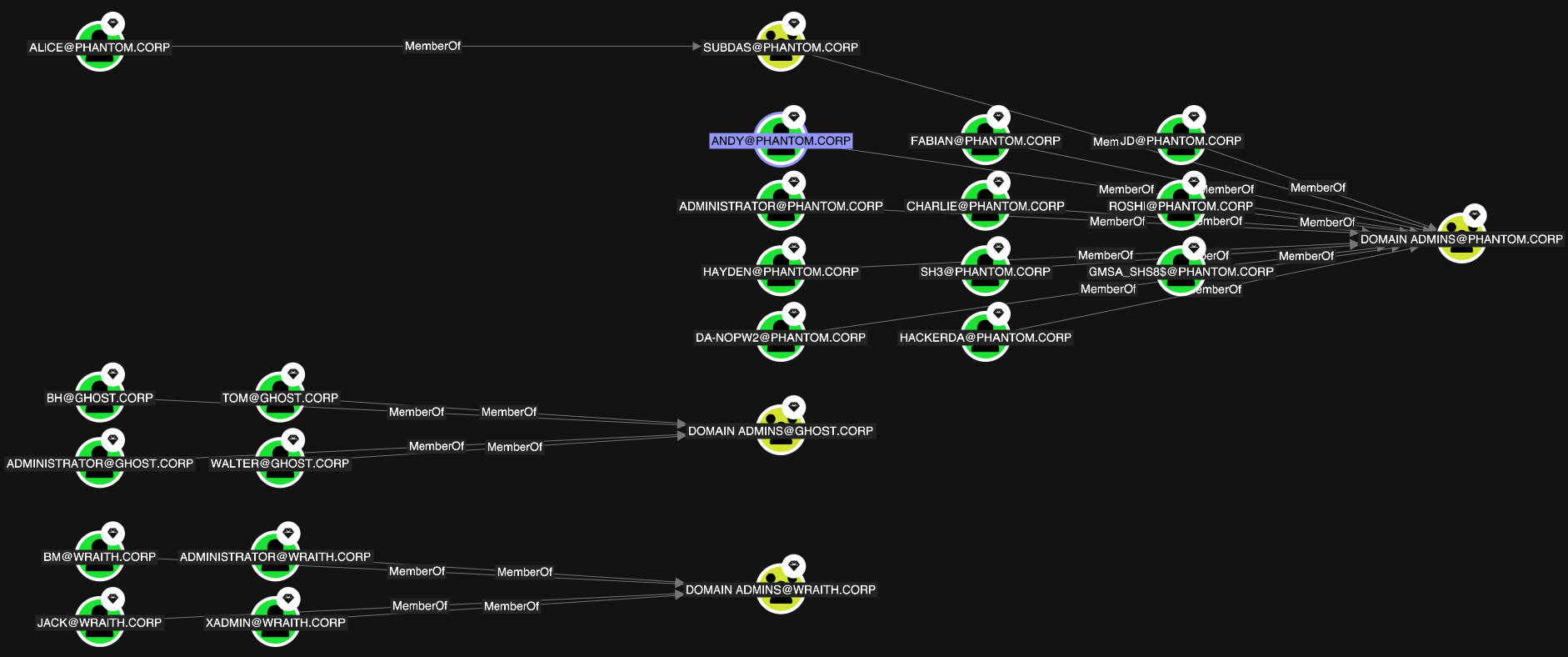
Sequential
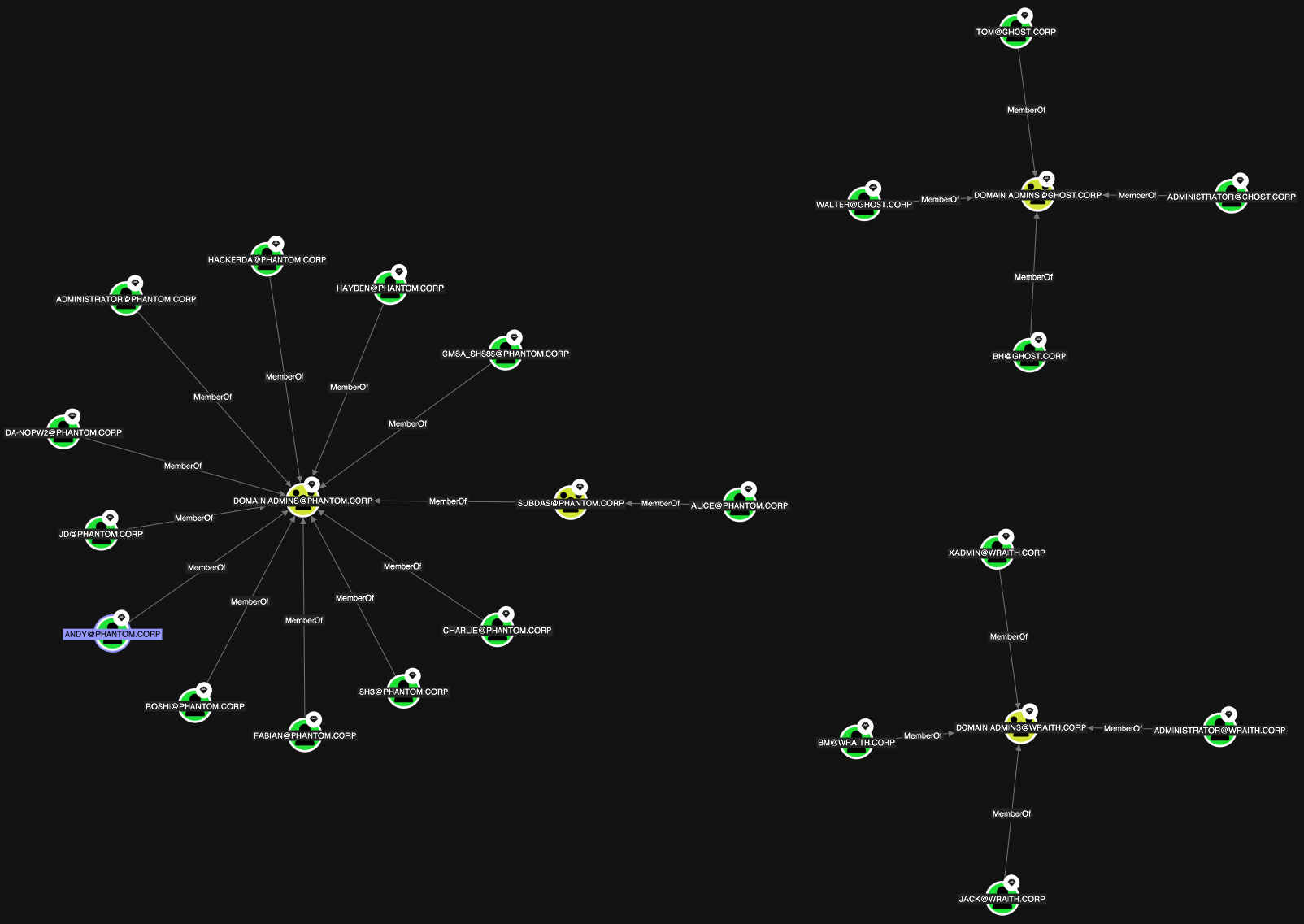
Standard
Table
Uses a force-directed layout algorithm to position objects based on their relationships, creating a natural and intuitive view of the graph.
The default layout for BloodHound Enterprise.Combines hierarchical layering with grid arrangement, organizing objects left to right in ranked layers while arranging multiple nodes within each layer in a structured grid pattern.
The default layout for BloodHound Community.Uses a hierarchical layout algorithm that organizes objects from left to right in ranked layers based on their relationships, ideal for visualizing directional paths and dependencies.
Uses a balanced force-directed algorithm that pulls connected nodes together while maintaining spacing between unconnected nodes, creating an evenly distributed layout.
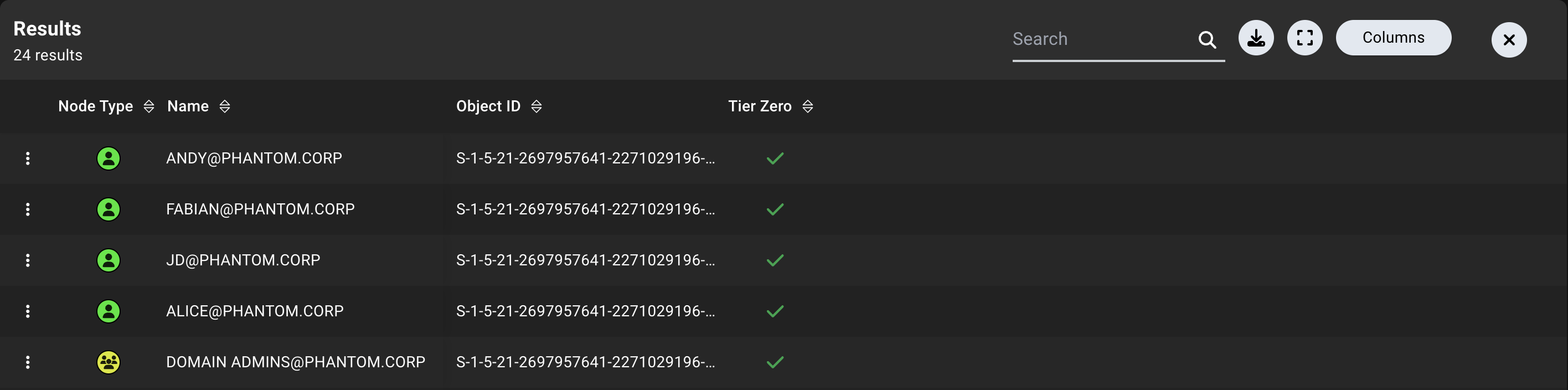
Displays objects in a tabular format, showing properties in rows and columns for easy comparison.The Table layout is available for Cypher searches only and is useful for filtering, sorting, and comparing large sets of nodes. When no layout is selected, BloodHound automatically opens this layout for Cypher results that return multiple nodes and no edges.
The table includes the following columns by default:
Column
Description
Node Type
The type of the object (node label)
Name
The name of the object
Object ID
The unique identifier of the object
Tier Zero
Indicates if the object is part of the Tier Zero privilege zone
Click the (ellipsis) icon in each row to access the context menu for that object.
Resize columns to view more or less information as needed by clicking and dragging the edges of the column dividers (or double-clicking the column dividers to auto-size).
The table layout provides the following options:
Search—Filter table rows by node name or object ID
Export—Select All Columns or Selected Columns to download the nodes as a CSV file for further analysis or sharing
Expand—Maximize the graph view to fill the screen for better visibility
Columns—Search, add/remove, sort, reorder, reset column size, reset defaults, and pin columns in the table layout
Change the direction in which the graph flows by selecting Down, Left, Right, or Up. The default direction is Right.This control is available only for the Stacked and Sequential layouts in BloodHound Enterprise.
Use the slider to adjust the horizontal distance between nodes. The slider ranges from 0 (Compact) to 10 (Spacious), with a default value of 5.This control is available only for the Stacked and Sequential layouts in BloodHound Enterprise.
Use the slider to adjust the vertical distance between nodes. The slider ranges from 0 (Compact) to 10 (Spacious), with a default value of 5.This control is available only for the Stacked and Sequential layouts in BloodHound Enterprise.
Open the menu and select JSON to download the current graph data as a JSON file. This control is available for all search methods and layouts when graph data is available.
Search the current graph results by node name or object ID. Enter a search term, then select a result to focus the graph on that node. This control searches the current results; it does not run a new search from the Search, Pathfinding, or Cypher tabs.When the Table layout is open, use the table’s Search field to filter its rows instead.
{"docsConfig":{"theme":"mint","$schema":"https://mintlify.com/docs.json","name":"SpecterOps","colors":{"primary":"#2c2677","light":"#5465ff","dark":"#2c2677"},"logo":{"light":"https://mintcdn.com/specterops/LJiUiXm48pjJ2upb/logo/SO-Logo_PurpleGreen.svg?fit=max\u0026auto=format\u0026n=LJiUiXm48pjJ2upb\u0026q=85\u0026s=5b81788940653ac0a8839cff020700c5","dark":"https://mintcdn.com/specterops/LJiUiXm48pjJ2upb/logo/SO-Logo_WhiteGreen.svg?fit=max\u0026auto=format\u0026n=LJiUiXm48pjJ2upb\u0026q=85\u0026s=8eff344335587f366aaf2163c175478f","href":"https://specterops.io/"},"favicon":"https://mintcdn.com/specterops/t-Kb-qOfqpgsWjX4/favicon.png?fit=max\u0026auto=format\u0026n=t-Kb-qOfqpgsWjX4\u0026q=85\u0026s=e1cab071adfc13115fa3bd3a0310ac15","api":{"playground":{"display":"simple"}},"appearance":{"default":"dark"},"background":{"decoration":"gradient"},"navbar":{"links":[{"href":"https://support.bloodhoundenterprise.io/hc/en-us/requests/new","label":"Support"}],"primary":{"type":"button","label":"Contact Us","href":"https://specterops.io/contact/"}},"footer":{"socials":{"x":"https://twitter.com/specterops","website":"https://infosec.exchange/@SpecterOps","github":"https://github.com/SpecterOps/BloodHound","linkedin":"https://www.linkedin.com/company/specterops","slack":"https://slack.specterops.io/","instagram":"https://www.instagram.com/specterops.io","youtube":"https://www.youtube.com/channel/UCWMKKqCCQkUjU8dIyiL1yhQ"}},"fonts":{"heading":{"family":"Nunito Sans","weight":900,"source":"https://fonts.gstatic.com/s/nunitosans/v15/pe0TMImSLYBIv1o4X1M8ce2xCx3yop4tQpF_MeTm0lfGWVpNn64CL7U8upHZIbMV51Q42ptCp7t1R-s.woff2","format":"woff2"}},"integrations":{"ga4":{"measurementId":"G-V9WNXTYFYH"},"gtm":{"tagId":"GTM-KWNR5WDL"},"plausible":{"domain":"bloodhound.specterops.io"}},"styling":{"latex":true},"navigation":{"global":{"anchors":[{"anchor":"Webinars","icon":"play","href":"https://specterops.io/events/?_sft_event_type=webinar\u0026_gl=1*1xuv31d*_up*MQ..*_ga*NTYxMzY4OTkxLjE3MzMzMDkyNTk.*_ga_53SGLN9EBJ*MTczMzMwOTI1Ny4xLjAuMTczMzMwOTI1Ny4wLjAuMA.."},{"anchor":"Community","icon":"slack","href":"https://slack.specterops.io/"},{"anchor":"Query Library","icon":"code","href":"https://queries.specterops.io/"},{"anchor":"OpenGraph Library","icon":"diagram-project","href":"https://bloodhound.specterops.io/opengraph/library"},{"anchor":"Blog","icon":"newspaper","href":"https://specterops.io/blog/?_gl=1*1qw21rw*_up*MQ..*_ga*NTYxMzY4OTkxLjE3MzMzMDkyNTk.*_ga_53SGLN9EBJ*MTczMzMwOTI1Ny4xLjAuMTczMzMwOTI1Ny4wLjAuMA.."},{"anchor":"Release Notes","icon":"notes","href":"https://bloodhound.specterops.io/resources/release-notes/summary"}]},"pages":[]}},"deployment":{"deploymentMetadataValue":{"subdomain":"specterops","hasAudioNarration":false,"actualSubdomain":"specterops","customDomains":["bloodhound.specterops.io"],"gitSource":{"type":"github","owner":"specterops","repo":"bloodhound-docs","deployBranch":"main","contentDirectory":"docs","isPrivate":false,"mountPath":"","label":""},"chroma":{"liveDeploymentHistoryId":"6ad90a675eb5c1767682a568","collectionId":"e4dd3f59-0cb6-4cd1-985f-a2d0142c2e6f","schemaVersion":"v3","latestBuiltDeploymentHistoryId":"6ad90a675eb5c1767682a568"},"feedback":{"edits":true,"issues":true},"entitlements":{"AI_CHAT":{"status":"DISABLED"},"REMOVE_BRANDING":{"status":"ENABLED"}},"buildId":"6adfcbf3c0cb2e97a06dac3a","clientVersion":"0.0.3971","searchFilterCounts":[{"language":"default","tag":"BloodHound","count":745},{"language":"default","tag":"Edges","count":375},{"language":"default","tag":"OpenGraph","count":346},{"language":"default","tag":"BloodHound Enterprise Extensions","count":330},{"language":"default","tag":"API Reference","count":311},{"language":"default","tag":"Resources","count":257},{"language":"default","tag":"GitHub","count":202},{"language":"default","tag":"Nodes","count":118},{"language":"default","tag":"Okta","count":74},{"language":"default","tag":"Release Notes","count":73}],"searchSettings":{"maxResults":25}},"assistantConfig":{},"basePath":"","hasChatPermissions":false,"hasWebMcpPermissions":false,"toggles":[{"name":"kill-isr","enabled":true,"variant":{"name":"disabled","enabled":false,"feature_enabled":true},"impressionData":false},{"name":"agent-mintlify-slack","enabled":true,"variant":{"name":"disabled","enabled":false,"feature_enabled":true},"impressionData":false},{"name":"editor-v7-file-tree","enabled":true,"variant":{"name":"disabled","enabled":false,"feature_enabled":true},"impressionData":false},{"name":"agent-integrations-settings","enabled":true,"variant":{"name":"disabled","enabled":false,"feature_enabled":true},"impressionData":false},{"name":"automations-pr-grouping","enabled":true,"variant":{"name":"disabled","enabled":false,"feature_enabled":true},"impressionData":false},{"name":"custom-prefix","enabled":true,"variant":{"name":"disabled","enabled":false,"feature_enabled":true},"impressionData":false},{"name":"analytics-v7","enabled":true,"variant":{"name":"disabled","enabled":false,"feature_enabled":true},"impressionData":false},{"name":"user-flows-analytics","enabled":true,"variant":{"name":"disabled","enabled":false,"feature_enabled":true},"impressionData":false},{"name":"no-publish-flow","enabled":true,"variant":{"name":"disabled","enabled":false,"feature_enabled":true},"impressionData":false},{"name":"workos-onboarding","enabled":true,"variant":{"name":"disabled","enabled":false,"feature_enabled":true},"impressionData":false},{"name":"llms-txt-v2","enabled":true,"variant":{"name":"disabled","enabled":false,"feature_enabled":true},"impressionData":false},{"name":"pause-universal-search-reconcile","enabled":true,"variant":{"name":"disabled","enabled":false,"feature_enabled":true},"impressionData":false},{"name":"snapshot-serving-live","enabled":true,"variant":{"name":"disabled","enabled":false,"feature_enabled":true},"impressionData":false},{"name":"stripTemperatureMiddleware","enabled":true,"variant":{"name":"disabled","enabled":false,"feature_enabled":true},"impressionData":false},{"name":"per-site-search-delta","enabled":true,"variant":{"name":"disabled","enabled":false,"feature_enabled":true},"impressionData":false},{"name":"support-platform-pylon-zendesk","enabled":true,"variant":{"name":"disabled","enabled":false,"feature_enabled":true},"impressionData":false},{"name":"snapshot-serving","enabled":true,"variant":{"name":"disabled","enabled":false,"feature_enabled":true},"impressionData":false},{"name":"instant-rollback","enabled":true,"variant":{"name":"disabled","enabled":false,"feature_enabled":true},"impressionData":false},{"name":"granular-notifications-server","enabled":true,"variant":{"name":"disabled","enabled":false,"feature_enabled":true},"impressionData":false},{"name":"granular-notifications","enabled":true,"variant":{"name":"disabled","enabled":false,"feature_enabled":true},"impressionData":false},{"name":"editor-private-page-search","enabled":true,"variant":{"name":"disabled","enabled":false,"feature_enabled":true},"impressionData":false},{"name":"automations-fable","enabled":true,"variant":{"name":"disabled","enabled":false,"feature_enabled":true},"impressionData":false},{"name":"fixed-ai-action-pricing","enabled":true,"variant":{"name":"disabled","enabled":false,"feature_enabled":true},"impressionData":false},{"name":"automation-resolve-merge-conflict","enabled":true,"variant":{"name":"disabled","enabled":false,"feature_enabled":true},"impressionData":false},{"name":"scoped-publishing","enabled":true,"variant":{"name":"disabled","enabled":false,"feature_enabled":true},"impressionData":false},{"name":"mintql","enabled":true,"variant":{"name":"disabled","enabled":false,"feature_enabled":true},"impressionData":false},{"name":"page-level-analytics","enabled":true,"variant":{"name":"disabled","enabled":false,"feature_enabled":true},"impressionData":false},{"name":"editor-version-history-v2","enabled":true,"variant":{"name":"disabled","enabled":false,"feature_enabled":true},"impressionData":false},{"name":"editor-nav-generations","enabled":true,"variant":{"name":"disabled","enabled":false,"feature_enabled":true},"impressionData":false},{"name":"billing-page-v2","enabled":true,"variant":{"name":"disabled","enabled":false,"feature_enabled":true},"impressionData":false},{"name":"workspace-projects","enabled":true,"variant":{"name":"disabled","enabled":false,"feature_enabled":true},"impressionData":false},{"name":"assistant-v5","enabled":true,"variant":{"name":"disabled","enabled":false,"feature_enabled":true},"impressionData":false},{"name":"byok-sep-25","enabled":true,"variant":{"name":"disabled","enabled":false,"feature_enabled":true},"impressionData":false},{"name":"fork-pr-previews","enabled":true,"variant":{"name":"disabled","enabled":false,"feature_enabled":true},"impressionData":false},{"name":"revalidation-jwt","enabled":true,"variant":{"name":"disabled","enabled":false,"feature_enabled":true},"impressionData":false},{"name":"vite-origin","enabled":true,"variant":{"name":"disabled","enabled":false,"feature_enabled":true},"impressionData":false},{"name":"editor-agent-model-picker","enabled":true,"variant":{"name":"disabled","enabled":false,"feature_enabled":true},"impressionData":false},{"name":"billing-updated-9-15","enabled":true,"variant":{"name":"disabled","enabled":false,"feature_enabled":true},"impressionData":false},{"name":"workos-sso-scim","enabled":true,"variant":{"name":"disabled","enabled":false,"feature_enabled":true},"impressionData":false},{"name":"hobby-abuse-scan","enabled":true,"variant":{"name":"disabled","enabled":false,"feature_enabled":true},"impressionData":false},{"name":"dashboard-inbox","enabled":true,"variant":{"name":"disabled","enabled":false,"feature_enabled":true},"impressionData":false},{"name":"workos-signup","enabled":true,"variant":{"name":"disabled","enabled":false,"feature_enabled":true},"impressionData":false},{"name":"workos-enabled","enabled":true,"variant":{"name":"disabled","enabled":false,"feature_enabled":true},"impressionData":false}],"isAtlas":false,"googleFontsInlined":false},"customCss":[{"filePath":"style.css","content":".comparison-table{width:100%;border-collapse:collapse;margin:20px 0}.comparison-table td{width:50%;padding:15px;text-align:left;border:0;border-bottom:1px solid rgba(229,231,235,.3)}.comparison-table img{max-width:200px;height:auto;display:block;margin:0 auto}.comparison-table td strong{display:inline}.comparison-table a{display:inline-block;margin-top:15px;color:#06c;text-decoration:none}.comparison-table td:first-child{padding-right:30px}.comparison-table td:last-child{padding-left:30px}h4{color:#06c!important;font-size:20px!important}:root{--brand-green:#02b36c;--brand-light:#2b2677}.dark{--brand-green:#02b36c;--brand-light:#fdfeff}.dark .link{border-bottom-color:#fff}table:not(.comparison-table) td img{margin:0!important;padding:0!important;display:inline-block!important;max-width:32px!important;max-height:32px!important}#pagination{display:none}"}],"page":{"pagePath":"analyze-data/explore/graph-controls","slug":"/analyze-data/explore/graph-controls","pageMetadata":{"title":"Graph controls","description":"Adjust, search, and export graph results on the Explore page.","href":"/analyze-data/explore/graph-controls"},"description":{"compiledSource":"\"use strict\";\nconst {jsx: _jsx} = arguments[0];\nconst {useMDXComponents: _provideComponents} = arguments[0];\nfunction _createMdxContent(props) {\n const _components = {\n p: \"p\",\n ..._provideComponents(),\n ...props.components\n };\n return _jsx(_components.p, {\n children: \"Adjust, search, and export graph results on the Explore page.\"\n });\n}\nfunction MDXContent(props = {}) {\n const {wrapper: MDXLayout} = {\n ..._provideComponents(),\n ...props.components\n };\n return MDXLayout ? _jsx(MDXLayout, {\n ...props,\n children: _jsx(_createMdxContent, {\n ...props\n })\n }) : _createMdxContent(props);\n}\nreturn {\n default: MDXContent\n};\n","frontmatter":{},"scope":{}},"pageType":"default","mdx":{"mdxSource":{"compiledSource":"\"use strict\";const{Fragment:_Fragment,jsx:_jsx,jsxs:_jsxs}=arguments[0];const{useMDXComponents:_provideComponents}=arguments[0];function _createMdxContent(props){const _components={a:`a`,code:`code`,li:`li`,p:`p`,strong:`strong`,tbody:`tbody`,td:`td`,th:`th`,thead:`thead`,tr:`tr`,ul:`ul`,..._provideComponents(),...props.components},{Frame,Heading,Icon,Note,OptimizedImage,Tab,Table,Tabs,Tip,Tooltip}=_components;if(!Frame)_missingMdxReference(`Frame`,true);if(!Heading)_missingMdxReference(`Heading`,true);if(!Icon)_missingMdxReference(`Icon`,true);if(!Note)_missingMdxReference(`Note`,true);if(!OptimizedImage)_missingMdxReference(`OptimizedImage`,true);if(!Tab)_missingMdxReference(`Tab`,true);if(!Table)_missingMdxReference(`Table`,true);if(!Tabs)_missingMdxReference(`Tabs`,true);if(!Tip)_missingMdxReference(`Tip`,true);if(!Tooltip)_missingMdxReference(`Tooltip`,true);return _jsxs(_Fragment,{children:[_jsx(`img`,{noZoom:true,src:`https://mintcdn.com/specterops/tTIczgde9H07oLXf/assets/enterprise-AND-community-edition-pill-tag.svg?fit=max\u0026auto=format\u0026n=tTIczgde9H07oLXf\u0026q=85\u0026s=ad49a576589f4d2a8081df77d07fdf56`,alt:`Applies to BloodHound Enterprise and CE`,\"data-og-width\":`482`,width:`482`,\"data-og-height\":`45`,height:`45`,\"data-path\":`assets/enterprise-AND-community-edition-pill-tag.svg`,\"data-optimize\":`true`,\"data-opv\":`3`,srcset:`https://mintcdn.com/specterops/tTIczgde9H07oLXf/assets/enterprise-AND-community-edition-pill-tag.svg?w=280\u0026fit=max\u0026auto=format\u0026n=tTIczgde9H07oLXf\u0026q=85\u0026s=3558d99bbfd8b39ba545f372f8228a0f 280w, https://mintcdn.com/specterops/tTIczgde9H07oLXf/assets/enterprise-AND-community-edition-pill-tag.svg?w=560\u0026fit=max\u0026auto=format\u0026n=tTIczgde9H07oLXf\u0026q=85\u0026s=a03227ef41165a69a92293e6c44ec3b1 560w, https://mintcdn.com/specterops/tTIczgde9H07oLXf/assets/enterprise-AND-community-edition-pill-tag.svg?w=840\u0026fit=max\u0026auto=format\u0026n=tTIczgde9H07oLXf\u0026q=85\u0026s=379474e8a4cd8d291c29701551b4a16c 840w, https://mintcdn.com/specterops/tTIczgde9H07oLXf/assets/enterprise-AND-community-edition-pill-tag.svg?w=1100\u0026fit=max\u0026auto=format\u0026n=tTIczgde9H07oLXf\u0026q=85\u0026s=7d6f9688d061b7b4b48197095d55f082 1100w, https://mintcdn.com/specterops/tTIczgde9H07oLXf/assets/enterprise-AND-community-edition-pill-tag.svg?w=1650\u0026fit=max\u0026auto=format\u0026n=tTIczgde9H07oLXf\u0026q=85\u0026s=75dca112c7961ff36ae3ef072bcc9a80 1650w, https://mintcdn.com/specterops/tTIczgde9H07oLXf/assets/enterprise-AND-community-edition-pill-tag.svg?w=2500\u0026fit=max\u0026auto=format\u0026n=tTIczgde9H07oLXf\u0026q=85\u0026s=96c0ecfbe7b2eae2f6c6ea97fe0bfa24 2500w`}),`\n`,_jsxs(_components.p,{children:[`Use the graph controls at the bottom of the `,_jsx(_components.strong,{children:`Explore`}),` page to adjust the graph’s appearance, export graph data, and search the current results.`]}),`\n`,_jsx(Note,{children:_jsx(_components.p,{children:`Some options are available only in BloodHound Enterprise or for specific layouts, as noted below.`})}),`\n`,_jsx(_components.p,{children:`Layout behavior depends on whether you explicitly choose a layout:`}),`\n`,_jsxs(Table,{children:[_jsx(_components.thead,{children:_jsxs(_components.tr,{children:[_jsx(_components.th,{children:`Scenario`}),_jsx(_components.th,{children:`No layout selected`}),_jsx(_components.th,{children:`Layout explicitly selected`})]})}),_jsxs(_components.tbody,{children:[_jsxs(_components.tr,{children:[_jsx(_components.td,{children:`Default results`}),_jsxs(_components.td,{children:[`Uses `,_jsx(Tooltip,{tip:`Enterprise: Stacked, Community: Sequential`,children:`edition default`})]}),_jsxs(_components.td,{children:[`Keeps your selected layout for future results and sessions.`,_jsx(`br`,{}),_jsx(`br`,{}),`Click the selected layout again to clear it and return to default.`]})]}),_jsxs(_components.tr,{children:[_jsxs(_components.td,{children:[`Multi-node`,_jsx(`br`,{}),`Cypher results`,_jsx(`br`,{}),`(no edges)`]}),_jsxs(_components.td,{children:[`Uses `,_jsx(_components.strong,{children:`Table`}),` layout`]}),_jsxs(_components.td,{children:[`Keeps your selected layout; does not use `,_jsx(_components.strong,{children:`Table`})]})]}),_jsxs(_components.tr,{children:[_jsxs(_components.td,{children:[`After closing `,_jsx(_components.strong,{children:`Table`})]}),_jsxs(_components.td,{children:[`Uses `,_jsx(Tooltip,{tip:`Enterprise: Stacked, Community: Sequential`,children:`edition default`})]}),_jsx(_components.td,{children:`Returns to your previously selected layout`})]})]})]}),`\n`,_jsx(Heading,{level:`2`,id:`reset-graph`,children:`Reset Graph`}),`\n`,_jsx(_components.p,{children:`Restore the graph view to its default layout and zoom level.`}),`\n`,_jsx(Heading,{level:`2`,id:`hide-labels`,children:`Hide Labels`}),`\n`,_jsx(_components.p,{children:`Toggle the visibility of labels on nodes and edges to reduce clutter and focus on the structure of the graph. Hide labels before sharing graph images that may contain sensitive information.`}),`\n`,_jsx(Heading,{level:`2`,id:`layout`,children:`Layout`}),`\n`,_jsx(_components.p,{children:`Choose from the following layout options to organize the graph visually:`}),`\n`,_jsxs(Tabs,{children:[_jsxs(Tab,{title:`Organic`,id:`organic`,children:[_jsx(`img`,{noZoom:true,src:`https://mintcdn.com/specterops/tTIczgde9H07oLXf/assets/enterprise-edition-pill-tag.svg?fit=max\u0026auto=format\u0026n=tTIczgde9H07oLXf\u0026q=85\u0026s=b682a26b342bde12302ec829e265bdb6`,alt:`Applies to BloodHound Enterprise only`,style:{width:`25%`},\"data-og-width\":`225`,width:`225`,\"data-og-height\":`45`,height:`45`,\"data-path\":`assets/enterprise-edition-pill-tag.svg`,\"data-optimize\":`true`,\"data-opv\":`3`,srcset:`https://mintcdn.com/specterops/tTIczgde9H07oLXf/assets/enterprise-edition-pill-tag.svg?w=280\u0026fit=max\u0026auto=format\u0026n=tTIczgde9H07oLXf\u0026q=85\u0026s=8a9ab1c7e50147fe48736e6abcc680b4 280w, https://mintcdn.com/specterops/tTIczgde9H07oLXf/assets/enterprise-edition-pill-tag.svg?w=560\u0026fit=max\u0026auto=format\u0026n=tTIczgde9H07oLXf\u0026q=85\u0026s=8c0be454a61c74779c87dc3707ae5022 560w, https://mintcdn.com/specterops/tTIczgde9H07oLXf/assets/enterprise-edition-pill-tag.svg?w=840\u0026fit=max\u0026auto=format\u0026n=tTIczgde9H07oLXf\u0026q=85\u0026s=53c076dc99429c254a5c89898a86fb66 840w, https://mintcdn.com/specterops/tTIczgde9H07oLXf/assets/enterprise-edition-pill-tag.svg?w=1100\u0026fit=max\u0026auto=format\u0026n=tTIczgde9H07oLXf\u0026q=85\u0026s=ee5e2c2cb04e3f044e0f85d4416e5bb3 1100w, https://mintcdn.com/specterops/tTIczgde9H07oLXf/assets/enterprise-edition-pill-tag.svg?w=1650\u0026fit=max\u0026auto=format\u0026n=tTIczgde9H07oLXf\u0026q=85\u0026s=e089e57127ace22554e5e60e1ffe76b4 1650w, https://mintcdn.com/specterops/tTIczgde9H07oLXf/assets/enterprise-edition-pill-tag.svg?w=2500\u0026fit=max\u0026auto=format\u0026n=tTIczgde9H07oLXf\u0026q=85\u0026s=d60f7ceb86aed7574c29bfdba348dbfb 2500w`}),_jsx(_components.p,{children:`Uses a force-directed layout algorithm to position objects based on their relationships, creating a natural and intuitive view of the graph.`}),_jsx(Frame,{children:_jsx(OptimizedImage,{src:`https://mintcdn.com/specterops/90NbJPHJFNX8EvQt/images/explore/graph-layout-organic.png?fit=max\u0026auto=format\u0026n=90NbJPHJFNX8EvQt\u0026q=85\u0026s=978acc56aaaebe6f8c97d29a4d1cdfb0`,alt:`A view showing the Organic graph layout option on the Explore page`,\"data-og-width\":`2074`,width:`2074`,\"data-og-height\":`1436`,height:`1436`,\"data-path\":`images/explore/graph-layout-organic.png`,\"data-optimize\":`true`,\"data-opv\":`3`,srcset:`https://mintcdn.com/specterops/90NbJPHJFNX8EvQt/images/explore/graph-layout-organic.png?w=280\u0026fit=max\u0026auto=format\u0026n=90NbJPHJFNX8EvQt\u0026q=85\u0026s=b057eb4ac1a11ccf8dffbc4096658f43 280w, https://mintcdn.com/specterops/90NbJPHJFNX8EvQt/images/explore/graph-layout-organic.png?w=560\u0026fit=max\u0026auto=format\u0026n=90NbJPHJFNX8EvQt\u0026q=85\u0026s=5e72f38844e400349d0085511249ea9d 560w, https://mintcdn.com/specterops/90NbJPHJFNX8EvQt/images/explore/graph-layout-organic.png?w=840\u0026fit=max\u0026auto=format\u0026n=90NbJPHJFNX8EvQt\u0026q=85\u0026s=341fa5b257ef7a46fa1989c466aa6b9e 840w, https://mintcdn.com/specterops/90NbJPHJFNX8EvQt/images/explore/graph-layout-organic.png?w=1100\u0026fit=max\u0026auto=format\u0026n=90NbJPHJFNX8EvQt\u0026q=85\u0026s=f2905a10d7e1c89483e49add5fadc907 1100w, https://mintcdn.com/specterops/90NbJPHJFNX8EvQt/images/explore/graph-layout-organic.png?w=1650\u0026fit=max\u0026auto=format\u0026n=90NbJPHJFNX8EvQt\u0026q=85\u0026s=1d9d678ae34b519fc052f0240af75e26 1650w, https://mintcdn.com/specterops/90NbJPHJFNX8EvQt/images/explore/graph-layout-organic.png?w=2500\u0026fit=max\u0026auto=format\u0026n=90NbJPHJFNX8EvQt\u0026q=85\u0026s=9fbc0ec981e4fa24a0bbea471eeec467 2500w`})})]}),_jsxs(Tab,{title:`Stacked`,id:`stacked`,children:[_jsx(`img`,{noZoom:true,src:`https://mintcdn.com/specterops/tTIczgde9H07oLXf/assets/enterprise-edition-pill-tag.svg?fit=max\u0026auto=format\u0026n=tTIczgde9H07oLXf\u0026q=85\u0026s=b682a26b342bde12302ec829e265bdb6`,alt:`Applies to BloodHound Enterprise only`,style:{width:`25%`},\"data-og-width\":`225`,width:`225`,\"data-og-height\":`45`,height:`45`,\"data-path\":`assets/enterprise-edition-pill-tag.svg`,\"data-optimize\":`true`,\"data-opv\":`3`,srcset:`https://mintcdn.com/specterops/tTIczgde9H07oLXf/assets/enterprise-edition-pill-tag.svg?w=280\u0026fit=max\u0026auto=format\u0026n=tTIczgde9H07oLXf\u0026q=85\u0026s=8a9ab1c7e50147fe48736e6abcc680b4 280w, https://mintcdn.com/specterops/tTIczgde9H07oLXf/assets/enterprise-edition-pill-tag.svg?w=560\u0026fit=max\u0026auto=format\u0026n=tTIczgde9H07oLXf\u0026q=85\u0026s=8c0be454a61c74779c87dc3707ae5022 560w, https://mintcdn.com/specterops/tTIczgde9H07oLXf/assets/enterprise-edition-pill-tag.svg?w=840\u0026fit=max\u0026auto=format\u0026n=tTIczgde9H07oLXf\u0026q=85\u0026s=53c076dc99429c254a5c89898a86fb66 840w, https://mintcdn.com/specterops/tTIczgde9H07oLXf/assets/enterprise-edition-pill-tag.svg?w=1100\u0026fit=max\u0026auto=format\u0026n=tTIczgde9H07oLXf\u0026q=85\u0026s=ee5e2c2cb04e3f044e0f85d4416e5bb3 1100w, https://mintcdn.com/specterops/tTIczgde9H07oLXf/assets/enterprise-edition-pill-tag.svg?w=1650\u0026fit=max\u0026auto=format\u0026n=tTIczgde9H07oLXf\u0026q=85\u0026s=e089e57127ace22554e5e60e1ffe76b4 1650w, https://mintcdn.com/specterops/tTIczgde9H07oLXf/assets/enterprise-edition-pill-tag.svg?w=2500\u0026fit=max\u0026auto=format\u0026n=tTIczgde9H07oLXf\u0026q=85\u0026s=d60f7ceb86aed7574c29bfdba348dbfb 2500w`}),_jsx(_components.p,{children:`The default layout for BloodHound Enterprise.`}),_jsx(_components.p,{children:`Combines hierarchical layering with grid arrangement, organizing objects left to right in ranked layers while arranging multiple nodes within each layer in a structured grid pattern.`}),_jsx(Frame,{children:_jsx(OptimizedImage,{src:`https://mintcdn.com/specterops/90NbJPHJFNX8EvQt/images/explore/graph-layout-stacked.png?fit=max\u0026auto=format\u0026n=90NbJPHJFNX8EvQt\u0026q=85\u0026s=4994f37279c729c06406bbdeb56bd617`,alt:`A view showing the Stacked graph layout option on the Explore page`,\"data-og-width\":`1882`,width:`1882`,\"data-og-height\":`788`,height:`788`,\"data-path\":`images/explore/graph-layout-stacked.png`,\"data-optimize\":`true`,\"data-opv\":`3`,srcset:`https://mintcdn.com/specterops/90NbJPHJFNX8EvQt/images/explore/graph-layout-stacked.png?w=280\u0026fit=max\u0026auto=format\u0026n=90NbJPHJFNX8EvQt\u0026q=85\u0026s=7016a5a06deb8710cb7c901c820eba62 280w, https://mintcdn.com/specterops/90NbJPHJFNX8EvQt/images/explore/graph-layout-stacked.png?w=560\u0026fit=max\u0026auto=format\u0026n=90NbJPHJFNX8EvQt\u0026q=85\u0026s=9969f86b54de02cff6a240e499137e37 560w, https://mintcdn.com/specterops/90NbJPHJFNX8EvQt/images/explore/graph-layout-stacked.png?w=840\u0026fit=max\u0026auto=format\u0026n=90NbJPHJFNX8EvQt\u0026q=85\u0026s=e3b533e7feeb851556fafc81152e43dc 840w, https://mintcdn.com/specterops/90NbJPHJFNX8EvQt/images/explore/graph-layout-stacked.png?w=1100\u0026fit=max\u0026auto=format\u0026n=90NbJPHJFNX8EvQt\u0026q=85\u0026s=f6114ae1b2fa2a9f0da2adaa8e2dc2e2 1100w, https://mintcdn.com/specterops/90NbJPHJFNX8EvQt/images/explore/graph-layout-stacked.png?w=1650\u0026fit=max\u0026auto=format\u0026n=90NbJPHJFNX8EvQt\u0026q=85\u0026s=531159adc1531c6b0cbdf0004e28df84 1650w, https://mintcdn.com/specterops/90NbJPHJFNX8EvQt/images/explore/graph-layout-stacked.png?w=2500\u0026fit=max\u0026auto=format\u0026n=90NbJPHJFNX8EvQt\u0026q=85\u0026s=cf955bb8e562bd653a0d4ee20d6adebc 2500w`})})]}),_jsxs(Tab,{title:`Sequential`,id:`sequential`,children:[_jsx(_components.p,{children:`The default layout for BloodHound Community.`}),_jsx(_components.p,{children:`Uses a hierarchical layout algorithm that organizes objects from left to right in ranked layers based on their relationships, ideal for visualizing directional paths and dependencies.`}),_jsx(Frame,{children:_jsx(OptimizedImage,{src:`https://mintcdn.com/specterops/90NbJPHJFNX8EvQt/images/explore/graph-layout-sequential.png?fit=max\u0026auto=format\u0026n=90NbJPHJFNX8EvQt\u0026q=85\u0026s=d7fbbba6abad4a2e08e24056711f7c1f`,alt:`A view showing the Sequential graph layout option on the Explore page`,style:{width:`50%`},\"data-og-width\":`530`,width:`530`,\"data-og-height\":`1136`,height:`1136`,\"data-path\":`images/explore/graph-layout-sequential.png`,\"data-optimize\":`true`,\"data-opv\":`3`,srcset:`https://mintcdn.com/specterops/90NbJPHJFNX8EvQt/images/explore/graph-layout-sequential.png?w=280\u0026fit=max\u0026auto=format\u0026n=90NbJPHJFNX8EvQt\u0026q=85\u0026s=1a6c6b15c04ae832b0f41ff1efa8b132 280w, https://mintcdn.com/specterops/90NbJPHJFNX8EvQt/images/explore/graph-layout-sequential.png?w=560\u0026fit=max\u0026auto=format\u0026n=90NbJPHJFNX8EvQt\u0026q=85\u0026s=2c9db2da3d44a589fe1acf03109da5ff 560w, https://mintcdn.com/specterops/90NbJPHJFNX8EvQt/images/explore/graph-layout-sequential.png?w=840\u0026fit=max\u0026auto=format\u0026n=90NbJPHJFNX8EvQt\u0026q=85\u0026s=1cbcff446360bed35fe2d2e67cc22fa7 840w, https://mintcdn.com/specterops/90NbJPHJFNX8EvQt/images/explore/graph-layout-sequential.png?w=1100\u0026fit=max\u0026auto=format\u0026n=90NbJPHJFNX8EvQt\u0026q=85\u0026s=33e979246bd54b09efcea5a4699aba8a 1100w, https://mintcdn.com/specterops/90NbJPHJFNX8EvQt/images/explore/graph-layout-sequential.png?w=1650\u0026fit=max\u0026auto=format\u0026n=90NbJPHJFNX8EvQt\u0026q=85\u0026s=f123db4ef0b2ec1ee5c9eb8669f7b784 1650w, https://mintcdn.com/specterops/90NbJPHJFNX8EvQt/images/explore/graph-layout-sequential.png?w=2500\u0026fit=max\u0026auto=format\u0026n=90NbJPHJFNX8EvQt\u0026q=85\u0026s=efbec54e715ca53bab2eb662c1d41eba 2500w`})})]}),_jsxs(Tab,{title:`Standard`,id:`standard`,children:[_jsx(_components.p,{children:`Uses a balanced force-directed algorithm that pulls connected nodes together while maintaining spacing between unconnected nodes, creating an evenly distributed layout.`}),_jsx(Frame,{children:_jsx(OptimizedImage,{src:`https://mintcdn.com/specterops/90NbJPHJFNX8EvQt/images/explore/graph-layout-standard.png?fit=max\u0026auto=format\u0026n=90NbJPHJFNX8EvQt\u0026q=85\u0026s=65c290a76fd8317bdf46dc03546b88b0`,alt:`A view showing the Standard graph layout option on the Explore page`,\"data-og-width\":`1604`,width:`1604`,\"data-og-height\":`1137`,height:`1137`,\"data-path\":`images/explore/graph-layout-standard.png`,\"data-optimize\":`true`,\"data-opv\":`3`,srcset:`https://mintcdn.com/specterops/90NbJPHJFNX8EvQt/images/explore/graph-layout-standard.png?w=280\u0026fit=max\u0026auto=format\u0026n=90NbJPHJFNX8EvQt\u0026q=85\u0026s=fba03071e40daf84a50bd9e89828bbb2 280w, https://mintcdn.com/specterops/90NbJPHJFNX8EvQt/images/explore/graph-layout-standard.png?w=560\u0026fit=max\u0026auto=format\u0026n=90NbJPHJFNX8EvQt\u0026q=85\u0026s=3d9def99d95e7cc8fd50bca53a263ac7 560w, https://mintcdn.com/specterops/90NbJPHJFNX8EvQt/images/explore/graph-layout-standard.png?w=840\u0026fit=max\u0026auto=format\u0026n=90NbJPHJFNX8EvQt\u0026q=85\u0026s=9ac3b7b8b6e36b6b6cd1a19db9028cf0 840w, https://mintcdn.com/specterops/90NbJPHJFNX8EvQt/images/explore/graph-layout-standard.png?w=1100\u0026fit=max\u0026auto=format\u0026n=90NbJPHJFNX8EvQt\u0026q=85\u0026s=3f4f21eb9f22f17413436c1175f99ce6 1100w, https://mintcdn.com/specterops/90NbJPHJFNX8EvQt/images/explore/graph-layout-standard.png?w=1650\u0026fit=max\u0026auto=format\u0026n=90NbJPHJFNX8EvQt\u0026q=85\u0026s=0fa6d4c729aeb44b453ca96d9ea49a46 1650w, https://mintcdn.com/specterops/90NbJPHJFNX8EvQt/images/explore/graph-layout-standard.png?w=2500\u0026fit=max\u0026auto=format\u0026n=90NbJPHJFNX8EvQt\u0026q=85\u0026s=a40af06633ca4c74b97b1b4f446fca00 2500w`})})]}),_jsxs(Tab,{title:`Table`,id:`table`,children:[_jsx(_components.p,{children:`Displays objects in a tabular format, showing properties in rows and columns for easy comparison.`}),_jsxs(_components.p,{children:[`The `,_jsx(_components.strong,{children:`Table`}),` layout is available for Cypher searches only and is useful for filtering, sorting, and comparing large sets of nodes. When no layout is selected, BloodHound automatically opens this layout for Cypher results that return multiple nodes and no edges.`]}),_jsx(Frame,{children:_jsx(OptimizedImage,{src:`https://mintcdn.com/specterops/90NbJPHJFNX8EvQt/images/explore/graph-layout-table.png?fit=max\u0026auto=format\u0026n=90NbJPHJFNX8EvQt\u0026q=85\u0026s=8e06dacfe42fe69b66172d6c292ca4f1`,alt:`A view showing the Table graph layout option on the Explore page`,\"data-og-width\":`2832`,width:`2832`,\"data-og-height\":`704`,height:`704`,\"data-path\":`images/explore/graph-layout-table.png`,\"data-optimize\":`true`,\"data-opv\":`3`,srcset:`https://mintcdn.com/specterops/90NbJPHJFNX8EvQt/images/explore/graph-layout-table.png?w=280\u0026fit=max\u0026auto=format\u0026n=90NbJPHJFNX8EvQt\u0026q=85\u0026s=45274b193b4721a8ce2f4d7446625e19 280w, https://mintcdn.com/specterops/90NbJPHJFNX8EvQt/images/explore/graph-layout-table.png?w=560\u0026fit=max\u0026auto=format\u0026n=90NbJPHJFNX8EvQt\u0026q=85\u0026s=16afd3822a8eb660b17b86c787102cb9 560w, https://mintcdn.com/specterops/90NbJPHJFNX8EvQt/images/explore/graph-layout-table.png?w=840\u0026fit=max\u0026auto=format\u0026n=90NbJPHJFNX8EvQt\u0026q=85\u0026s=2a773410788ba3a351b1b1954e3df6cd 840w, https://mintcdn.com/specterops/90NbJPHJFNX8EvQt/images/explore/graph-layout-table.png?w=1100\u0026fit=max\u0026auto=format\u0026n=90NbJPHJFNX8EvQt\u0026q=85\u0026s=dbbb1850bffdd37ab039aa534251ae42 1100w, https://mintcdn.com/specterops/90NbJPHJFNX8EvQt/images/explore/graph-layout-table.png?w=1650\u0026fit=max\u0026auto=format\u0026n=90NbJPHJFNX8EvQt\u0026q=85\u0026s=0682e01f60ced2ae9000a2ab544aebdf 1650w, https://mintcdn.com/specterops/90NbJPHJFNX8EvQt/images/explore/graph-layout-table.png?w=2500\u0026fit=max\u0026auto=format\u0026n=90NbJPHJFNX8EvQt\u0026q=85\u0026s=4ea92bcb42cd2df61489d4250d1a9ad3 2500w`})}),_jsx(_components.p,{children:`The table includes the following columns by default:`}),_jsxs(Table,{children:[_jsx(_components.thead,{children:_jsxs(_components.tr,{children:[_jsx(_components.th,{children:`Column`}),_jsx(_components.th,{children:`Description`})]})}),_jsxs(_components.tbody,{children:[_jsxs(_components.tr,{children:[_jsx(_components.td,{children:_jsx(_components.strong,{children:`Node Type`})}),_jsx(_components.td,{children:`The type of the object (node label)`})]}),_jsxs(_components.tr,{children:[_jsx(_components.td,{children:_jsx(_components.strong,{children:`Name`})}),_jsx(_components.td,{children:`The name of the object`})]}),_jsxs(_components.tr,{children:[_jsx(_components.td,{children:_jsx(_components.strong,{children:`Object ID`})}),_jsx(_components.td,{children:`The unique identifier of the object`})]}),_jsxs(_components.tr,{children:[_jsx(_components.td,{children:_jsx(_components.strong,{children:`Tier Zero`})}),_jsx(_components.td,{children:`Indicates if the object is part of the Tier Zero privilege zone`})]})]})]}),_jsx(Tip,{children:_jsxs(_components.ul,{children:[`\n`,_jsxs(_components.li,{children:[`Click the `,_jsx(Icon,{icon:`ellipsis-vertical`}),` (ellipsis) icon in each row to access the `,_jsx(_components.a,{href:`/analyze-data/explore/search#context-menu`,children:`context menu`}),` for that object.`]}),`\n`,_jsx(_components.li,{children:`Resize columns to view more or less information as needed by clicking and dragging the edges of the column dividers (or double-clicking the column dividers to auto-size).`}),`\n`]})}),_jsx(_components.p,{children:`The table layout provides the following options:`}),_jsxs(_components.ul,{children:[`\n`,_jsxs(_components.li,{children:[`\n`,_jsxs(_components.p,{children:[_jsx(_components.strong,{children:`Search`}),`—Filter table rows by node name or object ID`]}),`\n`]}),`\n`,_jsxs(_components.li,{children:[`\n`,_jsxs(_components.p,{children:[_jsx(_components.strong,{children:`Export`}),`—Select `,_jsx(_components.strong,{children:`All Columns`}),` or `,_jsx(_components.strong,{children:`Selected Columns`}),` to download the nodes as a CSV file for further analysis or sharing`]}),`\n`]}),`\n`,_jsxs(_components.li,{children:[`\n`,_jsxs(_components.p,{children:[_jsx(_components.strong,{children:`Expand`}),`—Maximize the graph view to fill the screen for better visibility`]}),`\n`]}),`\n`,_jsxs(_components.li,{children:[`\n`,_jsxs(_components.p,{children:[_jsx(_components.strong,{children:`Columns`}),`—Search, add/remove, sort, reorder, reset column size, reset defaults, and pin columns in the table layout`]}),`\n`]}),`\n`]})]})]}),`\n`,_jsx(Heading,{level:`2`,id:`graph-direction`,children:`Graph direction`}),`\n`,_jsx(`img`,{noZoom:true,src:`https://mintcdn.com/specterops/tTIczgde9H07oLXf/assets/enterprise-edition-pill-tag.svg?fit=max\u0026auto=format\u0026n=tTIczgde9H07oLXf\u0026q=85\u0026s=b682a26b342bde12302ec829e265bdb6`,alt:`Applies to BloodHound Enterprise only`,style:{width:`25%`},\"data-og-width\":`225`,width:`225`,\"data-og-height\":`45`,height:`45`,\"data-path\":`assets/enterprise-edition-pill-tag.svg`,\"data-optimize\":`true`,\"data-opv\":`3`,srcset:`https://mintcdn.com/specterops/tTIczgde9H07oLXf/assets/enterprise-edition-pill-tag.svg?w=280\u0026fit=max\u0026auto=format\u0026n=tTIczgde9H07oLXf\u0026q=85\u0026s=8a9ab1c7e50147fe48736e6abcc680b4 280w, https://mintcdn.com/specterops/tTIczgde9H07oLXf/assets/enterprise-edition-pill-tag.svg?w=560\u0026fit=max\u0026auto=format\u0026n=tTIczgde9H07oLXf\u0026q=85\u0026s=8c0be454a61c74779c87dc3707ae5022 560w, https://mintcdn.com/specterops/tTIczgde9H07oLXf/assets/enterprise-edition-pill-tag.svg?w=840\u0026fit=max\u0026auto=format\u0026n=tTIczgde9H07oLXf\u0026q=85\u0026s=53c076dc99429c254a5c89898a86fb66 840w, https://mintcdn.com/specterops/tTIczgde9H07oLXf/assets/enterprise-edition-pill-tag.svg?w=1100\u0026fit=max\u0026auto=format\u0026n=tTIczgde9H07oLXf\u0026q=85\u0026s=ee5e2c2cb04e3f044e0f85d4416e5bb3 1100w, https://mintcdn.com/specterops/tTIczgde9H07oLXf/assets/enterprise-edition-pill-tag.svg?w=1650\u0026fit=max\u0026auto=format\u0026n=tTIczgde9H07oLXf\u0026q=85\u0026s=e089e57127ace22554e5e60e1ffe76b4 1650w, https://mintcdn.com/specterops/tTIczgde9H07oLXf/assets/enterprise-edition-pill-tag.svg?w=2500\u0026fit=max\u0026auto=format\u0026n=tTIczgde9H07oLXf\u0026q=85\u0026s=d60f7ceb86aed7574c29bfdba348dbfb 2500w`}),`\n`,_jsxs(_components.p,{children:[`Change the direction in which the graph flows by selecting `,_jsx(_components.strong,{children:`Down`}),`, `,_jsx(_components.strong,{children:`Left`}),`, `,_jsx(_components.strong,{children:`Right`}),`, or `,_jsx(_components.strong,{children:`Up`}),`. The default direction is `,_jsx(_components.strong,{children:`Right`}),`.`]}),`\n`,_jsxs(_components.p,{children:[`This control is available only for the `,_jsx(_components.strong,{children:`Stacked`}),` and `,_jsx(_components.strong,{children:`Sequential`}),` layouts in BloodHound Enterprise.`]}),`\n`,_jsx(Heading,{level:`2`,id:`horizontal-spacing`,children:`Horizontal spacing`}),`\n`,_jsx(`img`,{noZoom:true,src:`https://mintcdn.com/specterops/tTIczgde9H07oLXf/assets/enterprise-edition-pill-tag.svg?fit=max\u0026auto=format\u0026n=tTIczgde9H07oLXf\u0026q=85\u0026s=b682a26b342bde12302ec829e265bdb6`,alt:`Applies to BloodHound Enterprise only`,style:{width:`25%`},\"data-og-width\":`225`,width:`225`,\"data-og-height\":`45`,height:`45`,\"data-path\":`assets/enterprise-edition-pill-tag.svg`,\"data-optimize\":`true`,\"data-opv\":`3`,srcset:`https://mintcdn.com/specterops/tTIczgde9H07oLXf/assets/enterprise-edition-pill-tag.svg?w=280\u0026fit=max\u0026auto=format\u0026n=tTIczgde9H07oLXf\u0026q=85\u0026s=8a9ab1c7e50147fe48736e6abcc680b4 280w, https://mintcdn.com/specterops/tTIczgde9H07oLXf/assets/enterprise-edition-pill-tag.svg?w=560\u0026fit=max\u0026auto=format\u0026n=tTIczgde9H07oLXf\u0026q=85\u0026s=8c0be454a61c74779c87dc3707ae5022 560w, https://mintcdn.com/specterops/tTIczgde9H07oLXf/assets/enterprise-edition-pill-tag.svg?w=840\u0026fit=max\u0026auto=format\u0026n=tTIczgde9H07oLXf\u0026q=85\u0026s=53c076dc99429c254a5c89898a86fb66 840w, https://mintcdn.com/specterops/tTIczgde9H07oLXf/assets/enterprise-edition-pill-tag.svg?w=1100\u0026fit=max\u0026auto=format\u0026n=tTIczgde9H07oLXf\u0026q=85\u0026s=ee5e2c2cb04e3f044e0f85d4416e5bb3 1100w, https://mintcdn.com/specterops/tTIczgde9H07oLXf/assets/enterprise-edition-pill-tag.svg?w=1650\u0026fit=max\u0026auto=format\u0026n=tTIczgde9H07oLXf\u0026q=85\u0026s=e089e57127ace22554e5e60e1ffe76b4 1650w, https://mintcdn.com/specterops/tTIczgde9H07oLXf/assets/enterprise-edition-pill-tag.svg?w=2500\u0026fit=max\u0026auto=format\u0026n=tTIczgde9H07oLXf\u0026q=85\u0026s=d60f7ceb86aed7574c29bfdba348dbfb 2500w`}),`\n`,_jsxs(_components.p,{children:[`Use the slider to adjust the horizontal distance between nodes. The slider ranges from `,_jsx(_components.code,{children:`0`}),` (Compact) to `,_jsx(_components.code,{children:`10`}),` (Spacious), with a default value of `,_jsx(_components.code,{children:`5`}),`.`]}),`\n`,_jsxs(_components.p,{children:[`This control is available only for the `,_jsx(_components.strong,{children:`Stacked`}),` and `,_jsx(_components.strong,{children:`Sequential`}),` layouts in BloodHound Enterprise.`]}),`\n`,_jsx(Heading,{level:`2`,id:`vertical-spacing`,children:`Vertical spacing`}),`\n`,_jsx(`img`,{noZoom:true,src:`https://mintcdn.com/specterops/tTIczgde9H07oLXf/assets/enterprise-edition-pill-tag.svg?fit=max\u0026auto=format\u0026n=tTIczgde9H07oLXf\u0026q=85\u0026s=b682a26b342bde12302ec829e265bdb6`,alt:`Applies to BloodHound Enterprise only`,style:{width:`25%`},\"data-og-width\":`225`,width:`225`,\"data-og-height\":`45`,height:`45`,\"data-path\":`assets/enterprise-edition-pill-tag.svg`,\"data-optimize\":`true`,\"data-opv\":`3`,srcset:`https://mintcdn.com/specterops/tTIczgde9H07oLXf/assets/enterprise-edition-pill-tag.svg?w=280\u0026fit=max\u0026auto=format\u0026n=tTIczgde9H07oLXf\u0026q=85\u0026s=8a9ab1c7e50147fe48736e6abcc680b4 280w, https://mintcdn.com/specterops/tTIczgde9H07oLXf/assets/enterprise-edition-pill-tag.svg?w=560\u0026fit=max\u0026auto=format\u0026n=tTIczgde9H07oLXf\u0026q=85\u0026s=8c0be454a61c74779c87dc3707ae5022 560w, https://mintcdn.com/specterops/tTIczgde9H07oLXf/assets/enterprise-edition-pill-tag.svg?w=840\u0026fit=max\u0026auto=format\u0026n=tTIczgde9H07oLXf\u0026q=85\u0026s=53c076dc99429c254a5c89898a86fb66 840w, https://mintcdn.com/specterops/tTIczgde9H07oLXf/assets/enterprise-edition-pill-tag.svg?w=1100\u0026fit=max\u0026auto=format\u0026n=tTIczgde9H07oLXf\u0026q=85\u0026s=ee5e2c2cb04e3f044e0f85d4416e5bb3 1100w, https://mintcdn.com/specterops/tTIczgde9H07oLXf/assets/enterprise-edition-pill-tag.svg?w=1650\u0026fit=max\u0026auto=format\u0026n=tTIczgde9H07oLXf\u0026q=85\u0026s=e089e57127ace22554e5e60e1ffe76b4 1650w, https://mintcdn.com/specterops/tTIczgde9H07oLXf/assets/enterprise-edition-pill-tag.svg?w=2500\u0026fit=max\u0026auto=format\u0026n=tTIczgde9H07oLXf\u0026q=85\u0026s=d60f7ceb86aed7574c29bfdba348dbfb 2500w`}),`\n`,_jsxs(_components.p,{children:[`Use the slider to adjust the vertical distance between nodes. The slider ranges from `,_jsx(_components.code,{children:`0`}),` (Compact) to `,_jsx(_components.code,{children:`10`}),` (Spacious), with a default value of `,_jsx(_components.code,{children:`5`}),`.`]}),`\n`,_jsxs(_components.p,{children:[`This control is available only for the `,_jsx(_components.strong,{children:`Stacked`}),` and `,_jsx(_components.strong,{children:`Sequential`}),` layouts in BloodHound Enterprise.`]}),`\n`,_jsx(Heading,{level:`2`,id:`export`,children:`Export`}),`\n`,_jsxs(_components.p,{children:[`Open the menu and select `,_jsx(_components.strong,{children:`JSON`}),` to download the current graph data as a JSON file. This control is available for all search methods and layouts when graph data is available.`]}),`\n`,_jsx(Heading,{level:`2`,id:`search`,children:`Search`}),`\n`,_jsxs(_components.p,{children:[`Search the current graph results by node name or object ID. Enter a search term, then select a result to focus the graph on that node. This control searches the current results; it does not run a new search from the `,_jsx(_components.strong,{children:`Search`}),`, `,_jsx(_components.strong,{children:`Pathfinding`}),`, or `,_jsx(_components.strong,{children:`Cypher`}),` tabs.`]}),`\n`,_jsxs(_components.p,{children:[`When the `,_jsx(_components.strong,{children:`Table`}),` layout is open, use the table’s `,_jsx(_components.strong,{children:`Search`}),` field to filter its rows instead.`]})]})}function MDXContent(props={}){const{wrapper:MDXLayout}={..._provideComponents(),...props.components};return MDXLayout?_jsx(MDXLayout,{...props,children:_jsx(_createMdxContent,{...props})}):_createMdxContent(props)}return{default:MDXContent};function _missingMdxReference(id,component){throw new Error(`Expected `+(component?`component`:`object`)+\" `\"+id+\"` to be defined: you likely forgot to import, pass, or provide it.\")}","frontmatter":{},"scope":{"config":{},"pageMetadata":{"title":"Graph controls","description":"Adjust, search, and export graph results on the Explore page.","href":"/analyze-data/explore/graph-controls"}}},"mdxSourceWithNoJs":null},"mdxExtracts":{"tableOfContents":[{"title":"Reset Graph","slug":"reset-graph","depth":2,"children":[]},{"title":"Hide Labels","slug":"hide-labels","depth":2,"children":[]},{"title":"Layout","slug":"layout","depth":2,"children":[]},{"title":"Graph direction","slug":"graph-direction","depth":2,"children":[]},{"title":"Horizontal spacing","slug":"horizontal-spacing","depth":2,"children":[]},{"title":"Vertical spacing","slug":"vertical-spacing","depth":2,"children":[]},{"title":"Export","slug":"export","depth":2,"children":[]},{"title":"Search","slug":"search","depth":2,"children":[]}],"codeExamples":{}},"jsLinks":["/_mintlify/custom/specterops/1e03c0ad858fcf5b/zoominfo.js"],"subdomain":"specterops","siteName":"SpecterOps","title":"Graph controls - SpecterOps","navMaps":{"firstHrefInVersion":{},"firstHrefInLanguage":{}},"lastModified":"2026-10-26T21:55:03.775Z","originalFileLocation":"analyze-data/explore/graph-controls.mdx"},"headHtml":"\u003cscript data-mint-head>(function(){var d=document.documentElement,p=null;if(!p){try{p=localStorage.getItem(\"isDarkMode\")}catch(e){}if(p==='true')p='dark';else if(p==='false')p='light';if(p!=='light'\u0026\u0026p!=='dark'\u0026\u0026p!=='system')p=\"dark\"}var r=p==='system'?(matchMedia(\"(prefers-color-scheme: dark)\").matches?'dark':'light'):p;d.classList.remove(r==='dark'?'light':'dark');d.classList.add(r);d.setAttribute(\"data-theme-preference\",p)})();\u003c/script>\u003cmeta data-mint-head name=\"description\" content=\"Adjust, search, and export graph results on the Explore page.\">\u003cmeta data-mint-head name=\"application-name\" content=\"SpecterOps\">\u003cmeta data-mint-head name=\"generator\" content=\"Mintlify\">\u003clink data-mint-head rel=\"icon\" type=\"image/png\" sizes=\"192x192\" href=\"/mintlify-assets/_mintlify/favicons/specterops/6Tz44VO4szn0rL_B/_generated/favicon/android-chrome-192x192.png\" media=\"(prefers-color-scheme: light)\">\u003clink data-mint-head rel=\"apple-touch-icon\" type=\"image/png\" sizes=\"180x180\" href=\"/mintlify-assets/_mintlify/favicons/specterops/6Tz44VO4szn0rL_B/_generated/favicon/apple-touch-icon.png\">\u003clink data-mint-head rel=\"icon\" type=\"image/png\" sizes=\"16x16\" href=\"/mintlify-assets/_mintlify/favicons/specterops/6Tz44VO4szn0rL_B/_generated/favicon/favicon-16x16.png\" media=\"(prefers-color-scheme: light)\">\u003clink data-mint-head rel=\"icon\" type=\"image/png\" sizes=\"32x32\" href=\"/mintlify-assets/_mintlify/favicons/specterops/6Tz44VO4szn0rL_B/_generated/favicon/favicon-32x32.png\" media=\"(prefers-color-scheme: light)\">\u003clink data-mint-head rel=\"shortcut icon\" type=\"image/x-icon\" href=\"/mintlify-assets/_mintlify/favicons/specterops/6Tz44VO4szn0rL_B/_generated/favicon/favicon.ico\" media=\"(prefers-color-scheme: light)\">\u003clink data-mint-head rel=\"icon\" type=\"image/png\" sizes=\"192x192\" href=\"/mintlify-assets/_mintlify/favicons/specterops/6Tz44VO4szn0rL_B/_generated/favicon-dark/android-chrome-192x192.png\" media=\"(prefers-color-scheme: dark)\">\u003clink data-mint-head rel=\"icon\" type=\"image/png\" sizes=\"16x16\" href=\"/mintlify-assets/_mintlify/favicons/specterops/6Tz44VO4szn0rL_B/_generated/favicon-dark/favicon-16x16.png\" media=\"(prefers-color-scheme: dark)\">\u003clink data-mint-head rel=\"icon\" type=\"image/png\" sizes=\"32x32\" href=\"/mintlify-assets/_mintlify/favicons/specterops/6Tz44VO4szn0rL_B/_generated/favicon-dark/favicon-32x32.png\" media=\"(prefers-color-scheme: dark)\">\u003clink data-mint-head rel=\"shortcut icon\" type=\"image/x-icon\" href=\"/mintlify-assets/_mintlify/favicons/specterops/6Tz44VO4szn0rL_B/_generated/favicon-dark/favicon.ico\" media=\"(prefers-color-scheme: dark)\">\u003cmeta data-mint-head property=\"og:title\" content=\"Graph controls - SpecterOps\">\u003cmeta data-mint-head property=\"og:description\" content=\"Adjust, search, and export graph results on the Explore page.\">\u003cmeta data-mint-head property=\"og:site_name\" content=\"SpecterOps\">\u003cmeta data-mint-head property=\"og:url\" content=\"https://bloodhound.specterops.io/analyze-data/explore/graph-controls\">\u003cmeta data-mint-head property=\"og:type\" content=\"website\">\u003cmeta data-mint-head property=\"og:image\" content=\"https://specterops.mintlify.app/_mintlify/api/og/v2?division=Explore\u0026amp;title=Graph+controls\u0026amp;description=Adjust%2C+search%2C+and+export+graph+results+on+the+Explore+page.\u0026amp;theme=0e9bd03bdb7076027e75e758\u0026amp;signature=e8ddd0573955c63878f830127135f7494104a04e3ed95ef4cbaea023c05aea74\">\u003cmeta data-mint-head property=\"og:image:width\" content=\"1200\">\u003cmeta data-mint-head property=\"og:image:height\" content=\"630\">\u003cmeta data-mint-head name=\"twitter:card\" content=\"summary_large_image\">\u003cmeta data-mint-head name=\"twitter:title\" content=\"Graph controls - SpecterOps\">\u003cmeta data-mint-head name=\"twitter:description\" content=\"Adjust, search, and export graph results on the Explore page.\">\u003cmeta data-mint-head name=\"twitter:image\" content=\"https://specterops.mintlify.app/_mintlify/api/og/v2?division=Explore\u0026amp;title=Graph+controls\u0026amp;description=Adjust%2C+search%2C+and+export+graph+results+on+the+Explore+page.\u0026amp;theme=0e9bd03bdb7076027e75e758\u0026amp;signature=e8ddd0573955c63878f830127135f7494104a04e3ed95ef4cbaea023c05aea74\">\u003cmeta data-mint-head name=\"twitter:image:width\" content=\"1200\">\u003cmeta data-mint-head name=\"twitter:image:height\" content=\"630\">\u003cmeta data-mint-head name=\"msapplication-config\" content=\"/mintlify-assets/_mintlify/favicons/specterops/6Tz44VO4szn0rL_B/_generated/favicon/browserconfig.xml\">\u003cmeta data-mint-head name=\"apple-mobile-web-app-title\" content=\"SpecterOps\">\u003cmeta data-mint-head name=\"msapplication-TileColor\" content=\"#2c2677\">\u003clink data-mint-head rel=\"canonical\" href=\"https://bloodhound.specterops.io/analyze-data/explore/graph-controls\">\u003clink data-mint-head rel=\"alternate\" type=\"application/xml\" href=\"/sitemap.xml\">\u003clink data-mint-head rel=\"alternate\" type=\"text/markdown\" href=\"/analyze-data/explore/graph-controls.md\">\u003cscript data-mint-head type=\"application/ld+json\">{\"@context\":\"https://schema.org\",\"@graph\":[{\"@type\":\"Organization\",\"@id\":\"https://bloodhound.specterops.io/#organization\",\"name\":\"SpecterOps\",\"url\":\"https://bloodhound.specterops.io\",\"logo\":{\"@type\":\"ImageObject\",\"url\":\"https://mintcdn.com/specterops/LJiUiXm48pjJ2upb/logo/SO-Logo_PurpleGreen.svg?fit=max\u0026auto=format\u0026n=LJiUiXm48pjJ2upb\u0026q=85\u0026s=5b81788940653ac0a8839cff020700c5\"}},{\"@type\":\"WebSite\",\"@id\":\"https://bloodhound.specterops.io#website\",\"name\":\"SpecterOps\",\"url\":\"https://bloodhound.specterops.io\",\"publisher\":{\"@id\":\"https://bloodhound.specterops.io/#organization\"}},{\"@type\":\"WebPage\",\"@id\":\"https://bloodhound.specterops.io/analyze-data/explore/graph-controls#webpage\",\"url\":\"https://bloodhound.specterops.io/analyze-data/explore/graph-controls\",\"name\":\"Graph controls\",\"description\":\"Adjust, search, and export graph results on the Explore page.\",\"dateModified\":\"2026-10-26T21:55:03.775Z\",\"isPartOf\":{\"@id\":\"https://bloodhound.specterops.io#website\"},\"breadcrumb\":{\"@id\":\"https://bloodhound.specterops.io/analyze-data/explore/graph-controls#breadcrumb\"}},{\"@type\":\"BreadcrumbList\",\"@id\":\"https://bloodhound.specterops.io/analyze-data/explore/graph-controls#breadcrumb\",\"itemListElement\":[{\"@type\":\"ListItem\",\"position\":1,\"name\":\"Analyze Attack Path Data\",\"item\":\"https://bloodhound.specterops.io/analyze-data/overview\"},{\"@type\":\"ListItem\",\"position\":2,\"name\":\"Explore\",\"item\":\"https://bloodhound.specterops.io/analyze-data/explore/search\"},{\"@type\":\"ListItem\",\"position\":3,\"name\":\"Graph controls\",\"item\":\"https://bloodhound.specterops.io/analyze-data/explore/graph-controls\"}]},{\"@type\":[\"Article\",\"TechArticle\"],\"@id\":\"https://bloodhound.specterops.io/analyze-data/explore/graph-controls#article\",\"headline\":\"Graph controls\",\"name\":\"Graph controls\",\"description\":\"Adjust, search, and export graph results on the Explore page.\",\"url\":\"https://bloodhound.specterops.io/analyze-data/explore/graph-controls\",\"mainEntityOfPage\":{\"@id\":\"https://bloodhound.specterops.io/analyze-data/explore/graph-controls#webpage\"},\"dateModified\":\"2026-10-26T21:55:03.775Z\",\"publisher\":{\"@id\":\"https://bloodhound.specterops.io/#organization\"},\"isPartOf\":{\"@id\":\"https://bloodhound.specterops.io#website\"}}]}\u003c/script>","siteName":"SpecterOps","nav":{"global":{"anchors":[{"anchor":"Webinars","icon":"play","href":"https://specterops.io/events/?_sft_event_type=webinar\u0026_gl=1*1xuv31d*_up*MQ..*_ga*NTYxMzY4OTkxLjE3MzMzMDkyNTk.*_ga_53SGLN9EBJ*MTczMzMwOTI1Ny4xLjAuMTczMzMwOTI1Ny4wLjAuMA.."},{"anchor":"Community","icon":"slack","href":"https://slack.specterops.io/"},{"anchor":"Query Library","icon":"code","href":"https://queries.specterops.io/"},{"anchor":"OpenGraph Library","icon":"diagram-project","href":"https://bloodhound.specterops.io/opengraph/library"},{"anchor":"Blog","icon":"newspaper","href":"https://specterops.io/blog/?_gl=1*1qw21rw*_up*MQ..*_ga*NTYxMzY4OTkxLjE3MzMzMDkyNTk.*_ga_53SGLN9EBJ*MTczMzMwOTI1Ny4xLjAuMTczMzMwOTI1Ny4wLjAuMA.."},{"anchor":"Release Notes","icon":"notes","href":"https://bloodhound.specterops.io/resources/release-notes/summary"}]},"tabs":[{"tab":"Home","pages":[{"title":"Home","href":"/home"}]},{"tab":"BloodHound","groups":[{"group":"Get Started with BloodHound","pages":[{"title":"Introduction to BloodHound","href":"/get-started/introduction"},{"group":"Quickstart","pages":[{"title":"BloodHound Enterprise Quickstart","href":"/get-started/quickstart/enterprise-quickstart"},{"title":"BloodHound Community Edition Quickstart","href":"/get-started/quickstart/community-edition-quickstart"},{"title":"BloodHound Community Edition Sample Data","href":"/get-started/quickstart/ce-ingest-sample-data"}]},{"title":"BloodHound Community Edition Custom Installation","sidebarTitle":"Custom Installation","href":"/get-started/custom-installation"},{"title":"Upgrade PostgreSQL","href":"/get-started/upgrade-postgres"},{"group":"Security Boundaries","pages":[{"title":"BloodHound Enterprise Security Overview","href":"/get-started/security-boundaries/enterprise-security-overview"},{"title":"Tier Zero: Members and Modification","href":"/get-started/security-boundaries/tier-zero-members"}]}]},{"group":"Install a Data Collector","pages":[{"title":"Install Data Collectors","mode":"wide","sidebarTitle":"Overview","href":"/install-data-collector/overview"},{"group":"Install SharpHound","pages":[{"title":"Deploy SharpHound Enterprise","href":"/install-data-collector/install-sharphound/overview"},{"title":"SharpHound Enterprise System Requirements and Deployment Process","href":"/install-data-collector/install-sharphound/system-requirements"},{"title":"Install or upgrade SharpHound Enterprise","href":"/install-data-collector/install-sharphound/installation-upgrade"},{"title":"Deploy a Tiered SharpHound Enterprise Collector Strategy","href":"/install-data-collector/install-sharphound/tiered-collector-strategy"},{"title":"Create a gMSA for Use With SharpHound Enterprise","href":"/install-data-collector/install-sharphound/create-gmsa"},{"title":"SharpHound Enterprise Local Configuration","href":"/install-data-collector/install-sharphound/local-configuration"},{"title":"Modify the Service Account Used By SharpHound Enterprise","href":"/install-data-collector/install-sharphound/modify-service-account"},{"title":"Configure ADFS for Integrated Windows Authentication","href":"/install-data-collector/install-sharphound/configure-adfs-iwa"},{"title":"Troubleshoot Local Collection Coverage","href":"/install-data-collector/install-sharphound/troubleshooting"}]},{"group":"Install AzureHound","pages":[{"title":"Deploying AzureHound Enterprise","sidebarTitle":"Overview","mode":"wide","href":"/install-data-collector/install-azurehound/overview"},{"title":"AzureHound Enterprise System Requirements and Deployment Process","href":"/install-data-collector/install-azurehound/system-requirements"},{"title":"AzureHound Enterprise Azure Configuration","href":"/install-data-collector/install-azurehound/azure-configuration"},{"title":"Create an AzureHound Configuration","href":"/install-data-collector/install-azurehound/create-configuration"},{"title":"Install and Upgrade AzureHound (Windows, Docker, or Kubernetes)","href":"/install-data-collector/install-azurehound/installation-options"},{"title":"Run Multiple AzureHound Enterprise Collectors on One Server With Scheduled Tasks","href":"/install-data-collector/install-azurehound/multiple-collectors"}]}]},{"group":"Collect Data","pages":[{"title":"Data Collection","sidebarTitle":"Overview","mode":"wide","href":"/collect-data/overview"},{"title":"Review Data Quality","href":"/collect-data/data-quality"},{"title":"AzureHound Data Collection and Permissions","sidebarTitle":"AzureHound Data and Permissions","href":"/collect-data/azurehound-data-permissions"},{"title":"SharpHound Data Collection and Permissions","sidebarTitle":"SharpHound Data and Permissions","href":"/collect-data/sharphound-data-permissions"},{"group":"BloodHound Enterprise Collection","pages":[{"title":"BloodHound Enterprise Collection","sidebarTitle":"Overview","href":"/collect-data/enterprise-collection/overview"},{"title":"Data Reconciliation and Retention","href":"/collect-data/enterprise-collection/data-retention"},{"title":"Ad-hoc BHE Data Collection with SharpHound CE","href":"/collect-data/enterprise-collection/ad-hoc-collection"},{"title":"Create a Collector Client","href":"/collect-data/enterprise-collection/create-collector"},{"title":"Run an On Demand Scan","href":"/collect-data/enterprise-collection/on-demand-scan"},{"title":"Create a Data Collection Schedule","href":"/collect-data/enterprise-collection/collection-schedule"},{"title":"Monitor Data Collection","href":"/collect-data/enterprise-collection/monitor"},{"title":"Manage Collector Support Bundles","href":"/collect-data/enterprise-collection/collector-support-bundles"},{"title":"Privileged Collection in SharpHound","href":"/collect-data/enterprise-collection/privileged-collection"},{"title":"Least-Privileged Collection in SharpHound","href":"/collect-data/enterprise-collection/least-privileged-collection"},{"title":"SharpHound Enterprise Cross-Trust Collection","href":"/collect-data/enterprise-collection/cross-trust"},{"title":"SharpHound Collection FAQ","href":"/collect-data/enterprise-collection/faq"}]},{"group":"Community Edition Collection","pages":[{"title":"BloodHound CE Collection","sidebarTitle":"Overview","mode":"wide","href":"/collect-data/ce-collection/overview"},{"title":"SharpHound Community Edition","href":"/collect-data/ce-collection/sharphound"},{"title":"SharpHound Community Edition Flags","href":"/collect-data/ce-collection/sharphound-flags"},{"title":"Create a gMSA for Use With SharpHound Community Edition","href":"/collect-data/ce-collection/create-gmsa-community-edition"},{"title":"AzureHound Community Edition","href":"/collect-data/ce-collection/azurehound"},{"title":"AzureHound Community Edition Flags","href":"/collect-data/ce-collection/azurehound-flags"}]}]},{"group":"OpenGraph","pages":[{"title":"OpenGraph Overview","sidebarTitle":"Overview","href":"/opengraph/overview"},{"title":"Manage Extensions","href":"/opengraph/extensions/manage"},{"group":"BloodHound Enterprise Extensions","pages":[{"group":"GitHub","pages":[{"title":"Privilege Zone Rules","icon":"gem","href":"/opengraph/extensions/github/privilege-zone-rules"},{"title":"Cypher Queries","icon":"code","href":"/opengraph/extensions/github/queries"},{"title":"Schema","icon":"circle-nodes","href":"/opengraph/extensions/github/schema"},{"group":"Nodes","pages":[{"title":"GH_App","icon":"https://mintlify.s3.us-west-1.amazonaws.com/specterops/images/extensions/github/gh_app.png","href":"/opengraph/extensions/github/nodes/gh_app"},{"title":"GH_AppInstallation","icon":"https://mintlify.s3.us-west-1.amazonaws.com/specterops/images/extensions/github/gh_appinstallation.png","href":"/opengraph/extensions/github/nodes/gh_appinstallation"},{"title":"GH_Branch","icon":"https://mintlify.s3.us-west-1.amazonaws.com/specterops/images/extensions/github/gh_branch.png","href":"/opengraph/extensions/github/nodes/gh_branch"},{"title":"GH_BranchProtectionRule","icon":"https://mintlify.s3.us-west-1.amazonaws.com/specterops/images/extensions/github/gh_branchprotectionrule.png","href":"/opengraph/extensions/github/nodes/gh_branchprotectionrule"},{"title":"GH_ClassicPersonalAccessToken","icon":"https://mintlify.s3.us-west-1.amazonaws.com/specterops/images/extensions/github/gh_classicpersonalaccesstoken.png","href":"/opengraph/extensions/github/nodes/gh_classicpersonalaccesstoken"},{"title":"GH_DeployKey","icon":"https://mintlify.s3.us-west-1.amazonaws.com/specterops/images/extensions/github/gh_deploykey.png","href":"/opengraph/extensions/github/nodes/gh_deploykey"},{"title":"GH_Enterprise","icon":"https://mintlify.s3.us-west-1.amazonaws.com/specterops/images/extensions/github/gh_enterprise.png","href":"/opengraph/extensions/github/nodes/gh_enterprise"},{"title":"GH_EnterpriseManagedUser","icon":"https://mintlify.s3.us-west-1.amazonaws.com/specterops/images/extensions/github/gh_enterprisemanageduser.png","href":"/opengraph/extensions/github/nodes/gh_enterprisemanageduser"},{"title":"GH_EnterpriseRole","icon":"https://mintlify.s3.us-west-1.amazonaws.com/specterops/images/extensions/github/gh_enterpriserole.png","href":"/opengraph/extensions/github/nodes/gh_enterpriserole"},{"title":"GH_EnterpriseRunner","icon":"https://mintlify.s3.us-west-1.amazonaws.com/specterops/images/extensions/github/gh_enterpriserunner.png","href":"/opengraph/extensions/github/nodes/gh_enterpriserunner"},{"title":"GH_EnterpriseRunnerGroup","icon":"https://mintlify.s3.us-west-1.amazonaws.com/specterops/images/extensions/github/gh_enterpriserunnergroup.png","href":"/opengraph/extensions/github/nodes/gh_enterpriserunnergroup"},{"title":"GH_EnterpriseTeam","icon":"https://mintlify.s3.us-west-1.amazonaws.com/specterops/images/extensions/github/gh_enterpriseteam.png","href":"/opengraph/extensions/github/nodes/gh_enterpriseteam"},{"title":"GH_Environment","icon":"https://mintlify.s3.us-west-1.amazonaws.com/specterops/images/extensions/github/gh_environment.png","href":"/opengraph/extensions/github/nodes/gh_environment"},{"title":"GH_EnvironmentBranchPolicy","icon":"https://mintlify.s3.us-west-1.amazonaws.com/specterops/images/extensions/github/gh_environmentbranchpolicy.png","href":"/opengraph/extensions/github/nodes/gh_environmentbranchpolicy"},{"title":"GH_EnvironmentSecret","icon":"https://mintlify.s3.us-west-1.amazonaws.com/specterops/images/extensions/github/gh_environmentsecret.png","href":"/opengraph/extensions/github/nodes/gh_environmentsecret"},{"title":"GH_EnvironmentVariable","icon":"https://mintlify.s3.us-west-1.amazonaws.com/specterops/images/extensions/github/gh_environmentvariable.png","href":"/opengraph/extensions/github/nodes/gh_environmentvariable"},{"title":"GH_ExternalIdentity","icon":"https://mintlify.s3.us-west-1.amazonaws.com/specterops/images/extensions/github/gh_externalidentity.png","href":"/opengraph/extensions/github/nodes/gh_externalidentity"},{"title":"GH_Organization","icon":"https://mintlify.s3.us-west-1.amazonaws.com/specterops/images/extensions/github/gh_organization.png","href":"/opengraph/extensions/github/nodes/gh_organization"},{"title":"GH_OrgRole","icon":"https://mintlify.s3.us-west-1.amazonaws.com/specterops/images/extensions/github/gh_orgrole.png","href":"/opengraph/extensions/github/nodes/gh_orgrole"},{"title":"GH_OrgRunner","icon":"https://mintlify.s3.us-west-1.amazonaws.com/specterops/images/extensions/github/gh_orgrunner.png","href":"/opengraph/extensions/github/nodes/gh_orgrunner"},{"title":"GH_OrgRunnerGroup","icon":"https://mintlify.s3.us-west-1.amazonaws.com/specterops/images/extensions/github/gh_orgrunnergroup.png","href":"/opengraph/extensions/github/nodes/gh_orgrunnergroup"},{"title":"GH_OrgSecret","icon":"https://mintlify.s3.us-west-1.amazonaws.com/specterops/images/extensions/github/gh_orgsecret.png","href":"/opengraph/extensions/github/nodes/gh_orgsecret"},{"title":"GH_OrgVariable","icon":"https://mintlify.s3.us-west-1.amazonaws.com/specterops/images/extensions/github/gh_orgvariable.png","href":"/opengraph/extensions/github/nodes/gh_orgvariable"},{"title":"GH_PersonalAccessToken","icon":"https://mintlify.s3.us-west-1.amazonaws.com/specterops/images/extensions/github/gh_personalaccesstoken.png","href":"/opengraph/extensions/github/nodes/gh_personalaccesstoken"},{"title":"GH_PersonalAccessTokenRequest","icon":"https://mintlify.s3.us-west-1.amazonaws.com/specterops/images/extensions/github/gh_personalaccesstokenrequest.png","href":"/opengraph/extensions/github/nodes/gh_personalaccesstokenrequest"},{"title":"GH_RepoRole","icon":"https://mintlify.s3.us-west-1.amazonaws.com/specterops/images/extensions/github/gh_reporole.png","href":"/opengraph/extensions/github/nodes/gh_reporole"},{"title":"GH_RepoRunner","icon":"https://mintlify.s3.us-west-1.amazonaws.com/specterops/images/extensions/github/gh_reporunner.png","href":"/opengraph/extensions/github/nodes/gh_reporunner"},{"title":"GH_RepoSecret","icon":"https://mintlify.s3.us-west-1.amazonaws.com/specterops/images/extensions/github/gh_reposecret.png","href":"/opengraph/extensions/github/nodes/gh_reposecret"},{"title":"GH_Repository","icon":"https://mintlify.s3.us-west-1.amazonaws.com/specterops/images/extensions/github/gh_repository.png","href":"/opengraph/extensions/github/nodes/gh_repository"},{"title":"GH_RepoVariable","icon":"https://mintlify.s3.us-west-1.amazonaws.com/specterops/images/extensions/github/gh_repovariable.png","href":"/opengraph/extensions/github/nodes/gh_repovariable"},{"title":"GH_Runner","icon":"https://mintlify.s3.us-west-1.amazonaws.com/specterops/images/extensions/github/gh_runner.png","href":"/opengraph/extensions/github/nodes/gh_runner"},{"title":"GH_RunnerGroup","icon":"https://mintlify.s3.us-west-1.amazonaws.com/specterops/images/extensions/github/gh_runnergroup.png","href":"/opengraph/extensions/github/nodes/gh_runnergroup"},{"title":"GH_SamlIdentityProvider","icon":"https://mintlify.s3.us-west-1.amazonaws.com/specterops/images/extensions/github/gh_samlidentityprovider.png","href":"/opengraph/extensions/github/nodes/gh_samlidentityprovider"},{"title":"GH_Scope","icon":"https://mintlify.s3.us-west-1.amazonaws.com/specterops/images/extensions/github/gh_scope.png","href":"/opengraph/extensions/github/nodes/gh_scope"},{"title":"GH_Secret","icon":"https://mintlify.s3.us-west-1.amazonaws.com/specterops/images/extensions/github/gh_secret.png","href":"/opengraph/extensions/github/nodes/gh_secret"},{"title":"GH_SecretScanningAlert","icon":"https://mintlify.s3.us-west-1.amazonaws.com/specterops/images/extensions/github/gh_secretscanningalert.png","href":"/opengraph/extensions/github/nodes/gh_secretscanningalert"},{"title":"GH_Team","icon":"https://mintlify.s3.us-west-1.amazonaws.com/specterops/images/extensions/github/gh_team.png","href":"/opengraph/extensions/github/nodes/gh_team"},{"title":"GH_TeamRole","icon":"https://mintlify.s3.us-west-1.amazonaws.com/specterops/images/extensions/github/gh_teamrole.png","href":"/opengraph/extensions/github/nodes/gh_teamrole"},{"title":"GH_User","icon":"https://mintlify.s3.us-west-1.amazonaws.com/specterops/images/extensions/github/gh_user.png","href":"/opengraph/extensions/github/nodes/gh_user"},{"title":"GH_Variable","icon":"https://mintlify.s3.us-west-1.amazonaws.com/specterops/images/extensions/github/gh_variable.png","href":"/opengraph/extensions/github/nodes/gh_variable"},{"title":"GH_Workflow","icon":"https://mintlify.s3.us-west-1.amazonaws.com/specterops/images/extensions/github/gh_workflow.png","href":"/opengraph/extensions/github/nodes/gh_workflow"},{"title":"GH_WorkflowJob","icon":"https://mintlify.s3.us-west-1.amazonaws.com/specterops/images/extensions/github/gh_workflowjob.png","href":"/opengraph/extensions/github/nodes/gh_workflowjob"},{"title":"GH_WorkflowStep","icon":"https://mintlify.s3.us-west-1.amazonaws.com/specterops/images/extensions/github/gh_workflowstep.png","href":"/opengraph/extensions/github/nodes/gh_workflowstep"}]},{"group":"Edges","pages":[{"title":"GH_AddAssignee","href":"/opengraph/extensions/github/edges/gh_addassignee"},{"title":"GH_AddCollaborator","href":"/opengraph/extensions/github/edges/gh_addcollaborator"},{"title":"GH_AddedDeployKey","href":"/opengraph/extensions/github/edges/gh_addeddeploykey"},{"title":"GH_AddLabel","href":"/opengraph/extensions/github/edges/gh_addlabel"},{"title":"GH_AddMember","href":"/opengraph/extensions/github/edges/gh_addmember"},{"title":"GH_AdminTo","href":"/opengraph/extensions/github/edges/gh_adminto"},{"title":"GH_ApprovesDeploymentTo","href":"/opengraph/extensions/github/edges/gh_approvesdeploymentto"},{"title":"GH_AssignedTo","href":"/opengraph/extensions/github/edges/gh_assignedto"},{"title":"GH_AuthorizedForOrganization","href":"/opengraph/extensions/github/edges/gh_authorizedfororganization"},{"title":"GH_BypassBranchProtection","href":"/opengraph/extensions/github/edges/gh_bypassbranchprotection"},{"title":"GH_BypassPullRequestAllowances","href":"/opengraph/extensions/github/edges/gh_bypasspullrequestallowances"},{"title":"GH_CallsWorkflow","href":"/opengraph/extensions/github/edges/gh_callsworkflow"},{"title":"GH_CanAccess","href":"/opengraph/extensions/github/edges/gh_canaccess"},{"title":"GH_CanAccessSecret","href":"/opengraph/extensions/github/edges/gh_canaccesssecret"},{"title":"GH_CanAssumeIdentity","href":"/opengraph/extensions/github/edges/gh_canassumeidentity"},{"title":"GH_CanCreateBranch","href":"/opengraph/extensions/github/edges/gh_cancreatebranch"},{"title":"GH_CanCreateEnvironment","href":"/opengraph/extensions/github/edges/gh_cancreateenvironment"},{"title":"GH_CanCreateInternalRepositories","href":"/opengraph/extensions/github/edges/gh_cancreateinternalrepositories"},{"title":"GH_CanCreatePrivateRepositories","href":"/opengraph/extensions/github/edges/gh_cancreateprivaterepositories"},{"title":"GH_CanCreatePublicRepositories","href":"/opengraph/extensions/github/edges/gh_cancreatepublicrepositories"},{"title":"GH_CanCreateRepositories","href":"/opengraph/extensions/github/edges/gh_cancreaterepositories"},{"title":"GH_CanCreateRepositoryWithRunnerAccess","href":"/opengraph/extensions/github/edges/gh_cancreaterepositorywithrunneraccess"},{"title":"GH_CanDeployToEnvironment","href":"/opengraph/extensions/github/edges/gh_candeploytoenvironment"},{"title":"GH_CanEditEnvironment","href":"/opengraph/extensions/github/edges/gh_caneditenvironment"},{"title":"GH_CanEditProtection","href":"/opengraph/extensions/github/edges/gh_caneditprotection"},{"title":"GH_CanInterceptJob","href":"/opengraph/extensions/github/edges/gh_caninterceptjob"},{"title":"GH_CanPwnRequest","href":"/opengraph/extensions/github/edges/gh_canpwnrequest"},{"title":"GH_CanReadSecret","href":"/opengraph/extensions/github/edges/gh_canreadsecret"},{"title":"GH_CanReadSecretScanningAlert","href":"/opengraph/extensions/github/edges/gh_canreadsecretscanningalert"},{"title":"GH_CanRequestOIDCTokenFor","href":"/opengraph/extensions/github/edges/gh_canrequestoidctokenfor"},{"title":"GH_CanUseRunner","href":"/opengraph/extensions/github/edges/gh_canuserunner"},{"title":"GH_CanWriteBranch","href":"/opengraph/extensions/github/edges/gh_canwritebranch"},{"title":"GH_CloseDiscussion","href":"/opengraph/extensions/github/edges/gh_closediscussion"},{"title":"GH_CloseIssue","href":"/opengraph/extensions/github/edges/gh_closeissue"},{"title":"GH_ClosePullRequest","href":"/opengraph/extensions/github/edges/gh_closepullrequest"},{"title":"GH_Contains","href":"/opengraph/extensions/github/edges/gh_contains"},{"title":"GH_ConvertIssuesToDiscussions","href":"/opengraph/extensions/github/edges/gh_convertissuestodiscussions"},{"title":"GH_CreateDiscussionCategory","href":"/opengraph/extensions/github/edges/gh_creatediscussioncategory"},{"title":"GH_CreateEnterpriseOrganizations","href":"/opengraph/extensions/github/edges/gh_createenterpriseorganizations"},{"title":"GH_CreateRepository","href":"/opengraph/extensions/github/edges/gh_createrepository"},{"title":"GH_CreateSoloMergeQueueEntry","href":"/opengraph/extensions/github/edges/gh_createsolomergequeueentry"},{"title":"GH_CreateTag","href":"/opengraph/extensions/github/edges/gh_createtag"},{"title":"GH_CreateTeam","href":"/opengraph/extensions/github/edges/gh_createteam"},{"title":"GH_DeleteAlertsCodeScanning","href":"/opengraph/extensions/github/edges/gh_deletealertscodescanning"},{"title":"GH_DeleteDiscussion","href":"/opengraph/extensions/github/edges/gh_deletediscussion"},{"title":"GH_DeleteDiscussionComment","href":"/opengraph/extensions/github/edges/gh_deletediscussioncomment"},{"title":"GH_DeleteIssue","href":"/opengraph/extensions/github/edges/gh_deleteissue"},{"title":"GH_DeleteTag","href":"/opengraph/extensions/github/edges/gh_deletetag"},{"title":"GH_DependsOn","href":"/opengraph/extensions/github/edges/gh_dependson"},{"title":"GH_DeploysTo","href":"/opengraph/extensions/github/edges/gh_deploysto"},{"title":"GH_EditCategoryOnDiscussion","href":"/opengraph/extensions/github/edges/gh_editcategoryondiscussion"},{"title":"GH_EditDiscussionCategory","href":"/opengraph/extensions/github/edges/gh_editdiscussioncategory"},{"title":"GH_EditDiscussionComment","href":"/opengraph/extensions/github/edges/gh_editdiscussioncomment"},{"title":"GH_EditEnterpriseCustomPropertiesForOrganizations","href":"/opengraph/extensions/github/edges/gh_editenterprisecustompropertiesfororganizations"},{"title":"GH_EditRepoAnnouncementBanners","href":"/opengraph/extensions/github/edges/gh_editrepoannouncementbanners"},{"title":"GH_EditRepoCustomPropertiesValues","href":"/opengraph/extensions/github/edges/gh_editrepocustompropertiesvalues"},{"title":"GH_EditRepoMetadata","href":"/opengraph/extensions/github/edges/gh_editrepometadata"},{"title":"GH_EditRepoProtections","href":"/opengraph/extensions/github/edges/gh_editrepoprotections"},{"title":"GH_HasBaseRole","href":"/opengraph/extensions/github/edges/gh_hasbaserole"},{"title":"GH_HasExternalIdentity","href":"/opengraph/extensions/github/edges/gh_hasexternalidentity"},{"title":"GH_HasMember","href":"/opengraph/extensions/github/edges/gh_hasmember"},{"title":"GH_HasPersonalAccessToken","href":"/opengraph/extensions/github/edges/gh_haspersonalaccesstoken"},{"title":"GH_HasPersonalAccessTokenRequest","href":"/opengraph/extensions/github/edges/gh_haspersonalaccesstokenrequest"},{"title":"GH_HasRole","href":"/opengraph/extensions/github/edges/gh_hasrole"},{"title":"GH_HasRunner","href":"/opengraph/extensions/github/edges/gh_hasrunner"},{"title":"GH_HasSamlIdentityProvider","href":"/opengraph/extensions/github/edges/gh_hassamlidentityprovider"},{"title":"GH_HasSecret","href":"/opengraph/extensions/github/edges/gh_hassecret"},{"title":"GH_HasVariable","href":"/opengraph/extensions/github/edges/gh_hasvariable"},{"title":"GH_InheritedFrom","href":"/opengraph/extensions/github/edges/gh_inheritedfrom"},{"title":"GH_InstalledAs","href":"/opengraph/extensions/github/edges/gh_installedas"},{"title":"GH_InviteMember","href":"/opengraph/extensions/github/edges/gh_invitemember"},{"title":"GH_IsEligibleFor","href":"/opengraph/extensions/github/edges/gh_iseligiblefor"},{"title":"GH_JumpMergeQueue","href":"/opengraph/extensions/github/edges/gh_jumpmergequeue"},{"title":"GH_ManageDeployKeys","href":"/opengraph/extensions/github/edges/gh_managedeploykeys"},{"title":"GH_ManageDiscussionBadges","href":"/opengraph/extensions/github/edges/gh_managediscussionbadges"},{"title":"GH_ManageEnterpriseAdmins","href":"/opengraph/extensions/github/edges/gh_manageenterpriseadmins"},{"title":"GH_ManageEnterpriseIdentityProvider","href":"/opengraph/extensions/github/edges/gh_manageenterpriseidentityprovider"},{"title":"GH_ManageEnterpriseMembers","href":"/opengraph/extensions/github/edges/gh_manageenterprisemembers"},{"title":"GH_ManageEnterpriseOrganizationAdmins","href":"/opengraph/extensions/github/edges/gh_manageenterpriseorganizationadmins"},{"title":"GH_ManageEnterpriseOrganizations","href":"/opengraph/extensions/github/edges/gh_manageenterpriseorganizations"},{"title":"GH_ManageEnterpriseReferrals","href":"/opengraph/extensions/github/edges/gh_manageenterprisereferrals"},{"title":"GH_ManageEnterpriseTeams","href":"/opengraph/extensions/github/edges/gh_manageenterpriseteams"},{"title":"GH_ManageOrganizationWebhooks","href":"/opengraph/extensions/github/edges/gh_manageorganizationwebhooks"},{"title":"GH_ManageRepoSecurityProducts","href":"/opengraph/extensions/github/edges/gh_managereposecurityproducts"},{"title":"GH_ManageSecurityProducts","href":"/opengraph/extensions/github/edges/gh_managesecurityproducts"},{"title":"GH_ManageSettingsMergeTypes","href":"/opengraph/extensions/github/edges/gh_managesettingsmergetypes"},{"title":"GH_ManageSettingsPages","href":"/opengraph/extensions/github/edges/gh_managesettingspages"},{"title":"GH_ManageSettingsProjects","href":"/opengraph/extensions/github/edges/gh_managesettingsprojects"},{"title":"GH_ManageSettingsWiki","href":"/opengraph/extensions/github/edges/gh_managesettingswiki"},{"title":"GH_ManageTopics","href":"/opengraph/extensions/github/edges/gh_managetopics"},{"title":"GH_ManageWebhooks","href":"/opengraph/extensions/github/edges/gh_managewebhooks"},{"title":"GH_MapsToUser","href":"/opengraph/extensions/github/edges/gh_mapstouser"},{"title":"GH_MarkAsDuplicate","href":"/opengraph/extensions/github/edges/gh_markasduplicate"},{"title":"GH_MatchesEnvironmentPolicy","href":"/opengraph/extensions/github/edges/gh_matchesenvironmentpolicy"},{"title":"GH_MemberOf","href":"/opengraph/extensions/github/edges/gh_memberof"},{"title":"GH_OrgBypassCodeScanningDismissalRequests","href":"/opengraph/extensions/github/edges/gh_orgbypasscodescanningdismissalrequests"},{"title":"GH_OrgBypassSecretScanningClosureRequests","href":"/opengraph/extensions/github/edges/gh_orgbypasssecretscanningclosurerequests"},{"title":"GH_OrgReviewAndManageSecretScanningBypassRequests","href":"/opengraph/extensions/github/edges/gh_orgreviewandmanagesecretscanningbypassrequests"},{"title":"GH_OrgReviewAndManageSecretScanningClosureRequests","href":"/opengraph/extensions/github/edges/gh_orgreviewandmanagesecretscanningclosurerequests"},{"title":"GH_Owns","href":"/opengraph/extensions/github/edges/gh_owns"},{"title":"GH_ProtectedBy","href":"/opengraph/extensions/github/edges/gh_protectedby"},{"title":"GH_PushProtectedBranch","href":"/opengraph/extensions/github/edges/gh_pushprotectedbranch"},{"title":"GH_ReadCodeScanning","href":"/opengraph/extensions/github/edges/gh_readcodescanning"},{"title":"GH_ReadEnterpriseAuditLog","href":"/opengraph/extensions/github/edges/gh_readenterpriseauditlog"},{"title":"GH_ReadEnterpriseDomainVerification","href":"/opengraph/extensions/github/edges/gh_readenterprisedomainverification"},{"title":"GH_ReadEnterpriseMembers","href":"/opengraph/extensions/github/edges/gh_readenterprisemembers"},{"title":"GH_ReadEnterpriseOrganizationAdmin","href":"/opengraph/extensions/github/edges/gh_readenterpriseorganizationadmin"},{"title":"GH_ReadEnterpriseOrgProjects","href":"/opengraph/extensions/github/edges/gh_readenterpriseorgprojects"},{"title":"GH_ReadOrganizationActionsUsageMetrics","href":"/opengraph/extensions/github/edges/gh_readorganizationactionsusagemetrics"},{"title":"GH_ReadOrganizationCustomOrgRole","href":"/opengraph/extensions/github/edges/gh_readorganizationcustomorgrole"},{"title":"GH_ReadOrganizationCustomRepoRole","href":"/opengraph/extensions/github/edges/gh_readorganizationcustomreporole"},{"title":"GH_ReadRepoContents","href":"/opengraph/extensions/github/edges/gh_readrepocontents"},{"title":"GH_RemoveAssignee","href":"/opengraph/extensions/github/edges/gh_removeassignee"},{"title":"GH_RemoveLabel","href":"/opengraph/extensions/github/edges/gh_removelabel"},{"title":"GH_ReopenDiscussion","href":"/opengraph/extensions/github/edges/gh_reopendiscussion"},{"title":"GH_ReopenIssue","href":"/opengraph/extensions/github/edges/gh_reopenissue"},{"title":"GH_ReopenPullRequest","href":"/opengraph/extensions/github/edges/gh_reopenpullrequest"},{"title":"GH_RequestPrReview","href":"/opengraph/extensions/github/edges/gh_requestprreview"},{"title":"GH_RequestsAccessTo","href":"/opengraph/extensions/github/edges/gh_requestsaccessto"},{"title":"GH_ResolveDependabotAlerts","href":"/opengraph/extensions/github/edges/gh_resolvedependabotalerts"},{"title":"GH_ResolveSecretScanningAlerts","href":"/opengraph/extensions/github/edges/gh_resolvesecretscanningalerts"},{"title":"GH_RestrictionsCanPush","href":"/opengraph/extensions/github/edges/gh_restrictionscanpush"},{"title":"GH_RunOrgMigration","href":"/opengraph/extensions/github/edges/gh_runorgmigration"},{"title":"GH_RunsOn","href":"/opengraph/extensions/github/edges/gh_runson"},{"title":"GH_ScopedTo","href":"/opengraph/extensions/github/edges/gh_scopedto"},{"title":"GH_SetEnterpriseInteractionLimits","href":"/opengraph/extensions/github/edges/gh_setenterpriseinteractionlimits"},{"title":"GH_SetInteractionLimits","href":"/opengraph/extensions/github/edges/gh_setinteractionlimits"},{"title":"GH_SetIssueType","href":"/opengraph/extensions/github/edges/gh_setissuetype"},{"title":"GH_SetMilestone","href":"/opengraph/extensions/github/edges/gh_setmilestone"},{"title":"GH_SetSocialPreview","href":"/opengraph/extensions/github/edges/gh_setsocialpreview"},{"title":"GH_SyncedTo","href":"/opengraph/extensions/github/edges/gh_syncedto"},{"title":"GH_ToggleDiscussionAnswer","href":"/opengraph/extensions/github/edges/gh_togglediscussionanswer"},{"title":"GH_ToggleDiscussionCommentMinimize","href":"/opengraph/extensions/github/edges/gh_togglediscussioncommentminimize"},{"title":"GH_TransferRepository","href":"/opengraph/extensions/github/edges/gh_transferrepository"},{"title":"GH_UsesSecret","href":"/opengraph/extensions/github/edges/gh_usessecret"},{"title":"GH_UsesVariable","href":"/opengraph/extensions/github/edges/gh_usesvariable"},{"title":"GH_ValidToken","href":"/opengraph/extensions/github/edges/gh_validtoken"},{"title":"GH_ViewDependabotAlerts","href":"/opengraph/extensions/github/edges/gh_viewdependabotalerts"},{"title":"GH_ViewEnterpriseActionsUsageMetrics","href":"/opengraph/extensions/github/edges/gh_viewenterpriseactionsusagemetrics"},{"title":"GH_ViewEnterpriseBilling","href":"/opengraph/extensions/github/edges/gh_viewenterprisebilling"},{"title":"GH_ViewEnterpriseSecretScanningAlerts","href":"/opengraph/extensions/github/edges/gh_viewenterprisesecretscanningalerts"},{"title":"GH_ViewSecretScanningAlerts","href":"/opengraph/extensions/github/edges/gh_viewsecretscanningalerts"},{"title":"GH_WriteCodeScanning","href":"/opengraph/extensions/github/edges/gh_writecodescanning"},{"title":"GH_WriteEnterpriseActionsPolicies","href":"/opengraph/extensions/github/edges/gh_writeenterpriseactionspolicies"},{"title":"GH_WriteEnterpriseBilling","href":"/opengraph/extensions/github/edges/gh_writeenterprisebilling"},{"title":"GH_WriteEnterprisePersonalAccessTokenPolicies","href":"/opengraph/extensions/github/edges/gh_writeenterprisepersonalaccesstokenpolicies"},{"title":"GH_WriteEnterpriseSso","href":"/opengraph/extensions/github/edges/gh_writeenterprisesso"},{"title":"GH_WriteEnterpriseTeamMembers","href":"/opengraph/extensions/github/edges/gh_writeenterpriseteammembers"},{"title":"GH_WriteOrganizationActionsSecrets","href":"/opengraph/extensions/github/edges/gh_writeorganizationactionssecrets"},{"title":"GH_WriteOrganizationActionsSettings","href":"/opengraph/extensions/github/edges/gh_writeorganizationactionssettings"},{"title":"GH_WriteOrganizationActionsVariables","href":"/opengraph/extensions/github/edges/gh_writeorganizationactionsvariables"},{"title":"GH_WriteOrganizationCustomOrgRole","href":"/opengraph/extensions/github/edges/gh_writeorganizationcustomorgrole"},{"title":"GH_WriteOrganizationCustomRepoRole","href":"/opengraph/extensions/github/edges/gh_writeorganizationcustomreporole"},{"title":"GH_WriteOrganizationNetworkConfigurations","href":"/opengraph/extensions/github/edges/gh_writeorganizationnetworkconfigurations"},{"title":"GH_WriteRepoContents","href":"/opengraph/extensions/github/edges/gh_writerepocontents"},{"title":"GH_WriteRepoPullRequests","href":"/opengraph/extensions/github/edges/gh_writerepopullrequests"}]}]},{"group":"Jamf","pages":[{"title":"Overview","href":"/opengraph/extensions/jamf/overview"},{"title":"Getting Started","href":"/opengraph/extensions/jamf/getting-started"},{"title":"Schema","icon":"circle-nodes","href":"/opengraph/extensions/jamf/schema"},{"title":"Cypher Queries","icon":"code","href":"/opengraph/extensions/jamf/queries"},{"title":"Privilege Zone Rules","icon":"gem","href":"/opengraph/extensions/jamf/privilege-zone-rules"},{"group":"Nodes","pages":[{"title":"jamf_Account","icon":"https://mintlify.s3.us-west-1.amazonaws.com/specterops/images/extensions/jamf/jamf_account.png","href":"/opengraph/extensions/jamf/nodes/jamf_account"},{"title":"jamf_ApiClient","icon":"https://mintlify.s3.us-west-1.amazonaws.com/specterops/images/extensions/jamf/jamf_apiclient.png","href":"/opengraph/extensions/jamf/nodes/jamf_apiclient"},{"title":"jamf_Computer","icon":"https://mintlify.s3.us-west-1.amazonaws.com/specterops/images/extensions/jamf/jamf_computer.png","href":"/opengraph/extensions/jamf/nodes/jamf_computer"},{"title":"jamf_ComputerUser","icon":"https://mintlify.s3.us-west-1.amazonaws.com/specterops/images/extensions/jamf/jamf_computeruser.png","href":"/opengraph/extensions/jamf/nodes/jamf_computeruser"},{"title":"jamf_DisabledAccount","icon":"https://mintlify.s3.us-west-1.amazonaws.com/specterops/images/extensions/jamf/jamf_disabledaccount.png","href":"/opengraph/extensions/jamf/nodes/jamf_disabledaccount"},{"title":"jamf_DisabledApiClient","icon":"https://mintlify.s3.us-west-1.amazonaws.com/specterops/images/extensions/jamf/jamf_disabledapiclient.png","href":"/opengraph/extensions/jamf/nodes/jamf_disabledapiclient"},{"title":"jamf_Group","icon":"https://mintlify.s3.us-west-1.amazonaws.com/specterops/images/extensions/jamf/jamf_group.png","href":"/opengraph/extensions/jamf/nodes/jamf_group"},{"title":"jamf_Site","icon":"https://mintlify.s3.us-west-1.amazonaws.com/specterops/images/extensions/jamf/jamf_site.png","href":"/opengraph/extensions/jamf/nodes/jamf_site"},{"title":"jamf_SSOIntegration","icon":"https://mintlify.s3.us-west-1.amazonaws.com/specterops/images/extensions/jamf/jamf_ssointegration.png","href":"/opengraph/extensions/jamf/nodes/jamf_ssointegration"},{"title":"jamf_Tenant","icon":"https://mintlify.s3.us-west-1.amazonaws.com/specterops/images/extensions/jamf/jamf_tenant.png","href":"/opengraph/extensions/jamf/nodes/jamf_tenant"}]},{"group":"Edges","pages":[{"title":"jamf_AdminTo","href":"/opengraph/extensions/jamf/edges/jamf_adminto"},{"title":"jamf_AdminToSite","href":"/opengraph/extensions/jamf/edges/jamf_admintosite"},{"title":"jamf_AssignedUser","href":"/opengraph/extensions/jamf/edges/jamf_assigneduser"},{"title":"jamf_AZMatchedEmail","href":"/opengraph/extensions/jamf/edges/jamf_azmatchedemail"},{"title":"jamf_Contains","href":"/opengraph/extensions/jamf/edges/jamf_contains"},{"title":"jamf_Create_API_Client_and_Assign_Role","href":"/opengraph/extensions/jamf/edges/jamf_create_api_client_and_assign_role"},{"title":"jamf_Create_API_Client_and_Create_Role","href":"/opengraph/extensions/jamf/edges/jamf_create_api_client_and_create_role"},{"title":"jamf_Create_API_Client_and_Update_Role","href":"/opengraph/extensions/jamf/edges/jamf_create_api_client_and_update_role"},{"title":"jamf_CreateAccounts","href":"/opengraph/extensions/jamf/edges/jamf_createaccounts"},{"title":"jamf_CreateAPIRoles","href":"/opengraph/extensions/jamf/edges/jamf_createapiroles"},{"title":"jamf_CreateComputerExtensions","href":"/opengraph/extensions/jamf/edges/jamf_createcomputerextensions"},{"title":"jamf_CreatePolicies","href":"/opengraph/extensions/jamf/edges/jamf_createpolicies"},{"title":"jamf_MatchedEmail","href":"/opengraph/extensions/jamf/edges/jamf_matchedemail"},{"title":"jamf_MatchedName","href":"/opengraph/extensions/jamf/edges/jamf_matchedname"},{"title":"jamf_MemberOf","href":"/opengraph/extensions/jamf/edges/jamf_memberof"},{"title":"jamf_Okta_Same_Device","href":"/opengraph/extensions/jamf/edges/jamf_okta_same_device"},{"title":"jamf_ScriptsNonTraversable","href":"/opengraph/extensions/jamf/edges/jamf_scriptsnontraversable"},{"title":"jamf_SSO_Login","href":"/opengraph/extensions/jamf/edges/jamf_sso_login"},{"title":"jamf_Update_API_Client_and_Assign_Role","href":"/opengraph/extensions/jamf/edges/jamf_update_api_client_and_assign_role"},{"title":"jamf_Update_API_Client_and_Create_Roles","href":"/opengraph/extensions/jamf/edges/jamf_update_api_client_and_create_roles"},{"title":"jamf_Update_API_Client_and_Update_Roles","href":"/opengraph/extensions/jamf/edges/jamf_update_api_client_and_update_roles"},{"title":"jamf_Update_Recurring_Scripts","href":"/opengraph/extensions/jamf/edges/jamf_update_recurring_scripts"},{"title":"jamf_Update_Roles_Assigned_To_Self","href":"/opengraph/extensions/jamf/edges/jamf_update_roles_assigned_to_self"},{"title":"jamf_Update_Self_and_Assign_Roles","href":"/opengraph/extensions/jamf/edges/jamf_update_self_and_assign_roles"},{"title":"jamf_Update_Self_and_Create_Roles","href":"/opengraph/extensions/jamf/edges/jamf_update_self_and_create_roles"},{"title":"jamf_Update_Self_and_Update_Roles","href":"/opengraph/extensions/jamf/edges/jamf_update_self_and_update_roles"},{"title":"jamf_Update_SSO_Settings","href":"/opengraph/extensions/jamf/edges/jamf_update_sso_settings"},{"title":"jamf_UpdateAccounts","href":"/opengraph/extensions/jamf/edges/jamf_updateaccounts"},{"title":"jamf_UpdateAPIRoles","href":"/opengraph/extensions/jamf/edges/jamf_updateapiroles"},{"title":"jamf_UpdateComputerExtensions","href":"/opengraph/extensions/jamf/edges/jamf_updatecomputerextensions"},{"title":"jamf_UpdatePolicies","href":"/opengraph/extensions/jamf/edges/jamf_updatepolicies"}]}]},{"group":"Okta","pages":[{"title":"Overview","href":"/opengraph/extensions/okta/overview"},{"title":"Getting Started","href":"/opengraph/extensions/okta/getting-started"},{"title":"Schema","icon":"circle-nodes","href":"/opengraph/extensions/okta/schema"},{"title":"Cypher Queries","icon":"code","href":"/opengraph/extensions/okta/queries"},{"title":"Privilege Zone Rules","icon":"gem","href":"/opengraph/extensions/okta/privilege-zone-rules"},{"group":"Nodes","pages":[{"title":"Okta_Agent","icon":"https://mintlify.s3.us-west-1.amazonaws.com/specterops/images/extensions/okta/okta_agent.png","href":"/opengraph/extensions/okta/nodes/okta_agent"},{"title":"Okta_AgentPool","icon":"https://mintlify.s3.us-west-1.amazonaws.com/specterops/images/extensions/okta/okta_agentpool.png","href":"/opengraph/extensions/okta/nodes/okta_agentpool"},{"title":"Okta_ApiServiceIntegration","icon":"https://mintlify.s3.us-west-1.amazonaws.com/specterops/images/extensions/okta/okta_apiserviceintegration.png","href":"/opengraph/extensions/okta/nodes/okta_apiserviceintegration"},{"title":"Okta_ApiToken","icon":"https://mintlify.s3.us-west-1.amazonaws.com/specterops/images/extensions/okta/okta_apitoken.png","href":"/opengraph/extensions/okta/nodes/okta_apitoken"},{"title":"Okta_Application","icon":"https://mintlify.s3.us-west-1.amazonaws.com/specterops/images/extensions/okta/okta_application.png","href":"/opengraph/extensions/okta/nodes/okta_application"},{"title":"Okta_AuthorizationServer","icon":"https://mintlify.s3.us-west-1.amazonaws.com/specterops/images/extensions/okta/okta_authorizationserver.png","href":"/opengraph/extensions/okta/nodes/okta_authorizationserver"},{"title":"Okta_ClientSecret","icon":"https://mintlify.s3.us-west-1.amazonaws.com/specterops/images/extensions/okta/okta_clientsecret.png","href":"/opengraph/extensions/okta/nodes/okta_clientsecret"},{"title":"Okta_CustomRole","icon":"https://mintlify.s3.us-west-1.amazonaws.com/specterops/images/extensions/okta/okta_customrole.png","href":"/opengraph/extensions/okta/nodes/okta_customrole"},{"title":"Okta_Device","icon":"https://mintlify.s3.us-west-1.amazonaws.com/specterops/images/extensions/okta/okta_device.png","href":"/opengraph/extensions/okta/nodes/okta_device"},{"title":"Okta_Group","icon":"https://mintlify.s3.us-west-1.amazonaws.com/specterops/images/extensions/okta/okta_group.png","href":"/opengraph/extensions/okta/nodes/okta_group"},{"title":"Okta_IdentityProvider","icon":"https://mintlify.s3.us-west-1.amazonaws.com/specterops/images/extensions/okta/okta_identityprovider.png","href":"/opengraph/extensions/okta/nodes/okta_identityprovider"},{"title":"Okta_JWK","icon":"https://mintlify.s3.us-west-1.amazonaws.com/specterops/images/extensions/okta/okta_jwk.png","href":"/opengraph/extensions/okta/nodes/okta_jwk"},{"title":"Okta_Organization","icon":"https://mintlify.s3.us-west-1.amazonaws.com/specterops/images/extensions/okta/okta_organization.png","href":"/opengraph/extensions/okta/nodes/okta_organization"},{"title":"Okta_Policy","icon":"https://mintlify.s3.us-west-1.amazonaws.com/specterops/images/extensions/okta/okta_policy.png","href":"/opengraph/extensions/okta/nodes/okta_policy"},{"title":"Okta_Realm","icon":"https://mintlify.s3.us-west-1.amazonaws.com/specterops/images/extensions/okta/okta_realm.png","href":"/opengraph/extensions/okta/nodes/okta_realm"},{"title":"Okta_ResourceSet","icon":"https://mintlify.s3.us-west-1.amazonaws.com/specterops/images/extensions/okta/okta_resourceset.png","href":"/opengraph/extensions/okta/nodes/okta_resourceset"},{"title":"Okta_Role","icon":"https://mintlify.s3.us-west-1.amazonaws.com/specterops/images/extensions/okta/okta_role.png","href":"/opengraph/extensions/okta/nodes/okta_role"},{"title":"Okta_RoleAssignment","icon":"https://mintlify.s3.us-west-1.amazonaws.com/specterops/images/extensions/okta/okta_roleassignment.png","href":"/opengraph/extensions/okta/nodes/okta_roleassignment"},{"title":"Okta_User","icon":"https://mintlify.s3.us-west-1.amazonaws.com/specterops/images/extensions/okta/okta_user.png","href":"/opengraph/extensions/okta/nodes/okta_user"}]},{"group":"Edges","pages":[{"title":"Okta_AddMember","href":"/opengraph/extensions/okta/edges/okta_addmember"},{"title":"Okta_AgentMemberOf","href":"/opengraph/extensions/okta/edges/okta_agentmemberof"},{"title":"Okta_AgentPoolFor","href":"/opengraph/extensions/okta/edges/okta_agentpoolfor"},{"title":"Okta_ApiTokenFor","href":"/opengraph/extensions/okta/edges/okta_apitokenfor"},{"title":"Okta_AppAdmin","href":"/opengraph/extensions/okta/edges/okta_appadmin"},{"title":"Okta_AppAssignment","href":"/opengraph/extensions/okta/edges/okta_appassignment"},{"title":"Okta_Contains","href":"/opengraph/extensions/okta/edges/okta_contains"},{"title":"Okta_CreatorOf","href":"/opengraph/extensions/okta/edges/okta_creatorof"},{"title":"Okta_DeviceOf","href":"/opengraph/extensions/okta/edges/okta_deviceof"},{"title":"Okta_GroupAdmin","href":"/opengraph/extensions/okta/edges/okta_groupadmin"},{"title":"Okta_GroupMembershipAdmin","href":"/opengraph/extensions/okta/edges/okta_groupmembershipadmin"},{"title":"Okta_GroupPull","href":"/opengraph/extensions/okta/edges/okta_grouppull"},{"title":"Okta_GroupPush","href":"/opengraph/extensions/okta/edges/okta_grouppush"},{"title":"Okta_HasRole","href":"/opengraph/extensions/okta/edges/okta_hasrole"},{"title":"Okta_HasRoleAssignment","href":"/opengraph/extensions/okta/edges/okta_hasroleassignment"},{"title":"Okta_HelpDeskAdmin","href":"/opengraph/extensions/okta/edges/okta_helpdeskadmin"},{"title":"Okta_HostsAgent","href":"/opengraph/extensions/okta/edges/okta_hostsagent"},{"title":"Okta_IdentityProviderFor","href":"/opengraph/extensions/okta/edges/okta_identityproviderfor"},{"title":"Okta_IdpGroupAssignment","href":"/opengraph/extensions/okta/edges/okta_idpgroupassignment"},{"title":"Okta_InboundOrgSSO","href":"/opengraph/extensions/okta/edges/okta_inboundorgsso"},{"title":"Okta_InboundSSO","href":"/opengraph/extensions/okta/edges/okta_inboundsso"},{"title":"Okta_KerberosSSO","href":"/opengraph/extensions/okta/edges/okta_kerberossso"},{"title":"Okta_KeyOf","href":"/opengraph/extensions/okta/edges/okta_keyof"},{"title":"Okta_ManageApp","href":"/opengraph/extensions/okta/edges/okta_manageapp"},{"title":"Okta_ManagerOf","href":"/opengraph/extensions/okta/edges/okta_managerof"},{"title":"Okta_MemberOf","href":"/opengraph/extensions/okta/edges/okta_memberof"},{"title":"Okta_MembershipSync","href":"/opengraph/extensions/okta/edges/okta_membershipsync"},{"title":"Okta_MobileAdmin","href":"/opengraph/extensions/okta/edges/okta_mobileadmin"},{"title":"Okta_OrgAdmin","href":"/opengraph/extensions/okta/edges/okta_orgadmin"},{"title":"Okta_OrgSWA","href":"/opengraph/extensions/okta/edges/okta_orgswa"},{"title":"Okta_OutboundOrgSSO","href":"/opengraph/extensions/okta/edges/okta_outboundorgsso"},{"title":"Okta_OutboundSSO","href":"/opengraph/extensions/okta/edges/okta_outboundsso"},{"title":"Okta_PasswordSync","href":"/opengraph/extensions/okta/edges/okta_passwordsync"},{"title":"Okta_PolicyMapping","href":"/opengraph/extensions/okta/edges/okta_policymapping"},{"title":"Okta_ReadClientSecret","href":"/opengraph/extensions/okta/edges/okta_readclientsecret"},{"title":"Okta_ReadPasswordUpdates","href":"/opengraph/extensions/okta/edges/okta_readpasswordupdates"},{"title":"Okta_RealmContains","href":"/opengraph/extensions/okta/edges/okta_realmcontains"},{"title":"Okta_ResetFactors","href":"/opengraph/extensions/okta/edges/okta_resetfactors"},{"title":"Okta_ResetPassword","href":"/opengraph/extensions/okta/edges/okta_resetpassword"},{"title":"Okta_ResourceSetContains","href":"/opengraph/extensions/okta/edges/okta_resourcesetcontains"},{"title":"Okta_ScopedTo","href":"/opengraph/extensions/okta/edges/okta_scopedto"},{"title":"Okta_SecretOf","href":"/opengraph/extensions/okta/edges/okta_secretof"},{"title":"Okta_SuperAdmin","href":"/opengraph/extensions/okta/edges/okta_superadmin"},{"title":"Okta_SWA","href":"/opengraph/extensions/okta/edges/okta_swa"},{"title":"Okta_UserPull","href":"/opengraph/extensions/okta/edges/okta_userpull"},{"title":"Okta_UserPush","href":"/opengraph/extensions/okta/edges/okta_userpush"},{"title":"Okta_UserSync","href":"/opengraph/extensions/okta/edges/okta_usersync"}]}]},{"group":"SCIM","pages":[{"title":"Overview","href":"/opengraph/extensions/scim/overview"},{"title":"Schema","icon":"circle-nodes","href":"/opengraph/extensions/scim/schema"},{"group":"Nodes","pages":[{"title":"SCIM_Group","icon":"https://mintlify.s3.us-west-1.amazonaws.com/specterops/images/extensions/scim/scim_group.png","href":"/opengraph/extensions/scim/nodes/scim_group"},{"title":"SCIM_Organization","icon":"https://mintlify.s3.us-west-1.amazonaws.com/specterops/images/extensions/scim/scim_organization.png","href":"/opengraph/extensions/scim/nodes/scim_organization"},{"title":"SCIM_Role","icon":"https://mintlify.s3.us-west-1.amazonaws.com/specterops/images/extensions/scim/scim_role.png","href":"/opengraph/extensions/scim/nodes/scim_role"},{"title":"SCIM_User","icon":"https://mintlify.s3.us-west-1.amazonaws.com/specterops/images/extensions/scim/scim_user.png","href":"/opengraph/extensions/scim/nodes/scim_user"}]},{"group":"Edges","pages":[{"title":"SCIM_Contains","href":"/opengraph/extensions/scim/edges/scim_contains"},{"title":"SCIM_HasRole","href":"/opengraph/extensions/scim/edges/scim_hasrole"},{"title":"SCIM_ManagerOf","href":"/opengraph/extensions/scim/edges/scim_managerof"},{"title":"SCIM_MemberOf","href":"/opengraph/extensions/scim/edges/scim_memberof"},{"title":"SCIM_Provisioned","href":"/opengraph/extensions/scim/edges/scim_provisioned"}]}]}]},{"title":"BloodHound Community Extensions","href":"/opengraph/library"},{"group":"Build an Extension","pages":[{"title":"OpenGraph Graph Theory","sidebarTitle":"Graph Theory","href":"/opengraph/developer/graph-theory"},{"group":"Graph Definition","pages":[{"title":"Definition Schema","href":"/opengraph/developer/graph-definition"},{"title":"Package an extension bundle","sidebarTitle":"Extension Bundles","href":"/opengraph/developer/extension-bundles"},{"title":"Entity Panel Content","href":"/opengraph/developer/entity-panel-content"},{"title":"Custom Icons","sidebarTitle":"Custom Icons","href":"/opengraph/developer/custom-icons"}]},{"group":"Graph Data","pages":[{"title":"Graph Data Overview","sidebarTitle":"Overview","href":"/opengraph/developer/graph-data"},{"title":"OpenGraph Metadata","sidebarTitle":"Metadata","href":"/opengraph/developer/metadata"},{"title":"OpenGraph Nodes","sidebarTitle":"Nodes","href":"/opengraph/developer/nodes"},{"title":"OpenGraph Edges","sidebarTitle":"Edges","href":"/opengraph/developer/edges"}]},{"title":"OpenGraph API","sidebarTitle":"API","href":"/opengraph/developer/api"},{"title":"OpenGraph Best Practices","sidebarTitle":"Best Practices","href":"/opengraph/developer/best-practices"},{"title":"OpenGraph Community Incentive Program","sidebarTitle":"Incentive Program","href":"/opengraph/developer/ocip"}]},{"title":"OpenGraph FAQ","sidebarTitle":"FAQ","href":"/opengraph/faq"}]},{"group":"OpenHound","pages":[{"title":"OpenHound Overview","sidebarTitle":"Overview","href":"/openhound/overview"},{"group":"Enterprise","pages":[{"title":"OpenHound for BloodHound Enterprise","sidebarTitle":"Overview","href":"/openhound/enterprise"},{"title":"Upload Extension Assets","href":"/openhound/upload-extension-assets"},{"title":"Deploy with Docker Compose","sidebarTitle":"Deploy with Compose","href":"/openhound/deploy-with-compose"},{"title":"Deploy with Kubernetes","sidebarTitle":"Deploy with Kubernetes","href":"/openhound/deploy-with-kubernetes"}]},{"title":"OpenHound for BloodHound Community Edition","sidebarTitle":"Community","href":"/openhound/community"},{"title":"Configuration","sidebarTitle":"Configuration","href":"/openhound/configuration"},{"group":"Collectors","pages":[{"group":"Jamf","pages":[{"title":"Overview","href":"/openhound/collectors/jamf/overview"},{"title":"Configure the Collector","href":"/openhound/collectors/jamf/collect-data"}]},{"group":"Github","pages":[{"title":"Overview","href":"/openhound/collectors/github/overview"},{"title":"Configure a Personal Access Token","href":"/openhound/collectors/github/configure-pat"},{"title":"Configure an Organization GitHub App","href":"/openhound/collectors/github/configure-app"},{"title":"Configure an Enterprise GitHub App","href":"/openhound/collectors/github/configure-enterprise-app"},{"title":"Configure the Collector","href":"/openhound/collectors/github/collect-data"},{"title":"Troubleshooting","href":"/openhound/collectors/github/troubleshooting"}]},{"group":"Okta","pages":[{"title":"Overview","href":"/openhound/collectors/okta/overview"},{"title":"Okta App Registration","href":"/openhound/collectors/okta/okta-app-registration"},{"title":"Configure the Collector","href":"/openhound/collectors/okta/collect-data"}]}]}]},{"group":"Analyze Attack Path Data","pages":[{"title":"The BloodHound Dashboard","mode":"wide","sidebarTitle":"Overview","href":"/analyze-data/overview"},{"group":"Findings and Remediation","pages":[{"title":"Analysis Process","href":"/analyze-data/findings/analysis"},{"group":"Attack Paths","pages":[{"title":"Overview","href":"/analyze-data/findings/attack-paths"},{"title":"Graph View","href":"/analyze-data/findings/graph-view"},{"title":"Table View","href":"/analyze-data/findings/table-view"},{"title":"Risk Acceptance","href":"/analyze-data/findings/risk-acceptance"}]},{"title":"Posture","href":"/analyze-data/findings/posture"}]},{"group":"Explore","pages":[{"title":"Search and pathfinding","description":"Search for objects and visualize relationships between them in the graph.","href":"/analyze-data/explore/search"},{"title":"Graph controls","href":"/analyze-data/explore/graph-controls"},{"title":"Search with Cypher","description":"Start exploring BloodHound's prebuilt Cypher queries to uncover relationships and gain deeper insights into your environment.","href":"/analyze-data/explore/cypher-search"},{"title":"Supported Cypher Syntax","href":"/analyze-data/explore/cypher-supported"}]},{"group":"Privilege Zones","pages":[{"title":"Overview","href":"/analyze-data/privilege-zones/overview"},{"group":"Use Cases","pages":[{"title":"Plan Attack Path Management","href":"/analyze-data/privilege-zones/use-cases/attack-path-management-journey"},{"title":"Extend a Traditional Tiering Model","href":"/analyze-data/privilege-zones/use-cases/extend-traditional-tiering-model"},{"title":"Protect Critical Applications and Environments","href":"/analyze-data/privilege-zones/use-cases/protect-critical-app-or-regulated-environment"},{"title":"Run Remediation Campaigns","href":"/analyze-data/privilege-zones/use-cases/run-remediation-campaigns"},{"title":"Protect Critical GitHub Repositories","href":"/analyze-data/privilege-zones/use-cases/protect-critical-github-repos"},{"title":"Protect Jamf Administration","href":"/analyze-data/privilege-zones/use-cases/protect-jamf-administration"}]},{"title":"Zones","href":"/analyze-data/privilege-zones/zones"},{"title":"Labels","href":"/analyze-data/privilege-zones/labels"},{"title":"Rules","href":"/analyze-data/privilege-zones/rules"},{"title":"Default Rules","mode":"wide","href":"/analyze-data/privilege-zones/default-rules"},{"title":"Certification","href":"/analyze-data/privilege-zones/certification"},{"title":"History","href":"/analyze-data/privilege-zones/history"}]},{"title":"BloodHound Configuration","href":"/analyze-data/configuration"}]},{"group":"Manage BloodHound","pages":[{"title":"Administration","mode":"wide","sidebarTitle":"Overview","href":"/manage-bloodhound/overview"},{"group":"Authentication and Authorization","pages":[{"title":"Authentication and Authorization","sidebarTitle":"Overview","mode":"wide","href":"/manage-bloodhound/auth/overview"},{"title":"Administer Users and Roles","mode":"wide","href":"/manage-bloodhound/auth/users-and-roles"},{"title":"Configure ETAC","sidebarTitle":"Environment Targeted Access Control","href":"/manage-bloodhound/auth/environment-targeted-access-control"},{"title":"Enable/Disable Multi-Factor Authentication","href":"/manage-bloodhound/auth/mfa"},{"group":"OIDC","pages":[{"title":"OIDC in BloodHound","href":"/manage-bloodhound/auth/oidc"},{"title":"OIDC: Okta Configuration","href":"/manage-bloodhound/auth/oidc-okta"}]},{"group":"SAML","pages":[{"title":"SAML in BloodHound","href":"/manage-bloodhound/auth/saml"},{"title":"SAML: ADFS Configuration","href":"/manage-bloodhound/auth/saml-adfs"},{"title":"SAML: Auth0 Configuration","href":"/manage-bloodhound/auth/saml-auth0"},{"title":"SAML: Entra ID Configuration","href":"/manage-bloodhound/auth/saml-entra-id"},{"title":"SAML: Google IDP Configuration","href":"/manage-bloodhound/auth/saml-google"},{"title":"SAML: Okta Configuration","href":"/manage-bloodhound/auth/saml-okta"}]}]},{"group":"BloodHound Enterprise Compliance Framework","pages":[{"title":"BloodHound Enterprise Compliance Framework","mode":"wide","sidebarTitle":"Overview","href":"/manage-bloodhound/compliance-framework/overview"},{"title":"BloodHound Enterprise Compliance Framework Resource","href":"/manage-bloodhound/compliance-framework/resources"},{"title":"BloodHound Enterprise NIST SP 800-171 Compliance Resource","href":"/manage-bloodhound/compliance-framework/nist-sp-800-171"},{"title":"BloodHound Enterprise NIST SP 800-53 Rev.8 Compliance Resource","href":"/manage-bloodhound/compliance-framework/nist-sp-800-53"},{"title":"BloodHound Enterprise NIST CSF v2 Compliance Resource","href":"/manage-bloodhound/compliance-framework/nist-csf-v2"},{"title":"BloodHound Enterprise NIST CSF v1.1 Compliance Resource","href":"/manage-bloodhound/compliance-framework/nist-csf-v1-1"}]},{"title":"BloodHound Shortcuts","sidebarTitle":"BloodHound Shortcuts","href":"/manage-bloodhound/bh-shortcuts"},{"title":"BloodHound Configuration Supplement","href":"/manage-bloodhound/bh-config"},{"title":"SharpHound Enterprise Service Hardening","href":"/manage-bloodhound/securing-bloodhound-and-collectors/sharphound-hardening"}]},{"group":"API \u0026 Integrations","pages":[{"title":"API and Integrations","sidebarTitle":"Overview","mode":"wide","href":"/integrations/overview"},{"group":"BloodHound API","pages":[{"title":"Work With the BloodHound API","href":"/integrations/bloodhound-api/working-with-api"},{"title":"BloodHound JSON Formats","href":"/integrations/bloodhound-api/json-formats"}]},{"group":"Cortex XSOAR","pages":[{"title":"Integrate BloodHound Enterprise with Cortex XSOAR","sidebarTitle":"Configure integration","href":"/integrations/cortex-xsoar/configure"},{"title":"Use Cortex XSOAR with BloodHound Enterprise","sidebarTitle":"Analyze attack path incidents","href":"/integrations/cortex-xsoar/use"},{"title":"Cortex XSOAR integration design reference","sidebarTitle":"Design reference","href":"/integrations/cortex-xsoar/reference"}]},{"group":"Microsoft Sentinel","pages":[{"title":"Integrate BloodHound Enterprise with Microsoft Sentinel","sidebarTitle":"Install and configure","href":"/integrations/microsoft/sentinel/configure"},{"title":"Use the Microsoft Sentinel Integration with BloodHound Enterprise","sidebarTitle":"View attack path data","href":"/integrations/microsoft/sentinel/use"}]},{"group":"Google SecOps","pages":[{"title":"Integrate BloodHound Enterprise in Google SecOps","sidebarTitle":"Install and configure","href":"/integrations/google-secops/configure"},{"title":"Use Google SecOps with BloodHound Enterprise","sidebarTitle":"Investigate findings","href":"/integrations/google-secops/use"},{"title":"Troubleshoot the Google SecOps integration","sidebarTitle":"Troubleshoot","href":"/integrations/google-secops/troubleshoot"},{"title":"Google SecOps integration design reference","sidebarTitle":"Design reference","href":"/integrations/google-secops/reference"}]},{"group":"Atlassian","pages":[{"group":"Jira","pages":[{"title":"Integrate BloodHound Enterprise with Jira","sidebarTitle":"Install and configure","href":"/integrations/atlassian/jira/configure"},{"title":"Use Jira with BloodHound Enterprise","sidebarTitle":"Manage Jira issues","href":"/integrations/atlassian/jira/use"},{"title":"Troubleshoot the Jira integration","sidebarTitle":"Troubleshoot","href":"/integrations/atlassian/jira/troubleshoot"},{"title":"Jira integration design reference","sidebarTitle":"Design reference","href":"/integrations/atlassian/jira/reference"}]}]},{"group":"ServiceNow","pages":[{"group":"Security Incident Response","pages":[{"title":"Integrate BloodHound Enterprise with ServiceNow Security Incident Response","sidebarTitle":"Install and configure","href":"/integrations/service-now/security-incident-response/configure"},{"title":"Use Security Incident Response Integration with BloodHound Enterprise","sidebarTitle":"Manage security incidents","href":"/integrations/service-now/security-incident-response/use"}]},{"group":"Vulnerability Response","pages":[{"title":"Integrate BloodHound Enterprise with ServiceNow Vulnerability Response","sidebarTitle":"Install and configure","href":"/integrations/service-now/vulnerability-response/configure"},{"title":"Use the Vulnerability Response Integration with BloodHound Enterprise","sidebarTitle":"Manage vulnerability response","href":"/integrations/service-now/vulnerability-response/use"},{"title":"Troubleshoot Common Issues","sidebarTitle":"Troubleshoot","href":"/integrations/service-now/vulnerability-response/troubleshoot"}]}]},{"group":"Splunk","pages":[{"group":"SIEM","pages":[{"title":"Integrate BloodHound Enterprise with Splunk SIEM","sidebarTitle":"Install and configure","href":"/integrations/splunk/siem/install"},{"title":"Use the BloodHound Enterprise Splunk app","sidebarTitle":"Visualize and analyze","href":"/integrations/splunk/siem/use"},{"title":"Troubleshoot the BloodHound Enterprise Splunk app","sidebarTitle":"Troubleshoot","href":"/integrations/splunk/siem/troubleshoot"}]},{"group":"SOAR","pages":[{"title":"Integrate BloodHound Enterprise with Splunk SOAR","sidebarTitle":"Install and configure","href":"/integrations/splunk/soar/configure"},{"title":"Use the Splunk SOAR integration for BloodHound Enterprise","sidebarTitle":"View attack path findings","href":"/integrations/splunk/soar/use"}]}]}]},{"group":"On-premises BloodHound Enterprise","pages":[{"title":"On-premises BloodHound Enterprise","sidebarTitle":"Overview","href":"/on-premises/overview"},{"title":"Architecture","href":"/on-premises/architecture"},{"title":"System Requirements","href":"/on-premises/system-requirements"},{"title":"Install and Configure","href":"/on-premises/install"},{"title":"Upgrade an external PostgreSQL database","sidebarTitle":"Upgrade PostgreSQL","href":"/on-premises/upgrade-postgres"}]},{"group":"Resources","pages":[{"title":"Resources","href":"/resources/overview"},{"group":"Nodes","pages":[{"title":"About BloodHound Nodes","href":"/resources/nodes/overview"},{"title":"ADLocalGroup","icon":"https://mintlify.s3.us-west-1.amazonaws.com/specterops/images/nodes/ad/ad-local-group.svg","href":"/resources/nodes/ad-local-group"},{"title":"AIACA","icon":"https://mintlify.s3.us-west-1.amazonaws.com/specterops/images/nodes/ad/aiaca.svg","href":"/resources/nodes/aiaca"},{"title":"AZApp","icon":"https://mintlify.s3.us-west-1.amazonaws.com/specterops/images/nodes/azure/az-app.svg","href":"/resources/nodes/az-app"},{"title":"AZAutomationAccount","icon":"https://mintlify.s3.us-west-1.amazonaws.com/specterops/images/nodes/azure/az-automation-account.svg","href":"/resources/nodes/az-automation-account"},{"title":"AZBase","icon":"https://mintlify.s3.us-west-1.amazonaws.com/specterops/images/nodes/azure/az-base.svg","href":"/resources/nodes/az-base"},{"title":"AZContainerRegistry","icon":"https://mintlify.s3.us-west-1.amazonaws.com/specterops/images/nodes/azure/az-container-registry.svg","href":"/resources/nodes/az-container-registry"},{"title":"AZDevice","icon":"https://mintlify.s3.us-west-1.amazonaws.com/specterops/images/nodes/azure/az-device.svg","href":"/resources/nodes/az-device"},{"title":"AZFederatedIdentityCredential","icon":"https://mintlify.s3.us-west-1.amazonaws.com/specterops/images/nodes/azure/az-federated-identity-credential.svg","href":"/resources/nodes/az-federated-identity-credential"},{"title":"AZFunctionApp","icon":"https://mintlify.s3.us-west-1.amazonaws.com/specterops/images/nodes/azure/az-function-app.svg","href":"/resources/nodes/az-function-app"},{"title":"AZGroup","icon":"https://mintlify.s3.us-west-1.amazonaws.com/specterops/images/nodes/azure/az-group.svg","href":"/resources/nodes/az-group"},{"title":"AZKeyVault","icon":"https://mintlify.s3.us-west-1.amazonaws.com/specterops/images/nodes/azure/az-key-vault.svg","href":"/resources/nodes/az-key-vault"},{"title":"AZLogicApp","icon":"https://mintlify.s3.us-west-1.amazonaws.com/specterops/images/nodes/azure/az-logic-app.svg","href":"/resources/nodes/az-logic-app"},{"title":"AZManagedCluster","icon":"https://mintlify.s3.us-west-1.amazonaws.com/specterops/images/nodes/azure/az-managed-cluster.svg","href":"/resources/nodes/az-managed-cluster"},{"title":"AZManagementGroup","icon":"https://mintlify.s3.us-west-1.amazonaws.com/specterops/images/nodes/azure/az-management-group.svg","href":"/resources/nodes/az-management-group"},{"title":"AZResourceGroup","icon":"https://mintlify.s3.us-west-1.amazonaws.com/specterops/images/nodes/azure/az-resource-group.svg","href":"/resources/nodes/az-resource-group"},{"title":"AZRole","icon":"https://mintlify.s3.us-west-1.amazonaws.com/specterops/images/nodes/azure/az-role.svg","href":"/resources/nodes/az-role"},{"title":"AZServicePrincipal","icon":"https://mintlify.s3.us-west-1.amazonaws.com/specterops/images/nodes/azure/az-service-principal.svg","href":"/resources/nodes/az-service-principal"},{"title":"AZSubscription","icon":"https://mintlify.s3.us-west-1.amazonaws.com/specterops/images/nodes/azure/az-subscription.svg","href":"/resources/nodes/az-subscription"},{"title":"AZTenant","icon":"https://mintlify.s3.us-west-1.amazonaws.com/specterops/images/nodes/azure/az-tenant.svg","href":"/resources/nodes/az-tenant"},{"title":"AZUser","icon":"https://mintlify.s3.us-west-1.amazonaws.com/specterops/images/nodes/azure/az-user.svg","href":"/resources/nodes/az-user"},{"title":"AZVM","icon":"https://mintlify.s3.us-west-1.amazonaws.com/specterops/images/nodes/azure/az-vm.svg","href":"/resources/nodes/az-vm"},{"title":"AZVMScaleSet","icon":"https://mintlify.s3.us-west-1.amazonaws.com/specterops/images/nodes/azure/az-vm-scale-set.svg","href":"/resources/nodes/az-vm-scale-set"},{"title":"AZWebApp","icon":"https://mintlify.s3.us-west-1.amazonaws.com/specterops/images/nodes/azure/az-web-app.svg","href":"/resources/nodes/az-web-app"},{"title":"Base","icon":"https://mintlify.s3.us-west-1.amazonaws.com/specterops/images/nodes/ad/base.svg","href":"/resources/nodes/base"},{"title":"CertTemplate","icon":"https://mintlify.s3.us-west-1.amazonaws.com/specterops/images/nodes/ad/cert-template.svg","href":"/resources/nodes/cert-template"},{"title":"Computer","icon":"https://mintlify.s3.us-west-1.amazonaws.com/specterops/images/nodes/ad/computer.svg","href":"/resources/nodes/computer"},{"title":"Container","icon":"https://mintlify.s3.us-west-1.amazonaws.com/specterops/images/nodes/ad/container.svg","href":"/resources/nodes/container"},{"title":"Domain","icon":"https://mintlify.s3.us-west-1.amazonaws.com/specterops/images/nodes/ad/domain.svg","href":"/resources/nodes/domain"},{"title":"EnterpriseCA","icon":"https://mintlify.s3.us-west-1.amazonaws.com/specterops/images/nodes/ad/enterprise-ca.svg","href":"/resources/nodes/enterprise-ca"},{"title":"GPO","icon":"https://mintlify.s3.us-west-1.amazonaws.com/specterops/images/nodes/ad/gpo.svg","href":"/resources/nodes/gpo"},{"title":"Group","icon":"https://mintlify.s3.us-west-1.amazonaws.com/specterops/images/nodes/ad/group.svg","href":"/resources/nodes/group"},{"title":"IssuancePolicy","icon":"https://mintlify.s3.us-west-1.amazonaws.com/specterops/images/nodes/ad/issuance-policy.svg","href":"/resources/nodes/issuance-policy"},{"title":"Meta","icon":"https://mintlify.s3.us-west-1.amazonaws.com/specterops/images/nodes/bloodhound-enterprise/meta.png","href":"/resources/nodes/meta"},{"title":"NTAuthStore","icon":"https://mintlify.s3.us-west-1.amazonaws.com/specterops/images/nodes/ad/nt-auth-store.svg","href":"/resources/nodes/nt-auth-store"},{"title":"OU","icon":"https://mintlify.s3.us-west-1.amazonaws.com/specterops/images/nodes/ad/ou.svg","href":"/resources/nodes/ou"},{"title":"RootCA","icon":"https://mintlify.s3.us-west-1.amazonaws.com/specterops/images/nodes/ad/root-ca.svg","href":"/resources/nodes/root-ca"},{"title":"Site","icon":"https://mintlify.s3.us-west-1.amazonaws.com/specterops/images/nodes/ad/site.svg","href":"/resources/nodes/site"},{"title":"SiteServer","icon":"https://mintlify.s3.us-west-1.amazonaws.com/specterops/images/nodes/ad/site-server.svg","href":"/resources/nodes/site-server"},{"title":"SiteSubnet","icon":"https://mintlify.s3.us-west-1.amazonaws.com/specterops/images/nodes/ad/site-subnet.svg","href":"/resources/nodes/site-subnet"},{"title":"User","icon":"https://mintlify.s3.us-west-1.amazonaws.com/specterops/images/nodes/ad/user.svg","href":"/resources/nodes/user"},{"title":"Zone","icon":"https://mintlify.s3.us-west-1.amazonaws.com/specterops/images/nodes/bloodhound-enterprise/zone.png","href":"/resources/nodes/zone"}]},{"group":"Edges","pages":[{"title":"About BloodHound Edges","href":"/resources/edges/overview"},{"title":"Traversable and Non-Traversable Edge Types","href":"/resources/edges/traversable-edges"},{"title":"AbuseTGTDelegation","href":"/resources/edges/abuse-tgt-delegation"},{"title":"ADCSESC1","href":"/resources/edges/adcs-esc1"},{"title":"ADCSESC10a","href":"/resources/edges/adcs-esc10a"},{"title":"ADCSESC10b","href":"/resources/edges/adcs-esc10b"},{"title":"ADCSESC13","href":"/resources/edges/adcs-esc13"},{"title":"ADCSESC3","href":"/resources/edges/adcs-esc3"},{"title":"ADCSESC4","href":"/resources/edges/adcs-esc4"},{"title":"ADCSESC6a","href":"/resources/edges/adcs-esc6a"},{"title":"ADCSESC6b","href":"/resources/edges/adcs-esc6b"},{"title":"ADCSESC9a","href":"/resources/edges/adcs-esc9a"},{"title":"ADCSESC9b","href":"/resources/edges/adcs-esc9b"},{"title":"AddAllowedToAct","href":"/resources/edges/add-allowed-to-act"},{"title":"AddKeyCredentialLink","href":"/resources/edges/add-key-credential-link"},{"title":"AddMember","href":"/resources/edges/add-member"},{"title":"AddSelf","href":"/resources/edges/add-self"},{"title":"AdminTo","href":"/resources/edges/admin-to"},{"title":"AllExtendedRights","href":"/resources/edges/all-extended-rights"},{"title":"AllowedToAct","href":"/resources/edges/allowed-to-act"},{"title":"AllowedToDelegate","href":"/resources/edges/allowed-to-delegate"},{"title":"AZAddMembers","href":"/resources/edges/az-add-members"},{"title":"AZAddOwner","href":"/resources/edges/az-add-owner"},{"title":"AZAddSecret","href":"/resources/edges/az-add-secret"},{"title":"AZAKSContributor","href":"/resources/edges/az-aks-contributor"},{"title":"AZAppAdmin","href":"/resources/edges/az-app-admin"},{"title":"AZAuthenticatesTo","href":"/resources/edges/az-authenticates-to"},{"title":"AZAutomationContributor","href":"/resources/edges/az-automation-contributor"},{"title":"AZAvereContributor","href":"/resources/edges/az-avere-contributor"},{"title":"AZCloudAppAdmin","href":"/resources/edges/az-cloud-app-admin"},{"title":"AZContains","href":"/resources/edges/az-contains"},{"title":"AZContributor","href":"/resources/edges/az-contributor"},{"title":"AZExecuteCommand","href":"/resources/edges/az-execute-command"},{"title":"AZGetCertificates","href":"/resources/edges/az-get-certificates"},{"title":"AZGetKeys","href":"/resources/edges/az-get-keys"},{"title":"AZGetSecrets","href":"/resources/edges/az-get-secrets"},{"title":"AZGlobalAdmin","href":"/resources/edges/az-global-admin"},{"title":"AZHasRole","href":"/resources/edges/az-has-role"},{"title":"AZKeyVaultContributor","href":"/resources/edges/az-key-vault-contributor"},{"title":"AZLogicAppContributor","href":"/resources/edges/az-logic-app-contributor"},{"title":"AZManagedIdentity","href":"/resources/edges/az-managed-identity"},{"title":"AZMemberOf","href":"/resources/edges/az-member-of"},{"title":"AZMGAddMember","href":"/resources/edges/az-mg-add-member"},{"title":"AZMGAddOwner","href":"/resources/edges/az-mg-add-owner"},{"title":"AZMGAddSecret","href":"/resources/edges/az-mg-add-secret"},{"title":"AZMGAppRoleAssignment_ReadWrite_All","href":"/resources/edges/az-mg-app-role-assignment-readwrite-all"},{"title":"AZMGApplication_ReadWrite_All","href":"/resources/edges/az-mg-application-readwrite-all"},{"title":"AZMGDirectory_ReadWrite_All","href":"/resources/edges/az-mg-directory-readwrite-all"},{"title":"AZMGGrantAppRoles","href":"/resources/edges/az-mg-grant-app-roles"},{"title":"AZMGGrantRole","href":"/resources/edges/az-mg-grant-role"},{"title":"AZMGGroupMember_ReadWrite_All","href":"/resources/edges/az-mg-group-member-readwrite-all"},{"title":"AZMGGroup_ReadWrite_All","href":"/resources/edges/az-mg-group-readwrite-all"},{"title":"AZMGRoleManagement_ReadWrite_Directory","href":"/resources/edges/az-mg-role-management-readwrite-directory"},{"title":"AZMGServicePrincipalEndpoint_ReadWrite_All","href":"/resources/edges/az-mg-service-principal-endpoint-readwrite-all"},{"title":"AZNodeResourceGroup","href":"/resources/edges/az-node-resource-group"},{"title":"AZOwner","href":"/resources/edges/az-owner"},{"title":"AZOwns","href":"/resources/edges/az-owns"},{"title":"AZPrivilegedAuthAdmin","href":"/resources/edges/az-privileged-auth-admin"},{"title":"AZPrivilegedRoleAdmin","href":"/resources/edges/az-privileged-role-admin"},{"title":"AZResetPassword","href":"/resources/edges/az-reset-password"},{"title":"AZRoleApprover","href":"/resources/edges/az-role-approver"},{"title":"AZRoleEligible","href":"/resources/edges/az-role-eligible"},{"title":"AZRunsAs","href":"/resources/edges/az-runs-as"},{"title":"AZScopedTo","href":"/resources/edges/az-scoped-to"},{"title":"AZUserAccessAdministrator","href":"/resources/edges/az-user-access-administrator"},{"title":"AZVMAdminLogin","href":"/resources/edges/az-vm-admin-login"},{"title":"AZVMContributor","href":"/resources/edges/az-vm-contributor"},{"title":"AZWebsiteContributor","href":"/resources/edges/az-website-contributor"},{"title":"CanPSRemote","href":"/resources/edges/can-ps-remote"},{"title":"CanRDP","href":"/resources/edges/can-rdp"},{"title":"ClaimSpecialIdentity","href":"/resources/edges/claim-special-identity"},{"title":"CoerceAndRelayNTLMToADCS","href":"/resources/edges/coerce-and-relay-ntlm-to-adcs"},{"title":"CoerceAndRelayNTLMToLDAP","href":"/resources/edges/coerce-and-relay-ntlm-to-ldap"},{"title":"CoerceAndRelayNTLMToLDAPS","href":"/resources/edges/coerce-and-relay-ntlm-to-ldaps"},{"title":"CoerceAndRelayNTLMToSMB","href":"/resources/edges/coerce-and-relay-ntlm-to-smb"},{"title":"CoerceToTGT","href":"/resources/edges/coerce-to-tgt"},{"title":"Contains","href":"/resources/edges/contains"},{"title":"CrossForestTrust","href":"/resources/edges/cross-forest-trust"},{"title":"DCFor","href":"/resources/edges/dc-for"},{"title":"DCSync","href":"/resources/edges/dc-sync"},{"title":"DelegatedEnrollmentAgent","href":"/resources/edges/delegated-enrollment-agent"},{"title":"DumpSMSAPassword","href":"/resources/edges/dump-smsa-password"},{"title":"Enroll","href":"/resources/edges/enroll"},{"title":"EnrollOnBehalfOf","href":"/resources/edges/enroll-on-behalf-of"},{"title":"EnterpriseCAFor","href":"/resources/edges/enterprise-ca-for"},{"title":"ExecuteDCOM","href":"/resources/edges/execute-dcom"},{"title":"ExtendedByPolicy","href":"/resources/edges/extended-by-policy"},{"title":"ForceChangePassword","href":"/resources/edges/force-change-password"},{"title":"GenericAll","href":"/resources/edges/generic-all"},{"title":"GenericWrite","href":"/resources/edges/generic-write"},{"title":"GetChanges","href":"/resources/edges/get-changes"},{"title":"GetChangesAll","href":"/resources/edges/get-changes-all"},{"title":"GetChangesInFilteredSet","href":"/resources/edges/get-changes-in-filtered-set"},{"title":"GoldenCert","href":"/resources/edges/golden-cert"},{"title":"GPLink","href":"/resources/edges/gp-link"},{"title":"HasSession","href":"/resources/edges/has-session"},{"title":"HasSIDHistory","href":"/resources/edges/has-sid-history"},{"title":"HasTrustKeys","href":"/resources/edges/has-trust-keys"},{"title":"HostsCAService","href":"/resources/edges/hosts-ca-service"},{"title":"IssuedSignedBy","href":"/resources/edges/issued-signed-by"},{"title":"LocalToComputer","href":"/resources/edges/local-to-computer"},{"title":"ManageCA","href":"/resources/edges/manage-ca"},{"title":"ManageCertificates","href":"/resources/edges/manage-certificates"},{"title":"MemberOf","href":"/resources/edges/member-of"},{"title":"MemberOfLocalGroup","href":"/resources/edges/member-of-local-group"},{"title":"MemberOfZone","href":"/resources/edges/member-of-zone"},{"title":"NTAuthStoreFor","href":"/resources/edges/nt-auth-store-for"},{"title":"OIDGroupLink","href":"/resources/edges/oid-group-link"},{"title":"Owns","href":"/resources/edges/owns"},{"title":"OwnsLimitedRights","href":"/resources/edges/owns-limited-rights"},{"title":"OwnsRaw","href":"/resources/edges/owns-raw"},{"title":"ProtectAdminGroups","href":"/resources/edges/protect-admin-groups"},{"title":"PublishedTo","href":"/resources/edges/published-to"},{"title":"ReadGMSAPassword","href":"/resources/edges/read-gmsa-password"},{"title":"ReadLAPSPassword","href":"/resources/edges/read-laps-password"},{"title":"RemoteInteractiveLogonRight","href":"/resources/edges/remote-interactive-logon-right"},{"title":"RootCAFor","href":"/resources/edges/root-ca-for"},{"title":"SameForestTrust","href":"/resources/edges/same-forest-trust"},{"title":"ServerIs","href":"/resources/edges/server-is"},{"title":"SpoofSIDHistory","href":"/resources/edges/spoof-sid-history"},{"title":"SQLAdmin","href":"/resources/edges/sql-admin"},{"title":"SyncLAPSPassword","href":"/resources/edges/sync-laps-password"},{"title":"SyncedToADUser","href":"/resources/edges/synced-to-ad-user"},{"title":"SyncedToEntraUser","href":"/resources/edges/synced-to-entra-user"},{"title":"TrustedForNTAuth","href":"/resources/edges/trusted-for-nt-auth"},{"title":"WriteAccountRestrictions","href":"/resources/edges/write-account-restrictions"},{"title":"WriteAltSecurityIdentities","href":"/resources/edges/write-alt-security-identities"},{"title":"WriteDacl","href":"/resources/edges/write-dacl"},{"title":"WriteGPLink","href":"/resources/edges/write-gp-link"},{"title":"WriteOwner","href":"/resources/edges/write-owner"},{"title":"WriteOwnerLimitedRights","href":"/resources/edges/write-owner-limited-rights"},{"title":"WriteOwnerRaw","href":"/resources/edges/write-owner-raw"},{"title":"WritePKIEnrollmentFlag","href":"/resources/edges/write-pki-enrollment-flag"},{"title":"WritePKINameFlag","href":"/resources/edges/write-pki-name-flag"},{"title":"WritePublicInformation","href":"/resources/edges/write-public-information"},{"title":"WriteSPN","href":"/resources/edges/write-spn"}]},{"group":"Glossary","pages":[{"title":"BloodHound Glossary","href":"/resources/glossary/overview"}]},{"group":"Community and Support","pages":[{"title":"Community and Support","mode":"wide","sidebarTitle":"Overview","href":"/resources/community-support/overview"},{"title":"Additional Training and Resources","href":"/resources/community-support/training-resources"},{"title":"Get Help and Use the BloodHound Community","href":"/resources/community-support/getting-help"}]},{"group":"Release Notes","pages":[{"title":"Release Summary","sidebarTitle":"Summary","href":"/resources/release-notes/summary"},{"title":"2026-10-26 Release Notes","sidebarTitle":"2026-10-26","href":"/resources/release-notes/2026-10-26"},{"title":"2026-10-07 Release Notes","sidebarTitle":"2026-10-07","href":"/resources/release-notes/2026-10-07"},{"group":"Archive","pages":[{"group":"2026","pages":[{"title":"2026-09-17 Release Notes","sidebarTitle":"2026-09-17","href":"/resources/release-notes/2026-09-17"},{"title":"2026-09-08 Release Notes","sidebarTitle":"2026-09-08","href":"/resources/release-notes/2026-09-08"},{"title":"2026-08-18 Release Notes","sidebarTitle":"2026-08-18","href":"/resources/release-notes/2026-08-18"},{"title":"2026-08-04 Release Notes","sidebarTitle":"2026-08-04","href":"/resources/release-notes/2026-08-04"},{"title":"2026-07-29 Release Notes","sidebarTitle":"2026-07-29","href":"/resources/release-notes/2026-07-29"},{"title":"2026-07-07 Release Notes","sidebarTitle":"2026-07-07","href":"/resources/release-notes/2026-07-07"},{"title":"2026-06-17 Release Notes","sidebarTitle":"2026-06-17","href":"/resources/release-notes/2026-06-17"},{"title":"2026-05-28 Release Notes","sidebarTitle":"2026-05-28","href":"/resources/release-notes/2026-05-28"},{"title":"2026-05-06 Release Notes","sidebarTitle":"2026-05-06","href":"/resources/release-notes/2026-05-06"},{"title":"2026-04-13 Release Notes","sidebarTitle":"2026-04-13","href":"/resources/release-notes/2026-04-13"},{"title":"2026-03-23 Release Notes","sidebarTitle":"2026-03-23","href":"/resources/release-notes/2026-03-23"},{"title":"2026-03-04 Release Notes","sidebarTitle":"2026-03-04","href":"/resources/release-notes/2026-03-04"},{"title":"2026-02-11 Release Notes","sidebarTitle":"2026-02-11","href":"/resources/release-notes/2026-02-11"},{"title":"2026-01-22 Release Notes","sidebarTitle":"2026-01-22","href":"/resources/release-notes/2026-01-22"}]},{"group":"2025","pages":[{"title":"2025-12-02 Release Notes (v8.4.0)","href":"/resources/release-notes/v8-4-0"},{"title":"2025-10-30 Release Notes (v8.3.0)","href":"/resources/release-notes/v8-3-0"},{"title":"2025-09-23 Release Notes (v8.2.0)","href":"/resources/release-notes/v8-2-0"},{"title":"2025-08-26 Release Notes (v8.1.0)","href":"/resources/release-notes/v8-1-0"},{"title":"2025-07-29 Release Notes (v8.0.0)","href":"/resources/release-notes/v8-0-0"},{"title":"2025-07-09 Release Notes (v7.6.0)","href":"/resources/release-notes/v7-6-0"},{"title":"2025-06-17 Release Notes (v7.5.0)","href":"/resources/release-notes/v7-5-0"},{"title":"2025-06-02 Release Notes (v7.4.1)","href":"/resources/release-notes/v7-4-1"},{"title":"2025-05-27 Release Notes (v7.4.0)","href":"/resources/release-notes/v7-4-0"},{"title":"2025-04-22 Release Notes (v7.3.0)","href":"/resources/release-notes/v7-3-0"},{"title":"2025-04-03 Release Notes (v7.2.1)","href":"/resources/release-notes/v7-2-1"},{"title":"2025-03-25 Release Notes (v7.2.0)","href":"/resources/release-notes/v7-2-0"},{"title":"2025-03-06 Release Notes (v7.1.0)","href":"/resources/release-notes/v7-1-0"},{"title":"2025-02-05 Release Notes (v7.0.0)","href":"/resources/release-notes/v7-0-0"},{"title":"2025-01-14 Release Notes (v6.4.0)","href":"/resources/release-notes/v6-4-0"}]},{"group":"2024","pages":[{"title":"2024-12-09 Release Notes (v6.3.0)","href":"/resources/release-notes/2024-12-09-v6-3-0"},{"title":"2024-11-14 Release Notes (v6.2.0)","href":"/resources/release-notes/2024-11-14-v6-2-0"},{"title":"2024-10-22 Release Notes (v6.1.0)","href":"/resources/release-notes/2024-10-22-v6-1-0"},{"title":"2024-09-30 Release Notes (v6.0.0)","href":"/resources/release-notes/2024-09-30-v6-0-0"},{"title":"2024-09-10 Release Notes (v5.15.0)","href":"/resources/release-notes/2024-09-10-v5-15-0"},{"title":"2024-08-20 Release Notes (v5.14.0)","href":"/resources/release-notes/2024-08-20-v5-14-0"},{"title":"2024-08-06 Release Notes (v5.13.1)","href":"/resources/release-notes/2024-08-06-v5-13-1"},{"title":"2024-08-01 Release Notes (v5.13.0)","href":"/resources/release-notes/2024-08-01-v5-13-0"},{"title":"2024-07-17 Release Notes (v5.12.0)","href":"/resources/release-notes/2024-07-17-v5-12-0"},{"title":"2024-06-17 Release Notes (v5.11.0)","href":"/resources/release-notes/2024-06-17-v5-11-0"},{"title":"2024-05-28 Release Notes (v5.10.0)","href":"/resources/release-notes/2024-05-28-v5-10-0"},{"title":"2024-05-09 Release Notes (v5.9.0)","href":"/resources/release-notes/2024-05-09-v5-9-0"},{"title":"2024-04-15 Release Notes (v5.8.1)","href":"/resources/release-notes/2024-04-15-v5-8-1"},{"title":"2024-03-27 Release Notes (v5.8.0)","href":"/resources/release-notes/2024-03-27-v5-8-0"},{"title":"2024-03-04 Release Notes (v5.7.0)","href":"/resources/release-notes/2024-03-04-v5-7-0"},{"title":"2024-02-14 Release Notes (v5.6.0)","href":"/resources/release-notes/2024-02-14-v5-6-0"},{"title":"2024-01-23 Release Notes (v5.5.0)","href":"/resources/release-notes/2024-01-23-v5-5-0"},{"title":"2024-01-04 Release Notes (v5.4.0)","href":"/resources/release-notes/2024-01-04-v5-4-0"}]},{"group":"2023","pages":[{"title":"2023-12-05 Release Notes (v5.3.0)","href":"/resources/release-notes/2023-12-05-v5-3-0"},{"title":"2023-11-06 Release (v5.2.0 - BHE Only)","href":"/resources/release-notes/2023-11-06-v5-2-0"},{"title":"2023-10-16 Release notes (v5.1.0)","href":"/resources/release-notes/2023-10-16-v5-1-0"},{"title":"2023-09-19 Release Notes (v5.0.9)","href":"/resources/release-notes/2023-09-19-v5-0-9"},{"title":"2023-08-31 Release Notes (v5.0.8)","href":"/resources/release-notes/2023-08-31-v5-0-8"},{"title":"2023-08-30 Release Notes (v5.0.7)","href":"/resources/release-notes/2023-08-30-v5-0-7"},{"title":"2023-08-08 Release Notes","href":"/resources/release-notes/2023-08-08"},{"title":"2023-06-20 Release Notes","href":"/resources/release-notes/2023-06-20"},{"title":"2023-05-16 Release Notes","href":"/resources/release-notes/2023-05-16"},{"title":"2023-04-25 Release Notes","href":"/resources/release-notes/2023-04-25"},{"title":"2023-04-13 Release Notes","href":"/resources/release-notes/2023-04-13"},{"title":"2023-03-27 Release Notes","href":"/resources/release-notes/2023-03-27"},{"title":"2023-03-06 Release Notes","href":"/resources/release-notes/2023-03-06"},{"title":"2023-02-21 Release Notes","href":"/resources/release-notes/2023-02-21"},{"title":"2023-02-07 Release Notes","href":"/resources/release-notes/2023-02-07"},{"title":"2023-01-31 Release Notes","href":"/resources/release-notes/2023-01-31"},{"title":"2023-01-18 Release Notes","href":"/resources/release-notes/2023-01-18"}]},{"group":"2022","pages":[{"title":"2022-12-19 Release Notes","href":"/resources/release-notes/2022-12-19"},{"title":"2022-12-13 Release Notes","href":"/resources/release-notes/2022-12-13"},{"title":"2022-11-21 Release Notes","href":"/resources/release-notes/2022-11-21"},{"title":"2022-11-03 Release Notes","href":"/resources/release-notes/2022-11-03"},{"title":"2022-10-24 Release Notes","href":"/resources/release-notes/2022-10-24"},{"title":"2022-10-11 Release Notes","href":"/resources/release-notes/2022-10-11"}]}]}]},{"title":"Legacy BloodHound","href":"/resources/legacy"}]}]},{"tab":"API Reference","pages":[{"title":"API Reference","href":"/reference/overview"}]}]},"title":"Graph controls - SpecterOps","buildId":"dpl_DFJrtvUi8HS5F9nkooKuDJsuD5BM","deploymentId":"dpl_DFJrtvUi8HS5F9nkooKuDJsuD5BM","dynamics":["07c022d89b","a74be98ba7"],"chunks":["Frame-COGkNuA6.js","DynamicMarkdown-85clUA0i.js","zoom-image-lightbox-BZxD9MAj.js","lightbox-handle-r17bVUz3.js"]}


 Use the graph controls at the bottom of the Explore page to adjust the graph’s appearance, export graph data, and search the current results.
 Uses a force-directed layout algorithm to position objects based on their relationships, creating a natural and intuitive view of the graph.