

 Splunk SOAR (formerly Phantom) helps security teams orchestrate tools and automate response workflows. This guide focuses on installing and configuring the BloodHound Enterprise app in Splunk SOAR.
For platform concepts, terminology, and product capabilities, see the Splunk SOAR documentation.
- Get real-time visibility into attack path findings: View BloodHound Enterprise findings in Splunk SOAR as they are detected.
- Automate response playbooks from BloodHound detections: Trigger investigation and containment workflows automatically when BloodHound Enterprise identifies a risk.
- Reduce manual triage and improve consistency: Standardize repeatable response actions across your existing security tooling.
- Accelerate mitigation of privilege escalation risks: Use automated tasks to respond to high-impact identity threats faster.
Prerequisites
Before you begin the installation and configuration process, ensure the following prerequisites are met:- Admin access to a Splunk SOAR instance
- Access to a BloodHound Enterprise tenant
- BloodHound Enterprise non-personal API key/ID pair with the Auditor role
Install the app
Installing the BloodHound Enterprise for Splunk SOAR app involves the following steps:1
Navigate to Splunk SOAR
- Log in to your Splunk SOAR instance as an admin.
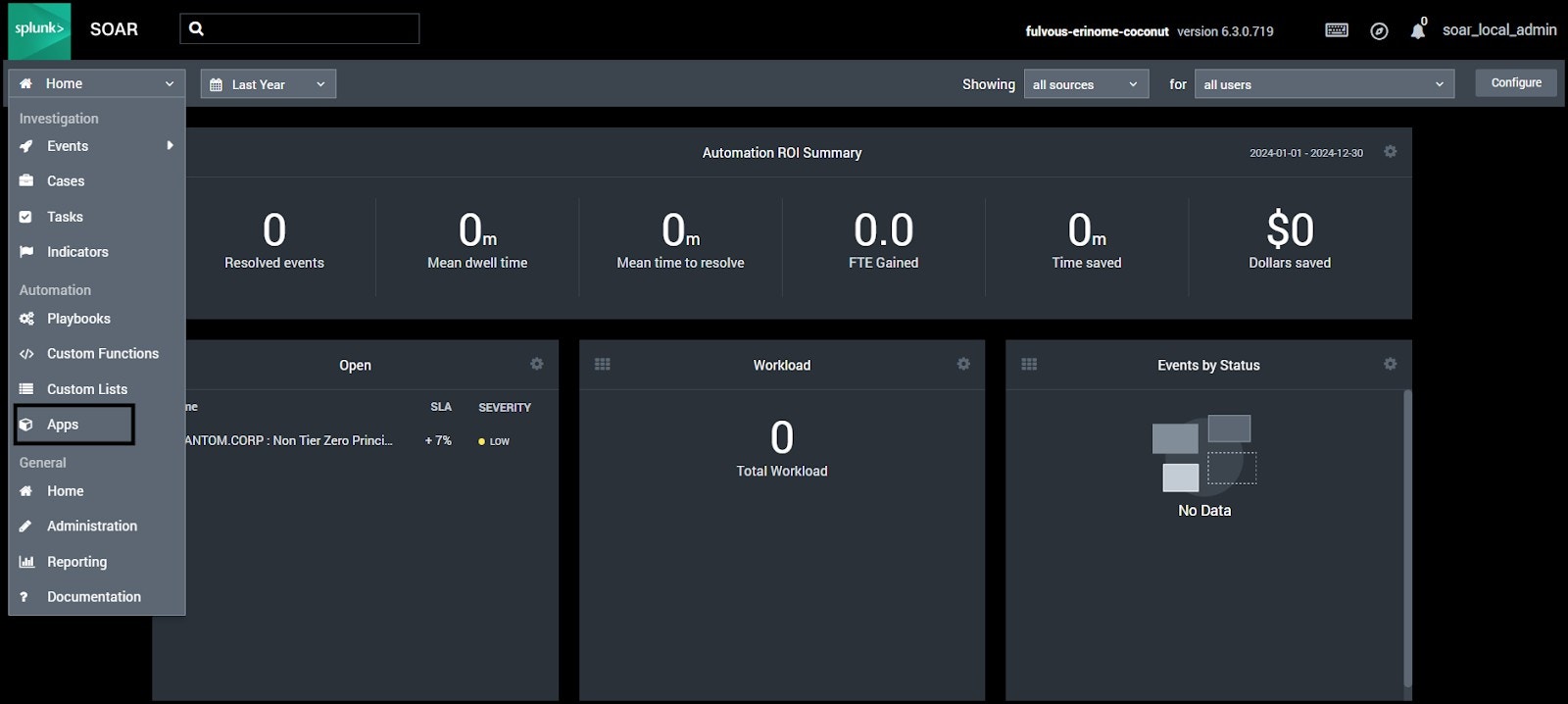
- Click on the Home dropdown in the top-left corner and select Apps.
2
Install the app in Splunk SOAR
-
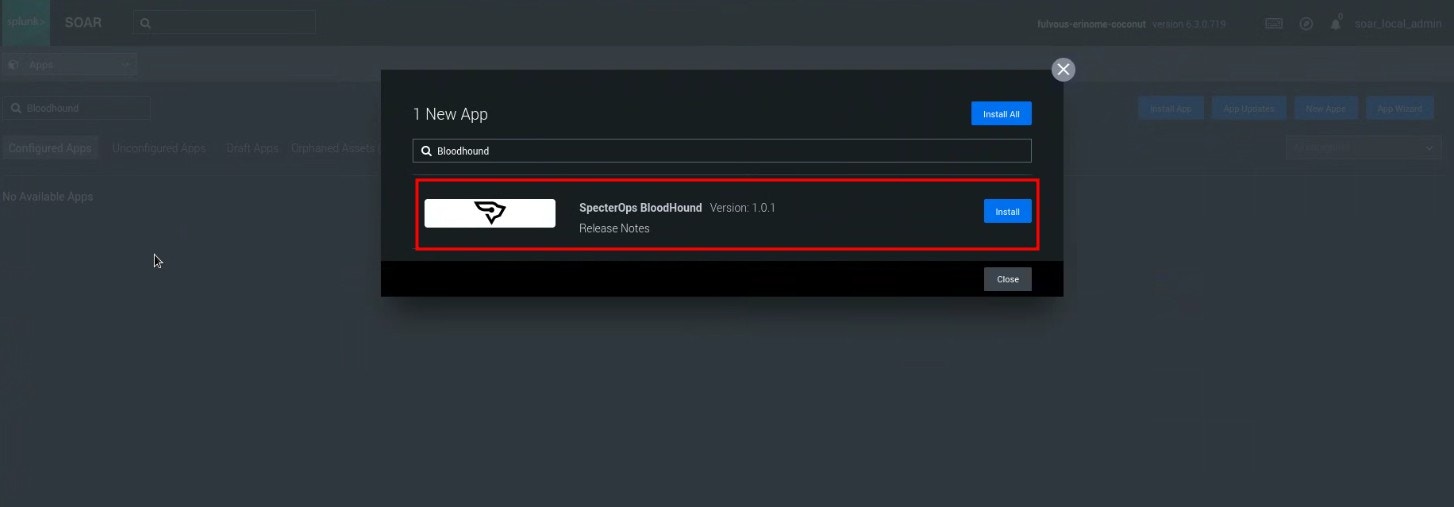
Enter BloodHound in the app search box.

-
Click Install.
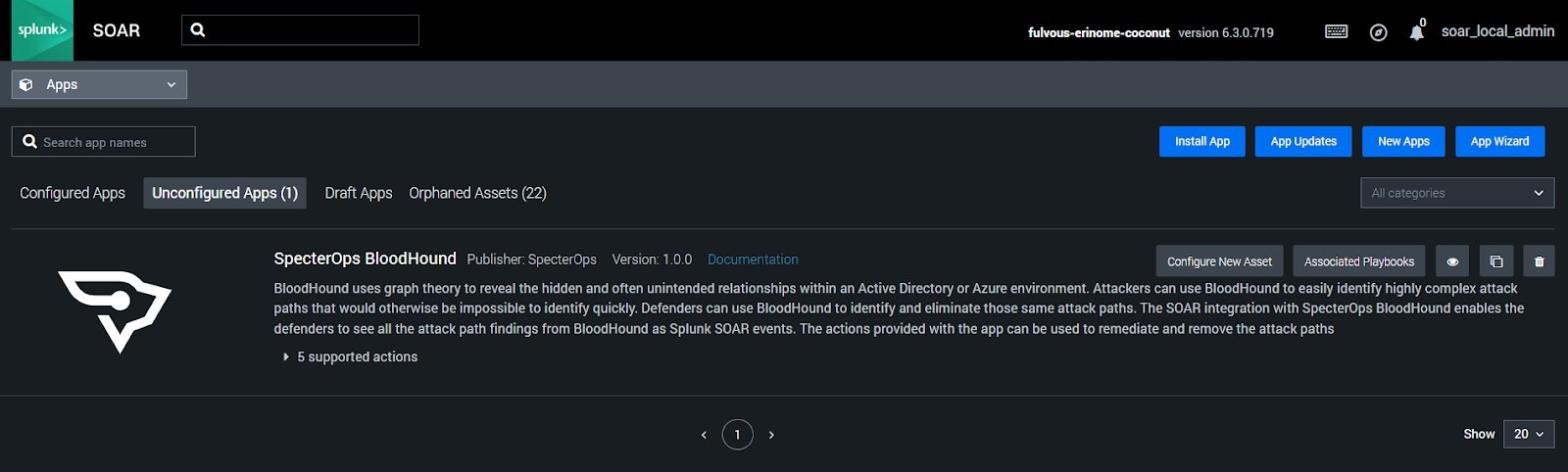
After installing the app, you can see it in the Unconfigured Apps section.
Configure the app
After installing the BloodHound Enterprise for Splunk SOAR app, you need to configure it to connect to your BloodHound Enterprise tenant and start ingesting attack path findings. The configuration process involves the following steps:1
Navigate to app configuration
On the Unconfigured Apps page, click Configure New Asset for the BloodHound Enterprise app.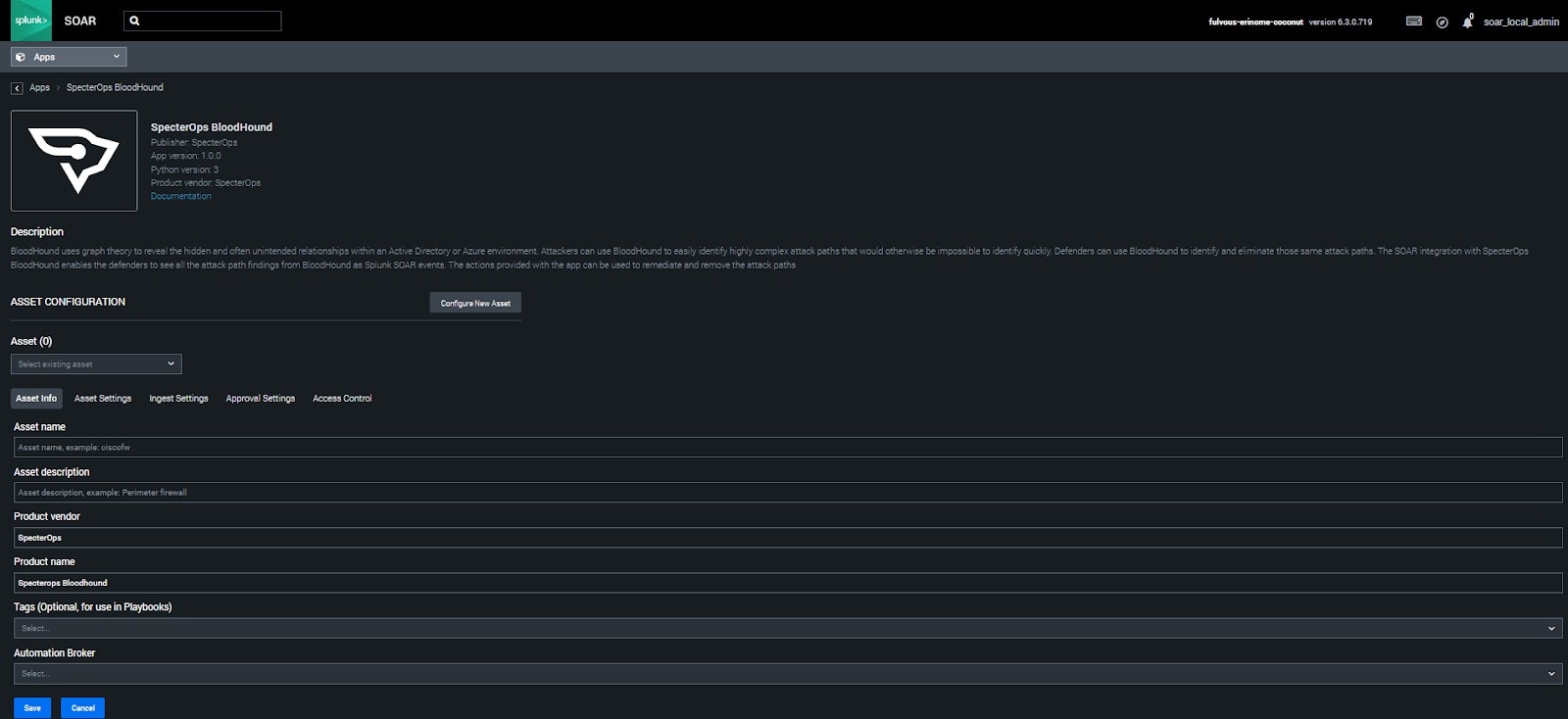
2
Enter asset details
-
Enter the Asset name and the Asset description.
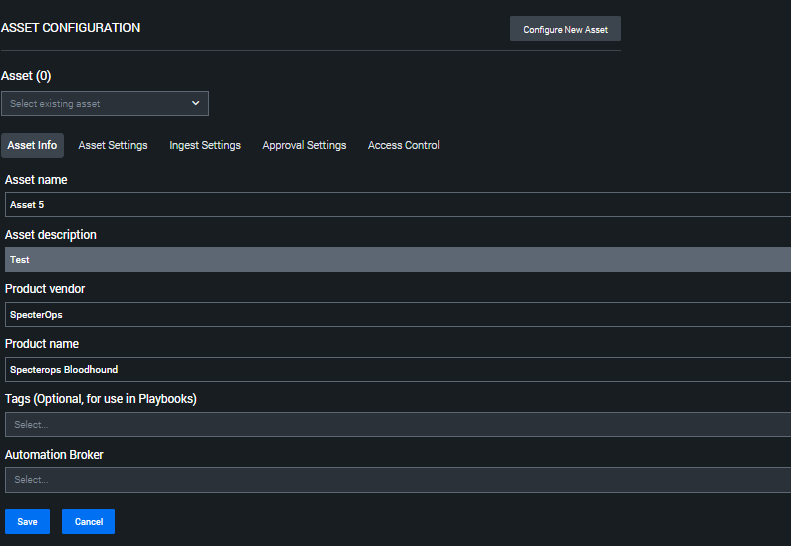
- Click Save.
3
Configure API credentials
- Click Asset Settings to set up the connection to BloodHound Enterprise.
-
Enter the following details:
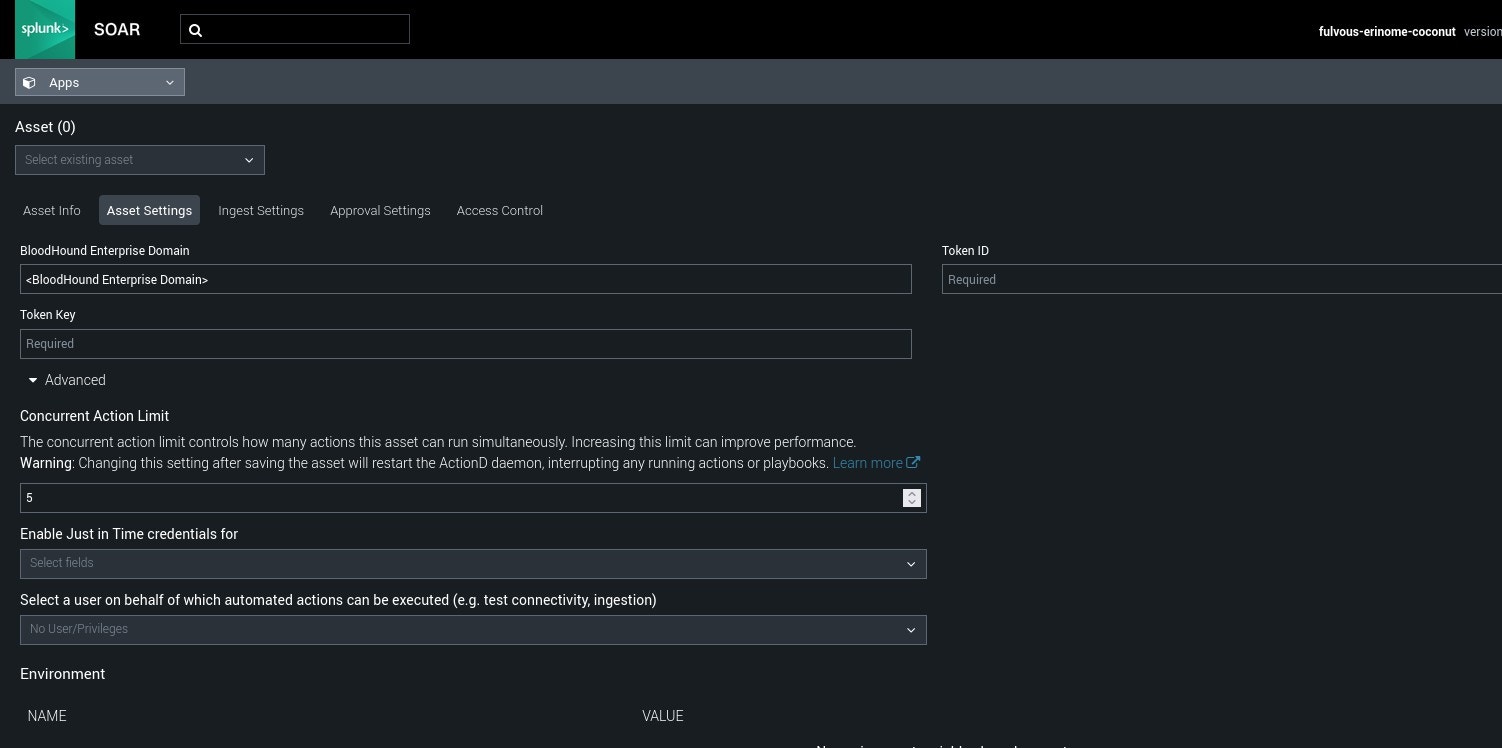
- Click Save.
4
Configure data ingestion
- Click Ingest Settings to set up how the app ingests data from BloodHound Enterprise.
-
Configure the following settings:
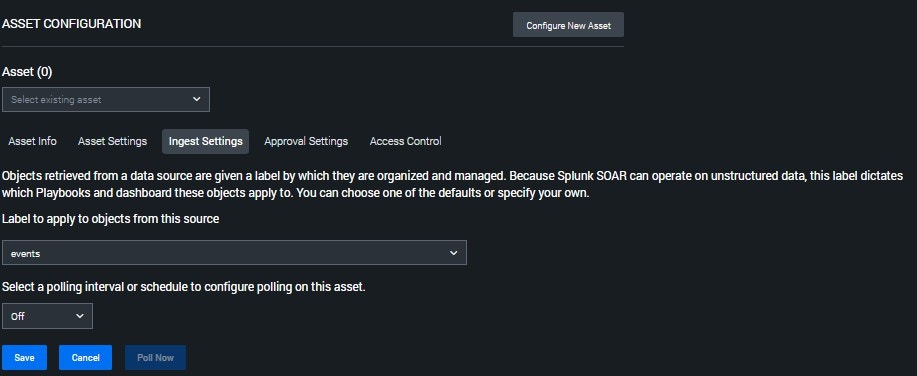
- Click Save.
5
Test connectivity
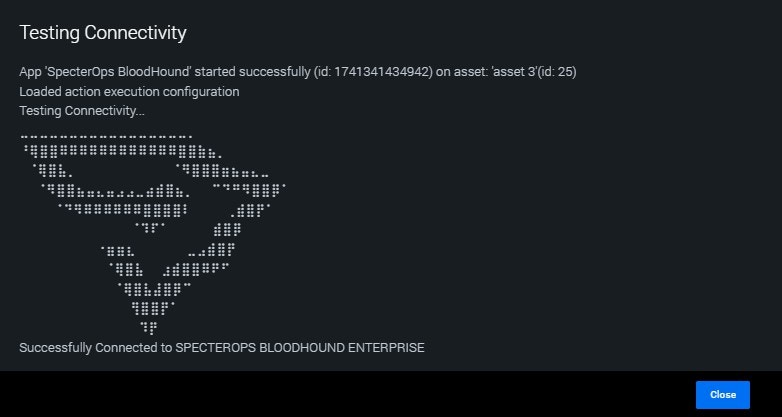
Go back to Asset Settings and click Test Connectivity to verify the configuration.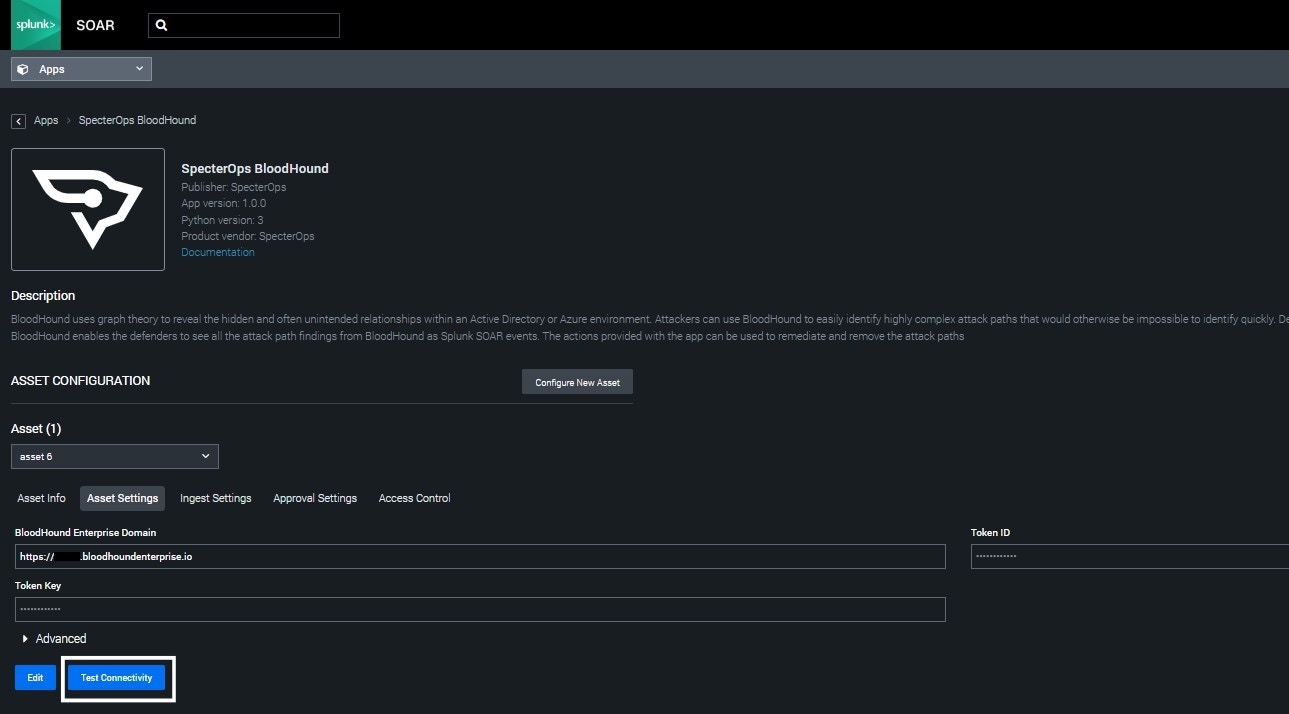
6
Ingest data
If you set the polling interval to Off for testing, you can manually poll for events to start ingesting data from BloodHound Enterprise.
- Click Ingest Settings.
-
Enter the following values:
See the Splunk SOAR documentation for more information about these settings.
-
Click Poll Now.
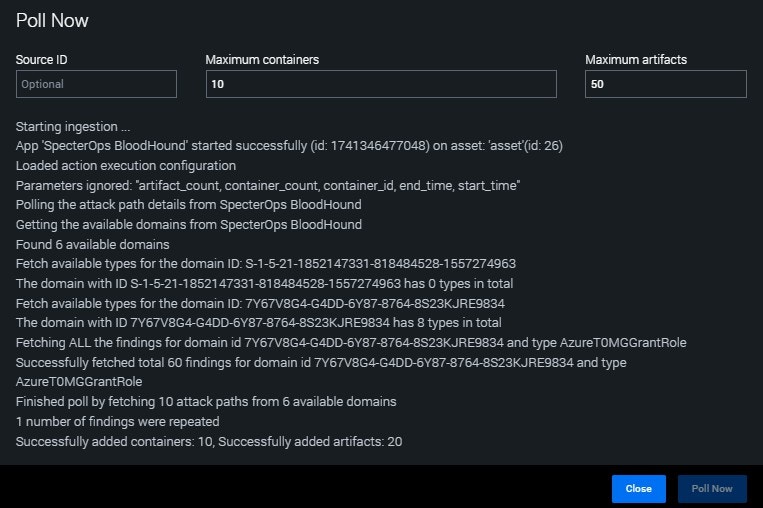
After polling completes, confirm that containers and artifacts were added successfully, as shown below.

- Click Close.