

 The BloodHound Enterprise integration for Google SecOps lets you ingest Attack Path findings into Google SecOps so analysts can investigate and respond without leaving the platform. This guide shows you how to install the integration from the Google Marketplace, configure the integration instance, and enable the connector that creates cases, alerts, and events.
Use this integration to:
The BloodHound Enterprise integration for Google SecOps lets you ingest Attack Path findings into Google SecOps so analysts can investigate and respond without leaving the platform. This guide shows you how to install the integration from the Google Marketplace, configure the integration instance, and enable the connector that creates cases, alerts, and events.
Use this integration to:
- Create Google SecOps cases from BloodHound Enterprise Attack Path findings
- Investigate findings with BloodHound Enterprise asset lookup and path validation actions
- Group related alerts by source domain to keep investigations organized
Prerequisites
Before you begin, ensure that you have the following:- A Google SecOps tenant
- A BloodHound Enterprise tenant
- A BloodHound Enterprise non-personal API key/ID pair with the Auditor role
Install and configure the integration
Install the integration instance in Google SecOps and connect it to your BloodHound Enterprise tenant.1
Install the integration
- Log in to your Google SecOps tenant with an account that has permission to install integrations.
- Go to Content Hub > Response Integrations.
-
Search for
BloodHound Enterprise - Google SecOps. - Click Install.
- Click Configure.
2
Enter BloodHound Enterprise connection details
Configure the required fields for the integration instance: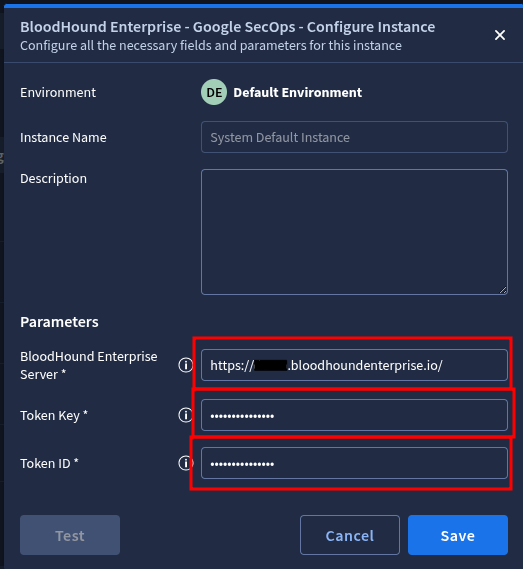
Save the configuration after you enter the required values.
3
Verify the integration configuration
- Click Test to validate the server URL and API credentials.
-
Confirm that the test succeeds before you continue.
 A successful test confirms that Google SecOps can connect to the BloodHound Enterprise API with the supplied credentials.If the test fails, review the error message and confirm that the server URL, token ID, and token key are correct. You can also refer to the troubleshooting guide for more help diagnosing common issues.
Configure the connector
The connector retrieves Attack Path findings from BloodHound Enterprise and creates the corresponding cases, alerts, and events in Google SecOps.1
Create the connector
- Go to Settings > SOAR Settings > Ingestion > Connector.
- Click Create New Connector.
- Select the BloodHound Enterprise connector that you want to configure.
2
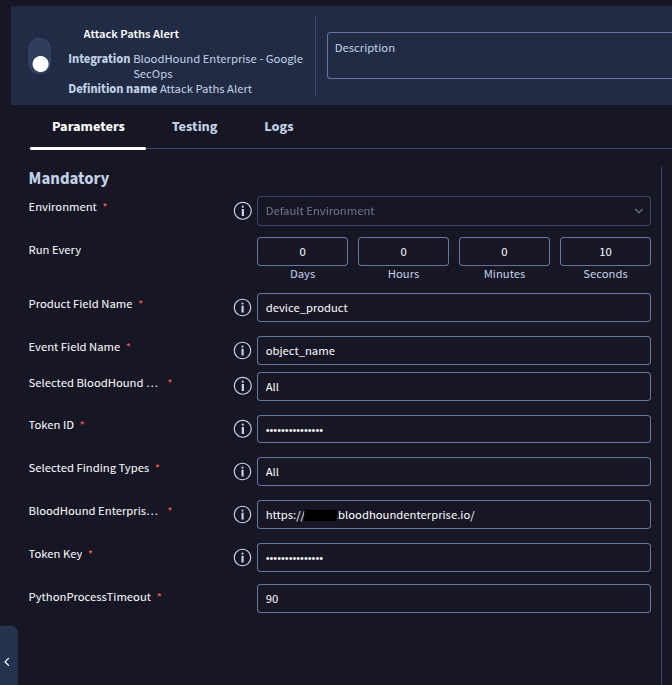
Configure connector parameters
- Open the Parameter tab.
-
Enter the required values for the connector.
3
Test the connector
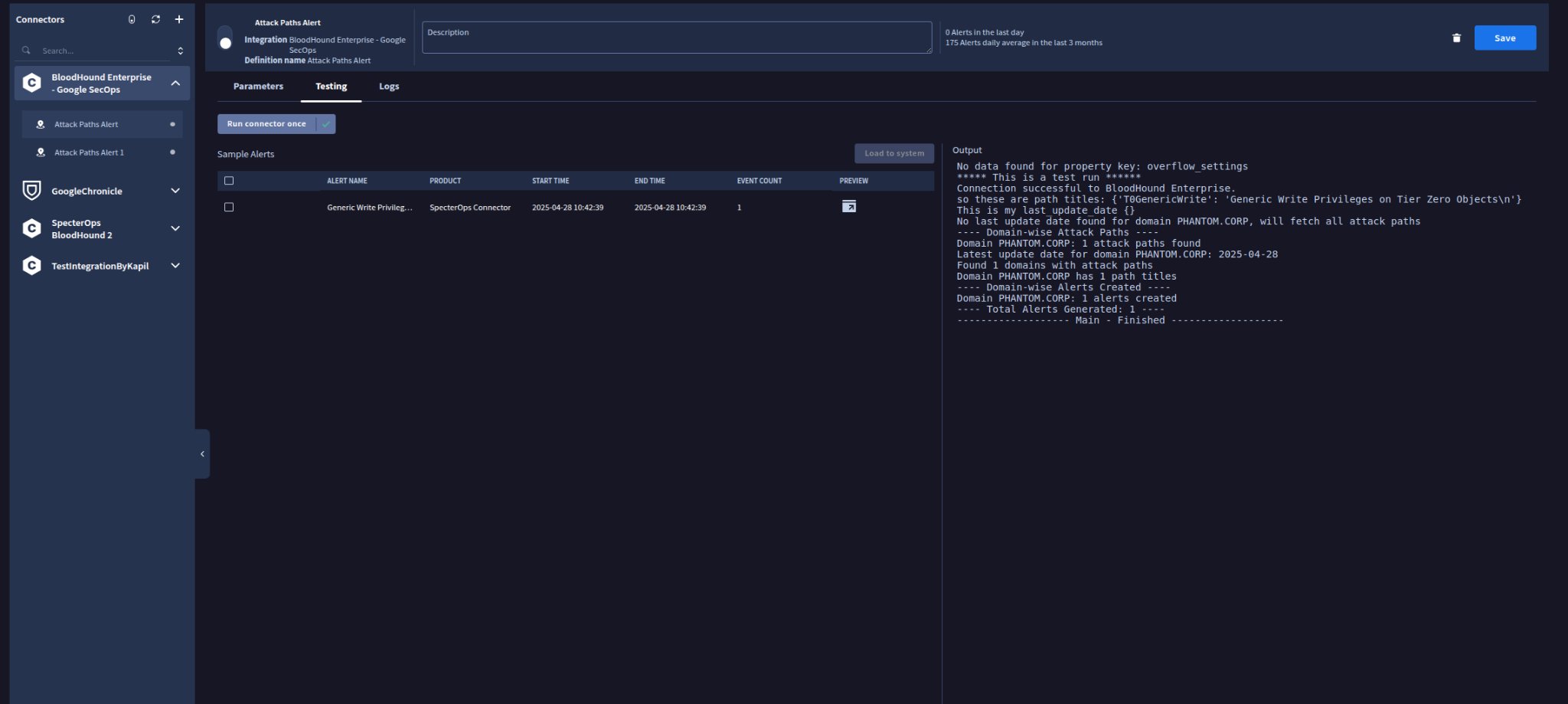
The connector test validates connectivity, connector logic, and the required parameter values without requiring you to enable the connector first.
- Open the Testing tab.
- Click Test Connector to run a one-time execution.
- Review the generated alerts and the debug logs.
-
Click Log to System if you want to create cases from the generated test alerts.
4
Enable the connector and logging
-
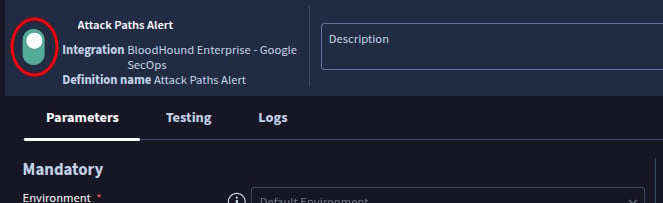
Enable the toggle for Attack Paths Alert.
- Open the Logs tab.
-
Enable the Log Connection toggle if logging is not already enabled.

-
Confirm in the logs that alerts are created successfully.
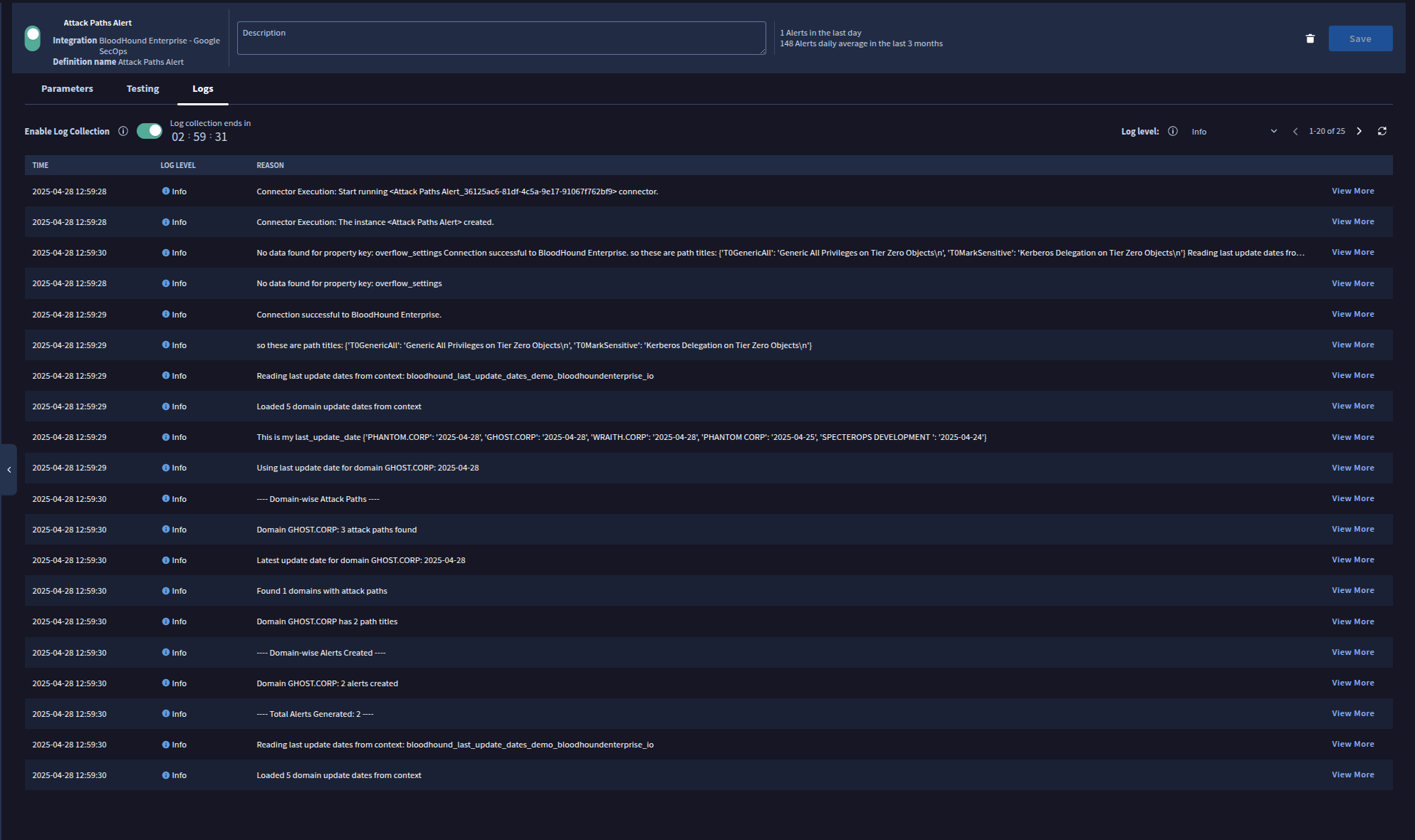
- Open the Cases page to review the resulting cases, alerts, and events.
Map and model alerts
Alerts are not mapped and modeled by default. Configure field mappings before you move the integration into regular analyst workflows.1
Open Mapping and Modeling
Open the Google SecOps settings menu and select Mapping and Modeling.
2
Select the mapping family
For this example, use the Default family to classify alerts under a predefined set of rules.
- Choose the Default family.
-
Open the Visualization tab.
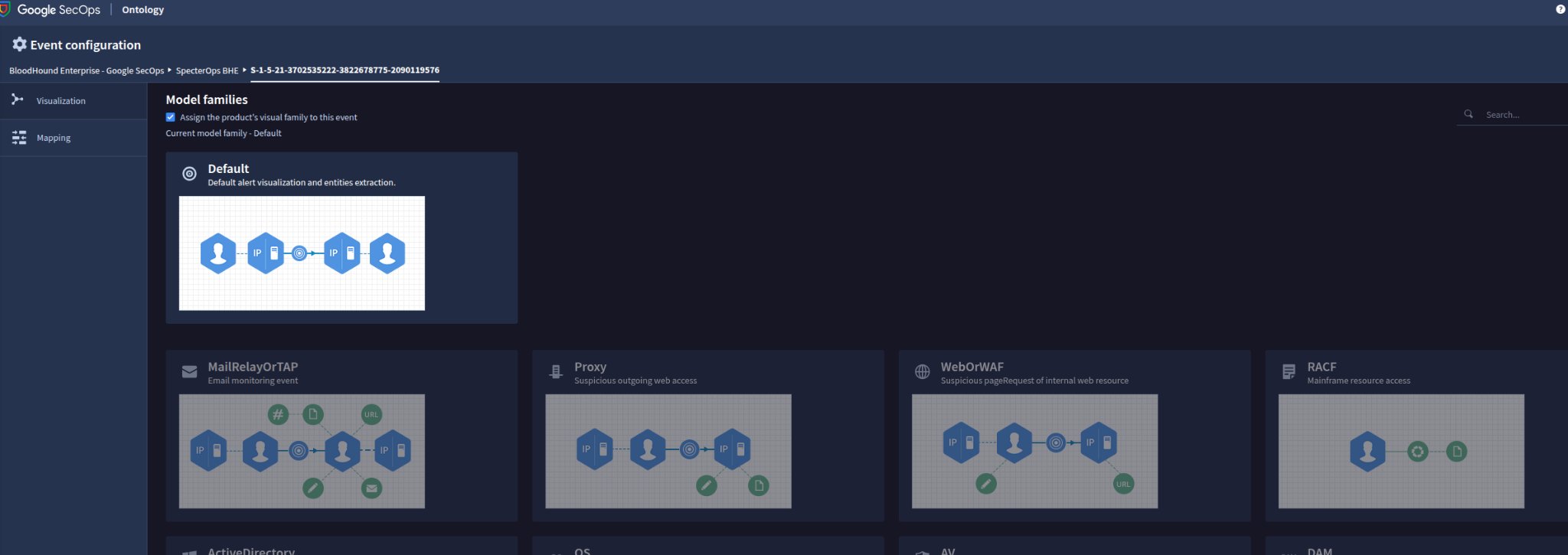
3
Map the required fields
Map the incoming alert fields to the corresponding event fields.
- Ensure that StartTime and EndTime are configured correctly. These fields are crucial for defining the time frame of the events.
- Save the mapping configuration.
-
Test the mapping with sample alerts before you use it in production.
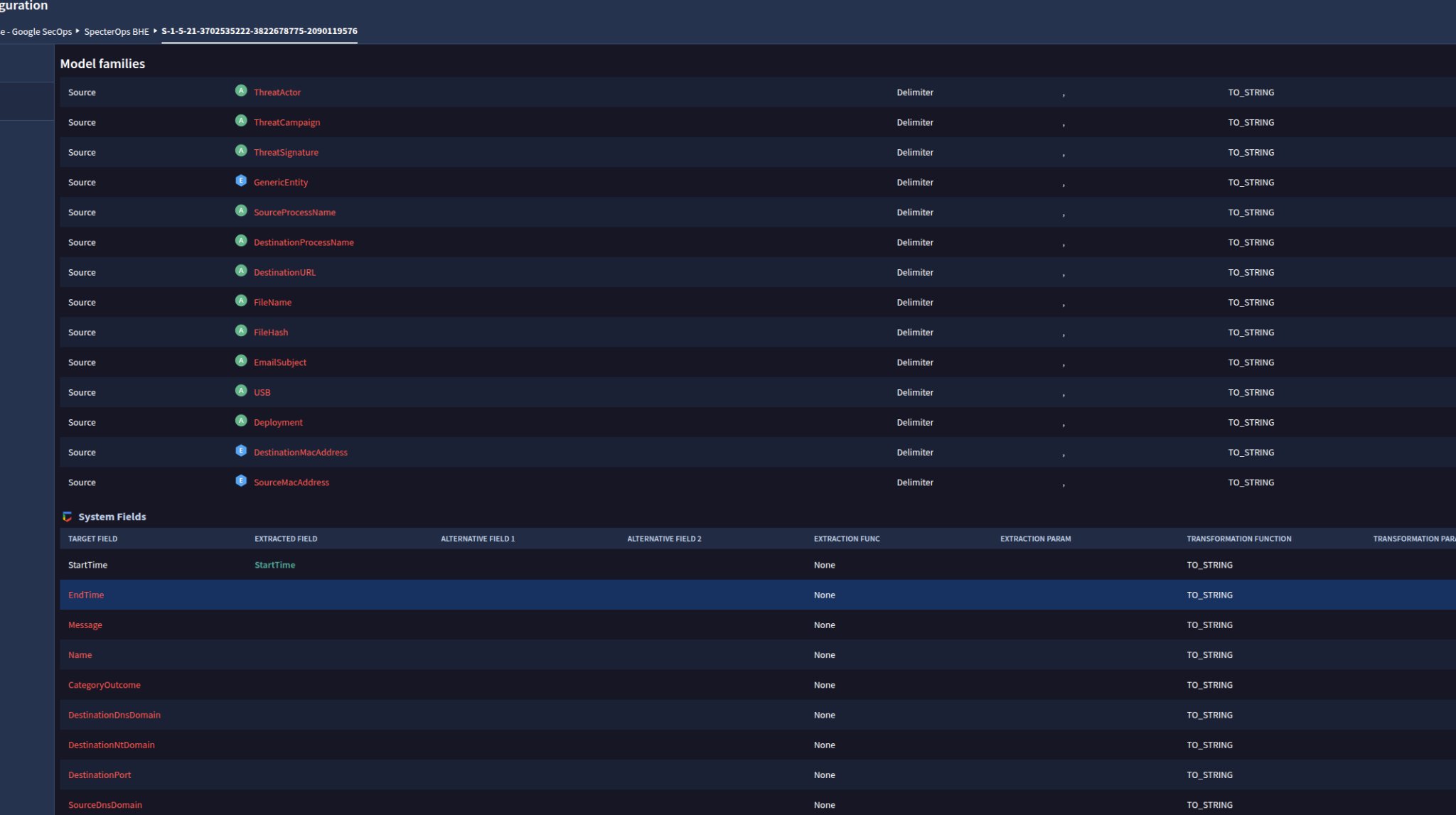
Configure alert grouping
Configure alert grouping so Google SecOps groups related BloodHound Enterprise alerts into one case per source domain. Grouping alerts from the same domain into a single case allows for:- Easier investigation and triage
- Clear, organized case structures
- Domain-specific incident visibility
- Scalable response workflows
1
Create an alert grouping rule
- Go to SOAR Settings > Advanced > Alert Grouping.
- Click Add Rule.
-
Configure the rule with the following values:
Save the rule after you enter the values.
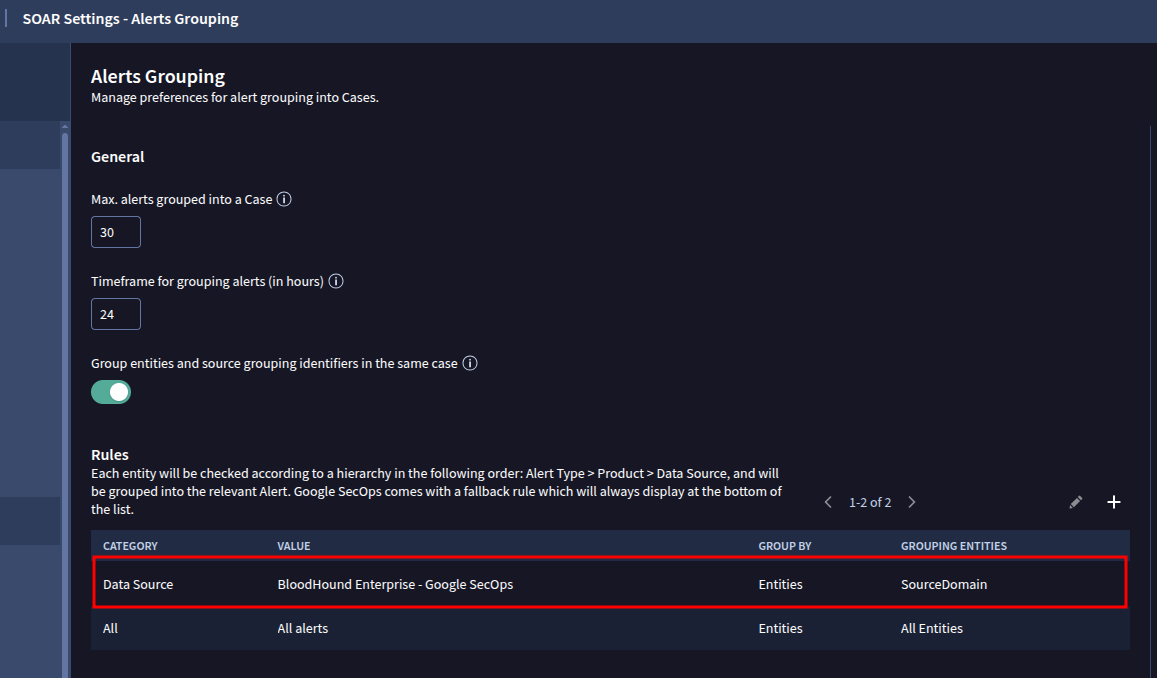
Next steps
After the connector is running, use cases and alerts in Google SecOps to investigate BloodHound Enterprise findings.For help resolving issues, see troubleshoot common issues.