

 The Findings Table is an alternate view on the Attack Paths page. Use it to review many at once, compare finding state across environments and zones, and triage high-volume result sets faster.
This feature is available through Early Access. Enable on the Administration > Early Access Features page to access it.
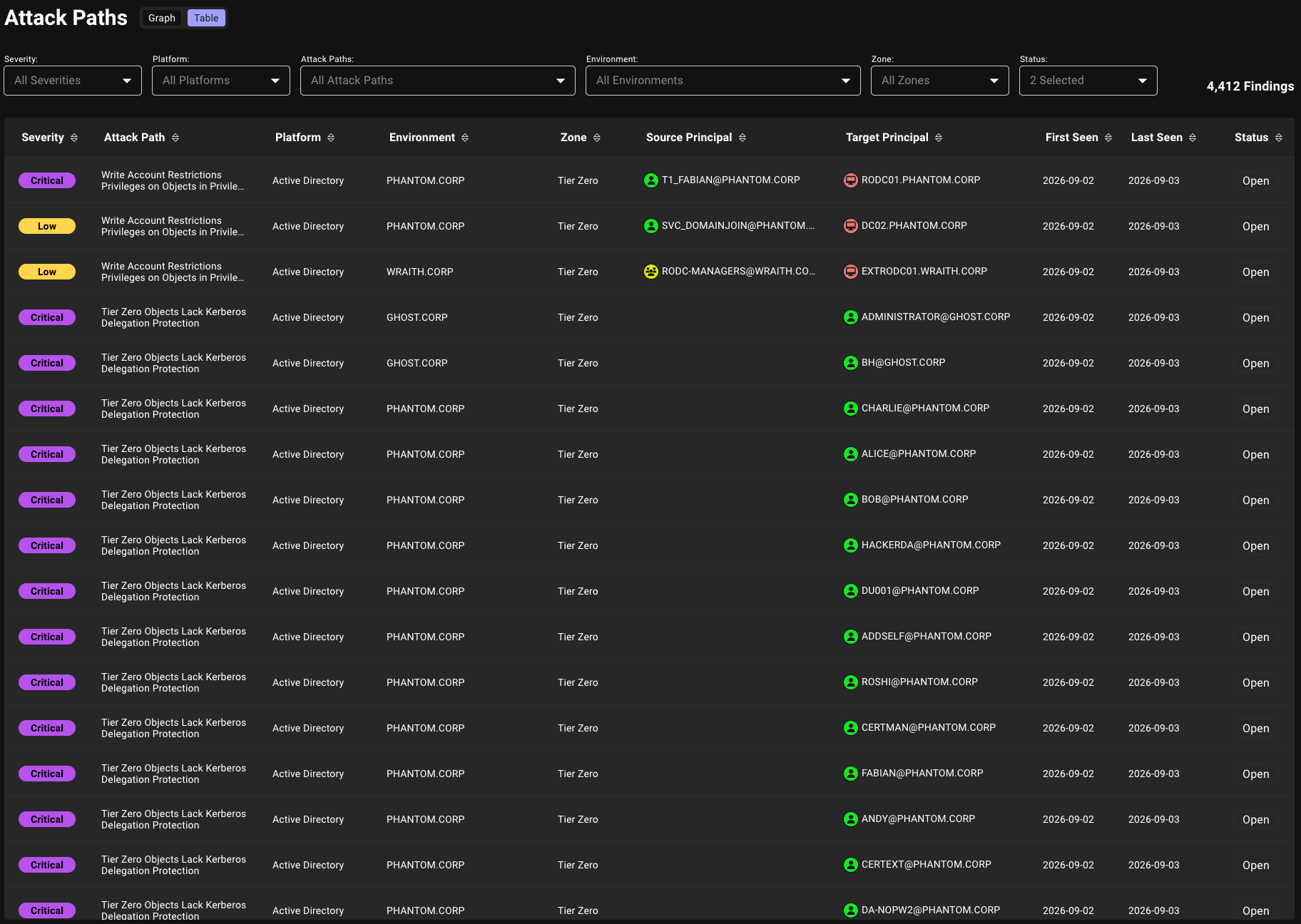
Some findings, typically called list-based findings, do not have a source principal.
Use cases
Use the Findings Table to focus an investigation on a set of findings:- Triage findings at scale: Review a dense list of Attack Path findings and sort by severity, date, status, or contextual columns.
- Focus an investigation: Filter by Attack Path, severity, platform, environment, zone, and status to move from a broad result set to a smaller set that matches your investigation goal.
- Compare scope across environments or zones: Select multiple environments or zones and review the matching findings together.
- Review finding state and recency: Use Status, First Seen, and Last Seen to understand whether findings are open, accepted, remediated, deprecated, or orphaned, and when BloodHound Enterprise last updated them.
- Investigate or remediate a finding: Select a finding to open it in Explore or review its remediation plan.
- Preserve table context: Use the page URL to return to or share the same view, filters, and sort order.
Prerequisites
Before you can use the Findings Table, you must have the following:- BloodHound Enterprise with the Findings Table beta feature enabled on the Early Access Features page.
-
Access to the environments you want to analyze.
If Environment Targeted Access Control (ETAC) is enabled on your tenant, it can limit which findings and environments appear for your account. Two users can see different rows for the same filters depending on their access.
Open a remediation plan or explore a finding
Select a finding row to open the action bar and continue your investigation or remediation workflow.1
Select a finding
Click a row in the table to highlight the row and display the action bar at the bottom of the table.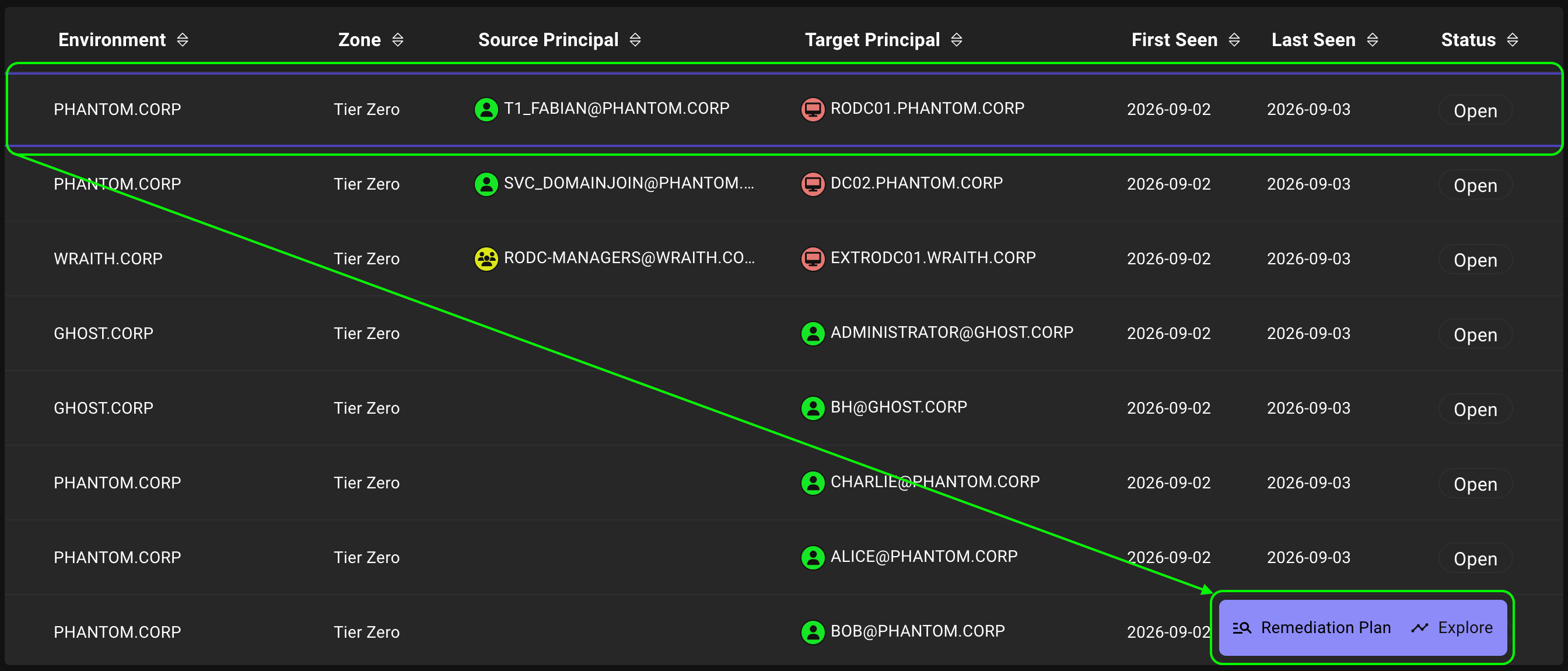
2
Choose an action
Select one of the following actions (each action opens in a new tab):
- Remediation Plan: Opens the Remediation page filtered to the selected finding, environment, and privilege zone.
-
Explore: Opens the finding in Explore.
- Relationship-based findings open in Pathfinding with the path between the source and target principals.
- List-based findings open in Search.
Filter findings
Use filters to narrow the result set:
The filters support multi-select. Selecting All for a filter removes that filter from the query. Clearing every value in a filter returns no rows until you select a value or return to All.
Sort findings
You can sort by each table column and resize column width. Sorting reorders the full result set for the current filters. For example:- Sort by First Seen to distinguish newer findings from findings that have persisted across analysis runs.
- Sort by Last Seen to review the most recently updated findings for the current filters.
Finding status lifecycle
A finding moves through a lifecycle as BloodHound Enterprise detects it, as you act on it, and as your environment changes. The Status column reflects where a finding is in that lifecycle. The diagram separates active findings from system-archived outcomes.Status definitions
The following table describes the stored value and meaning of each finding status, and whether the status marks a finding as archived.User-driven transitions
You control the transition between Open and Accepted:- Open to Accepted: Accept the finding and set an acceptance duration. BloodHound records an acceptance expiration for the finding. For steps, see Risk Acceptance.
- Accepted to Open: Remove the acceptance manually, or wait for the acceptance period to expire. In both cases, the finding returns to Open.
System-driven transitions
BloodHound sets the archived statuses automatically during analysis. You cannot set these statuses manually:- Remediated: A subsequent analysis run no longer detects the Attack Path or vulnerable principal. Use this status to confirm that a risk was actually removed.
- Orphaned: The environment associated with the finding (such as an Active Directory domain or Azure tenant) is archived or removed and is no longer collected.
- Deprecated: The finding type is removed from (or deprecated in) the current schema, for example when an OpenGraph extension no longer defines it.
Remediated, Orphaned, and Deprecated are terminal, archived states. When BloodHound archives a finding, it records an archive time and updates the finding’s last-updated time.First Seen reflects when the finding was first created, and Last Seen reflects the most recent update, including a status change. Open and Accepted findings are not archived and continue to count toward your posture.