> ## Documentation Index
> Fetch the complete documentation index at: https://bloodhound.specterops.io/llms.txt
> Use this file to discover all available pages before exploring further.

# Install and Configure

> Use this guide to install and configure an on-premises instance of BloodHound Enterprise with the embedded cluster deployment option.

export const Checklist = ({checklistKey, title, children}) => {
  const [items, setItems] = useState([]);
  useEffect(() => {
    const saved = localStorage.getItem(`checklist-${checklistKey}`);
    if (saved) {
      try {
        const parsed = JSON.parse(saved);
        setItems(parsed);
      } catch {
        const listItems = document.querySelectorAll(`[data-checklist="${checklistKey}"] li`);
        setItems(new Array(listItems.length).fill(false));
      }
    } else {
      const listItems = document.querySelectorAll(`[data-checklist="${checklistKey}"] li`);
      setItems(new Array(listItems.length).fill(false));
    }
  }, [checklistKey]);
  useEffect(() => {
    if (items.length > 0) {
      localStorage.setItem(`checklist-${checklistKey}`, JSON.stringify(items));
    }
  }, [items, checklistKey]);
  const handleToggle = index => {
    setItems(prev => {
      const newItems = [...prev];
      newItems[index] = !newItems[index];
      return newItems;
    });
  };
  return <div className="checklist-container" data-checklist={checklistKey}>
      {title && <h3 className="checklist-title">{title}</h3>}
      <div className="checklist-content">
        {React.Children.map(children, child => {
    if (React.isValidElement(child) && child.type === 'ul') {
      return <ul className="checklist-list">
                {React.Children.map(child.props.children, (li, liIndex) => {
        if (React.isValidElement(li) && li.type === 'li') {
          return <li key={liIndex}>
                        <label>
                          <input type="checkbox" checked={items[liIndex] || false} onChange={() => handleToggle(liIndex)} />
                          <span className="task-text">{li.props.children}</span>
                        </label>
                      </li>;
        }
        return li;
      })}
              </ul>;
    }
    return child;
  })}
      </div>
      
      <style jsx>{`
        .checklist-container {
          display: block;
          margin: 1rem 0;
          padding: 1rem;
          border-radius: 0.5rem;
          background: var(--background-secondary, #f4f4f4);
        }

        .dark .checklist-container {
          background: var(--background-secondary, #1a1a1a);
        }

        .checklist-title {
          margin-top: 0;
          margin-bottom: 1rem;
          color: var(--text-primary, #1d1b20);
        }

        .dark .checklist-title {
          color: var(--text-primary, #ffffff);
        }

        .checklist-content {
          position: relative;
        }

        .checklist-list {
          list-style: none !important;
          padding: 0 !important;
          margin: 0 !important;
        }

        .checklist-list li {
          margin: 0.5rem 0 !important;
          padding: 0 !important;
          list-style: none !important;
        }

        .checklist-list li::before {
          content: none !important;
        }

        label {
          display: grid;
          grid-template-columns: 1.5rem 1fr;
          gap: 0.5rem;
          align-items: start;
          padding: 0.5rem;
          border-radius: 0.25rem;
          cursor: pointer;
          color: var(--text-secondary, #55595c);
          transition: all 0.2s ease;
        }

        .dark label {
          color: var(--text-secondary, #a0a0a0);
        }

        label:hover {
          background: var(--background-tertiary, #e3e7ea);
        }

        .dark label:hover {
          background: var(--background-tertiary, #2a2a2a);
        }

        input[type='checkbox'] {
          appearance: none;
          -webkit-appearance: none;
          width: 1.25rem;
          height: 1.25rem;
          border: 2px solid var(--border-primary, #cacfd3);
          border-radius: 0.25rem;
          margin: 0;
          cursor: pointer;
          transition: all 0.2s ease;
          flex-shrink: 0;
          position: relative;
        }

        .dark input[type='checkbox'] {
          border-color: var(--border-primary, #404040);
        }

        input[type='checkbox']:focus-visible {
          outline: 2px solid var(--accent-primary, #00aa66);
          outline-offset: 2px;
        }

        input[type='checkbox']:checked {
          background-color: var(--accent-primary, #00aa66);
          border-color: var(--accent-primary, #00aa66);
        }

        input[type='checkbox']:checked::after {
          content: '';
          position: absolute;
          display: block;
          width: 0.5rem;
          height: 0.875rem;
          border: solid white;
          border-width: 0 2px 2px 0;
          transform: translate(0.25rem, -0.125rem) rotate(45deg);
        }

        label:has(> input[type='checkbox']:checked) {
          color: var(--accent-primary, #00aa66);
          text-decoration: line-through;
          text-decoration-color: var(--accent-primary, #00aa66);
        }

        .task-text {
          line-height: 1.5;
        }
      `}
    </style>
    </div>;
};

<img noZoom src="https://mintcdn.com/specterops/tTIczgde9H07oLXf/assets/enterprise-edition-pill-tag.svg?fit=max&auto=format&n=tTIczgde9H07oLXf&q=85&s=b682a26b342bde12302ec829e265bdb6" alt="Applies to BloodHound Enterprise only" width="225" height="45" data-path="assets/enterprise-edition-pill-tag.svg" />

This guide provides step-by-step instructions for installing and configuring a BloodHound Enterprise instance with the embedded cluster installer.

The embedded cluster installer bundles a Kubernetes distribution (k0s) with the BloodHound Enterprise application, so you can deploy everything on a single Linux host without needing to set up Kubernetes separately.

## Pre-install checklist

The following checklist summarizes the install-blocking gates and pre-deployment work that must be completed before running the installer.

<Note>
  For detailed host sizing, collector specifications, supported filesystems, and kernel versions, see the full [system requirements](/on-premises/system-requirements).
</Note>

<Checklist checklistKey="embedded-cluster-pre-install">
  * Provision a dedicated x86-64 Linux host (any distribution with systemd) with root or sudo access, sized per the [BloodHound Enterprise host](/on-premises/system-requirements#bloodhound-enterprise-host) specification
  * Back the host with SSD storage (P99 write latency ≤10ms) — the installer blocks on spinning disk
  * Plan the HTTPS endpoint for the BloodHound Enterprise FQDN. By default, the embedded cluster ingress serves the application on port `443`; add an external [reverse proxy](/on-premises/system-requirements#reverse-proxy) only if your environment requires one
  * Create a [DNS A record](/on-premises/system-requirements#dns) for the BloodHound Enterprise FQDN that resolves for both users and collectors
  * Open inbound TCP `443` (users and collectors) and `30080` (Installation Wizard)
  * For online installs, allow outbound HTTPS to `replicated.app`, `proxy.replicated.com`, and `registry.replicated.com`; for air-gapped installs, download the installer bundle ahead of time
</Checklist>

## Web-based installer

The web-based installer provides an interactive setup experience through a web interface. It guides you through configuration steps such as domain setup, certificate management, and database connectivity.

### Configure install options

The web-based installer is available through the **SpecterOps - BloodHound Enterprise Portal**. You'll work with two interfaces during installation:

* The **Installer** tab in the portal generates the download and install commands you run on your Linux host. The **Update** tab in the portal tracks active and inactive online installations.
* The **Installation Wizard** is a companion UI served from your Linux host on port `30080`. After the initial install completes, you use the Installation Wizard to finish configuration (domain, certificates, database) and run <Tooltip tip="Automated checks that verify your Kubernetes cluster is ready for a BloodHound Enterprise installation or upgrade.">preflight checks</Tooltip>.

<Steps>
  <Step title="Navigate to the web-based installer">
    If you don't have access to the portal, contact your team administrator or your BloodHound Enterprise account team to request an invitation.

    1. Log in to the [SpecterOps - BloodHound Enterprise Portal](https://enterprise.replicated.com/bloodhound-enterprise).

    2. Click the **Install** tab at the top of the page to open the Installation Guide.

           <Note>
             The installation options displayed on this page depend on the licensing associated with your account.
           </Note>
  </Step>

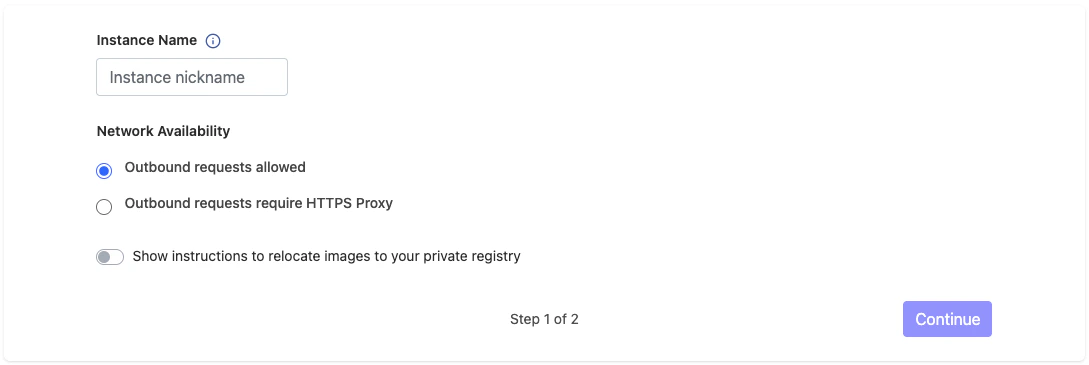
  <Step title="Choose installation options">
    The first step prompts you to choose your installation options, such as network availability and whether to show instructions for relocating images to a private registry.

    1. Enter a name for your BloodHound Enterprise instance.

    2. Choose one of the following **Network Availability** options:

       | Option                                    | Use this when                                               |
       | ----------------------------------------- | ----------------------------------------------------------- |
       | **Outbound requests allowed**             | The Kubernetes cluster can make outbound internet requests. |
       | **Outbound requests require HTTPS Proxy** | Outbound traffic must go through a proxy server.            |

           <Note>
             If you choose the proxy option, a **Configure proxy URL** field appears on the next page of the installer where you can enter your proxy URL.

             The installer also adds `--proxy $YOUR_PROXY_URL` to the download *and* install commands on the next page to ensure the installer can access the internet through your proxy.
           </Note>

    3. Click the toggle for **Show instructions to relocate images to your private registry** if your environment requires the cluster to pull container images from a private registry you control.

       This is typically required for air-gapped or restricted networks, or to meet internal supply-chain and compliance requirements.

           <Note>
             If you choose this option, the next page provides a field for entering your private registry URL and instructions for running the necessary commands on your Linux host to:

             * Pull the necessary container images
             * Tag them with your private registry URL
             * Push them to your registry

             The installer also adds `--registry $YOUR_REGISTRY_URL` to the install command on the next page to ensure the cluster pulls images from your registry during installation.
           </Note>

           <Frame>
             <img src="https://mintcdn.com/specterops/eNKvEOCqwUIK6kpT/images/on-premises/install-options.png?fit=max&auto=format&n=eNKvEOCqwUIK6kpT&q=85&s=163f3aae9d5b6ae00cec935f05751447" alt="A screenshot showing the initial installation options in the BloodHound Enterprise web-based installer" width="1089" height="365" data-path="images/on-premises/install-options.png" />
           </Frame>

    4. Click **Continue**.
  </Step>
</Steps>

### Install on the Linux host

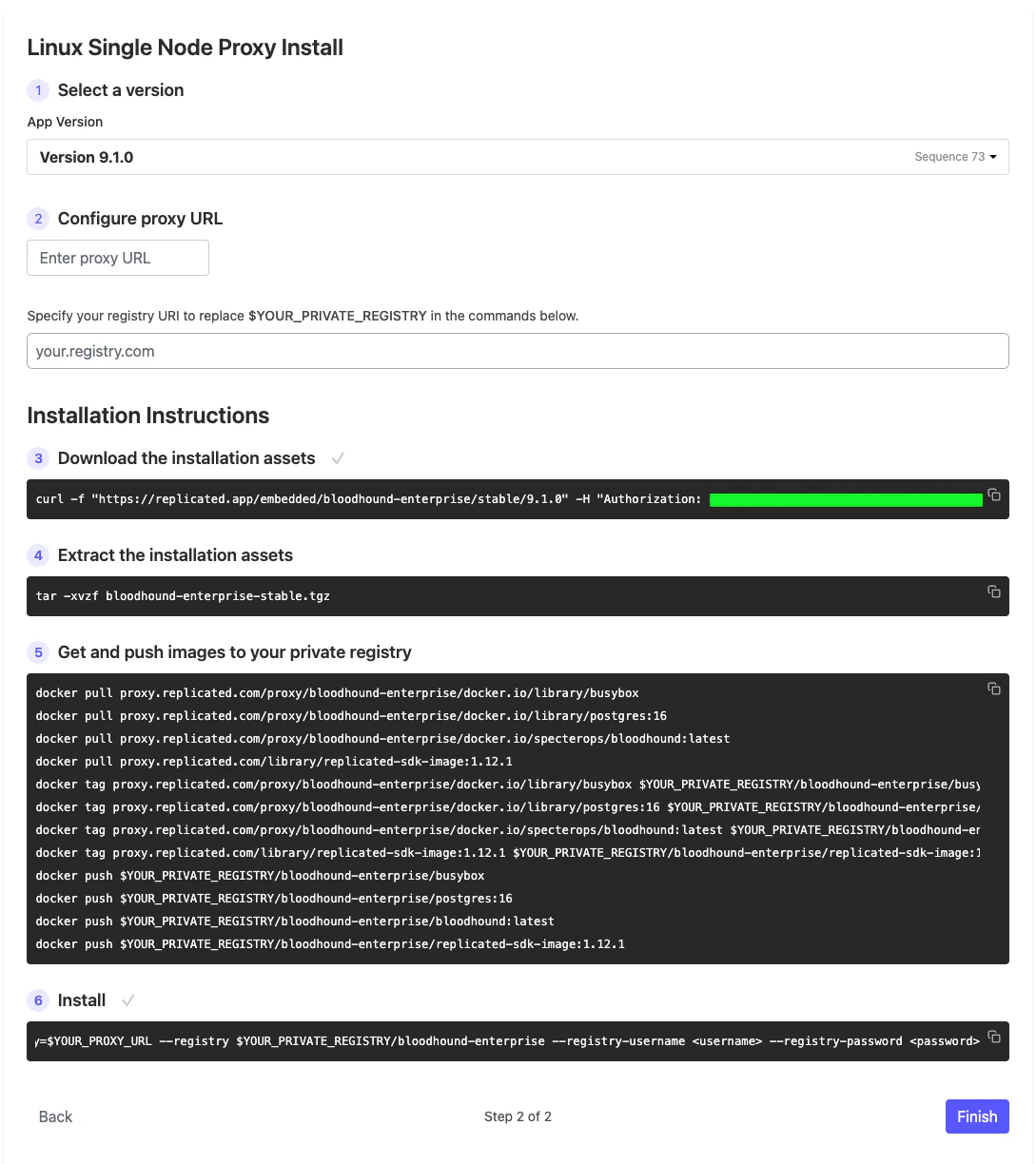
The installation instructions page generates the exact download and install commands for your release, including a signed URL, a short-lived bearer token, and your specific version.

The following screenshot shows an example of the install instructions page in the portal, which provides the commands you run on your Linux host to download and install BloodHound Enterprise.

<Frame>
  <img src="https://mintcdn.com/specterops/eNKvEOCqwUIK6kpT/images/on-premises/install-instructions.png?fit=max&auto=format&n=eNKvEOCqwUIK6kpT&q=85&s=28d1fc76421a37fb7670d67edb6a7f1c" alt="A screenshot showing an example of the installation instructions in the BloodHound Enterprise web-based installer" width="1089" height="1224" data-path="images/on-premises/install-instructions.png" />
</Frame>

<Steps>
  <Step title="Configure the install command in the portal">
    On the installation instructions page, complete the following fields before copying the commands:

    1. In the **Select Version** field, choose the version of BloodHound Enterprise you want to install.

    2. If you selected the proxy option in the previous installation options, enter your proxy URL in the **Configure proxy URL** field.

           <Note>
             The installer uses this URL to access the internet for downloading container images and other dependencies. The URL must be accessible from the Linux host where you run the installer.
           </Note>

    3. If you selected the private registry option in the previous installation options, enter your registry URL in the provided field.

           <Note>
             The installer uses this URL to pull container images during installation. The URL must be accessible from the Linux host where you run the installer and from the Kubernetes cluster.
           </Note>
  </Step>

  <Step title="SSH into the Linux host">
    SSH into the Linux host where you want to install BloodHound Enterprise.
  </Step>

  <Step title="Download the installer archive">
    From the installation instructions page, copy and run the command to download the archive of installation assets on your Linux host.
  </Step>

  <Step title="Extract the installer archive">
    From the installation instructions page, copy and run the command to extract the archive of installation assets on your Linux host.

    **Example:**

    ```bash theme={null}
    tar -xvzf bloodhound-enterprise.tar.gz
    ```

    <Note>
      The installer archive contains the embedded cluster application and all necessary dependencies, including the k0s Kubernetes distribution and your license file. The installer will set up everything for you on a single Linux host.
    </Note>
  </Step>

  <Step title="Copy installation assets to your home directory">
    Copy all files from the `assets/` directory to the home directory on your Linux host.

    **Example:**

    ```bash theme={null}
    cp assets/* ~/
    ```
  </Step>

  <Step title="Run the install command">
    From the installation instructions page, copy and run the install command on your Linux host, providing the path to your license file.

    <Note>
      After extraction, your `license.yaml` file is present alongside all installation assets.
    </Note>

    **Example:**

    ```bash theme={null}
    sudo ./bloodhound-enterprise install --license license.yaml
    ```
  </Step>

  <Step title="Set the Installation Wizard password">
    When prompted on the Linux host, enter an admin password.

    <Note>
      This is the **Installation Wizard password**. You use it to log in to the Installation Wizard later.
    </Note>
  </Step>

  <Step title="Generate the Installation Wizard certificate">
    When the installer prompts you to generate a self-signed certificate for the Installation Wizard, accept the prompt.

    The installer uses this certificate to serve the Installation Wizard over HTTPS on port `30080`. The install fails if you decline.

    <Note>
      The install command doesn't accept a flag for providing your own certificate at this stage. You'll be able to upload a certificate for your BloodHound Enterprise instance later in the Installation Wizard's **Certificates** step.
    </Note>
  </Step>

  <Step title="Note the Installation Wizard URL">
    After the installation completes, the installer prints the Installation Wizard URL:

    ```http theme={null}
    https://<linux-hostname-or-ip>:30080
    ```

    As mentioned in the pre-installation checklist, the Installation Wizard listens on port `30080`. If you haven't already done so, expose this port on the Linux host.

    <Note>
      Don't click **Finish** on the installation instructions page yet; you'll do that after completing the Installation Wizard in the next section.
    </Note>
  </Step>
</Steps>

### Configure the environment

The Installation Wizard guides you through the final configuration steps to complete the installation. Follow the prompts to enter the necessary information and complete each step.

<Steps>
  <Step title="Log in to the Installation Wizard">
    The wizard guides you through the final configuration steps and <Tooltip tip="Automated checks that verify your Kubernetes cluster is ready for a BloodHound Enterprise installation or upgrade.">preflight checks</Tooltip>.

    Open the Installation Wizard URL in a browser and enter the admin password that you set when you ran the install command on your Linux host.

    <Note>
      Browsers display a certificate warning at `https://<linux-hostname-or-ip>:30080` because the Installation Wizard uses the self-signed certificate generated during install; this is expected.

      If your browser blocks the self-signed certificate, export the certificate presented on port `30080`, add it to the trusted root/intermediate certificate store as appropriate, then reload the page.
    </Note>
  </Step>

  <Step title="Domain Configuration">
    Use a lowercase hostname with no underscores. Kubernetes ingress rules require lowercase hostnames.

    * For **production** deployments, this should match the [DNS A record](/on-premises/system-requirements#dns) you created for the BloodHound Enterprise FQDN in the pre-install checklist.

    * For **testing** purposes, this can be a hostname that resolves to the Linux host's IP address in your local `/etc/hosts` file. For example:

      ```txt theme={null}
      192.168.1.50   bloodhound-enterprise.test
      ```

          <Frame>
            <img src="https://mintcdn.com/specterops/eNKvEOCqwUIK6kpT/images/on-premises/installer-domain-config.png?fit=max&auto=format&n=eNKvEOCqwUIK6kpT&q=85&s=ee48eedc059b850434bafb9ae60a2f76" alt="A screenshot showing the domain configuration step of the BloodHound Enterprise web-based installer" width="2444" height="844" data-path="images/on-premises/installer-domain-config.png" />
          </Frame>

          <Note>
            Port `443` must be open on the Linux host and reachable from the browser you use to access the BloodHound Enterprise application.
          </Note>
  </Step>

  <Step title="Application Access">
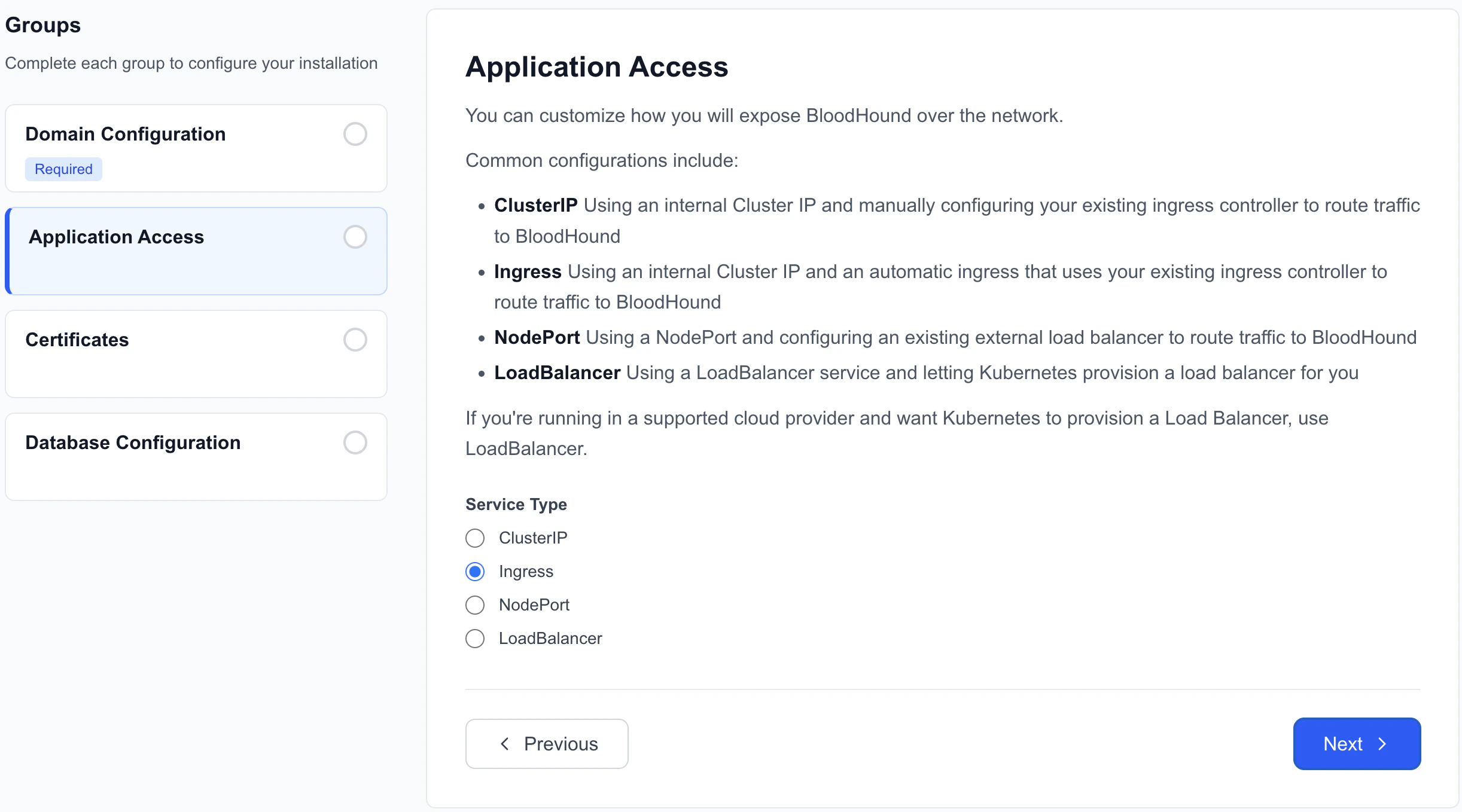
    Configure how users reach the BloodHound Enterprise application.

    <Note>
      **Recommended default:** Select **Ingress** for most deployments.

      **Why:** The embedded cluster includes its own ingress controller for the BloodHound Enterprise FQDN. **Ingress** uses that built-in path and lets the installer handle HTTPS termination on port `443` with the certificate you configure in the next step.

      Choose **ClusterIP**, **NodePort**, or **LoadBalancer** only if your environment already requires one of those Kubernetes service exposure patterns or you are integrating with your own frontend networking layer.
    </Note>

    <Frame>
      <img src="https://mintcdn.com/specterops/eNKvEOCqwUIK6kpT/images/on-premises/installer-app-access.png?fit=max&auto=format&n=eNKvEOCqwUIK6kpT&q=85&s=96d7242d8c91e8f760db98d23ef8b3c8" alt="A screenshot showing the application access configuration step of the BloodHound Enterprise web-based installer" width="2444" height="1358" data-path="images/on-premises/installer-app-access.png" />
    </Frame>
  </Step>

  <Step title="Certificates">
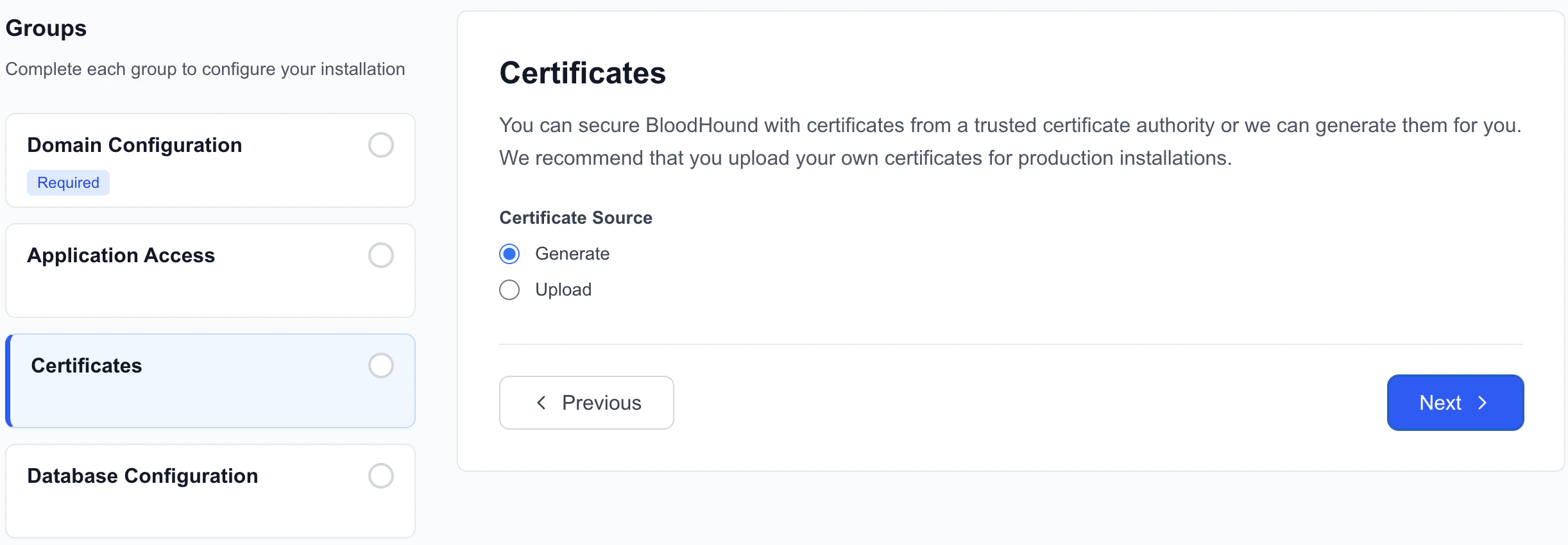
    Choose whether to have the installer generate a TLS certificate for HTTPS access to your BloodHound Enterprise instance or upload your own.

    <Note>
      This certificate is used by the embedded cluster ingress that serves the BloodHound Enterprise application on port `443`.

      Upload your own certificate if your organization requires a certificate issued by your internal or public certificate authority.
    </Note>

    <Frame>
      <img src="https://mintcdn.com/specterops/eNKvEOCqwUIK6kpT/images/on-premises/installer-certificates.png?fit=max&auto=format&n=eNKvEOCqwUIK6kpT&q=85&s=79a68428f688abf328646bea27524640" alt="A screenshot showing the certificate configuration step of the BloodHound Enterprise web-based installer" width="2444" height="850" data-path="images/on-premises/installer-certificates.png" />
    </Frame>
  </Step>

  <Step title="Database Configuration">
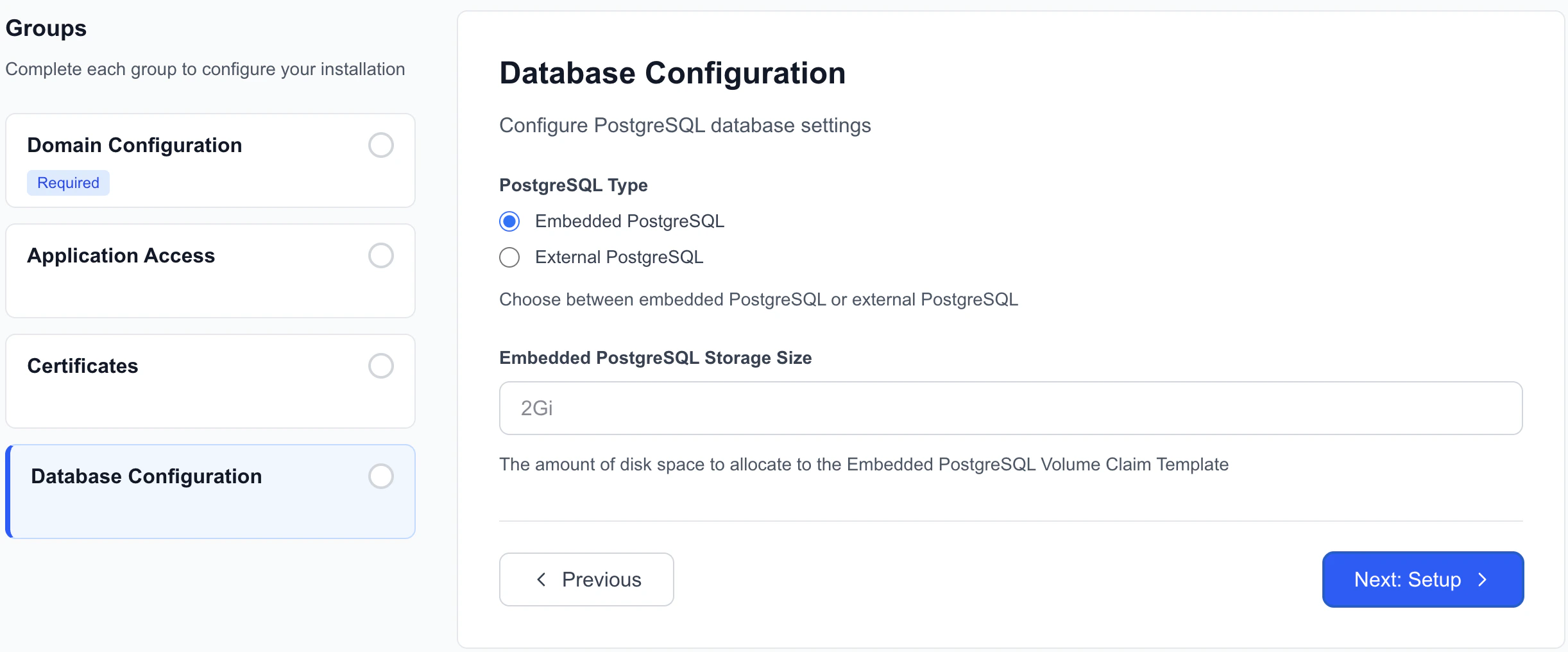
    Choose between the embedded PostgreSQL database or provide connection details for an external PostgreSQL database.

    <Note>
      If you choose to use an external PostgreSQL database, ensure that the database is running PostgreSQL 18 and is reachable on port `5432` from the Linux host where BloodHound Enterprise is installed.
    </Note>

    <Frame>
      <img src="https://mintcdn.com/specterops/eNKvEOCqwUIK6kpT/images/on-premises/installer-database-config.png?fit=max&auto=format&n=eNKvEOCqwUIK6kpT&q=85&s=e8e7f887c3e2dc0c29a4ed3e06690aff" alt="A screenshot showing the database configuration step of the BloodHound Enterprise web-based installer" width="2444" height="1016" data-path="images/on-premises/installer-database-config.png" />
    </Frame>
  </Step>

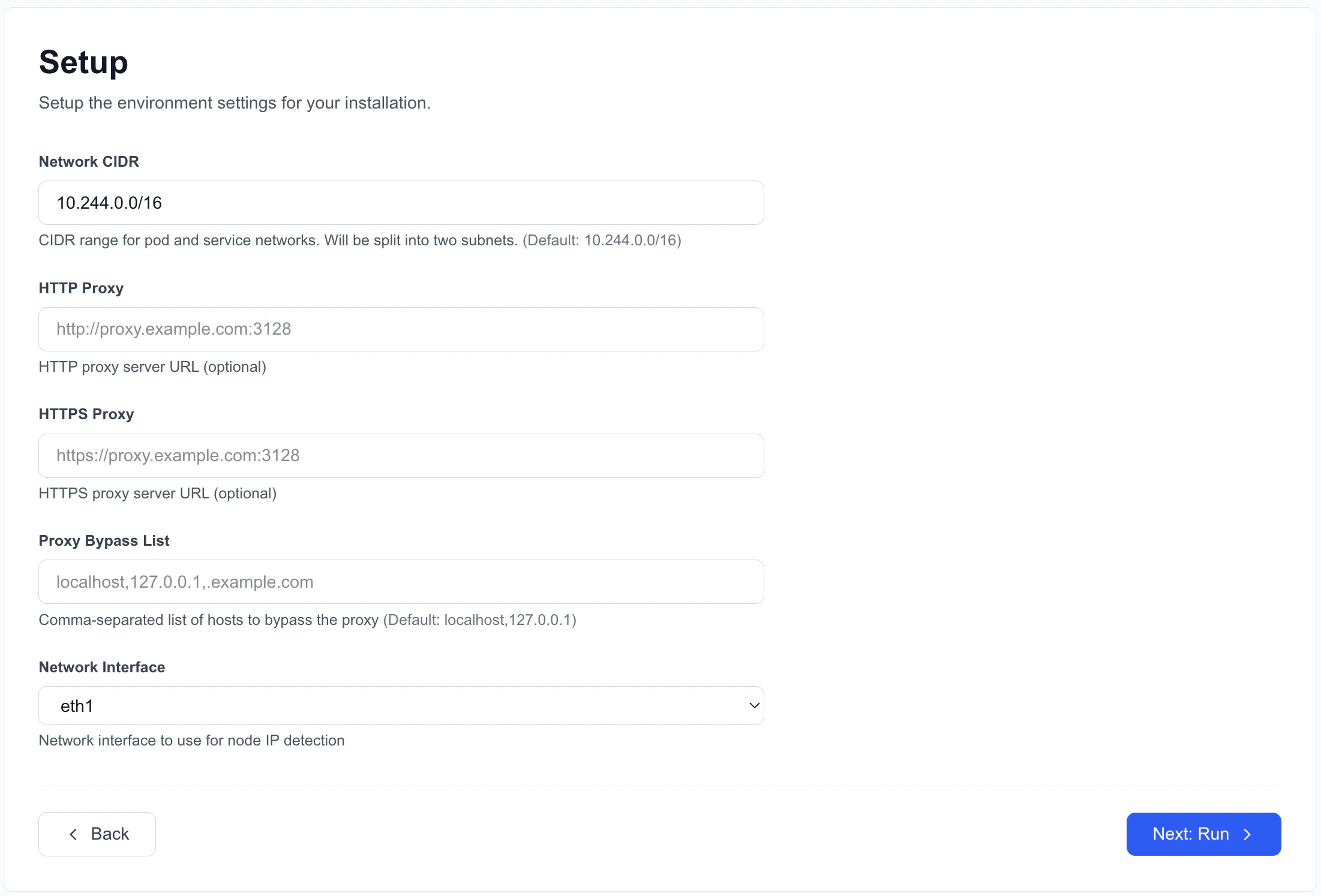
  <Step title="Set Up">
    Configure the network settings the embedded cluster uses to communicate internally and reach external services.

    Accept the defaults unless your environment requires specific overrides.

    <Frame>
      <img src="https://mintcdn.com/specterops/eNKvEOCqwUIK6kpT/images/on-premises/installer-setup.png?fit=max&auto=format&n=eNKvEOCqwUIK6kpT&q=85&s=ab41e9ca9ea872aec846028c9d11b432" alt="A screenshot showing the setup step of the BloodHound Enterprise web-based installer" width="2202" height="1494" data-path="images/on-premises/installer-setup.png" />
    </Frame>
  </Step>

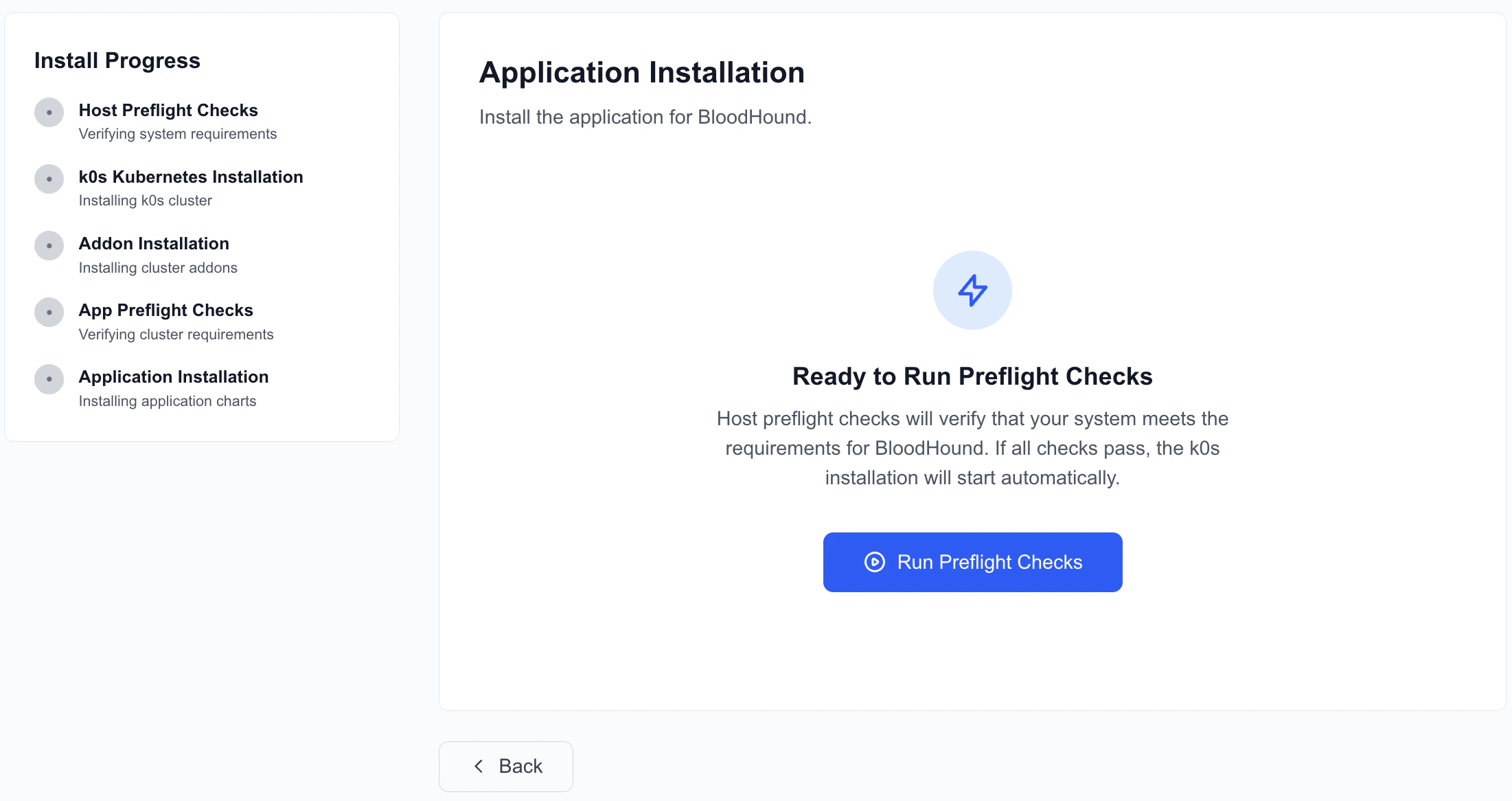
  <Step title="Run Preflight Checks">
    Review and resolve any blocking preflight checks before continuing the installation.

    Preflight checks verify that your cluster meets the requirements for a BloodHound Enterprise installation or upgrade before deployment begins.

    <Frame>
      <img src="https://mintcdn.com/specterops/eNKvEOCqwUIK6kpT/images/on-premises/installer-preflight-checks.png?fit=max&auto=format&n=eNKvEOCqwUIK6kpT&q=85&s=d26be0e52d923b9d2a9cd59d8a89350f" alt="A screenshot showing the preflight checks step of the BloodHound Enterprise web-based installer" width="2202" height="1166" data-path="images/on-premises/installer-preflight-checks.png" />
    </Frame>

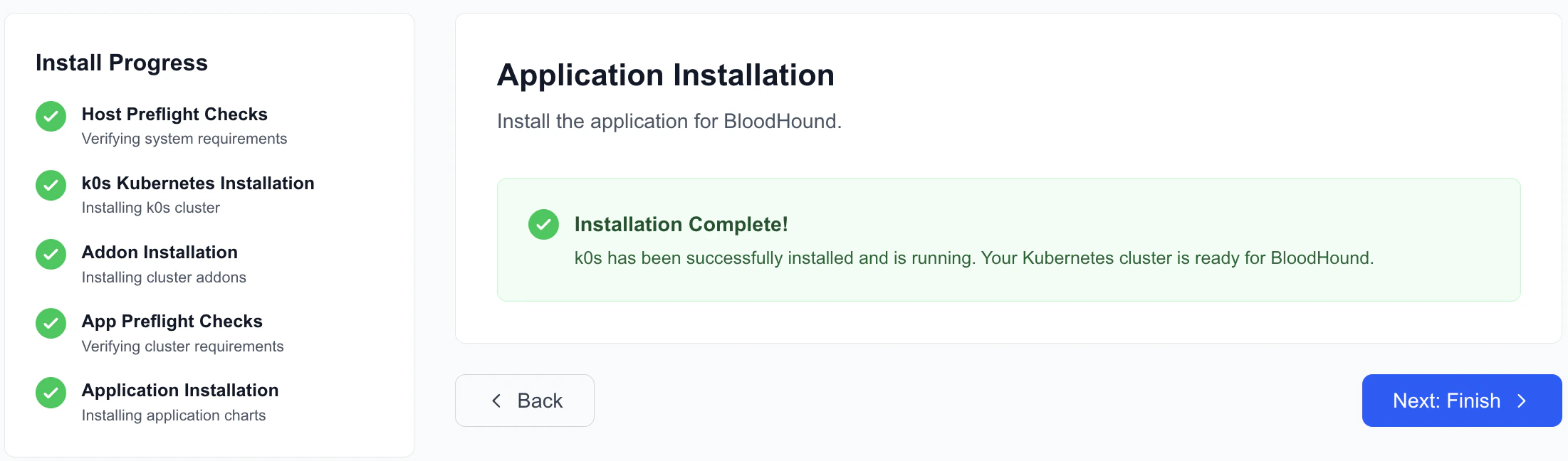
    When you see the Installation Complete message, click **Finish** to exit the Installation Wizard.
    <Frame>
      <img src="https://mintcdn.com/specterops/eNKvEOCqwUIK6kpT/images/on-premises/installer-success.png?fit=max&auto=format&n=eNKvEOCqwUIK6kpT&q=85&s=3ddb18b8dcbd697816a426b822bab984" alt="A screenshot showing the installation success step of the BloodHound Enterprise web-based installer" width="2202" height="648" data-path="images/on-premises/installer-success.png" />
    </Frame>
  </Step>

  <Step title="Finish">
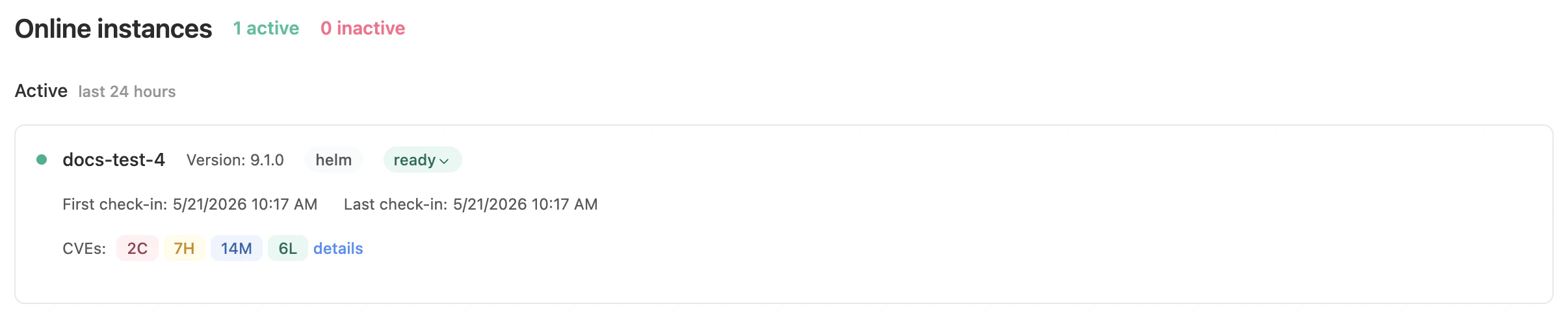
    After exiting the Installation Wizard, return to the **Install** tab in the portal (installation instructions) and click **Finish**. You'll be redirected to the **Update** tab, where you can view your active installation.

    <Frame>
      <img src="https://mintcdn.com/specterops/eNKvEOCqwUIK6kpT/images/on-premises/online-instances.png?fit=max&auto=format&n=eNKvEOCqwUIK6kpT&q=85&s=da3727afd17799ed01cc7d61cd51ab40" alt="A screenshot showing the Update tab with active installations in the BloodHound Enterprise Portal" width="2412" height="490" data-path="images/on-premises/online-instances.png" />
    </Frame>

    Back on your Linux host, press `Ctrl+C` to exit the installation process and stop the web interface for the wizard.

    BloodHound Enterprise continues running and is accessible at the FQDN you configured in the **Domain Configuration** step.
  </Step>
</Steps>

### Access BloodHound Enterprise

The last step of the installation process is to access the BloodHound Enterprise application in a browser and log in with the default admin credentials.

<Steps>
  <Step title="Access BloodHound Enterprise">
    In a browser, navigate to the BloodHound Enterprise FQDN you configured in the Installation Wizard.

    * The default username is `admin`. Enter the username in the **Email Address** field.

    * The default password is written to the BloodHound application logs on the Linux host.

    To retrieve the initial password, load the `kubectl` shell environment and inspect the deployment logs:

    1. Load the `kubectl` shell environment:

       ```bash theme={null}
       sudo ./bloodhound-enterprise shell
       ```

    2. Print the initial admin password from the `bloodhound` deployment's logs:

       ```bash theme={null}
       kubectl logs -n bloodhound-enterprise deployment/bloodhound | grep "Initial Password Set To:"
       ```

           <Note>
             Targeting the deployment avoids needing to look up the current pod name, which changes between installations and restarts.
           </Note>
  </Step>

  <Step title="Next steps">
    With BloodHound Enterprise installed and accessible, complete the following next steps in the application:

    * Change the default admin password (**Administration** > **Manage Users**)
    * [Create users](/manage-bloodhound/auth/users-and-roles)
    * [Configure collectors](/install-data-collector/overview)
  </Step>
</Steps>

## Troubleshooting

When troubleshooting, you can inspect cluster state and view logs using the `kubectl` command-line tool.

<Steps>
  <Step title="SSH into the Linux host">
    SSH into the Linux host where BloodHound Enterprise is installed.
  </Step>

  <Step title="Load the kubectl shell environment">
    Run the following command to load the `kubectl` shell environment:

    ```bash theme={null}
    sudo ./bloodhound-enterprise shell
    ```

    <Note>
      The appropriate `kubeconfig` is exported, and the location of useful binaries like `kubectl` and Replicated's preflight and support-bundle plugins is added to `PATH`.
    </Note>
  </Step>

  <Step title="Run common troubleshooting commands">
    Use the available binaries as needed. See the following tabs for common cluster inspection commands:

    <Tabs>
      <Tab title="Pods">
        List all pods across every namespace:

        ```bash theme={null}
        kubectl get pods -A
        ```
      </Tab>

      <Tab title="Services">
        List all services across every namespace:

        ```bash theme={null}
        kubectl get services -A
        ```
      </Tab>

      <Tab title="Logs">
        View logs for a specific pod:

        ```bash theme={null}
        kubectl logs -n [namespace] [pod-name]
        ```

        BloodHound application pods run in the `bloodhound-enterprise` namespace.
      </Tab>
    </Tabs>
  </Step>

  <Step title="Exit the kubectl shell">
    When finished, type `exit` or press `Ctrl + D` to exit the shell.
  </Step>
</Steps>