> ## Documentation Index
> Fetch the complete documentation index at: https://bloodhound.specterops.io/llms.txt
> Use this file to discover all available pages before exploring further.
# SAML: Okta Configuration
> This document provides instructions for creating an application within Okta for compatibility with BloodHound Enterprise.
export const IDPIntro = ({auth_mode}) => {
const mode = (auth_mode || '').toUpperCase();
const isOIDC = mode === 'OIDC';
const href = isOIDC ? '/manage-bloodhound/auth/oidc' : '/manage-bloodhound/auth/saml';
const label = isOIDC ? 'OIDC' : 'SAML';
return
See {label} in BloodHound for order of operations, general {label} setup, and user configuration in BloodHound.
;
};
 ## Create an Okta Application
1. Navigate to the organization applications page and create a new SAML application integration.
## Create an Okta Application
1. Navigate to the organization applications page and create a new SAML application integration.
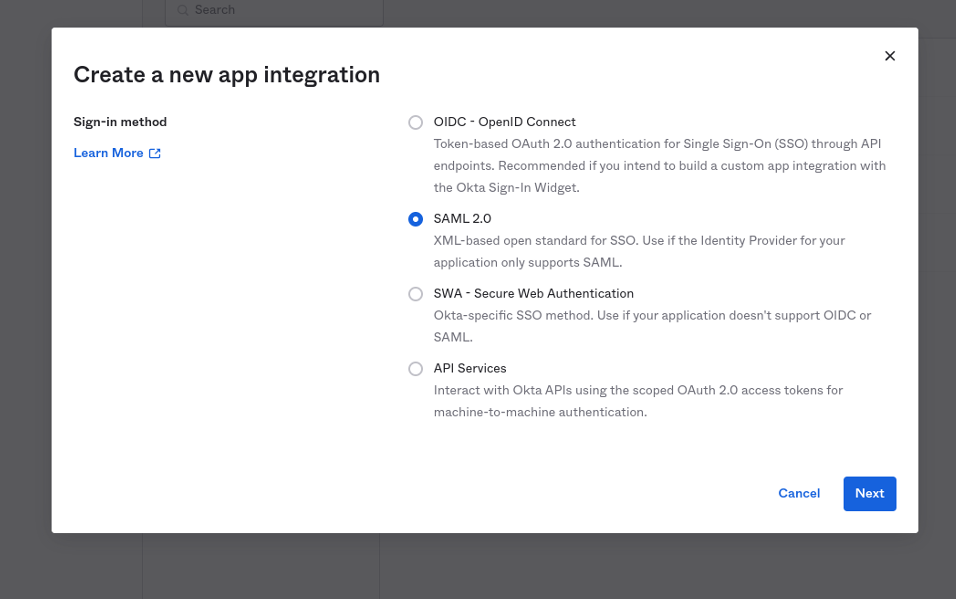 2. Give the application a name and an icon if desired.
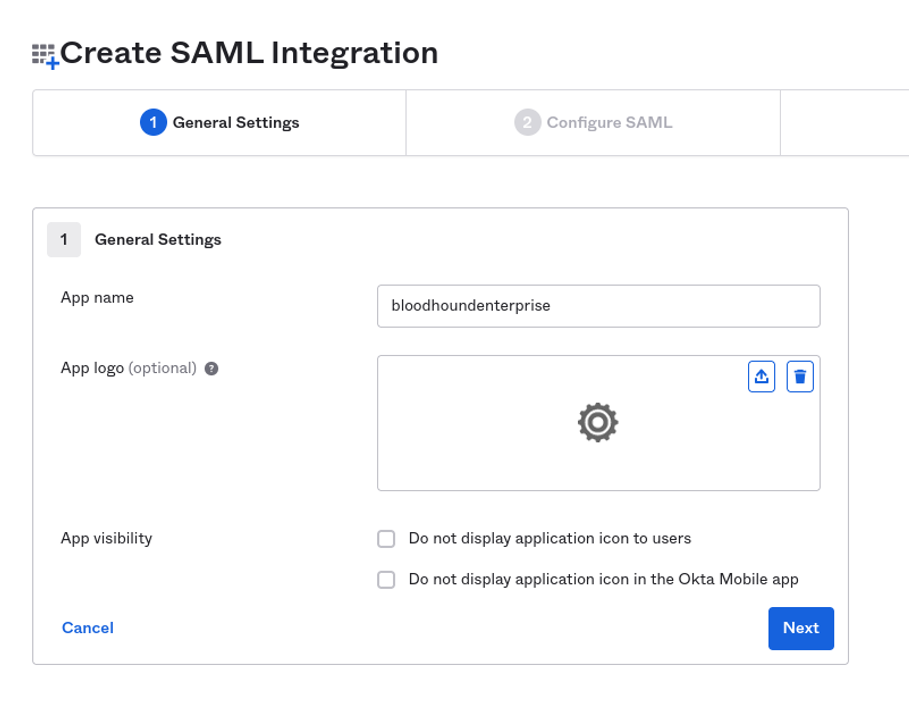 3. Once finished, click next to begin setting the SAML configuration for this application.
## Okta SAML Settings
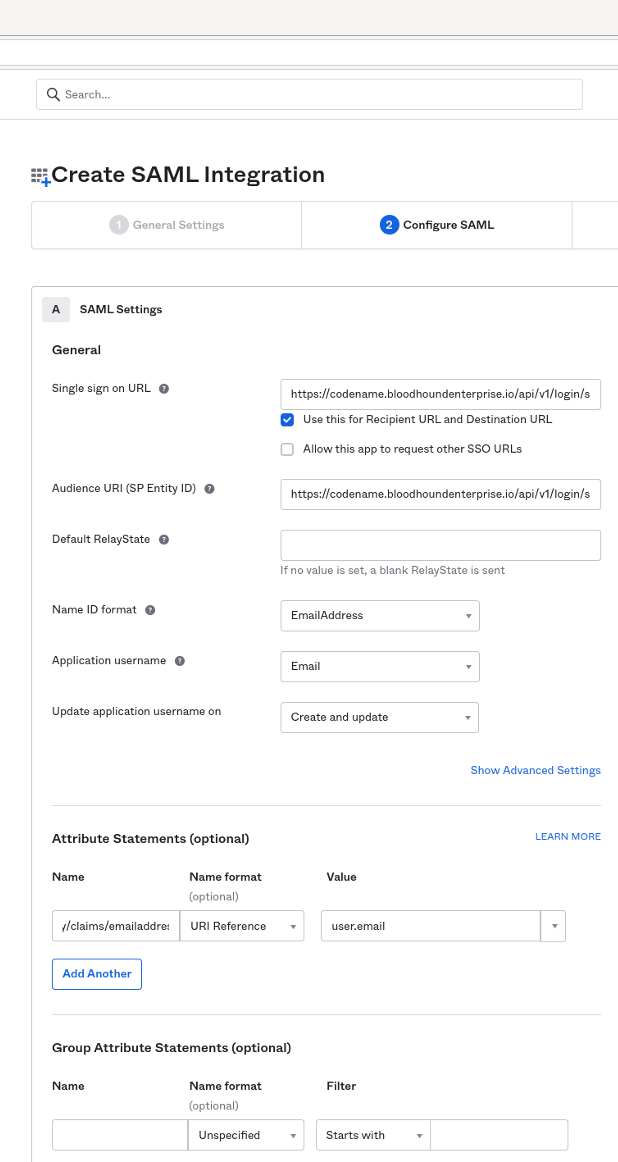
The following SAML settings are required for Okta to integrate with BloodHound Enterprise:
| **SAML Setting** | **Value** |
| ------------------------ | ------------ |
| **Name ID format** | EmailAddress |
| **Application username** | Email |
## Okta Attribute Statements
The following attribute settings are required for Okta to integrate with BloodHound Enterprise:
| | | |
| ---------------------------------------------------------------------------------------------------------------------------------------- | --------------- | ---------- |
| **Name** | **Name Format** | **Value** |
| [http://schemas.xmlsoap.org/ws/2005/05/identity/claims/emailaddress](http://schemas.xmlsoap.org/ws/2005/05/identity/claims/emailaddress) | URI Reference | user.email |
Complete SAML Integration Configuration
1. Once all the information is entered, your screen should look similar to the example below. Once confirmed, click next to continue.
3. Once finished, click next to begin setting the SAML configuration for this application.
## Okta SAML Settings
The following SAML settings are required for Okta to integrate with BloodHound Enterprise:
| **SAML Setting** | **Value** |
| ------------------------ | ------------ |
| **Name ID format** | EmailAddress |
| **Application username** | Email |
## Okta Attribute Statements
The following attribute settings are required for Okta to integrate with BloodHound Enterprise:
| | | |
| ---------------------------------------------------------------------------------------------------------------------------------------- | --------------- | ---------- |
| **Name** | **Name Format** | **Value** |
| [http://schemas.xmlsoap.org/ws/2005/05/identity/claims/emailaddress](http://schemas.xmlsoap.org/ws/2005/05/identity/claims/emailaddress) | URI Reference | user.email |
Complete SAML Integration Configuration
1. Once all the information is entered, your screen should look similar to the example below. Once confirmed, click next to continue.
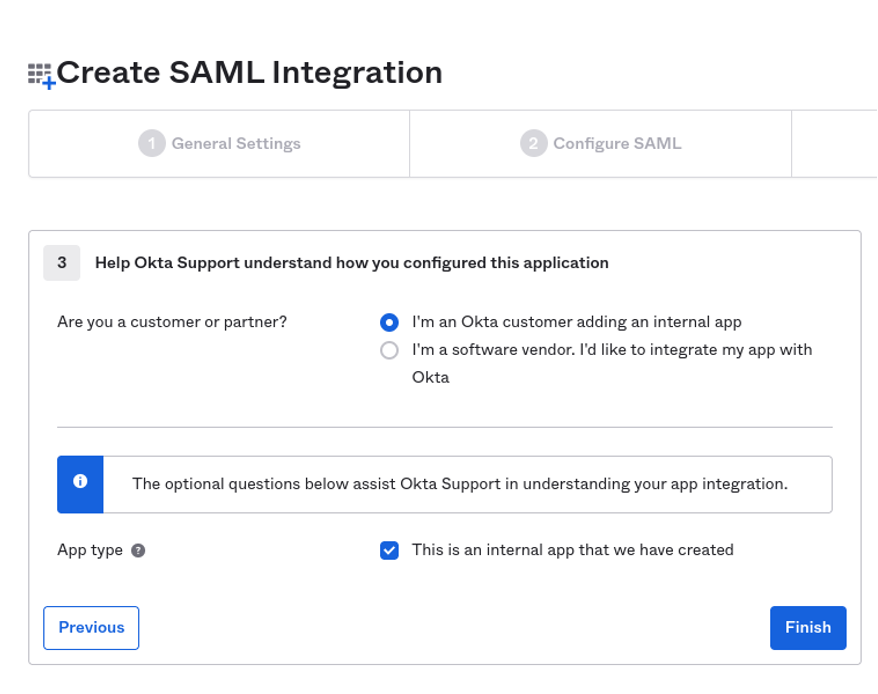
 2. Complete creation of the SAML integration with the following options below:
 3. Once completed you should now see the application home page. You may then click on **View Setup Instructions** to view the integration setup details.
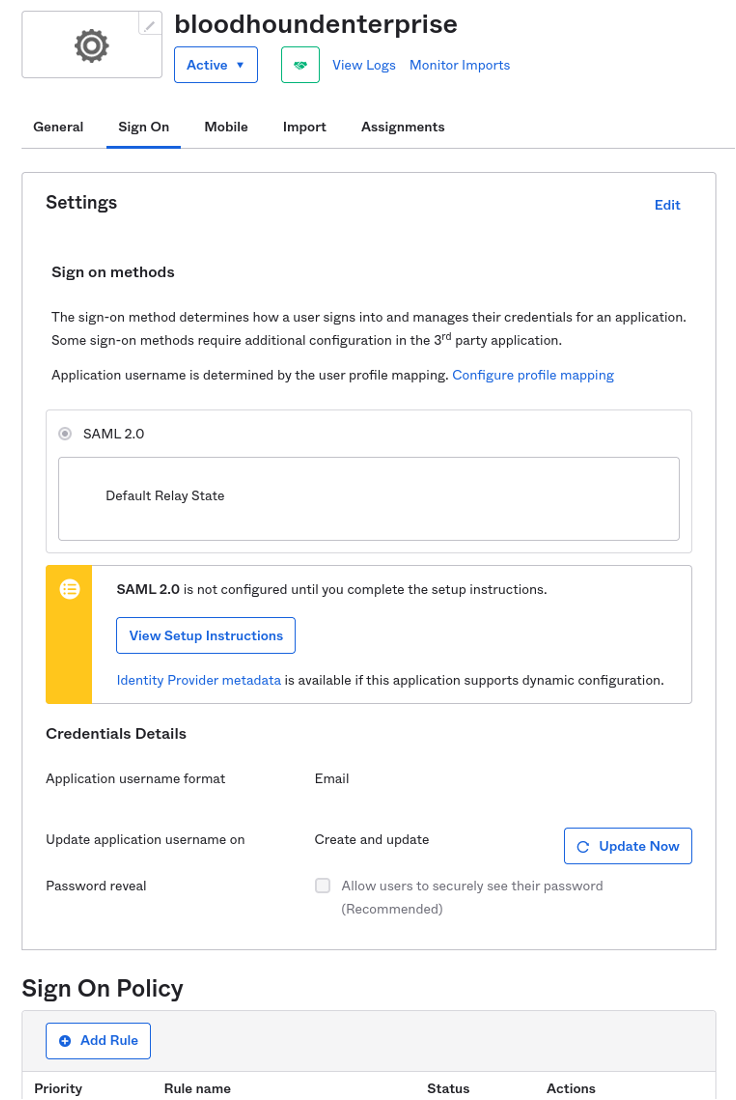 4. Copy the metadata provided by Okta and save it into a metadata.xml file.
**ATTENTION FIREFOX USERS:** FireFox may prepend an additional heading to the metadata.xml file, resulting in an error creating the SAML integration within BloodHound Enterprise. If your extracted metadata.xml looks like the following, delete line 1 try again. See [https://support.mozilla.org/en-US/questions/1387904](https://support.mozilla.org/en-US/questions/1387904) for more details.
4. Copy the metadata provided by Okta and save it into a metadata.xml file.
**ATTENTION FIREFOX USERS:** FireFox may prepend an additional heading to the metadata.xml file, resulting in an error creating the SAML integration within BloodHound Enterprise. If your extracted metadata.xml looks like the following, delete line 1 try again. See [https://support.mozilla.org/en-US/questions/1387904](https://support.mozilla.org/en-US/questions/1387904) for more details.
 5. Follow the instructions at [SAML in BloodHound Enterprise](/manage-bloodhound/auth/saml) to create the SAML provider in BloodHound Enterprise.