> ## Documentation Index
> Fetch the complete documentation index at: https://bloodhound.specterops.io/llms.txt
> Use this file to discover all available pages before exploring further.
# Use the Vulnerability Response Integration with BloodHound Enterprise
> Learn how to navigate the Vulnerability Manager Workspace to see attack path data from BloodHound Enterprise.
 The SpecterOps BloodHound Vulnerability Response Integration for ServiceNow provides a powerful solution for automating vulnerability management and remediation workflows based on attack path analysis.
After [installation and configuration](/integrations/service-now/vulnerability-response/configure) is complete, you can start using the integration to view attack path data in ServiceNow's Vulnerability Manager Workspace. This section provides an overview of how to access and navigate the workspace to see the collected data from BloodHound Enterprise.
See the ServiceNow [documentation](https://www.servicenow.com/docs/r/xanadu/security-management/vulnerability-response/vuln-landing-page.html) for more information about using the Vulnerability Manager Workspace.
To access the Vulnerability Manager Workspace and view BloodHound data:
1. Log into your ServiceNow instance.
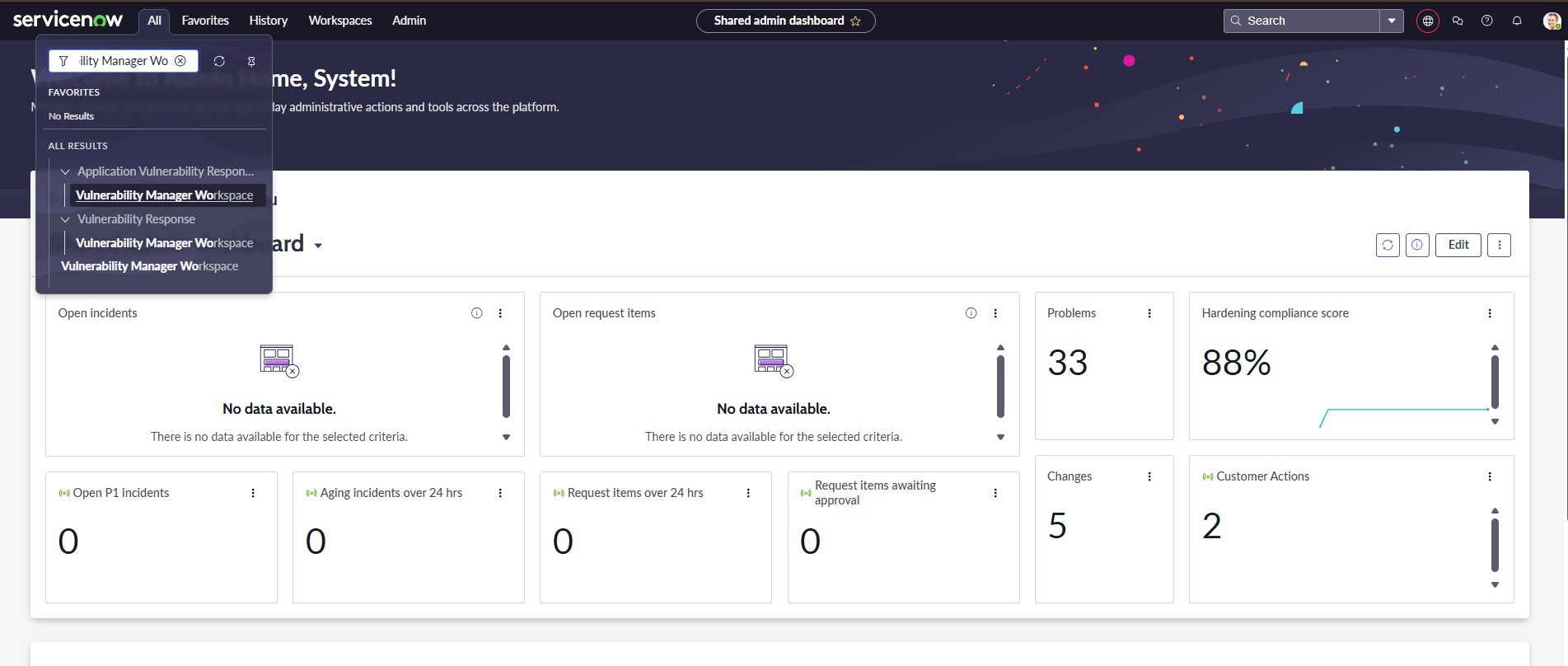
2. Click **All** and enter *Vulnerability Manager Workspace* in the search bar and select it.
The SpecterOps BloodHound Vulnerability Response Integration for ServiceNow provides a powerful solution for automating vulnerability management and remediation workflows based on attack path analysis.
After [installation and configuration](/integrations/service-now/vulnerability-response/configure) is complete, you can start using the integration to view attack path data in ServiceNow's Vulnerability Manager Workspace. This section provides an overview of how to access and navigate the workspace to see the collected data from BloodHound Enterprise.
See the ServiceNow [documentation](https://www.servicenow.com/docs/r/xanadu/security-management/vulnerability-response/vuln-landing-page.html) for more information about using the Vulnerability Manager Workspace.
To access the Vulnerability Manager Workspace and view BloodHound data:
1. Log into your ServiceNow instance.
2. Click **All** and enter *Vulnerability Manager Workspace* in the search bar and select it.
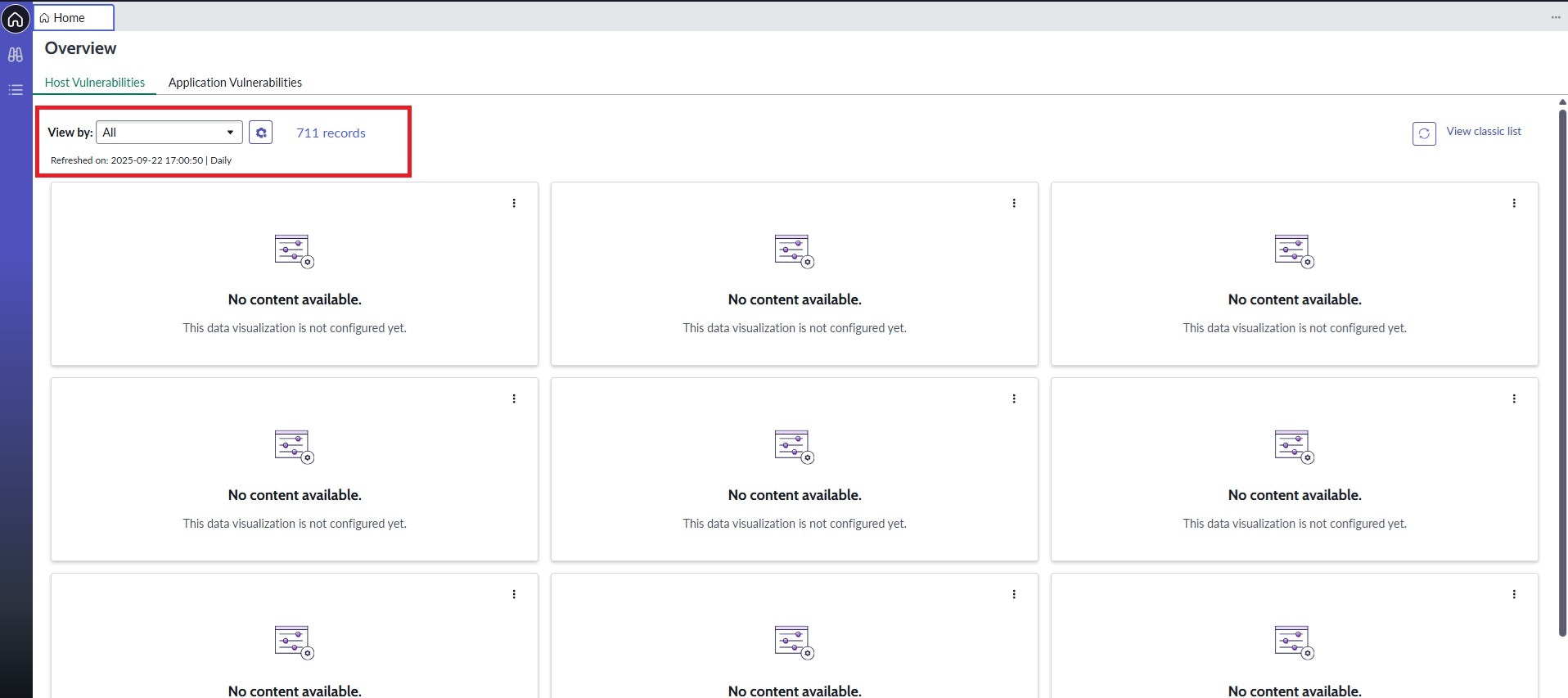
 1. Under the **View by** dropdown, select **All**.
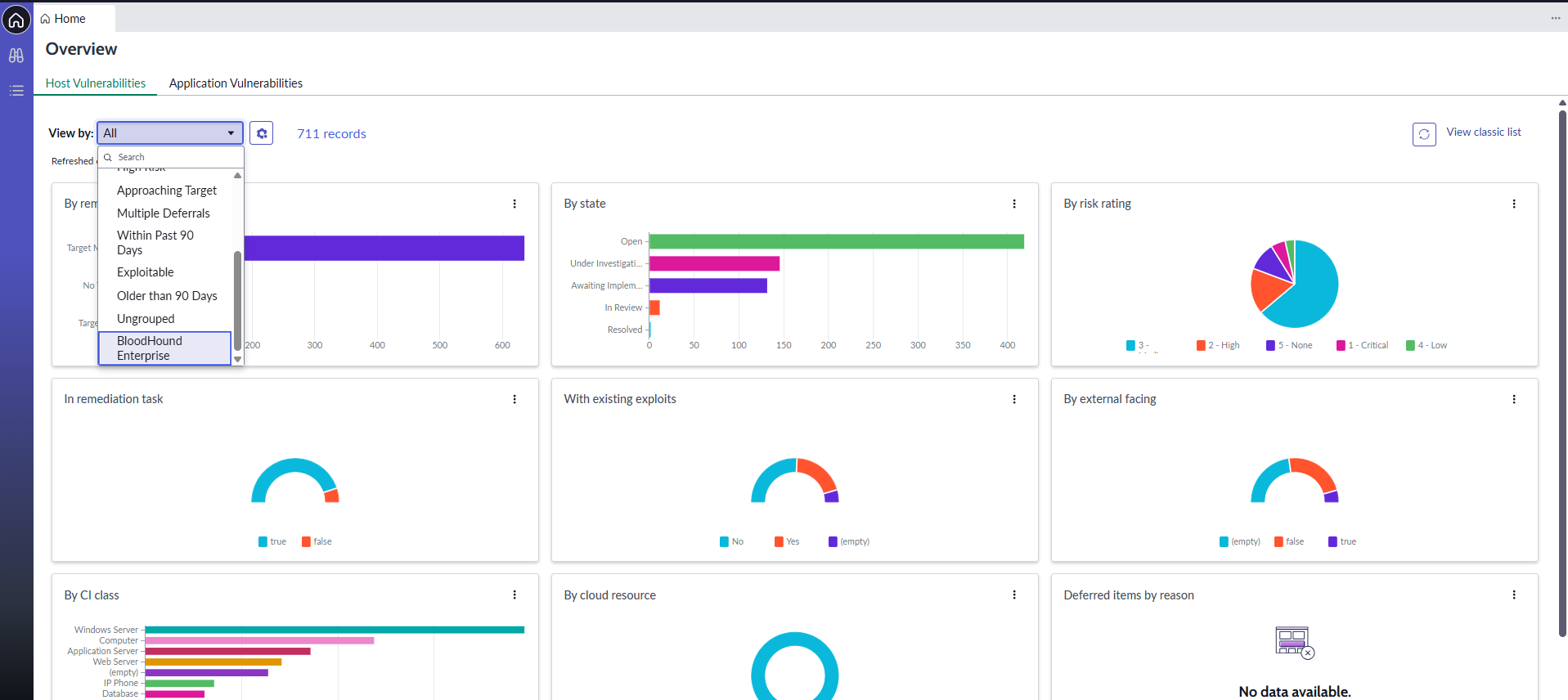
 2. Scroll down and select **BloodHound Enterprise**.
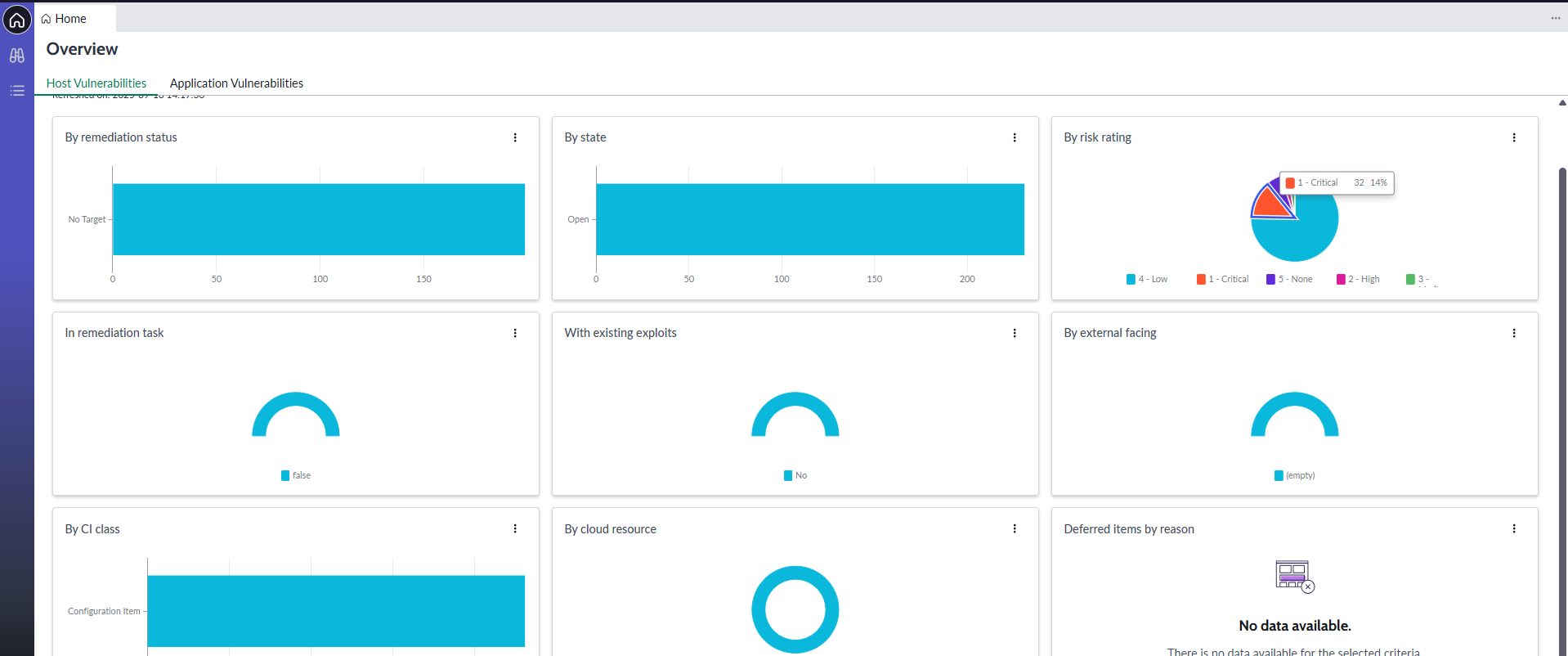
 The following visualization shows the collected data in a graphical format.
 ## Next steps
After successful implementation and initial use of the integration, consider the following next steps to maximize value:
1. **User training**: Provide comprehensive training to security teams and ServiceNow users
2. **Process integration**: Integrate the solution with existing security processes and workflows
3. **Performance optimization**: Monitor and optimize performance based on usage patterns
4. **Regular updates**: Stay current with application updates and new features
5. **Expansion**: Consider expanding integration to additional environments and use cases
## Maintenance and support
Ongoing maintenance and support are critical for ensuring the long-term success of the integration. Consider the following best practices:
* **Regular health checks**: Schedule periodic reviews of integration health and performance
* **Update management**: Plan for regular application and system updates
* **Documentation updates**: Maintain current documentation as configurations change
* **User feedback**: Collect and act on user feedback for continuous improvement
## Next steps
After successful implementation and initial use of the integration, consider the following next steps to maximize value:
1. **User training**: Provide comprehensive training to security teams and ServiceNow users
2. **Process integration**: Integrate the solution with existing security processes and workflows
3. **Performance optimization**: Monitor and optimize performance based on usage patterns
4. **Regular updates**: Stay current with application updates and new features
5. **Expansion**: Consider expanding integration to additional environments and use cases
## Maintenance and support
Ongoing maintenance and support are critical for ensuring the long-term success of the integration. Consider the following best practices:
* **Regular health checks**: Schedule periodic reviews of integration health and performance
* **Update management**: Plan for regular application and system updates
* **Documentation updates**: Maintain current documentation as configurations change
* **User feedback**: Collect and act on user feedback for continuous improvement