> ## Documentation Index
> Fetch the complete documentation index at: https://bloodhound.specterops.io/llms.txt
> Use this file to discover all available pages before exploring further.
# Use Security Incident Response Integration with BloodHound Enterprise
> Learn how to use the ServiceNow Security Incident Response integration to manage security incidents based on BloodHound Enterprise attack path findings.
 After [installation and configuration](/integrations/service-now/security-incident-response/configure) are complete, the integration begins fetching attack path findings from the BloodHound Enterprise API. The integration creates a Security Incident Response (SIR) ticket for each attack path finding.
To view and manage security incidents created by the integration:
1. Log in to your ServiceNow instance.
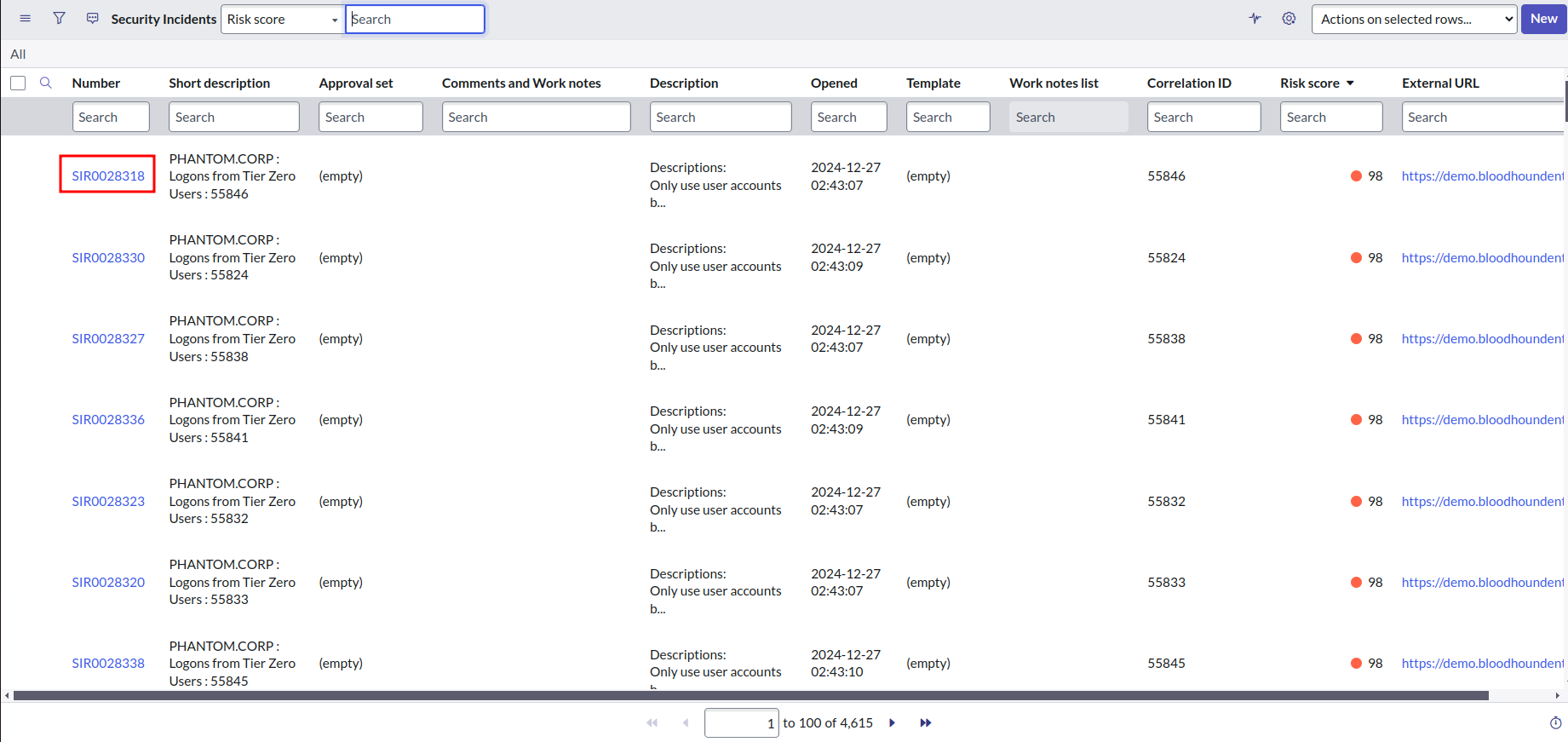
2. Click **All** and enter `sn_si_incident.list` in the search bar to navigate to the list of security incidents.
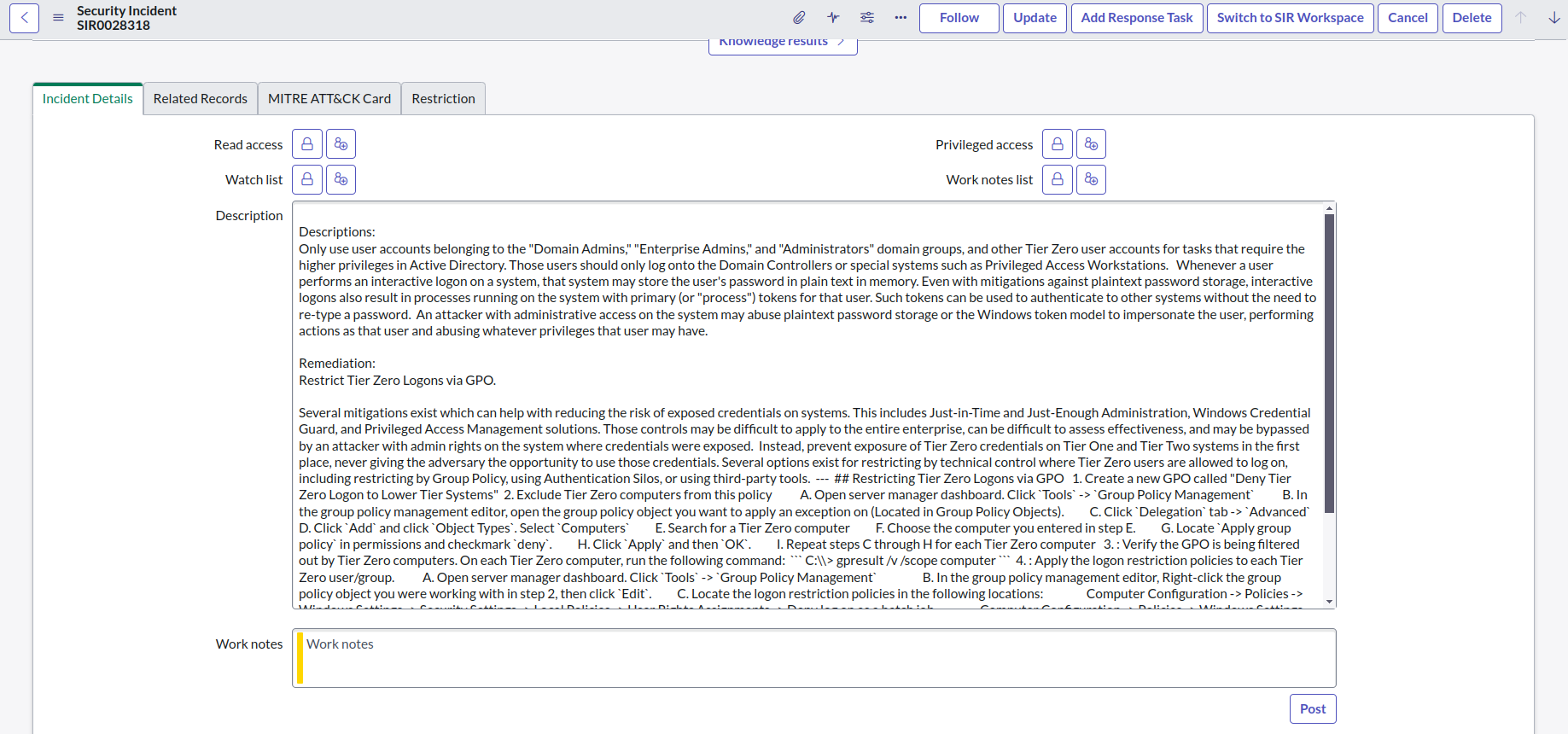
1. Click a number to view attack path findings and remediation documentation in the incident details.
After [installation and configuration](/integrations/service-now/security-incident-response/configure) are complete, the integration begins fetching attack path findings from the BloodHound Enterprise API. The integration creates a Security Incident Response (SIR) ticket for each attack path finding.
To view and manage security incidents created by the integration:
1. Log in to your ServiceNow instance.
2. Click **All** and enter `sn_si_incident.list` in the search bar to navigate to the list of security incidents.
1. Click a number to view attack path findings and remediation documentation in the incident details.
 2. Update incident fields as required.
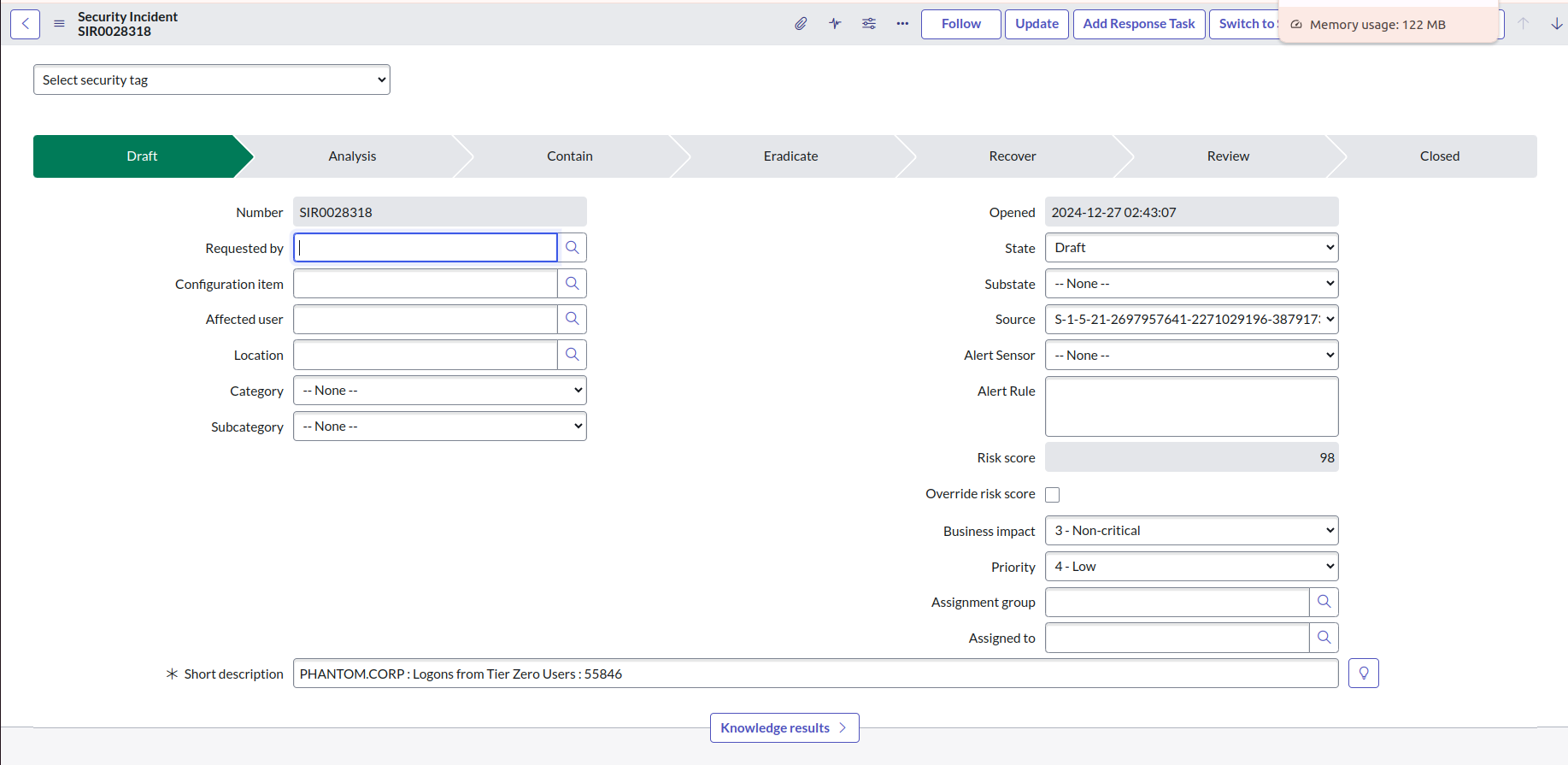 For example, you can post comments in the **Work Notes** field.