> ## Documentation Index
> Fetch the complete documentation index at: https://bloodhound.specterops.io/llms.txt
> Use this file to discover all available pages before exploring further.
# Integrate BloodHound Enterprise with Cortex XSOAR
> Learn how to integrate BloodHound Enterprise with Cortex XSOAR by Palo Alto Networks.
 The BloodHound Enterprise integration for [Cortex XSOAR](https://www.paloaltonetworks.com/resources/datasheets/cortex-xsoar-for-mssps#:~:text=Cortex%20XSOAR%C2%AE%EF%B8%8F%20is%20a,of%20services%20for%20their%20clients.) lets you ingest and manage BloodHound Enterprise attack path findings in Cortex XSOAR as incidents.
Use this integration to:
* Automatically convert BloodHound Enterprise attack path findings into Cortex XSOAR incidents
* Attach remediation guidance and posture context to incidents
* Run playbooks and custom commands to analyze, triage, and remediate findings
Key capabilities include:
* Automated incident creation with titles, descriptions, remediation guidance, impact/exposure metrics, severity, and domain/environment context
* Playbook linking per incident to run custom analysis commands
* Custom commands:
* Object ID lookup by name
* Asset information by object ID
* Path analysis between two nodes in the BloodHound graph
## Prerequisites
Before installing and configuring the Cortex XSOAR integration, ensure that you have the following:
* Cortex XSOAR instance with an admin account
* BloodHound Enterprise tenant
* BloodHound Enterprise API key/ID pair
We recommend a [non-personal API key/ID pair](/integrations/bloodhound-api/working-with-api#create-a-non-personal-api-key%2Fid-pair).
## Configure Cortex XSOAR
Set up the SpecterOps BloodHound Enterprise integration instance in Cortex XSOAR.
1. Log in to your Cortex XSOAR instance.
2. Go to **Settings & Info** > **Settings** > **Integrations** > **Instances**.
The BloodHound Enterprise integration for [Cortex XSOAR](https://www.paloaltonetworks.com/resources/datasheets/cortex-xsoar-for-mssps#:~:text=Cortex%20XSOAR%C2%AE%EF%B8%8F%20is%20a,of%20services%20for%20their%20clients.) lets you ingest and manage BloodHound Enterprise attack path findings in Cortex XSOAR as incidents.
Use this integration to:
* Automatically convert BloodHound Enterprise attack path findings into Cortex XSOAR incidents
* Attach remediation guidance and posture context to incidents
* Run playbooks and custom commands to analyze, triage, and remediate findings
Key capabilities include:
* Automated incident creation with titles, descriptions, remediation guidance, impact/exposure metrics, severity, and domain/environment context
* Playbook linking per incident to run custom analysis commands
* Custom commands:
* Object ID lookup by name
* Asset information by object ID
* Path analysis between two nodes in the BloodHound graph
## Prerequisites
Before installing and configuring the Cortex XSOAR integration, ensure that you have the following:
* Cortex XSOAR instance with an admin account
* BloodHound Enterprise tenant
* BloodHound Enterprise API key/ID pair
We recommend a [non-personal API key/ID pair](/integrations/bloodhound-api/working-with-api#create-a-non-personal-api-key%2Fid-pair).
## Configure Cortex XSOAR
Set up the SpecterOps BloodHound Enterprise integration instance in Cortex XSOAR.
1. Log in to your Cortex XSOAR instance.
2. Go to **Settings & Info** > **Settings** > **Integrations** > **Instances**.
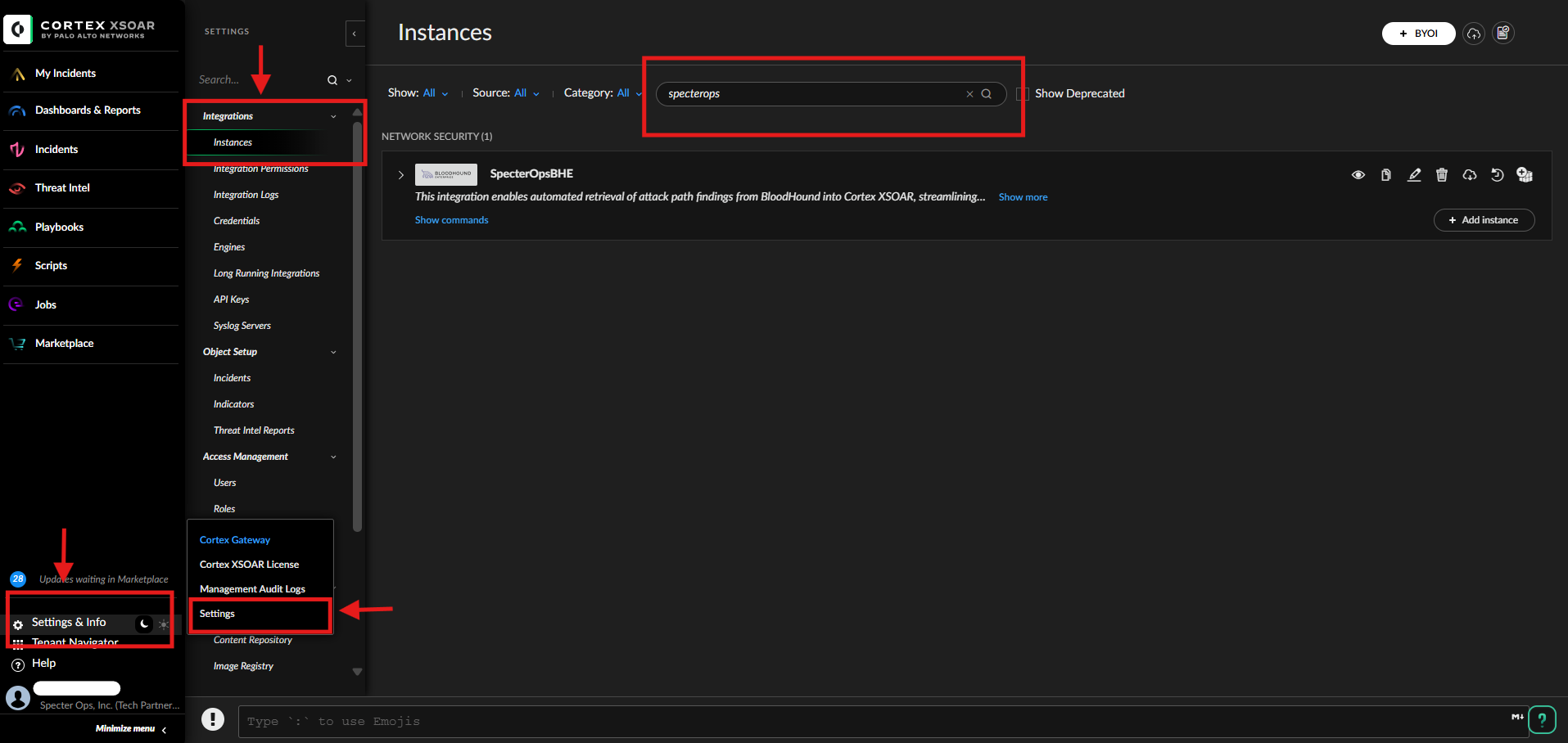 1. Search for the SpecterOps integration.
2. Click **Add Instance** for the SpecterOpsBHE integration.
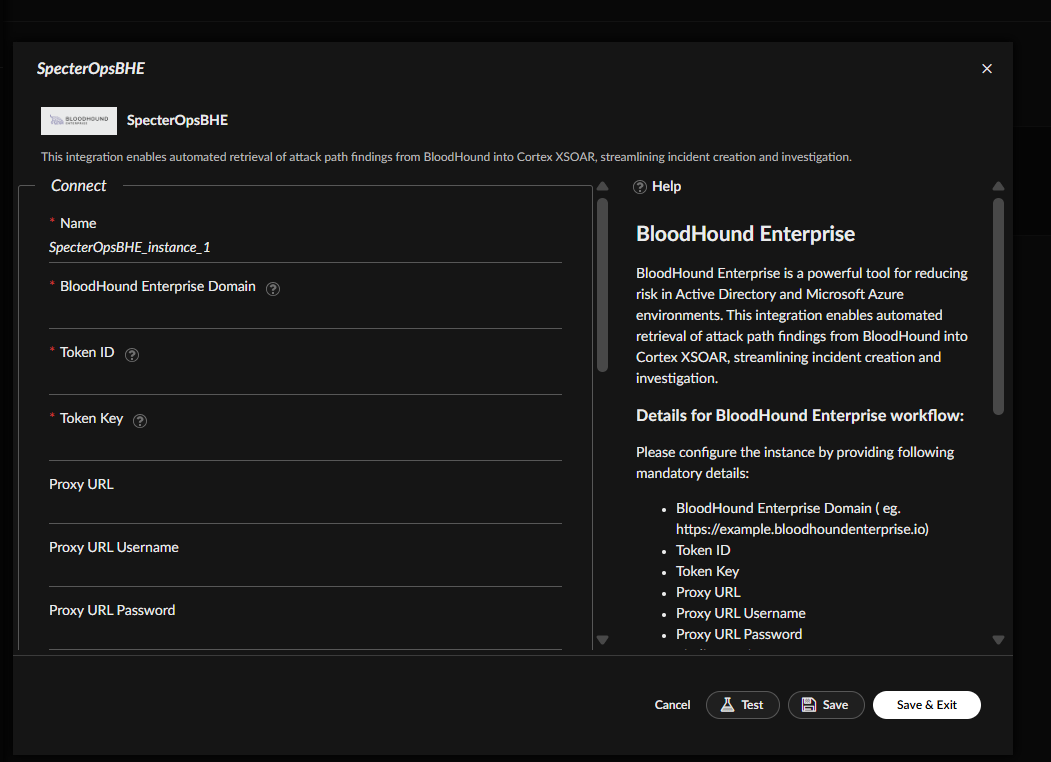
3. Configure settings.
| Field | Description | Required? |
| -------------------------------- | ------------------------------------------------------------------- | :-------: |
| **Name** | Instance display name (default can be modified) | Yes |
| **BloodHound Enterprise Domain** | Your tenant domain, e.g., `https://example.bloodhoundenterprise.io` | Yes |
| **Token ID** | API token ID from BloodHound Enterprise | Yes |
| **Token Key** | API token key from BloodHound Enterprise | Yes |
| **Proxy URL** | Proxy URL to reach BloodHound Enterprise | No |
| **Proxy URL Username** | Username for proxy authentication | No |
| **Proxy URL Password** | Password for proxy authentication | No |
| **Finding Environment** | Scope findings to one environment | No |
| **Finding Category** | Scope findings to one category | No |
By default, **Finding Environment** and **Finding Category** are set to **All**.
1. Search for the SpecterOps integration.
2. Click **Add Instance** for the SpecterOpsBHE integration.
3. Configure settings.
| Field | Description | Required? |
| -------------------------------- | ------------------------------------------------------------------- | :-------: |
| **Name** | Instance display name (default can be modified) | Yes |
| **BloodHound Enterprise Domain** | Your tenant domain, e.g., `https://example.bloodhoundenterprise.io` | Yes |
| **Token ID** | API token ID from BloodHound Enterprise | Yes |
| **Token Key** | API token key from BloodHound Enterprise | Yes |
| **Proxy URL** | Proxy URL to reach BloodHound Enterprise | No |
| **Proxy URL Username** | Username for proxy authentication | No |
| **Proxy URL Password** | Password for proxy authentication | No |
| **Finding Environment** | Scope findings to one environment | No |
| **Finding Category** | Scope findings to one category | No |
By default, **Finding Environment** and **Finding Category** are set to **All**.
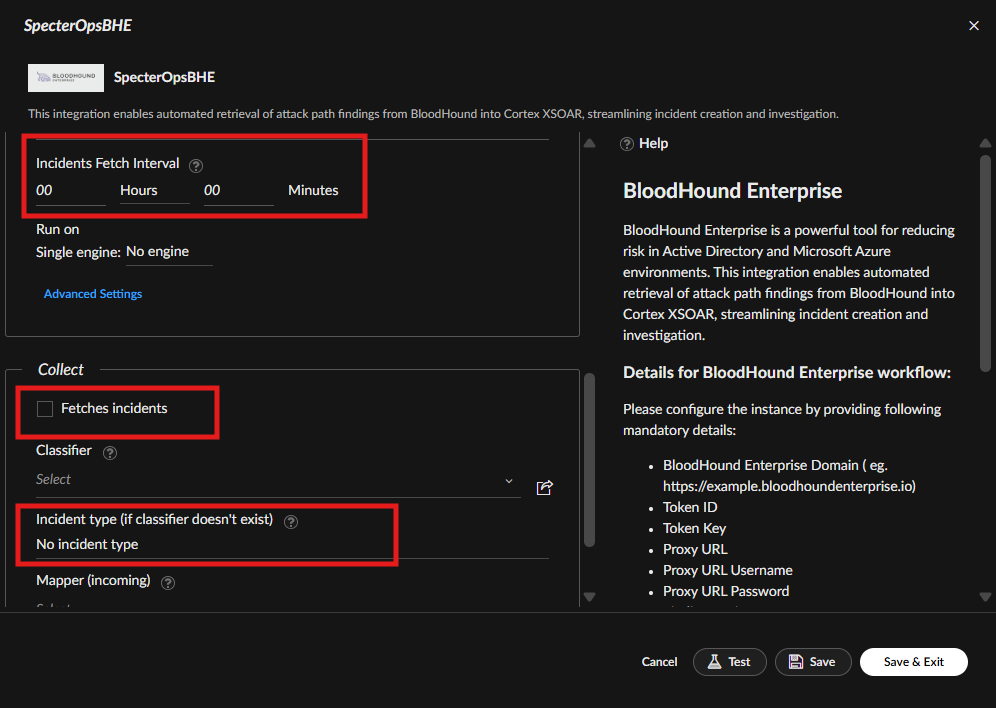
 1. Check the **Fetches incidents** option (required).
2. Set **Incident Type** to "SpecterOpsBHE Attack Path" (optional).
3. Set the **Incidents Fetch Interval** to your preferred schedule (required).
The default fetch interval is 10 minutes.
1. Check the **Fetches incidents** option (required).
2. Set **Incident Type** to "SpecterOpsBHE Attack Path" (optional).
3. Set the **Incidents Fetch Interval** to your preferred schedule (required).
The default fetch interval is 10 minutes.
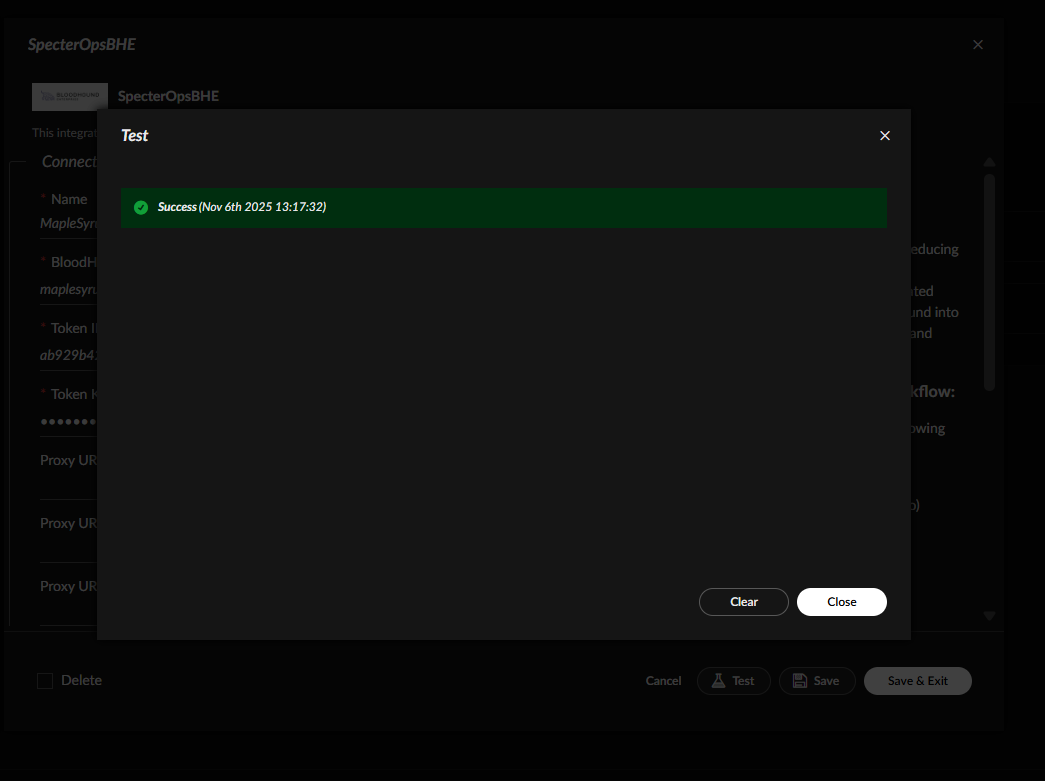
 1. Click **Test** to verify connectivity and credentials.
2. Close the modal, then **Save** the instance.
"Success" indicates working parameters and connectivity. "Error" indicates invalid parameters or connection failure.
1. Click **Test** to verify connectivity and credentials.
2. Close the modal, then **Save** the instance.
"Success" indicates working parameters and connectivity. "Error" indicates invalid parameters or connection failure.
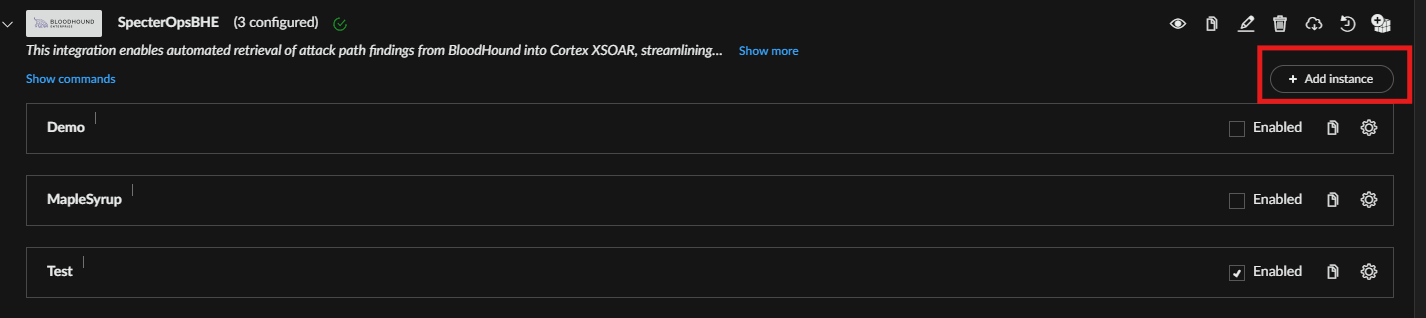
 * To add additional BloodHound Enterprise domains, create more instances with **Add Instance**.
* To stop fetching, uncheck **Enable** to disable the instance.
* To add additional BloodHound Enterprise domains, create more instances with **Add Instance**.
* To stop fetching, uncheck **Enable** to disable the instance.