 ## Purpose
This article describes how to run an unscheduled scan to perform a one-time, immediate data collection with a collector client. Administrators may use it during collector client deployment, one-time collections, or troubleshooting.
## Prerequisites
The following prerequisites are required to run an on demand scan:
* An existing SharpHound Enterprise or AzureHound Enterprise [collector client](/collect-data/enterprise-collection/create-collector)
* Logged in as a user assigned a [role](/manage-bloodhound/auth/users-and-roles) authorized to run a collector client on demand scan
## Process
The process to run an on demand scan consists of the following steps:
## Purpose
This article describes how to run an unscheduled scan to perform a one-time, immediate data collection with a collector client. Administrators may use it during collector client deployment, one-time collections, or troubleshooting.
## Prerequisites
The following prerequisites are required to run an on demand scan:
* An existing SharpHound Enterprise or AzureHound Enterprise [collector client](/collect-data/enterprise-collection/create-collector)
* Logged in as a user assigned a [role](/manage-bloodhound/auth/users-and-roles) authorized to run a collector client on demand scan
## Process
The process to run an on demand scan consists of the following steps:
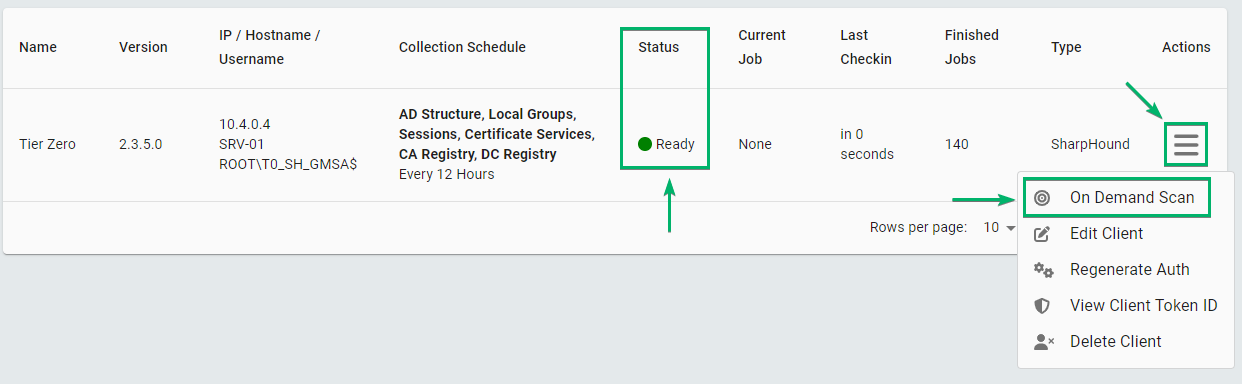
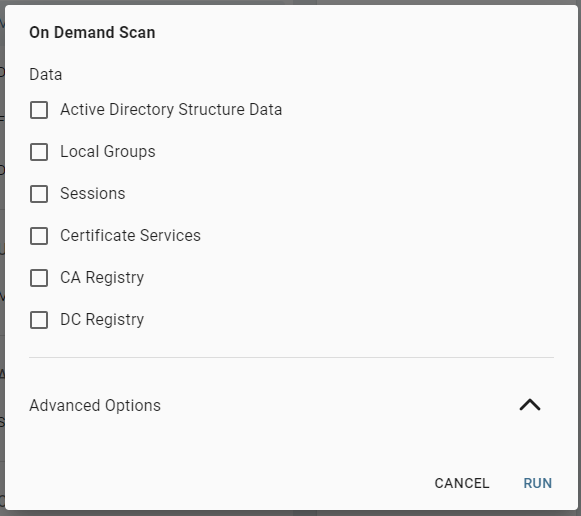 | **Option** | **Description** |
| ------------------------------------------------------------------------ | ----------------------------------------------------------------------------------------------------------------------------------------------------------------------------------------------------------------------------------------------------------------------------------------------------------------------------------------------------------------------------------------------------------------------------------------------------------------------------------------------- |
| Data (Required) | Multi-select option for the different types of collection available. See [SharpHound Data Collection and Permissions](/collect-data/permissions) for details on the data collected and permissions necessary for each. |
| Domain controller | By default, SharpHound automatically selects a Domain Controller for LDAP queries. Specifying a Domain Controller hostname or FQDN here will define the default value used for this scan or schedule.
| **Option** | **Description** |
| ------------------------------------------------------------------------ | ----------------------------------------------------------------------------------------------------------------------------------------------------------------------------------------------------------------------------------------------------------------------------------------------------------------------------------------------------------------------------------------------------------------------------------------------------------------------------------------------- |
| Data (Required) | Multi-select option for the different types of collection available. See [SharpHound Data Collection and Permissions](/collect-data/permissions) for details on the data collected and permissions necessary for each. |
| Domain controller | By default, SharpHound automatically selects a Domain Controller for LDAP queries. Specifying a Domain Controller hostname or FQDN here will define the default value used for this scan or schedule.If not set, SharpHound will utilize the value set in the client configuration.
We recommend not configuring a Domain Controller manually. | | Target Local Group and/or User Session Collection by Organizational Unit | Define one or more OUs within a domain to only collect Local Group and Session data from computers contained within the specified OUs and their descendants.
If left empty, *SharpHound will collect from all OUs.*
If defined, the schedule or On Demand Scan will not collect AD structure data. A dedicated schedule or On Demand Scan must therefore be created for AD structure collection.
*Note: Not supported with multi-domain collections.* | | Scope Collection to Multiple Domains | Utilize trust relationships in your environment to collect data from multiple domains.
If left empty, SharpHound will collect from the domain to which the Service Account belongs.
SharpHound supports two options:
\* Define a specific list of domains from which to collect data.
\* Collect data from all domains within the forest that the SharpHound service account belongs.
*Note: Multi-domain collections cannot be scoped by OU.* |
