> ## Documentation Index
> Fetch the complete documentation index at: https://bloodhound.specterops.io/llms.txt
> Use this file to discover all available pages before exploring further.
# Labels
> Learn how to use labels to categorize and manage objects within Privilege Zones for better organization.
export const tab_1 = "label"
export const tab_0 = "Labels"
 Labels let you tag groups of objects for easier searching and filtering. For example, you can label compromised assets with the default **Owned** label to quickly identify attack paths from non-compromised to compromised assets in your environment.
The **Owned** label represents objects that have been compromised in your environment. You can tag objects with the **Owned** label using rules or manually in the graph.
Unlike zones, BloodHound does not use labels in risk analysis—they're designed to help you organize and query your data.
The **{tab_0}** tab provides different views depending on which edition of BloodHound you're using. The **Summary View** is available in BloodHound Enterprise only, while the **Details View** is available in both BloodHound Enterprise and BloodHound Community Edition.
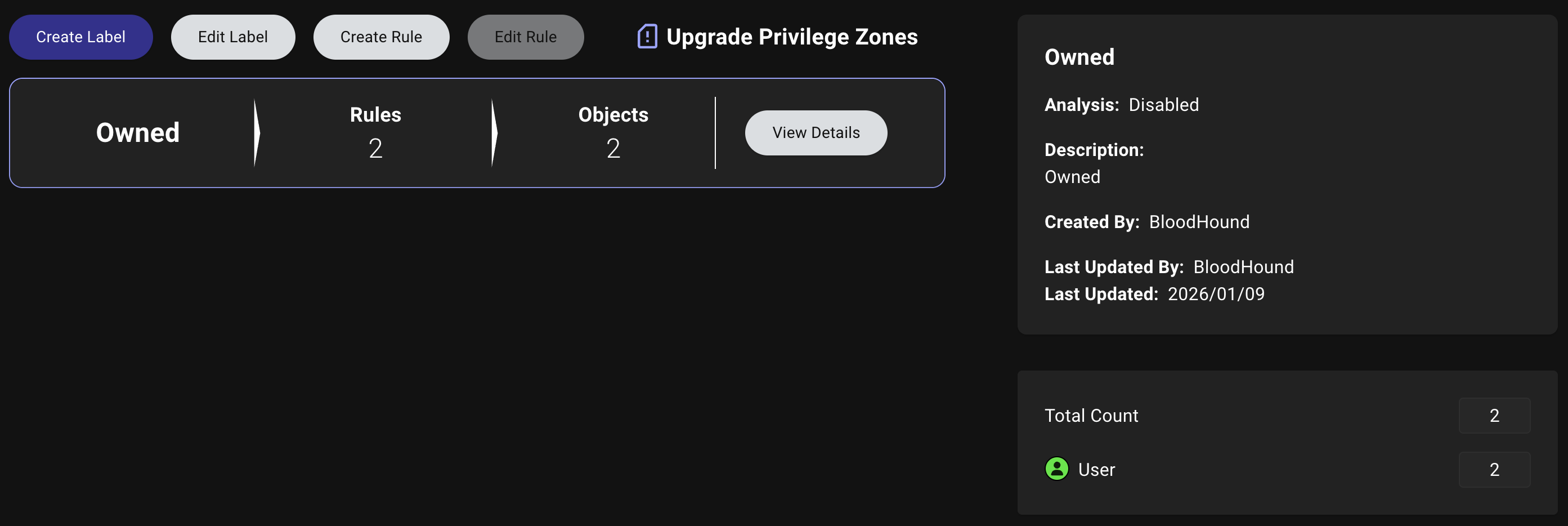
The **Summary View** shows label names, rule counts, and object counts.
Labels let you tag groups of objects for easier searching and filtering. For example, you can label compromised assets with the default **Owned** label to quickly identify attack paths from non-compromised to compromised assets in your environment.
The **Owned** label represents objects that have been compromised in your environment. You can tag objects with the **Owned** label using rules or manually in the graph.
Unlike zones, BloodHound does not use labels in risk analysis—they're designed to help you organize and query your data.
The **{tab_0}** tab provides different views depending on which edition of BloodHound you're using. The **Summary View** is available in BloodHound Enterprise only, while the **Details View** is available in both BloodHound Enterprise and BloodHound Community Edition.
The **Summary View** shows label names, rule counts, and object counts.
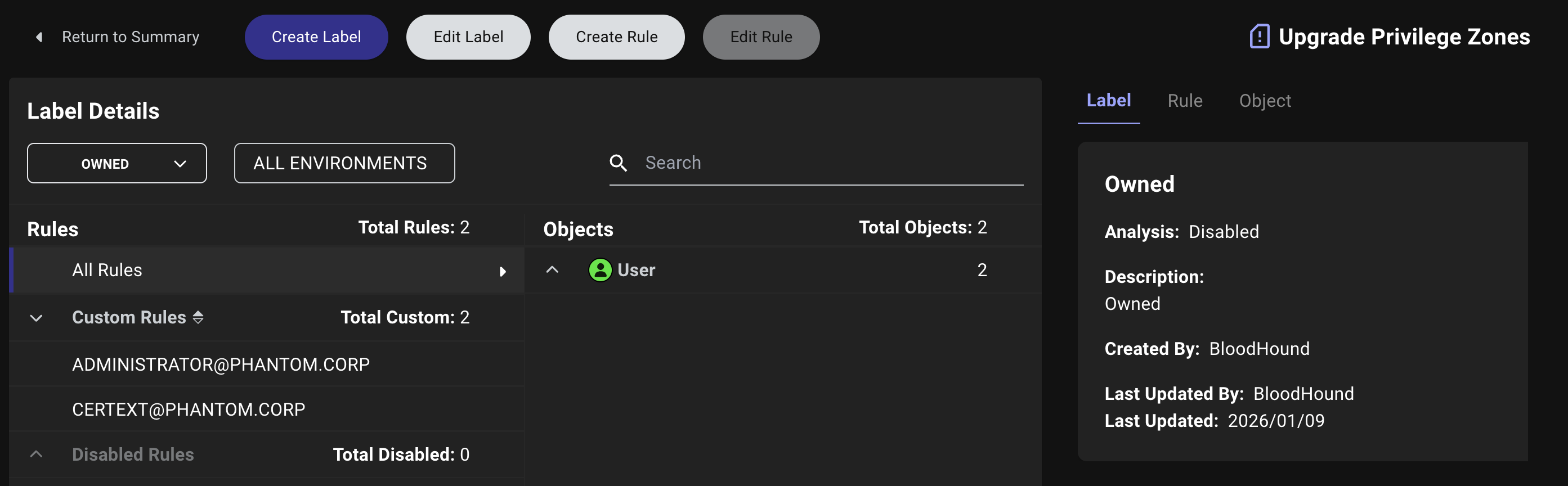
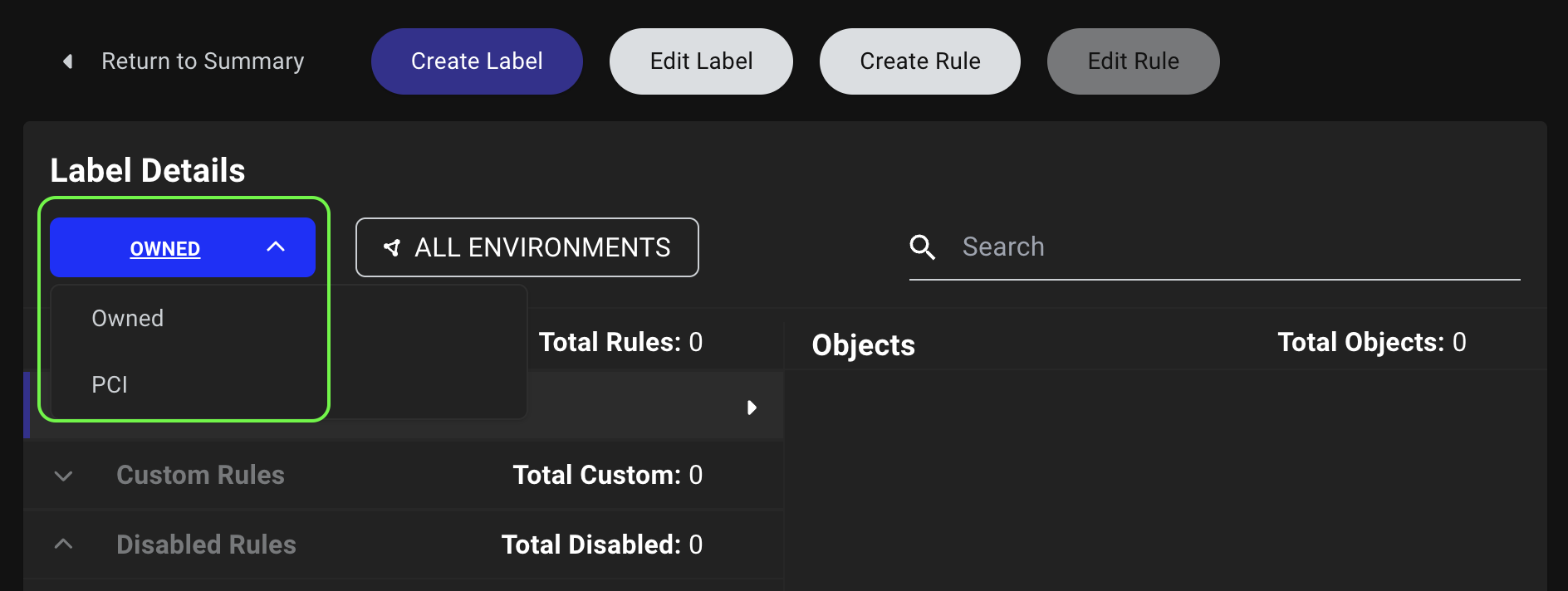
 The **Details View** displays all rules configured for the selected label and the objects that they pull into the label (organized by node type). Use the dropdown menus to filter the view by specific zones, identity providers, and services in your network environment.
Select a rule or object to display more details in the right panel, including:
* Rule definition and Cypher query
* Object properties and relationships
BloodHound displays objects for enabled rules only. To view objects related to a disabled rule, you must re-enable it.
The **Details View** displays all rules configured for the selected label and the objects that they pull into the label (organized by node type). Use the dropdown menus to filter the view by specific zones, identity providers, and services in your network environment.
Select a rule or object to display more details in the right panel, including:
* Rule definition and Cypher query
* Object properties and relationships
BloodHound displays objects for enabled rules only. To view objects related to a disabled rule, you must re-enable it.
 ### Create a label
Enterprise Edition
You can create custom labels to categorize objects based on any criteria relevant to your environment, such as business function, sensitivity level, or compliance requirements.
For example, you might create a label for PCI-scoped systems to quickly identify attack paths from non-PCI to PCI environments.
Creating a label involves configuring the label details and defining a rule.
In the left menu, click **Privilege Zones** > **Labels** > **Create Label**.
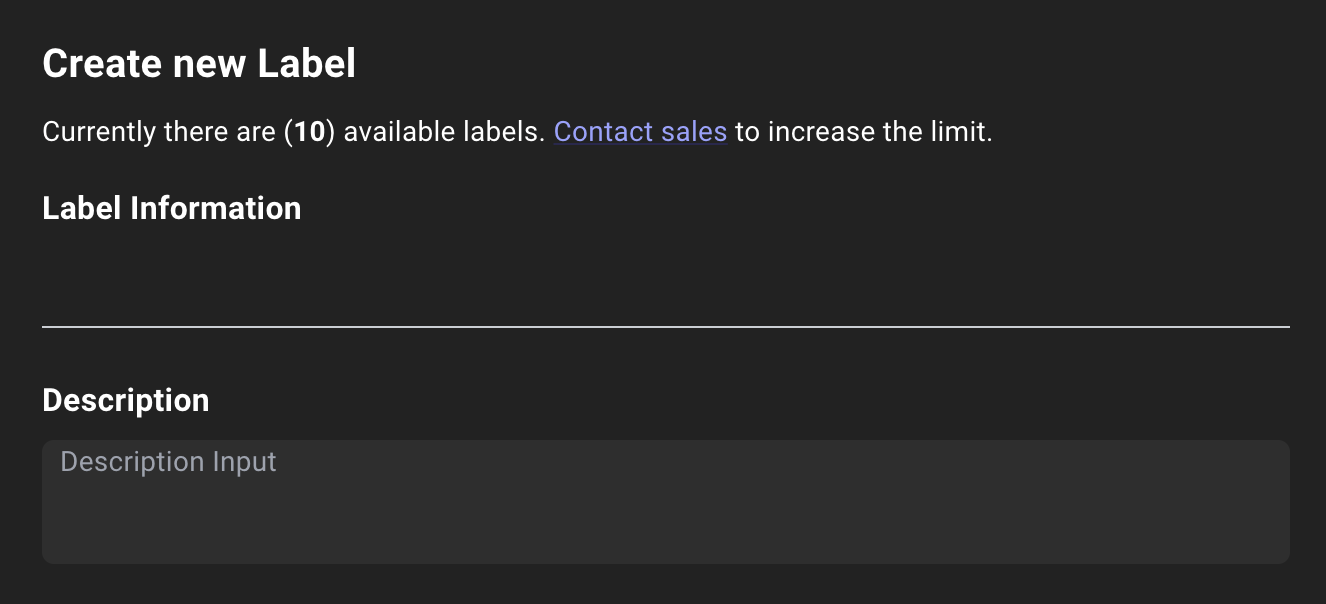
Enter all relevant information about the label:
| Field | Required? | Description |
| ----------- | :-------: | ----------------------------------------------------------------------- |
| Name | Yes | A unique name for the label (e.g., PCI) |
| Description | No | A brief description of the label's purpose and scope (e.g., PCI assets) |
### Create a label
Enterprise Edition
You can create custom labels to categorize objects based on any criteria relevant to your environment, such as business function, sensitivity level, or compliance requirements.
For example, you might create a label for PCI-scoped systems to quickly identify attack paths from non-PCI to PCI environments.
Creating a label involves configuring the label details and defining a rule.
In the left menu, click **Privilege Zones** > **Labels** > **Create Label**.
Enter all relevant information about the label:
| Field | Required? | Description |
| ----------- | :-------: | ----------------------------------------------------------------------- |
| Name | Yes | A unique name for the label (e.g., PCI) |
| Description | No | A brief description of the label's purpose and scope (e.g., PCI assets) |
 Click **Define Rule** to save your new label and continue on to define the objects to include in the label.
See [Rules](/analyze-data/privilege-zones/rules) for more detailed information about defining rules. The content in this section provides a high-level overview only.
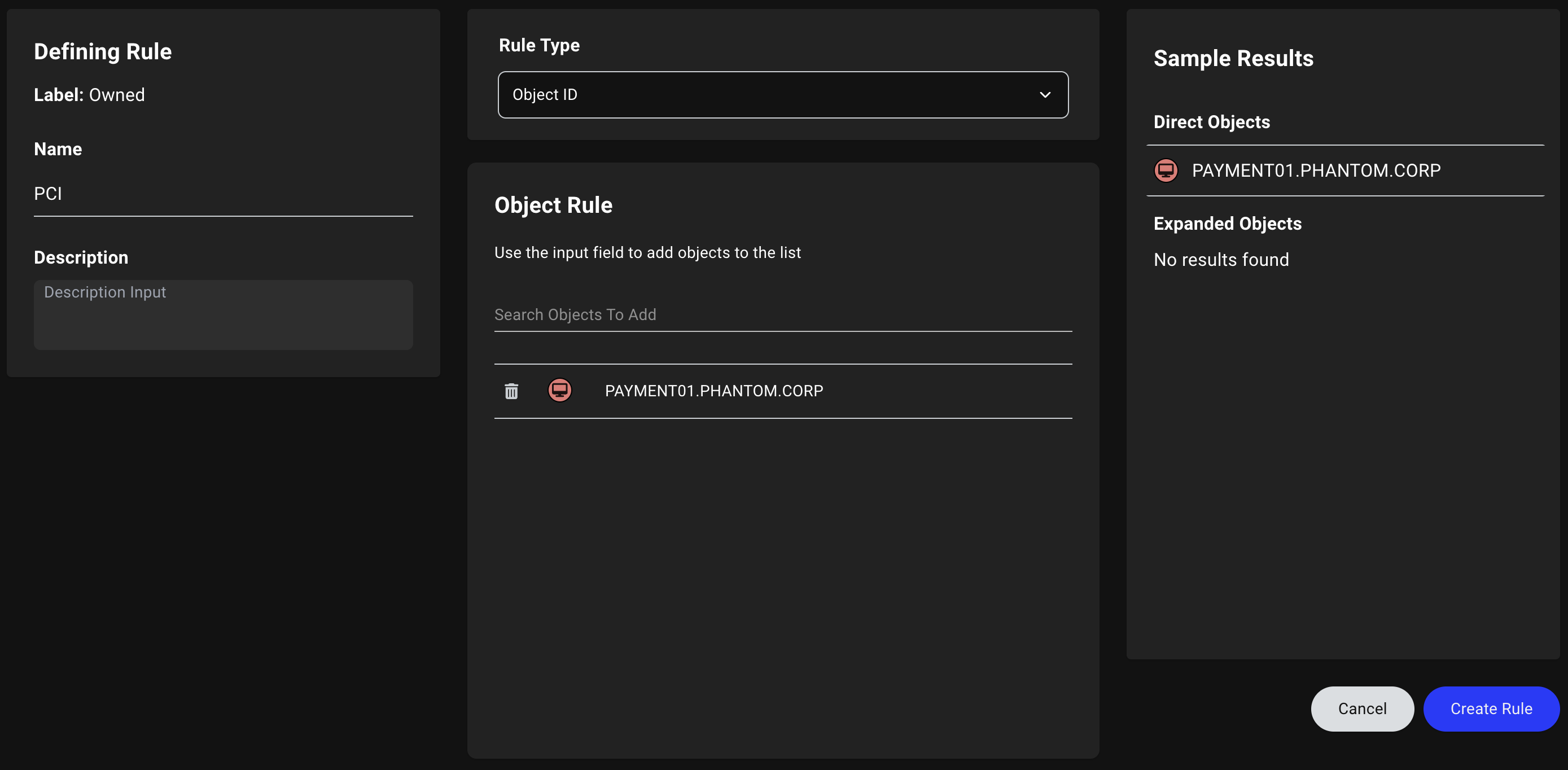
When defining a rule during the label creation process, provide the following information:
| Field | Required? | Description |
| ----------- | :-------: | ---------------------------------------------------------------------- |
| Name | Yes | A unique name for the rule (e.g., PCI) |
| Description | No | A brief description of the rule's purpose and scope (e.g., PCI assets) |
| Rule Type | Yes | The type of rule to use (e.g., Object ID or Cypher) |
Click **Define Rule** to save your new label and continue on to define the objects to include in the label.
See [Rules](/analyze-data/privilege-zones/rules) for more detailed information about defining rules. The content in this section provides a high-level overview only.
When defining a rule during the label creation process, provide the following information:
| Field | Required? | Description |
| ----------- | :-------: | ---------------------------------------------------------------------- |
| Name | Yes | A unique name for the rule (e.g., PCI) |
| Description | No | A brief description of the rule's purpose and scope (e.g., PCI assets) |
| Rule Type | Yes | The type of rule to use (e.g., Object ID or Cypher) |
 Click **Save** to finish creating the label.
### Edit a label
To edit a label, follow these steps:
1. In the left menu, click **Privilege Zones**.
2. Click the **Labels** tab
3. By default, the **Owned** label is pre-selected. To edit a different label, select the label you want to edit.
If you're using BloodHound Enterprise, you can select a label from the **Summary View**.
Click **Save** to finish creating the label.
### Edit a label
To edit a label, follow these steps:
1. In the left menu, click **Privilege Zones**.
2. Click the **Labels** tab
3. By default, the **Owned** label is pre-selected. To edit a different label, select the label you want to edit.
If you're using BloodHound Enterprise, you can select a label from the **Summary View**.
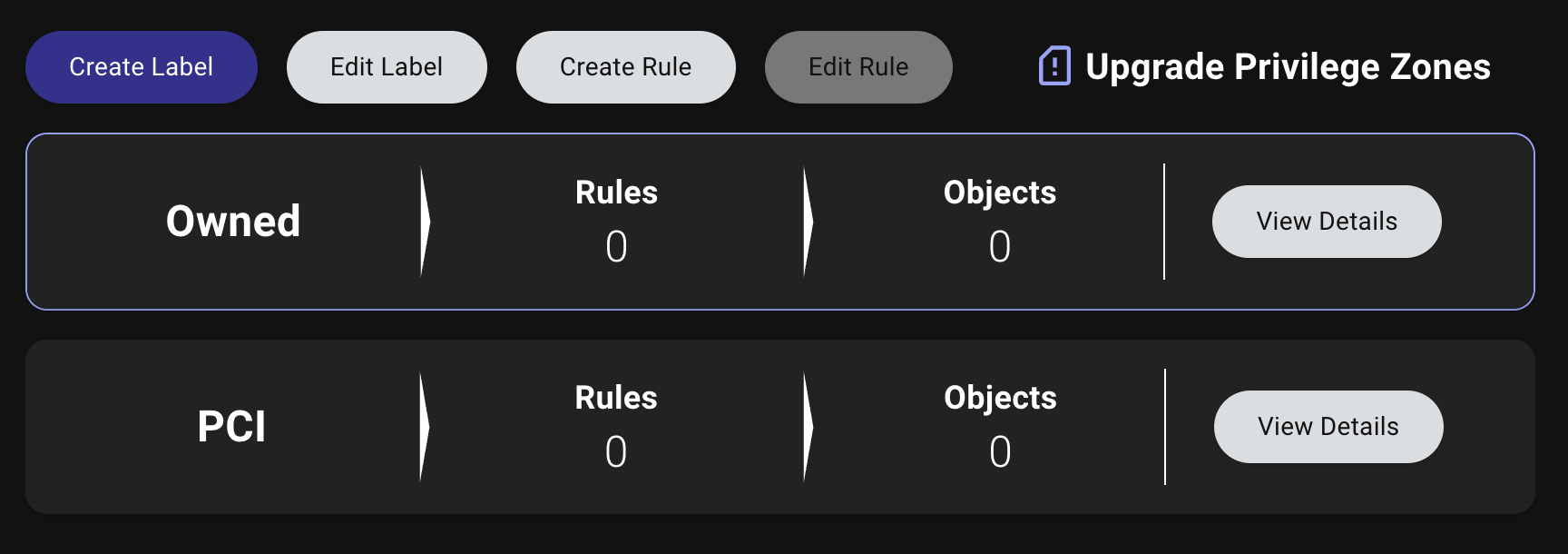 Alternatively, BloodHound Enterprise and BloodHound Community Edition users can select a label using the dropdown menu on the **Details View**.
 4. Click **Edit Label**.
To edit the label:
1. Modify the label's name or description.
2. Click **Save Edits** to apply your changes.
To manage how objects are included in the label, see [Rules](/analyze-data/privilege-zones/rules).
### Delete a label
Enterprise Edition
You cannot delete the default **Owned** label, but you can edit its description and rules.
Deleting a {tab_1} is irreversible.
To delete an existing label, follow these steps:
Navigate to the **Labels** tab, select the label you want to delete, and click **Edit Label**.
To delete the label:
1. Click **Delete Label** at the top of the page.
2. Confirm your action in the dialog.
4. Click **Edit Label**.
To edit the label:
1. Modify the label's name or description.
2. Click **Save Edits** to apply your changes.
To manage how objects are included in the label, see [Rules](/analyze-data/privilege-zones/rules).
### Delete a label
Enterprise Edition
You cannot delete the default **Owned** label, but you can edit its description and rules.
Deleting a {tab_1} is irreversible.
To delete an existing label, follow these steps:
Navigate to the **Labels** tab, select the label you want to delete, and click **Edit Label**.
To delete the label:
1. Click **Delete Label** at the top of the page.
2. Confirm your action in the dialog.
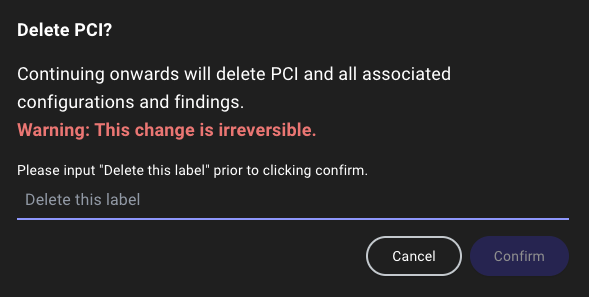 3. Click **Confirm** to delete the label.