> ## Documentation Index
> Fetch the complete documentation index at: https://bloodhound.specterops.io/llms.txt
> Use this file to discover all available pages before exploring further.
# Risk Acceptance
> Learn how to accept findings as known risks in BloodHound Enterprise, and understand the difference between acceptance and remediation.
 The **Attack Paths** page in BloodHound Enterprise surfaces findings. Each finding includes prioritization data such as exposure and impact metrics to help you focus remediation efforts where they matter most.
Not every finding requires immediate remediation. Risk acceptance lets you acknowledge a finding as a known risk that your organization has reviewed and chosen to retain for a certain amount of time.
Use **acceptance** when:
* You have reviewed the risk and agreed to tolerate it for a defined period.
* You are waiting for a change to complete, such as a retention window.
Accepting a finding records that the risk is known and temporarily tolerated. Acceptance is not a fix. To reduce risk, you must remediate the underlying condition.
Use **remediation** when:
* You are ready to remove the risky condition.
* You want posture trends to reflect actual risk reduction.
## Accept a finding
Before accepting a finding, you must sign in to BloodHound Enterprise with a [role](/manage-bloodhound/auth/users-and-roles#user-role-definitions) that can accept attack path impacted principals.
When you accept a finding principal:
* It is still included in posture calculations.
* It is hidden from the default principal table view for that finding.
* The principal and related edges still appear in other analysis views, including **Explore** and **Posture**.
In the left navigation menu, click **Attack Paths**.
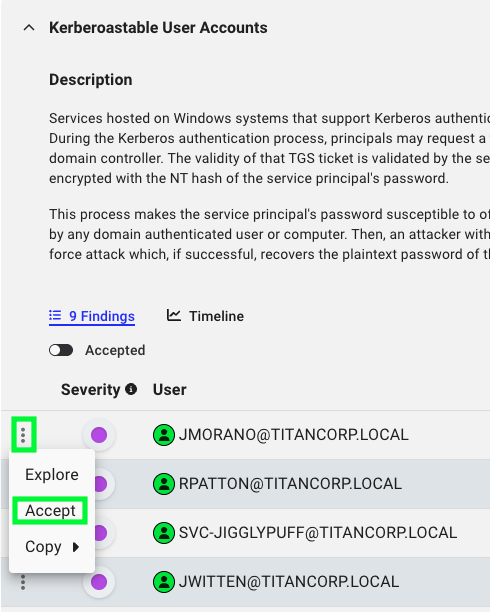
Expand the finding, open the menu to the left of the principal name (three vertical dots) and click **Accept**.
The **Attack Paths** page in BloodHound Enterprise surfaces findings. Each finding includes prioritization data such as exposure and impact metrics to help you focus remediation efforts where they matter most.
Not every finding requires immediate remediation. Risk acceptance lets you acknowledge a finding as a known risk that your organization has reviewed and chosen to retain for a certain amount of time.
Use **acceptance** when:
* You have reviewed the risk and agreed to tolerate it for a defined period.
* You are waiting for a change to complete, such as a retention window.
Accepting a finding records that the risk is known and temporarily tolerated. Acceptance is not a fix. To reduce risk, you must remediate the underlying condition.
Use **remediation** when:
* You are ready to remove the risky condition.
* You want posture trends to reflect actual risk reduction.
## Accept a finding
Before accepting a finding, you must sign in to BloodHound Enterprise with a [role](/manage-bloodhound/auth/users-and-roles#user-role-definitions) that can accept attack path impacted principals.
When you accept a finding principal:
* It is still included in posture calculations.
* It is hidden from the default principal table view for that finding.
* The principal and related edges still appear in other analysis views, including **Explore** and **Posture**.
In the left navigation menu, click **Attack Paths**.
Expand the finding, open the menu to the left of the principal name (three vertical dots) and click **Accept**.
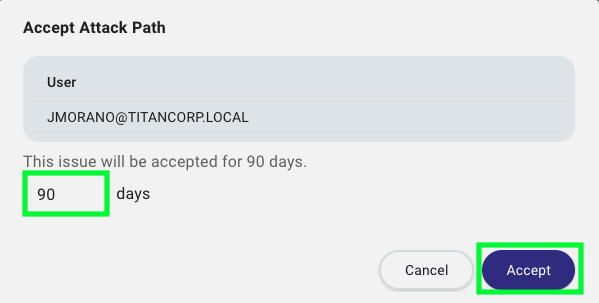
 In the **Accept Attack Path** window, set the number of days for acceptance and click **Accept**.
If you are accepting a finding while you wait for [data retention](/collect-data/enterprise-collection/data-retention#data-retention) settings to delete the associated data, set the duration based on that scenario. For example, for **Logons from Tier Zero Users**, set the duration to 7 days.
In the **Accept Attack Path** window, set the number of days for acceptance and click **Accept**.
If you are accepting a finding while you wait for [data retention](/collect-data/enterprise-collection/data-retention#data-retention) settings to delete the associated data, set the duration based on that scenario. For example, for **Logons from Tier Zero Users**, set the duration to 7 days.
 ## Remove acceptance
To remove acceptance for a principal:
In the left navigation menu, click **Attack Paths**.
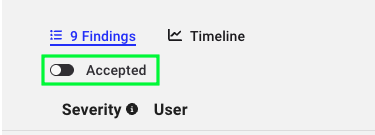
Expand the finding and enable the **Accepted** toggle.
## Remove acceptance
To remove acceptance for a principal:
In the left navigation menu, click **Attack Paths**.
Expand the finding and enable the **Accepted** toggle.
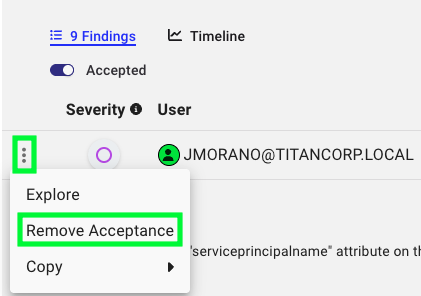
 Open the menu to the left of the accepted principal (three vertical dots), and click **Remove Acceptance**.
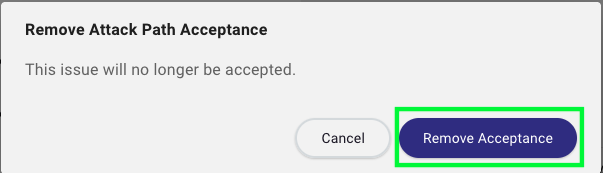
 In the **Remove Attack Path Acceptance** window, select **Remove Acceptance**.
 ## Outcome
After acceptance, the principal is hidden from the default principal table for that finding until you enable the **Accepted** toggle. The principal and related edges remain visible in the **Explore** and **Posture** pages.
## Outcome
After acceptance, the principal is hidden from the default principal table for that finding until you enable the **Accepted** toggle. The principal and related edges remain visible in the **Explore** and **Posture** pages.