> ## Documentation Index
> Fetch the complete documentation index at: https://bloodhound.specterops.io/llms.txt
> Use this file to discover all available pages before exploring further.
# Search and pathfinding
> Search for objects and visualize relationships between them in the graph.
export const method_1 = "Pathfinding"
export const method_0 = "Search"
 After [uploading data](/get-started/quickstart/community-edition-quickstart#get-data-into-bloodhound) to BloodHound, use the **Explore** page to search for objects and visualize their relationships. The graph displays nodes and edges, helping you understand your environment and identify potential attack paths.
If your account uses [Environment Targeted Access Control (ETAC)](/manage-bloodhound/auth/environment-targeted-access-control), search results and graph data are limited to the environments you can access.
BloodHound supports multiple data sources, including Active Directory, Azure (Entra ID), and other identity services through [OpenGraph](/opengraph/overview).
The **Explore** page provides the following methods for searching for objects and visualizing their relationships:
BloodHound supports all search methods for [structured](/opengraph/extensions/manage#structured-graphs) graphs. If you're exploring [generic](/opengraph/extensions/manage#generic-graphs) graphs, you can use the **Search** and **Cypher** methods only.
Find specific objects by name or node type
Discover relationships between objects
Perform complex search with Cypher queries
Which method you choose depends on your specific use case and what you're trying to accomplish. This page describes each of the search methods in more detail and provides guidance on when to use each one.
You can interact with objects in the [graph](#graph-view) and customize the view to explore the data more effectively, regardless of which search method you use.
## Search
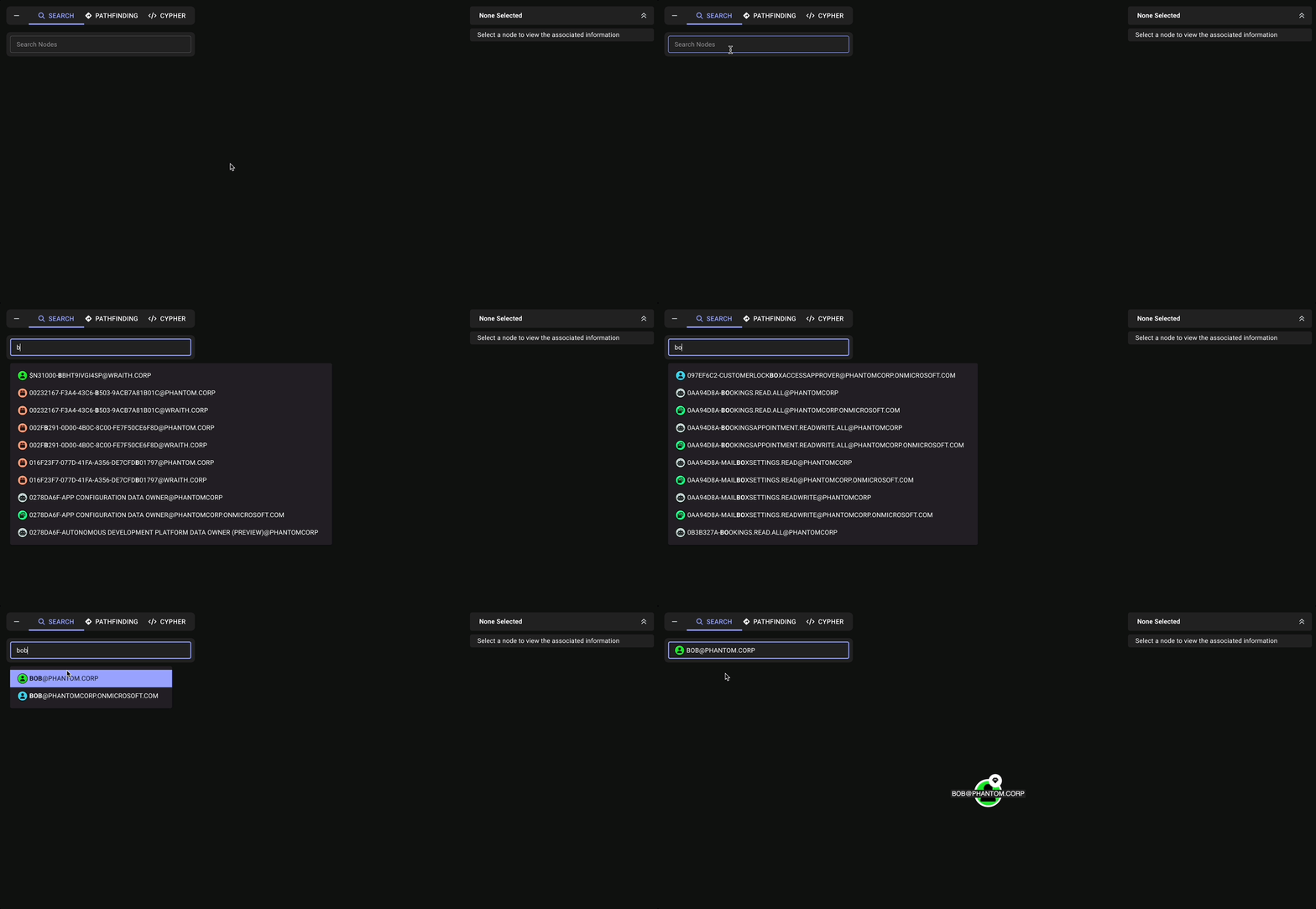
The **Search** tab allows you to quickly find specific nodes in the graph by name or object ID. As you type in the search text box, BloodHound automatically suggests nodes that match your search query. You can click on any of the suggestions to select and display that node in the graph.
OpenGraph node [IDs](/opengraph/developer/nodes#param-id) that contain a colon (`:`) are not supported. **{method_0}** interprets all text *before* a colon as a [node-type filter](/analyze-data/explore/search#filter-by-node-type).
Any ID that contains a colon will have part of the ID dropped, resulting in an unrecognized ID. This can clear the input or interfere with returning the expected results.
Use cases for the search method include:
* **Object discovery:** Quickly locate a known object by name or type to inspect its properties
* **Investigation prep:** Find starting points for deeper exploration using Pathfinding or Cypher queries
* **Data validation:** Verify specific objects are present in your environment after data ingestion
### Search by name or object ID
For example, if you want to find a user named "bob", type "bob" in the search box and click the appropriate node from the suggestions.
The suggestions display the node type next to each match, making it easy to identify the correct object when multiple objects share similar or identical names. OpenGraph data also displays custom icons configured for node types in this dropdown, which can further help you identify the intended object.
After [uploading data](/get-started/quickstart/community-edition-quickstart#get-data-into-bloodhound) to BloodHound, use the **Explore** page to search for objects and visualize their relationships. The graph displays nodes and edges, helping you understand your environment and identify potential attack paths.
If your account uses [Environment Targeted Access Control (ETAC)](/manage-bloodhound/auth/environment-targeted-access-control), search results and graph data are limited to the environments you can access.
BloodHound supports multiple data sources, including Active Directory, Azure (Entra ID), and other identity services through [OpenGraph](/opengraph/overview).
The **Explore** page provides the following methods for searching for objects and visualizing their relationships:
BloodHound supports all search methods for [structured](/opengraph/extensions/manage#structured-graphs) graphs. If you're exploring [generic](/opengraph/extensions/manage#generic-graphs) graphs, you can use the **Search** and **Cypher** methods only.
Find specific objects by name or node type
Discover relationships between objects
Perform complex search with Cypher queries
Which method you choose depends on your specific use case and what you're trying to accomplish. This page describes each of the search methods in more detail and provides guidance on when to use each one.
You can interact with objects in the [graph](#graph-view) and customize the view to explore the data more effectively, regardless of which search method you use.
## Search
The **Search** tab allows you to quickly find specific nodes in the graph by name or object ID. As you type in the search text box, BloodHound automatically suggests nodes that match your search query. You can click on any of the suggestions to select and display that node in the graph.
OpenGraph node [IDs](/opengraph/developer/nodes#param-id) that contain a colon (`:`) are not supported. **{method_0}** interprets all text *before* a colon as a [node-type filter](/analyze-data/explore/search#filter-by-node-type).
Any ID that contains a colon will have part of the ID dropped, resulting in an unrecognized ID. This can clear the input or interfere with returning the expected results.
Use cases for the search method include:
* **Object discovery:** Quickly locate a known object by name or type to inspect its properties
* **Investigation prep:** Find starting points for deeper exploration using Pathfinding or Cypher queries
* **Data validation:** Verify specific objects are present in your environment after data ingestion
### Search by name or object ID
For example, if you want to find a user named "bob", type "bob" in the search box and click the appropriate node from the suggestions.
The suggestions display the node type next to each match, making it easy to identify the correct object when multiple objects share similar or identical names. OpenGraph data also displays custom icons configured for node types in this dropdown, which can further help you identify the intended object.
 ### Filter by node type
You can also constrain your search to particular node types by prepending your search with the appropriate node label.
This works for both built-in node types (AD/AZ) and OpenGraph node types.
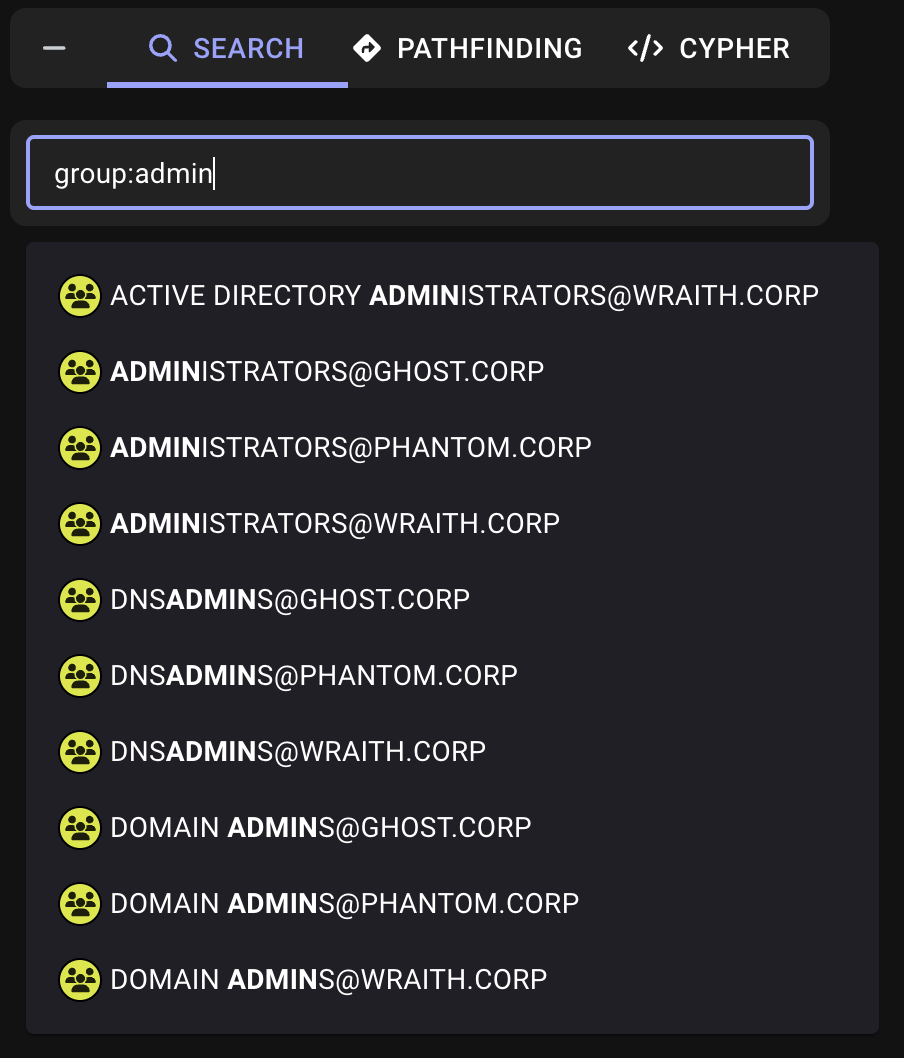
For example, use the following search query to find group nodes that contain the word "admin":
```text theme={null}
group:admin
```
Note that all suggestions for the `group:admin` search query include the group node type icon:
### Filter by node type
You can also constrain your search to particular node types by prepending your search with the appropriate node label.
This works for both built-in node types (AD/AZ) and OpenGraph node types.
For example, use the following search query to find group nodes that contain the word "admin":
```text theme={null}
group:admin
```
Note that all suggestions for the `group:admin` search query include the group node type icon:
 ## Pathfinding
The **Pathfinding** tab allows you to discover relationships between objects by finding paths between them. This is particularly useful for investigating potential attack paths across identity providers and cloud services in a single graph view.
When [ETAC](/manage-bloodhound/auth/environment-targeted-access-control) applies to your user account, pathfinding returns data from the environments you can access only.
BloodHound currently supports the **Search** and **Cypher** search methods for OpenGraph data. Pathfinding is available for [structured](/opengraph/extensions/manage#structured-graphs) graphs only.
OpenGraph node [IDs](/opengraph/developer/nodes#param-id) that contain a colon (`:`) are not supported. **{method_1}** interprets all text *before* a colon as a [node-type filter](/analyze-data/explore/search#filter-by-node-type).
Any ID that contains a colon will have part of the ID dropped, resulting in an unrecognized ID. This can clear the input or interfere with returning the expected results.
Use cases for the pathfinding search method include:
* **Attack path analysis:** Identify potential compromise chains between two objects
* **Relationship mapping:** Understand how objects are connected within your environment
* **Filtered exploration:** Focus on relevant relationships by excluding edge types or reversing path direction
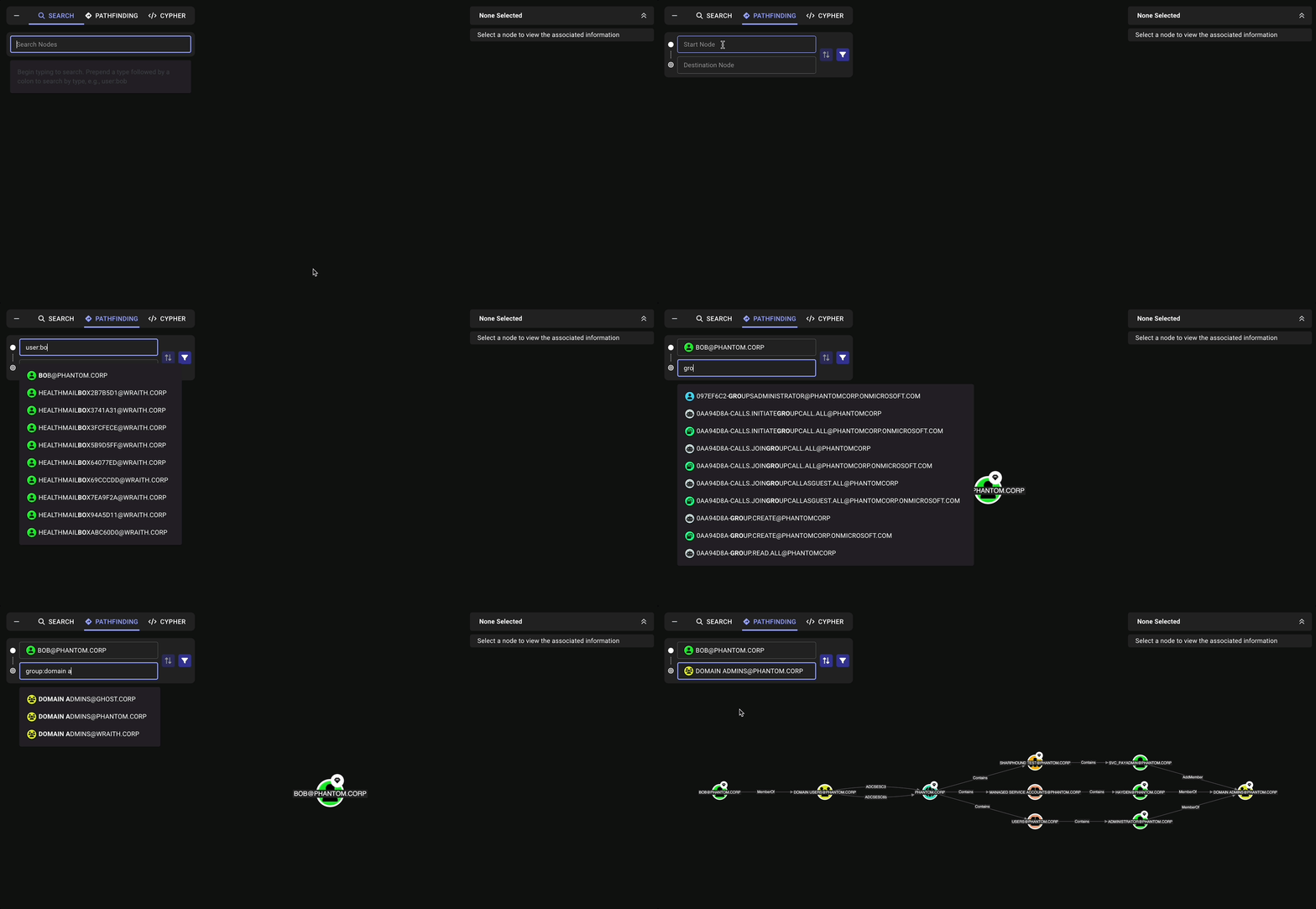
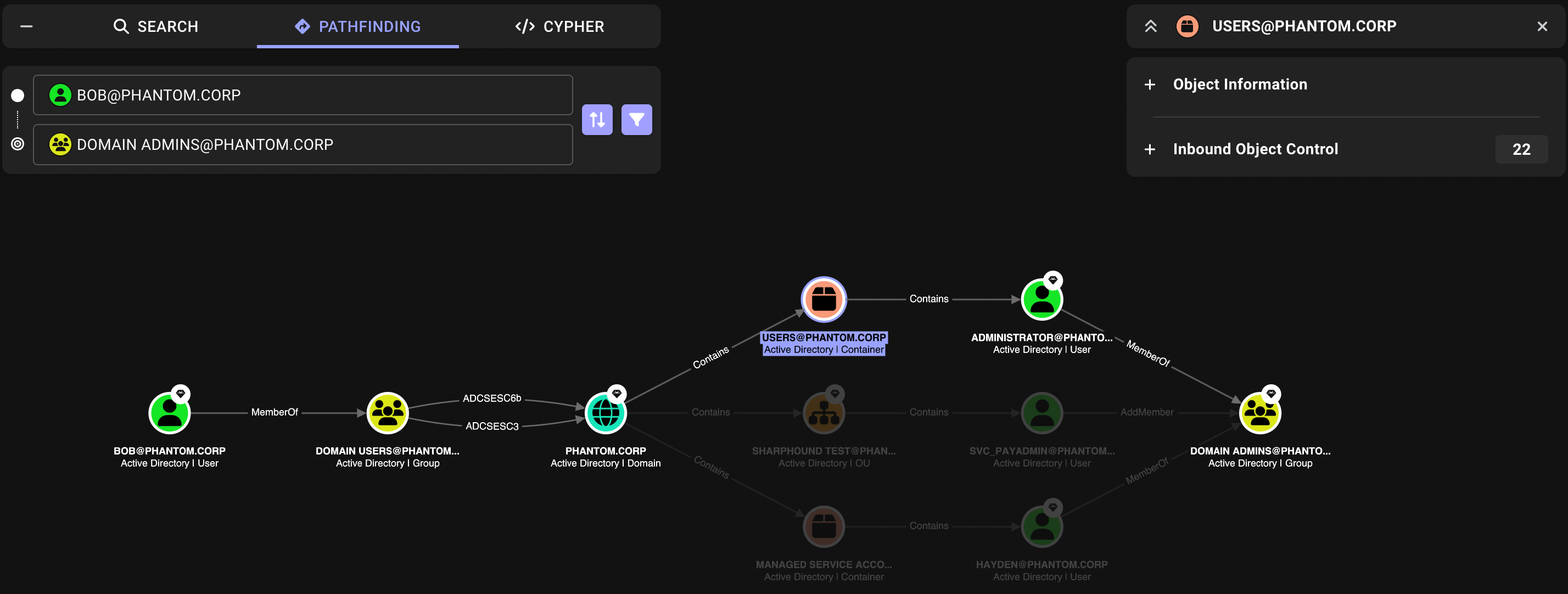
For example, you can find all paths from a user named "bob" to a group containing the name "domain admins" using the previously described [search](/analyze-data/explore/search#search) method for the start and end points:
Like the search method, you can use partial matches and node labels to find your start and end points.
## Pathfinding
The **Pathfinding** tab allows you to discover relationships between objects by finding paths between them. This is particularly useful for investigating potential attack paths across identity providers and cloud services in a single graph view.
When [ETAC](/manage-bloodhound/auth/environment-targeted-access-control) applies to your user account, pathfinding returns data from the environments you can access only.
BloodHound currently supports the **Search** and **Cypher** search methods for OpenGraph data. Pathfinding is available for [structured](/opengraph/extensions/manage#structured-graphs) graphs only.
OpenGraph node [IDs](/opengraph/developer/nodes#param-id) that contain a colon (`:`) are not supported. **{method_1}** interprets all text *before* a colon as a [node-type filter](/analyze-data/explore/search#filter-by-node-type).
Any ID that contains a colon will have part of the ID dropped, resulting in an unrecognized ID. This can clear the input or interfere with returning the expected results.
Use cases for the pathfinding search method include:
* **Attack path analysis:** Identify potential compromise chains between two objects
* **Relationship mapping:** Understand how objects are connected within your environment
* **Filtered exploration:** Focus on relevant relationships by excluding edge types or reversing path direction
For example, you can find all paths from a user named "bob" to a group containing the name "domain admins" using the previously described [search](/analyze-data/explore/search#search) method for the start and end points:
Like the search method, you can use partial matches and node labels to find your start and end points.
 Pathfinding also includes options to customize your search:
* **Reverse path** —Swap your start and end points to explore paths in the opposite direction without re-entering your search queries. This is useful for finding how high-value targets connect back to entry points.
* **Filter edges** —Select which edge types to include in the results. By default, all edge types are selected; deselect any you don't want included in the paths to focus on relevant relationships.
## Cypher
The **Cypher** tab allows you to perform complex searches using Cypher queries.
Cypher is a powerful query language for graph databases. It enables you to manipulate and examine BloodHound data in custom ways to help you further understand your network or identify interesting relationships.
See [Search with Cypher](/analyze-data/explore/cypher-search) for more information.
## Graph view
The graph on the **Explore** page provides a visual representation of the objects in your data based on your search criteria. You can interact with the graph by clicking on nodes and edges to view detailed information about them in the **Entity** panel, and by using various visualization options to customize the graph view.
The following example shows a graph based on the example in the [Pathfinding](/analyze-data/explore/search#pathfinding) section above, which finds paths from a user named "bob" to a group named "domain admins".
Pathfinding also includes options to customize your search:
* **Reverse path** —Swap your start and end points to explore paths in the opposite direction without re-entering your search queries. This is useful for finding how high-value targets connect back to entry points.
* **Filter edges** —Select which edge types to include in the results. By default, all edge types are selected; deselect any you don't want included in the paths to focus on relevant relationships.
## Cypher
The **Cypher** tab allows you to perform complex searches using Cypher queries.
Cypher is a powerful query language for graph databases. It enables you to manipulate and examine BloodHound data in custom ways to help you further understand your network or identify interesting relationships.
See [Search with Cypher](/analyze-data/explore/cypher-search) for more information.
## Graph view
The graph on the **Explore** page provides a visual representation of the objects in your data based on your search criteria. You can interact with the graph by clicking on nodes and edges to view detailed information about them in the **Entity** panel, and by using various visualization options to customize the graph view.
The following example shows a graph based on the example in the [Pathfinding](/analyze-data/explore/search#pathfinding) section above, which finds paths from a user named "bob" to a group named "domain admins".
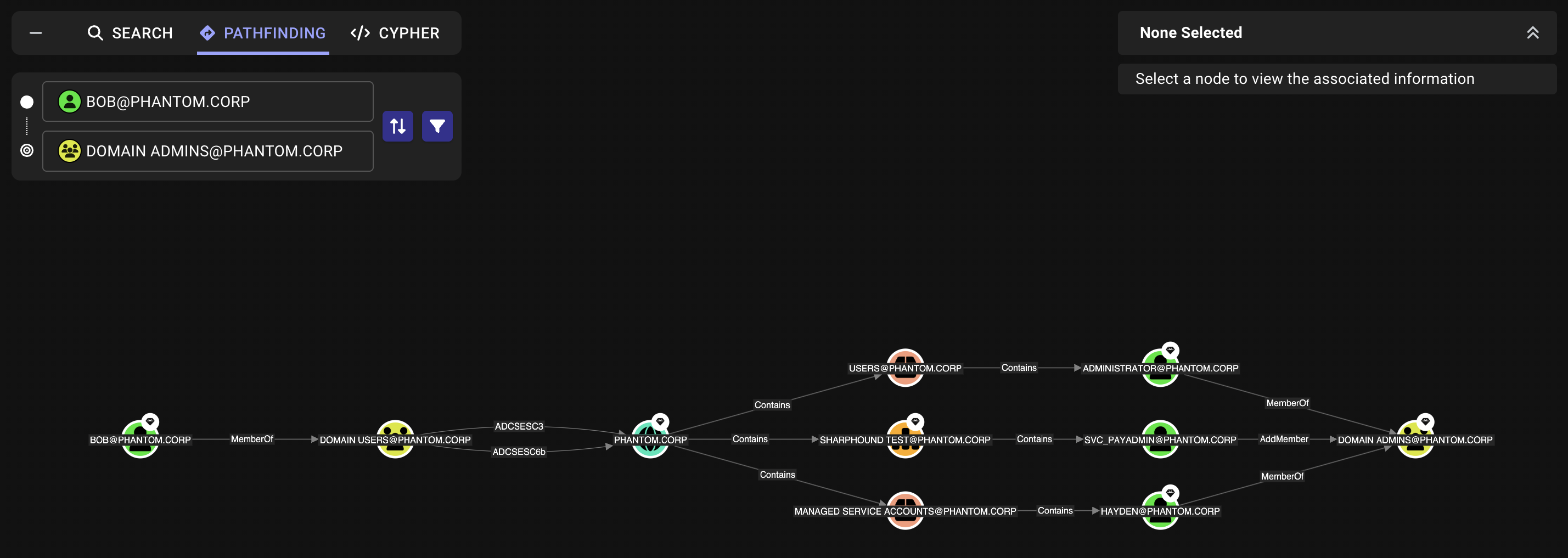 The graph displays the nodes and edges that connect user `BOB@PHANTOM.CORP` to group `DOMAIN ADMINS@PHANTOM.CORP`, allowing you to visually explore the relationships between objects.
### Object interaction
You can interact with nodes and edges in the graph to view detailed information about them in the [Entity panel](/analyze-data/explore/search#entity-panel). For nodes, you can right-click to perform more actions using the [context menu](/analyze-data/explore/search#context-menu).
To keep dense graphs readable, BloodHound clips long node labels by default. Click a node to view its full label.
When you click a node, BloodHound dims unrelated nodes and edges and highlights every path that traverses the selected node. This includes inbound and outbound object control paths, making it easier to isolate how the selected node participates in the current graph.
For example, clicking `USERS@PHANTOM.CORP` in the previous graph highlights the path through that node to `DOMAIN ADMINS@PHANTOM.CORP` and dims the other paths that do not traverse it.
The graph displays the nodes and edges that connect user `BOB@PHANTOM.CORP` to group `DOMAIN ADMINS@PHANTOM.CORP`, allowing you to visually explore the relationships between objects.
### Object interaction
You can interact with nodes and edges in the graph to view detailed information about them in the [Entity panel](/analyze-data/explore/search#entity-panel). For nodes, you can right-click to perform more actions using the [context menu](/analyze-data/explore/search#context-menu).
To keep dense graphs readable, BloodHound clips long node labels by default. Click a node to view its full label.
When you click a node, BloodHound dims unrelated nodes and edges and highlights every path that traverses the selected node. This includes inbound and outbound object control paths, making it easier to isolate how the selected node participates in the current graph.
For example, clicking `USERS@PHANTOM.CORP` in the previous graph highlights the path through that node to `DOMAIN ADMINS@PHANTOM.CORP` and dims the other paths that do not traverse it.
 #### Context menu
Right-click on any node in the graph to access the context menu. Options in the context menu include:
* **Set as starting node**—Set the node as the starting point in the **Pathfinding** tab and immediately draw a new graph showing paths between that node and the current ending node
* **Set as ending node**—Set the node as the ending point in the **Pathfinding** tab and immediately draw a new graph showing paths between the current starting node and that node
* **Add to/Remove from Tier Zero**—Mark or unmark the node as a member of the Tier Zero privilege zone. Adding automatically triggers analysis to tag the object; removing requires [manually editing](/analyze-data/privilege-zones/rules#edit-or-delete-a-rule) the zone rule to remove the object.
* **Add to/Remove from Owned**—Mark or unmark the node as compromised in the Privilege Zones page. Adding automatically triggers analysis to tag the object; removing requires [manually editing](/analyze-data/privilege-zones/rules#edit-or-delete-a-rule) the label rule to remove the object.
* **Copy**—Copy the node's name, object ID, or a Cypher query to your clipboard for use in other searches or documentation
#### Entity panel
The **Entity** panel on the **Explore** page displays detailed object properties and relationships. The information is displayed in an accordion format based on the selected node or edge, which can vary depending on your data source.
For built-in node and edge types (AD/AZ), BloodHound displays structured data organized into the accordions described below. For OpenGraph data, BloodHound displays all values from the [`properties`](/opengraph/developer/nodes) object as a flat list, without the structured accordions.
For nodes, expanding each accordion reveals more detail and dynamically updates the graph. For example, expanding the **Sessions** accordion shows all computers where the node has active sessions and updates the graph.
BloodHound displays the following information in the **Entity** panel when you click on a node (if the information is available in your data):
| Accordion | Description |
| --------------------------- | ----------------------------------------------------------------------------------------------------------------------------------------------------------------- |
| **Object Information** | Displays the collected properties and attributes of a selected object
#### Context menu
Right-click on any node in the graph to access the context menu. Options in the context menu include:
* **Set as starting node**—Set the node as the starting point in the **Pathfinding** tab and immediately draw a new graph showing paths between that node and the current ending node
* **Set as ending node**—Set the node as the ending point in the **Pathfinding** tab and immediately draw a new graph showing paths between the current starting node and that node
* **Add to/Remove from Tier Zero**—Mark or unmark the node as a member of the Tier Zero privilege zone. Adding automatically triggers analysis to tag the object; removing requires [manually editing](/analyze-data/privilege-zones/rules#edit-or-delete-a-rule) the zone rule to remove the object.
* **Add to/Remove from Owned**—Mark or unmark the node as compromised in the Privilege Zones page. Adding automatically triggers analysis to tag the object; removing requires [manually editing](/analyze-data/privilege-zones/rules#edit-or-delete-a-rule) the label rule to remove the object.
* **Copy**—Copy the node's name, object ID, or a Cypher query to your clipboard for use in other searches or documentation
#### Entity panel
The **Entity** panel on the **Explore** page displays detailed object properties and relationships. The information is displayed in an accordion format based on the selected node or edge, which can vary depending on your data source.
For built-in node and edge types (AD/AZ), BloodHound displays structured data organized into the accordions described below. For OpenGraph data, BloodHound displays all values from the [`properties`](/opengraph/developer/nodes) object as a flat list, without the structured accordions.
For nodes, expanding each accordion reveals more detail and dynamically updates the graph. For example, expanding the **Sessions** accordion shows all computers where the node has active sessions and updates the graph.
BloodHound displays the following information in the **Entity** panel when you click on a node (if the information is available in your data):
| Accordion | Description |
| --------------------------- | ----------------------------------------------------------------------------------------------------------------------------------------------------------------- |
| **Object Information** | Displays the collected properties and attributes of a selected object
See [node reference](/resources/nodes/overview) for details about each node type |
| **Sessions** | List of objects where the selected node has active sessions |
| **Members** | List of objects that are members of the selected node |
| **Member Of** | List of objects where the selected node is a member |
| **Local Admin Privileges** | List of objects where the selected node has local administrator privileges |
| **Execution Privileges** | List of objects where the selected node has execution privileges |
| **Inbound Object Control** | List of objects that can control the selected node |
| **Outbound Object Control** | List of objects that the selected node can control |
BloodHound displays the following information in the **Entity** panel when you click on an edge (if the information is available in your data):
| Accordion | Description |
| ---------------------------- | ------------------------------------------------------------------------------------------------------------------------------------------------------ |
| **Relationship Information** | Details about the selected relationship, including the source node, target node, ACL status, and the last time BloodHound observed it |
| **General** | A detailed description of the relationship between the two nodes connected by a selected edge |
| **Abuse** | Step-by-step guidance, tools, and techniques for abusing the relationship represented by an edge to compromise or gain control over a target principal |
| **OPSEC** | Operational security implications and detection risks associated with abusing a particular edge |
| **References** | Links to publicly available resources used to create the above information |
This information is also available for each edge in the [reference](/resources/edges/overview) documentation.
### Visualization options
Use the graph visualization options at the bottom of the **Explore** page to customize how the graph is displayed based on your preferences. This can be useful for large, complex graphs with many nodes and edges.
Layout behavior depends on whether you explicitly choose a layout:
| Scenario | No layout selected | Layout explicitly selected |
| ---------------------------------------------- | ---------------------------------------------------------------------------------------- | ----------------------------------------------------------------------------------------------------------------------------------------- |
| Default results | Uses edition default | Keeps your selected layout for future results and sessions.
Click the selected layout again to clear it and return to default. |
| Multi-node
Cypher results
(no edges) | Uses **Table** layout | Keeps your selected layout; does not use **Table** |
| After closing **Table** | Uses edition default | Returns to your previously selected layout |
 1. **Reset graph view**—Restore the graph view to its default layout and zoom level
2. **Hide Labels**—Toggle the visibility of labels on nodes and edges to reduce clutter and focus on the structure of the graph (also useful for obfuscating sensitive information before sharing graph images)
3. **Layout**—Choose from the following layout options to organize the graph visually:
1. **Reset graph view**—Restore the graph view to its default layout and zoom level
2. **Hide Labels**—Toggle the visibility of labels on nodes and edges to reduce clutter and focus on the structure of the graph (also useful for obfuscating sensitive information before sharing graph images)
3. **Layout**—Choose from the following layout options to organize the graph visually:
 Uses a force-directed layout algorithm to position objects based on their relationships, creating a natural and intuitive view of the graph.
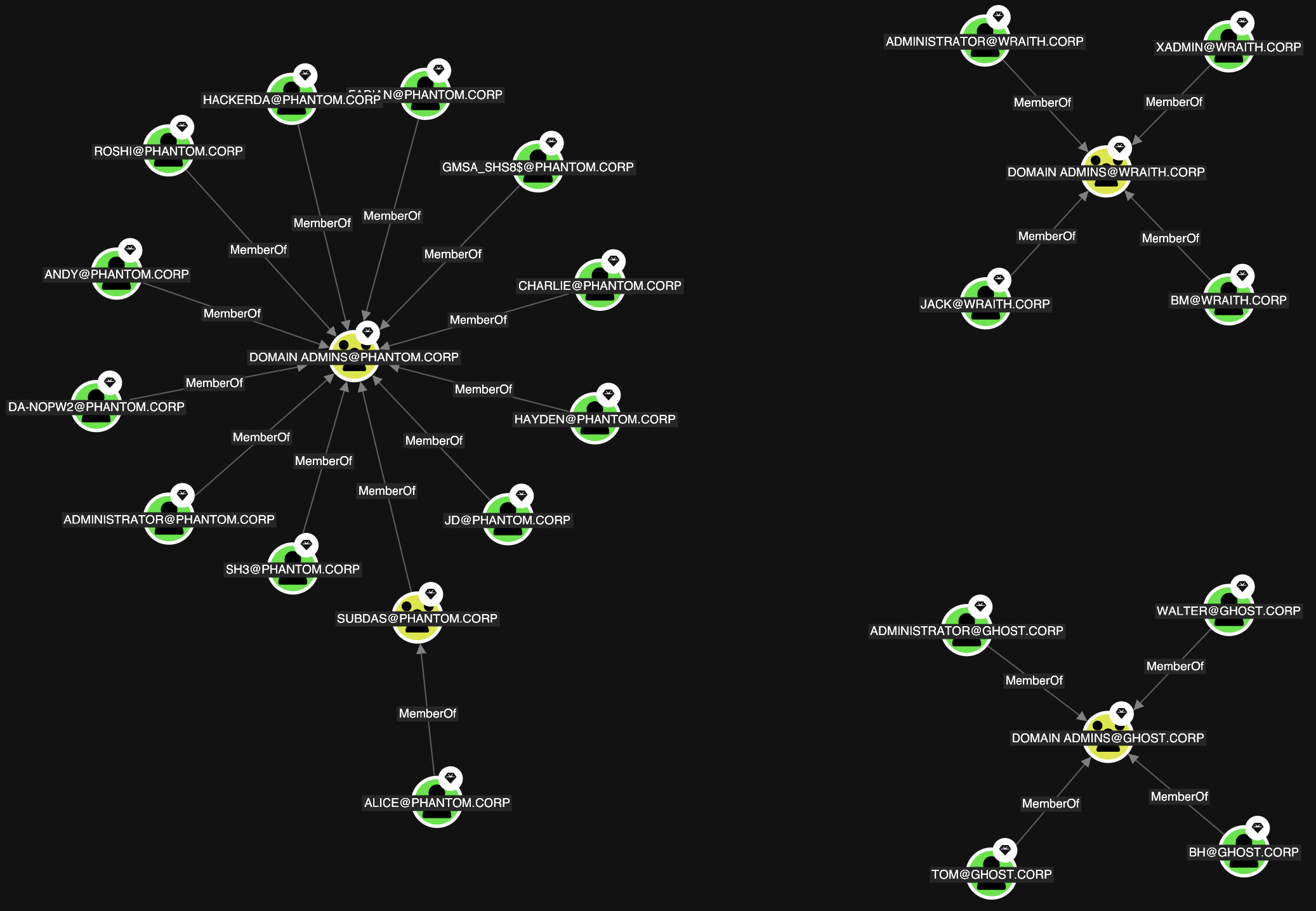 The default layout for BloodHound Enterprise.
Combines hierarchical layering with grid arrangement, organizing objects left to right in ranked layers while arranging multiple nodes within each layer in a structured grid pattern.
The default layout for BloodHound Enterprise.
Combines hierarchical layering with grid arrangement, organizing objects left to right in ranked layers while arranging multiple nodes within each layer in a structured grid pattern.
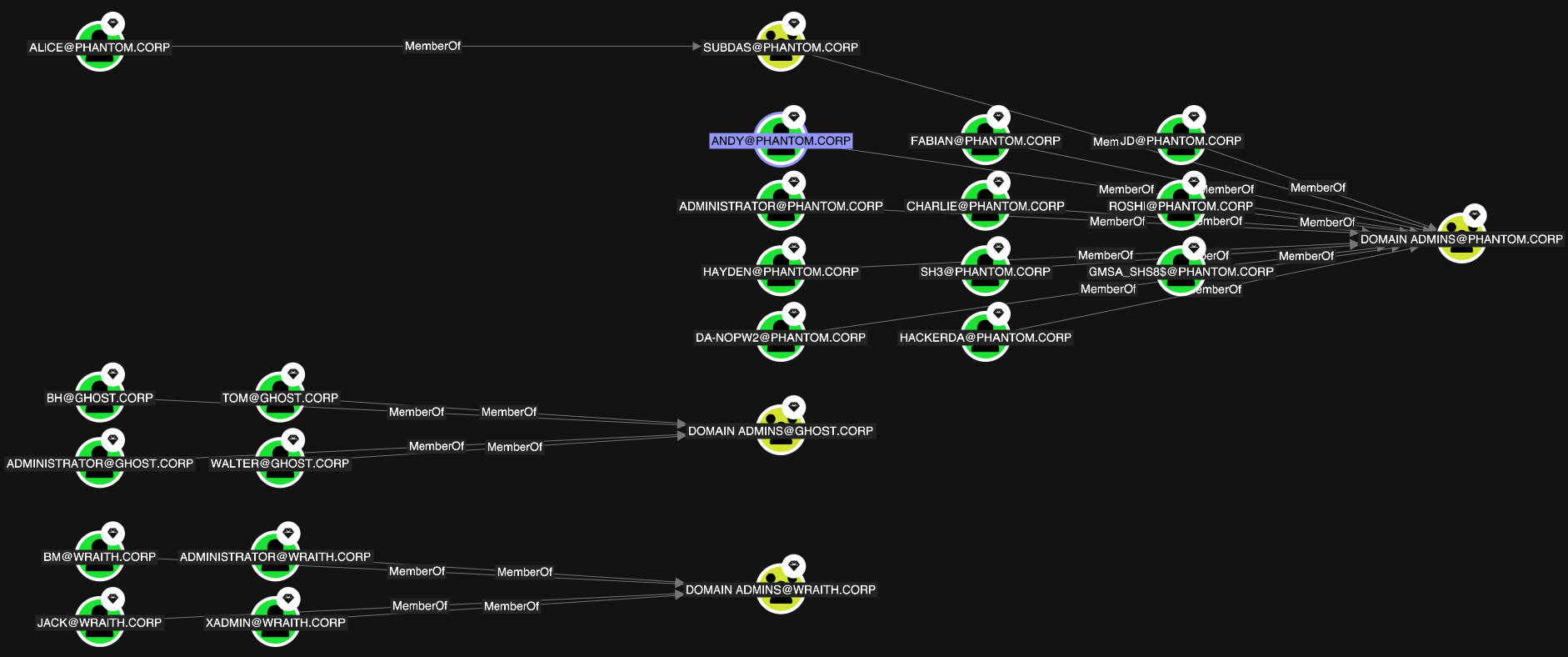 The default layout for BloodHound Community.
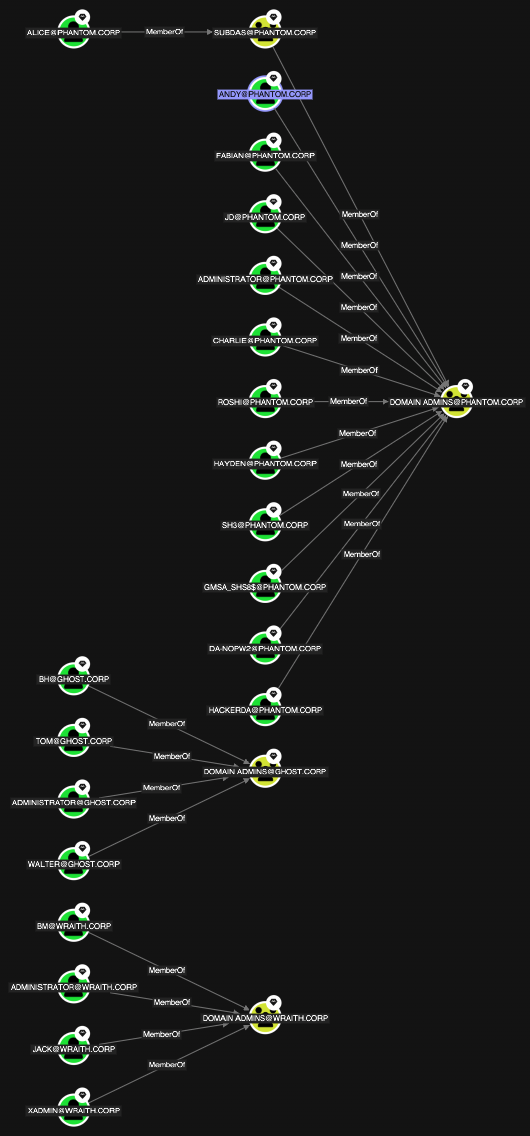
Uses a hierarchical layout algorithm that organizes objects from left to right in ranked layers based on their relationships, ideal for visualizing directional paths and dependencies.
The default layout for BloodHound Community.
Uses a hierarchical layout algorithm that organizes objects from left to right in ranked layers based on their relationships, ideal for visualizing directional paths and dependencies.
 Uses a balanced force-directed algorithm that pulls connected nodes together while maintaining spacing between unconnected nodes, creating an evenly distributed layout.
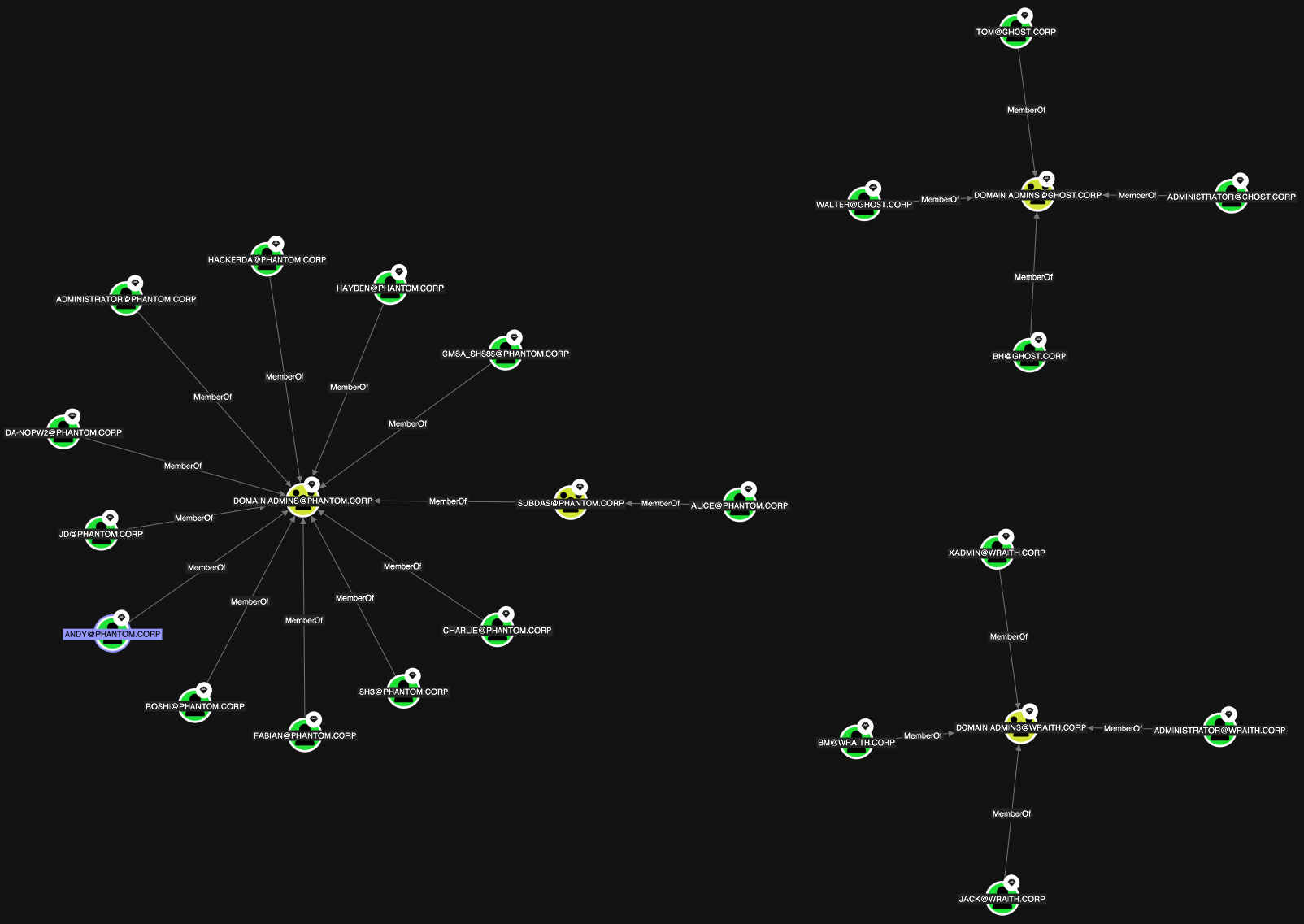 Displays objects in a tabular format, showing properties in rows and columns for easy comparison.
The **Table** layout is available for Cypher searches only and is useful for searching and sorting large sets of data. When no layout is selected, BloodHound automatically opens this layout for Cypher results that return multiple nodes and no edges.
Displays objects in a tabular format, showing properties in rows and columns for easy comparison.
The **Table** layout is available for Cypher searches only and is useful for searching and sorting large sets of data. When no layout is selected, BloodHound automatically opens this layout for Cypher results that return multiple nodes and no edges.
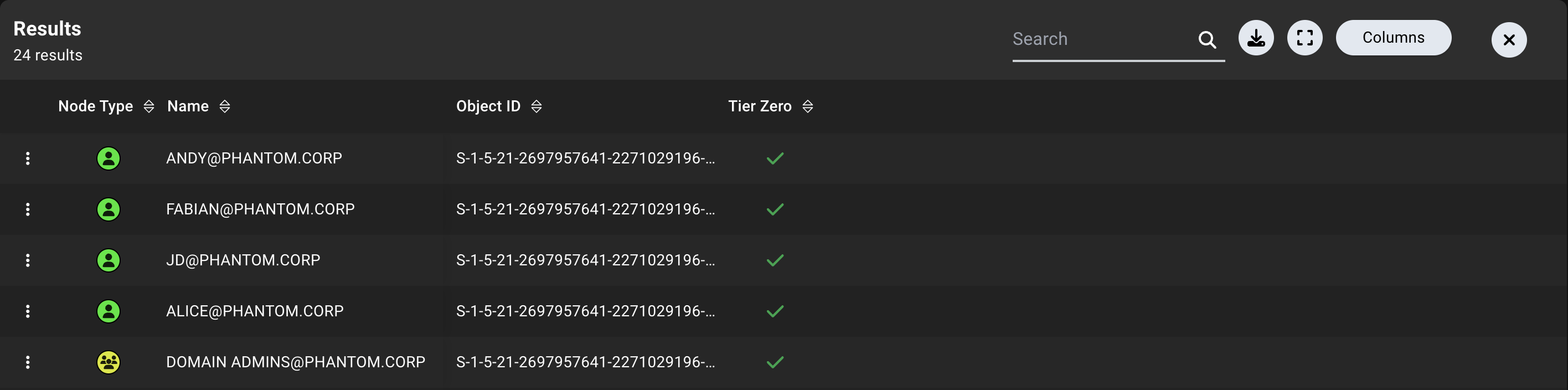 The table includes the following columns by default:
| Column | Description |
| ------------- | --------------------------------------------------------------- |
| **Node Type** | The type of the object (node label) |
| **Name** | The name of the object |
| **Object ID** | The unique identifier of the object |
| **Tier Zero** | Indicates if the object is part of the Tier Zero privilege zone |
* Click the (ellipsis) icon in each row to access the [context menu](#context-menu) for that object.
* Resize columns to view more or less information as needed by clicking and dragging the edges of the column dividers (or double-clicking the column dividers to auto-size).
The table layout provides the following options:
* **Search**—Quickly identify specific objects among the nodes displayed in the graph
* **Export**—Download the current graph view as a CSV file for further analysis or sharing
* **Expand**—Maximize the graph view to fill the screen for better visibility
* **Columns**—Search, add/remove, sort, reorder, reset column size, reset defaults, and pin columns in the table layout
Graph visualization options are available across all search methods. The **Table** layout is available for Cypher searches only.
The table includes the following columns by default:
| Column | Description |
| ------------- | --------------------------------------------------------------- |
| **Node Type** | The type of the object (node label) |
| **Name** | The name of the object |
| **Object ID** | The unique identifier of the object |
| **Tier Zero** | Indicates if the object is part of the Tier Zero privilege zone |
* Click the (ellipsis) icon in each row to access the [context menu](#context-menu) for that object.
* Resize columns to view more or less information as needed by clicking and dragging the edges of the column dividers (or double-clicking the column dividers to auto-size).
The table layout provides the following options:
* **Search**—Quickly identify specific objects among the nodes displayed in the graph
* **Export**—Download the current graph view as a CSV file for further analysis or sharing
* **Expand**—Maximize the graph view to fill the screen for better visibility
* **Columns**—Search, add/remove, sort, reorder, reset column size, reset defaults, and pin columns in the table layout
Graph visualization options are available across all search methods. The **Table** layout is available for Cypher searches only.